Securing Microsoft Entra Guest Access: Lifecycle Management with Access Packages and Access Reviews
Securing Microsoft Entra guest access does not end with authentication and access control. A defined lifecycle is equally important. It must be clear why a guest receives access, who approves that access, how long it remains valid, and what happens when the collaboration ends.
With a direct invitation through Microsoft Entra B2B Collaboration, Microsoft Entra ID creates a guest object in the resource tenant. Microsoft Teams, Microsoft 365 groups, SharePoint Online sites, or applications can then be assigned. However, the invitation itself does not define an approval process or an access duration. Without additional governance, the guest account and its permissions remain in place until administrators review or remove them manually.
Microsoft Entra Entitlement Management controls this process with Access Packages. An Access Package bundles the required resources and links their assignment to policies for requests, approvals, and assignment duration. For external users, Microsoft Entra can automatically create the B2B guest object when required and remove it again after the last managed assignment expires. Access Reviews complement this process by regularly verifying whether existing access is still required.
This post explains how to configure Microsoft Entra Guest Access with Access Packages and use them to manage a controlled lifecycle for external users. It covers access requests, approvals, assignment duration, removal of permissions, and the guest account lifecycle through potential sign-in blocking and deletion. Access Reviews complement the process by providing recurring reviews of existing assignments. This post therefore extends the first part of the series, which covers the trust relationship and access conditions between the home tenant and the resource tenant.
Prerequisites and Licensing
Access Packages
Access Packages are part of Microsoft Entra Entitlement Management. For guest users, Microsoft uses a licensing model that differs from the licensing model for internal users.
To govern guest users, at least one administrator in the tenant must have one of the following licenses:
- Microsoft Entra ID Governance
- Microsoft Entra Suite
The guest users themselves do not require an individually assigned Microsoft Entra ID Governance license.
For guest users with UserType Guest, Microsoft Entra ID Governance uses a consumption-based Monthly Active User model. The current licensing model for guest users is documented in the Microsoft Learn article Microsoft Entra ID Governance licensing for guest users – Microsoft Entra ID Governance | Microsoft Learn.
Access Reviews
Access Reviews extend the lifecycle of an Access Package by adding recurring reviews of existing assignments.
Advanced Access Review capabilities for guest users may require the consumption-based licensing model for guests. The current licensing model for guest users is documented in the Microsoft Learn article Microsoft Entra ID Governance licensing for guest users – Microsoft Entra ID Governance | Microsoft Learn.
The configuration of Access Reviews is covered in the post Microsoft Entra Access Reviews: Governance for User and Guest Access – cloudcoffee.ch.
Roles
The following role is appropriate for configuring Access Packages according to the principle of least privilege.
| Role | Permissions |
| Identity Governance Administrator | Create and manage catalogs Manage connected organizations Create and manage Access Packages and policies |
Good to know: Adding resources to a catalog can require additional permissions on the respective resource. This applies, for example, to Microsoft Entra groups, Microsoft Teams, enterprise applications, and SharePoint Online sites. For the Microsoft 365 group used in this example, the identity performing the configuration therefore also requires the necessary permissions to manage the group.
Approvers of an Access Package request do not require an administrative Microsoft Entra role.
How Catalogs, Access Packages, and Policies Work Together
Microsoft Entra Entitlement Management uses three separate elements: resources, Access Packages, and policies that govern their assignment.
A catalog is a container for resources. Possible resources include Microsoft Entra groups, Microsoft Teams, SharePoint Online sites, and enterprise applications.
An Access Package bundles the required resources from a catalog together with the corresponding roles for a specific access purpose.
A policy belongs to an Access Package and defines the conditions under which a user can receive access. These conditions include:
- which users can request access
- whether approval is required
- how long the assignment remains valid
- whether Access Reviews are performed
For an external user, Microsoft Entra can use these elements to control the onboarding and offboarding process. The user requests the Access Package through My Access. After successful approval, Microsoft Entra creates a B2B guest object in the resource tenant when required and assigns the resources defined in the Access Package. When the last managed Access Package assignment ends, the configured lifecycle settings for the external user take effect.
Prepare Entitlement Management
Create a Connected Organization
To allow users from a known partner organization to request an Access Package, the organization must be registered as a connected organization in Entitlement Management. The Access Package policy can then control which external organizations are allowed to request the Access Package. For known partners, it therefore makes sense to configure the external organization before creating the Access Package policy.
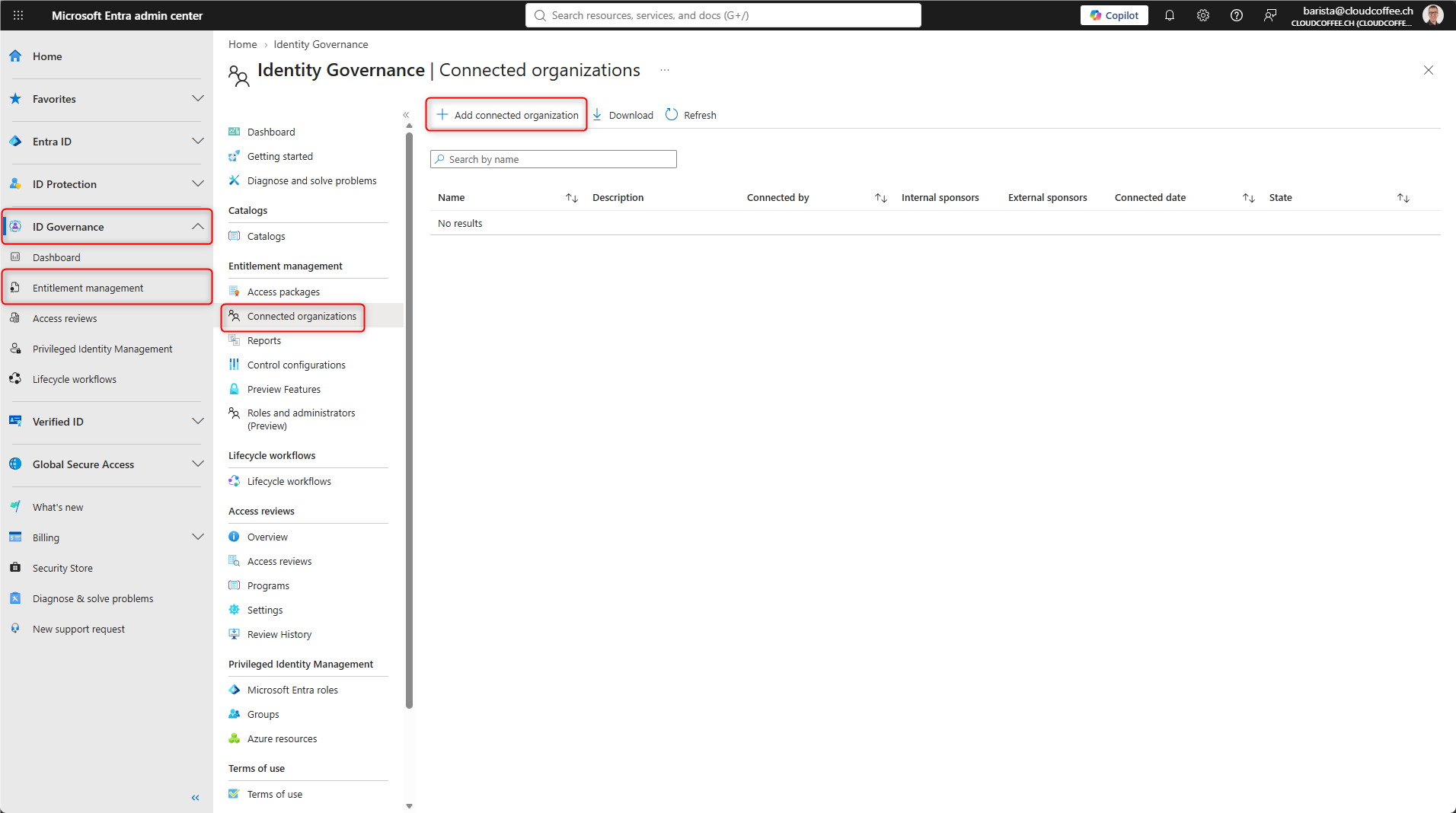
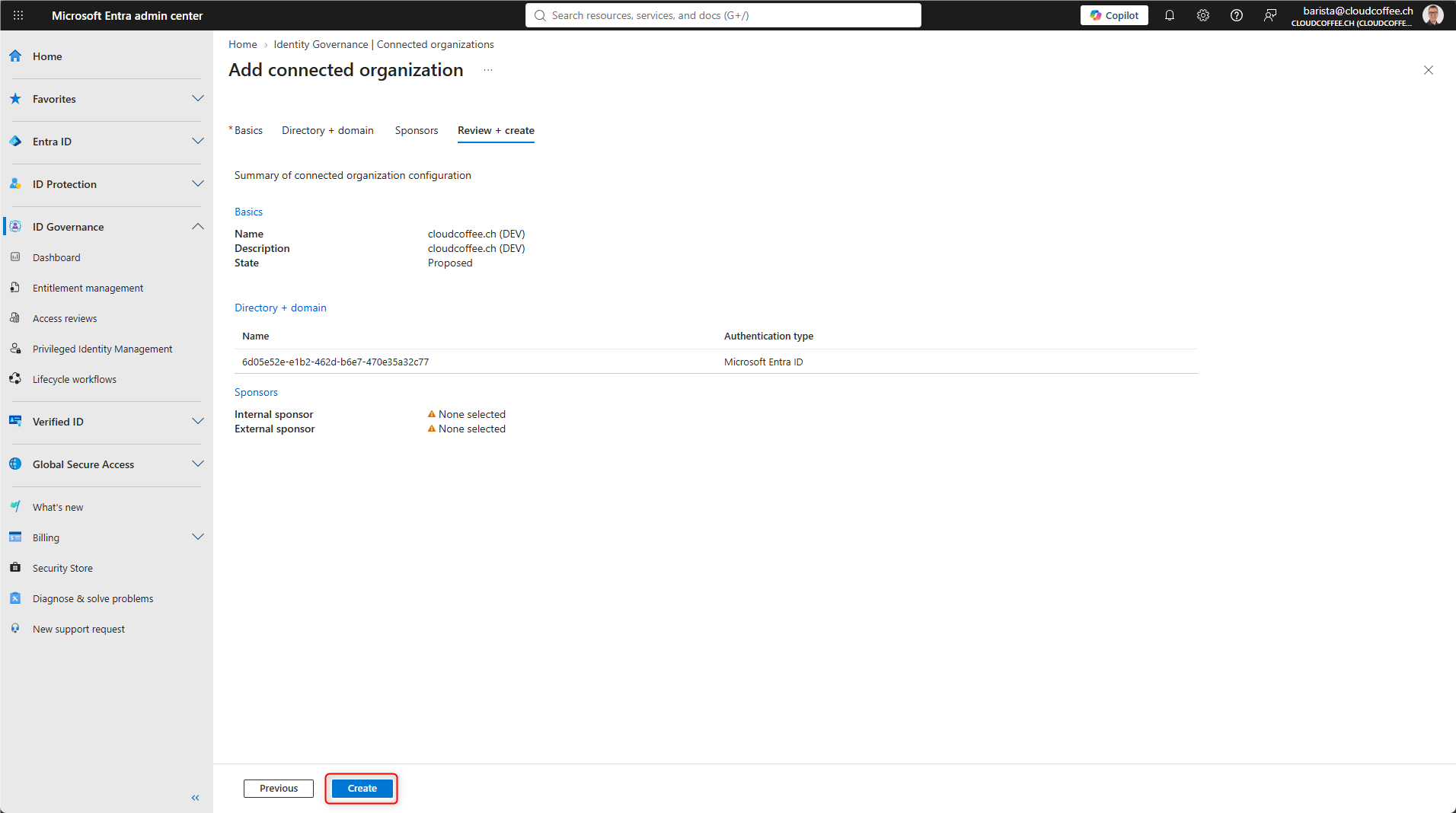
The configuration is available under: Microsoft Entra admin center (https://entra.microsoft.com) > ID Governance > Entitlement management > Connected organizations > Add connected organization
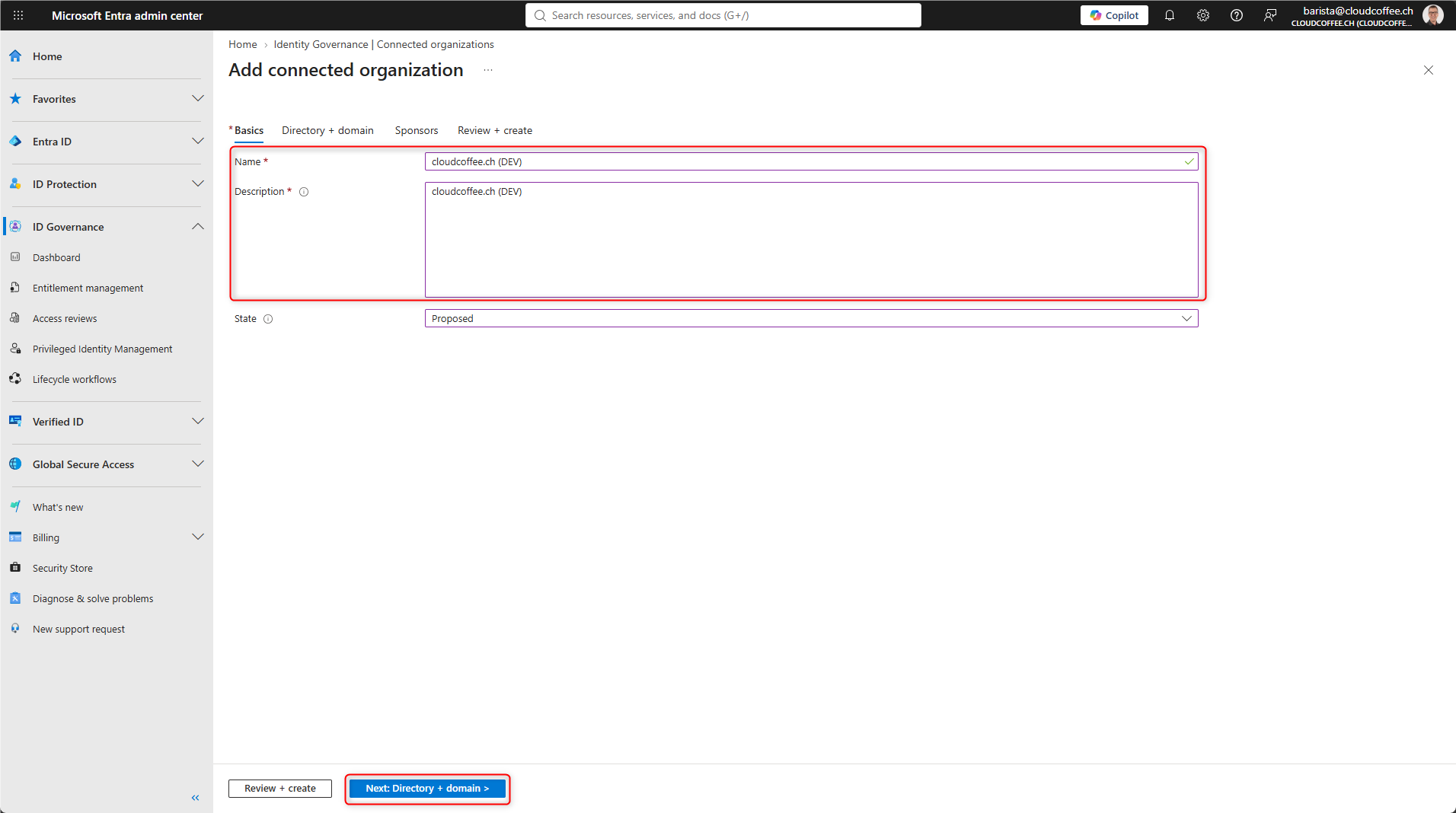
Enter a Name and Description for the connected organization.
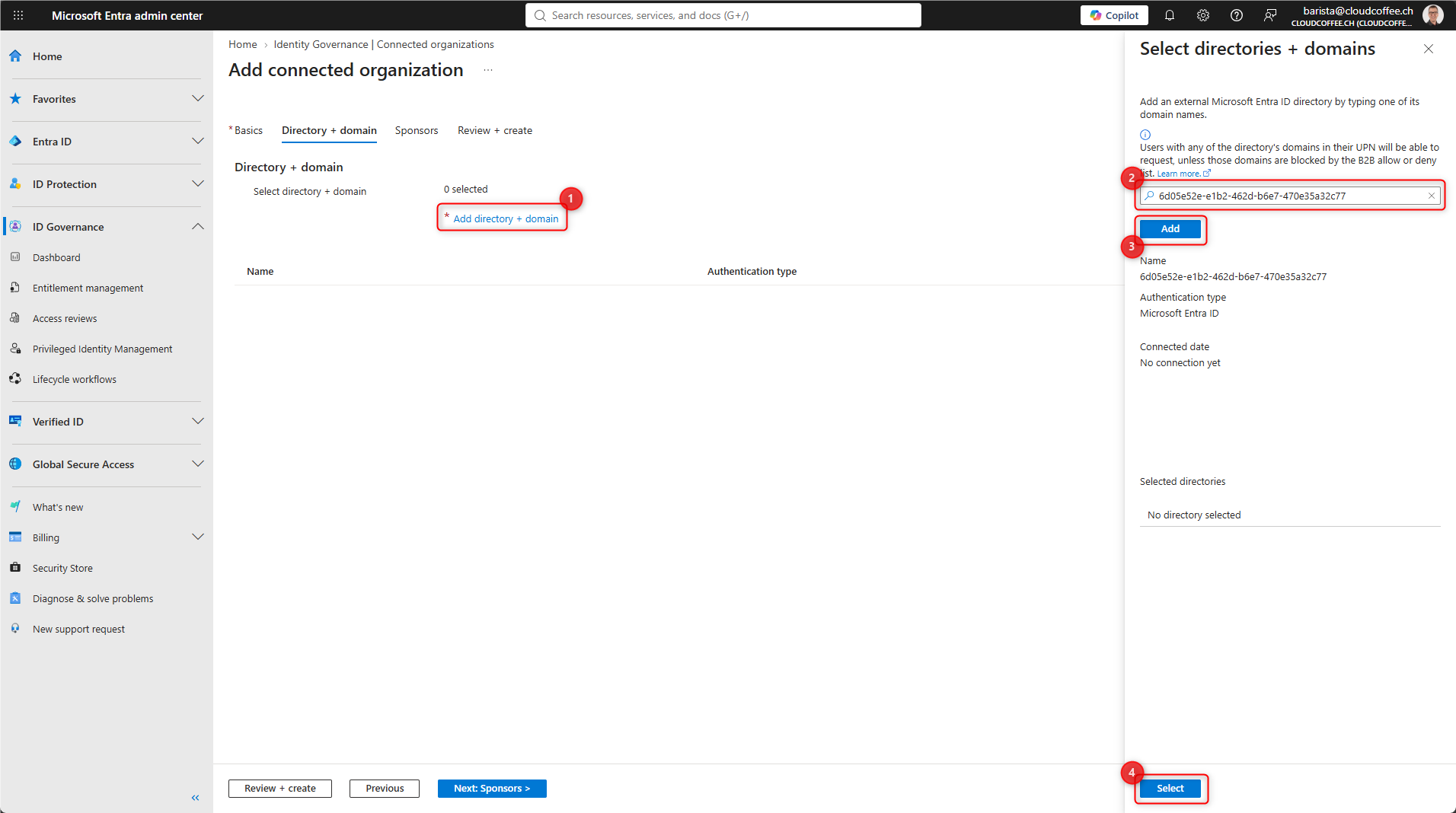
Select Add directory + domain (1) and enter the tenant ID or domain name (2). Add the organization with Add (3) and confirm the selection with Select (4).
Internal or external contacts can optionally be added on the Sponsors tab.
Sponsors can later be used, for example, as approvers in Access Package policies.
Continue with Review + create.

Review the configuration and complete the process with Create.
Create a Catalog for External Users
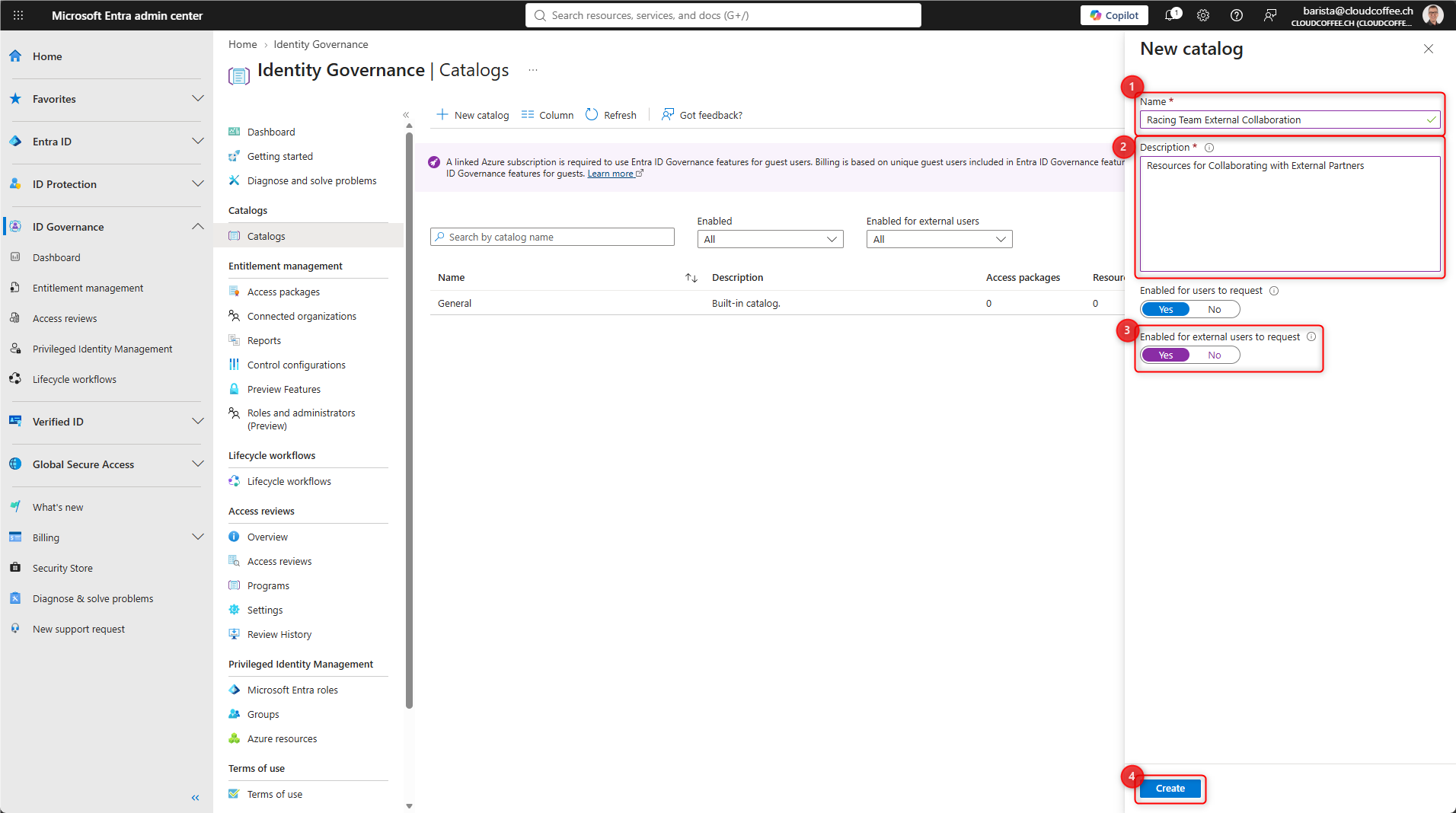
In Microsoft Entra Entitlement Management, a catalog acts as a container for resources that can be provisioned through Access Packages.
Microsoft Entra admin center (https://entra.microsoft.com) > ID Governance > Entitlement management > Catalogs > New catalog
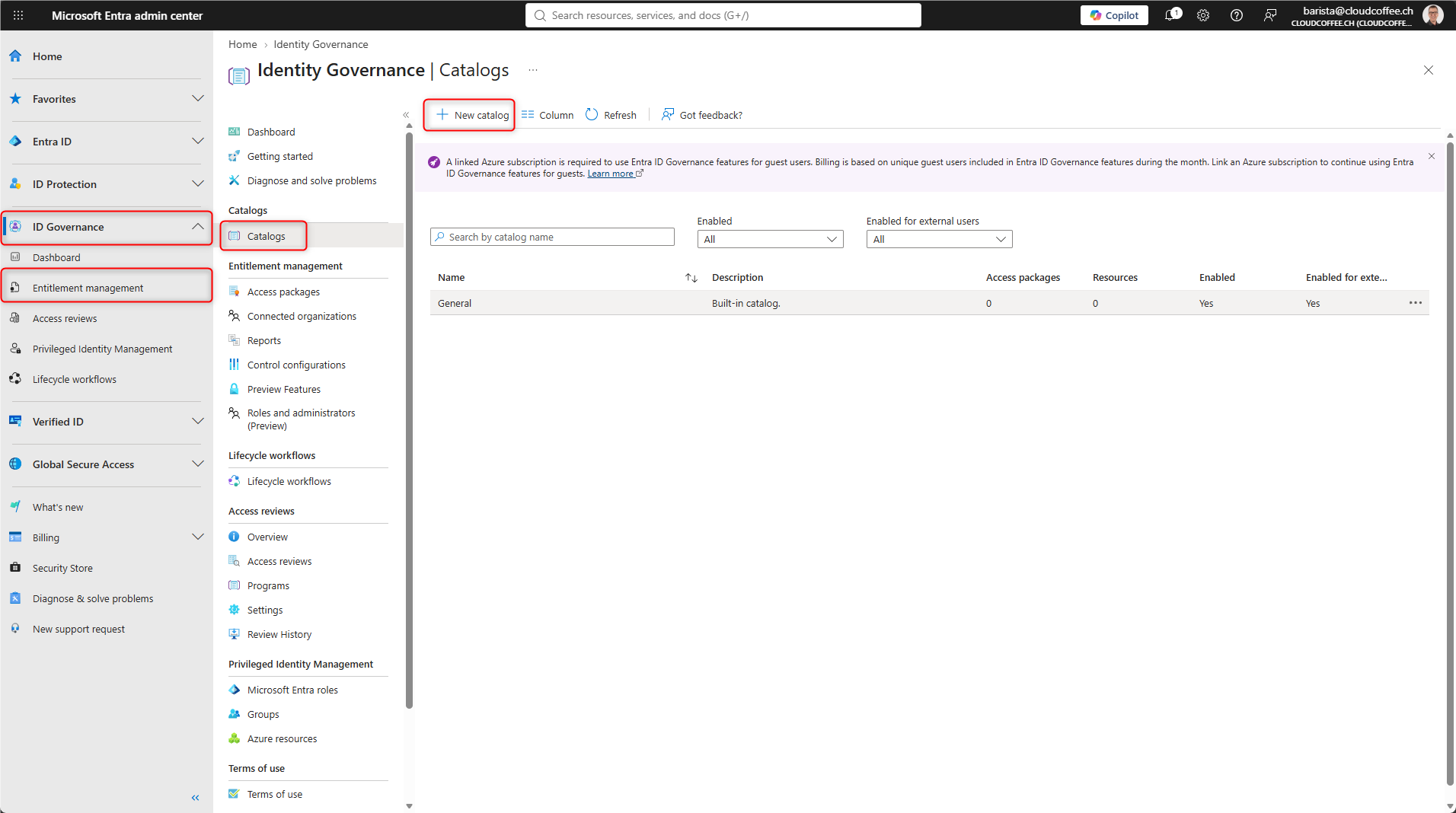
- Enter a Name for the catalog
- Enter a Description for the catalog
- Set Enabled for external users to request to Yes
- Save the catalog with Create
If a catalog is not enabled for external users, external identities cannot request the Access Packages contained in that catalog.
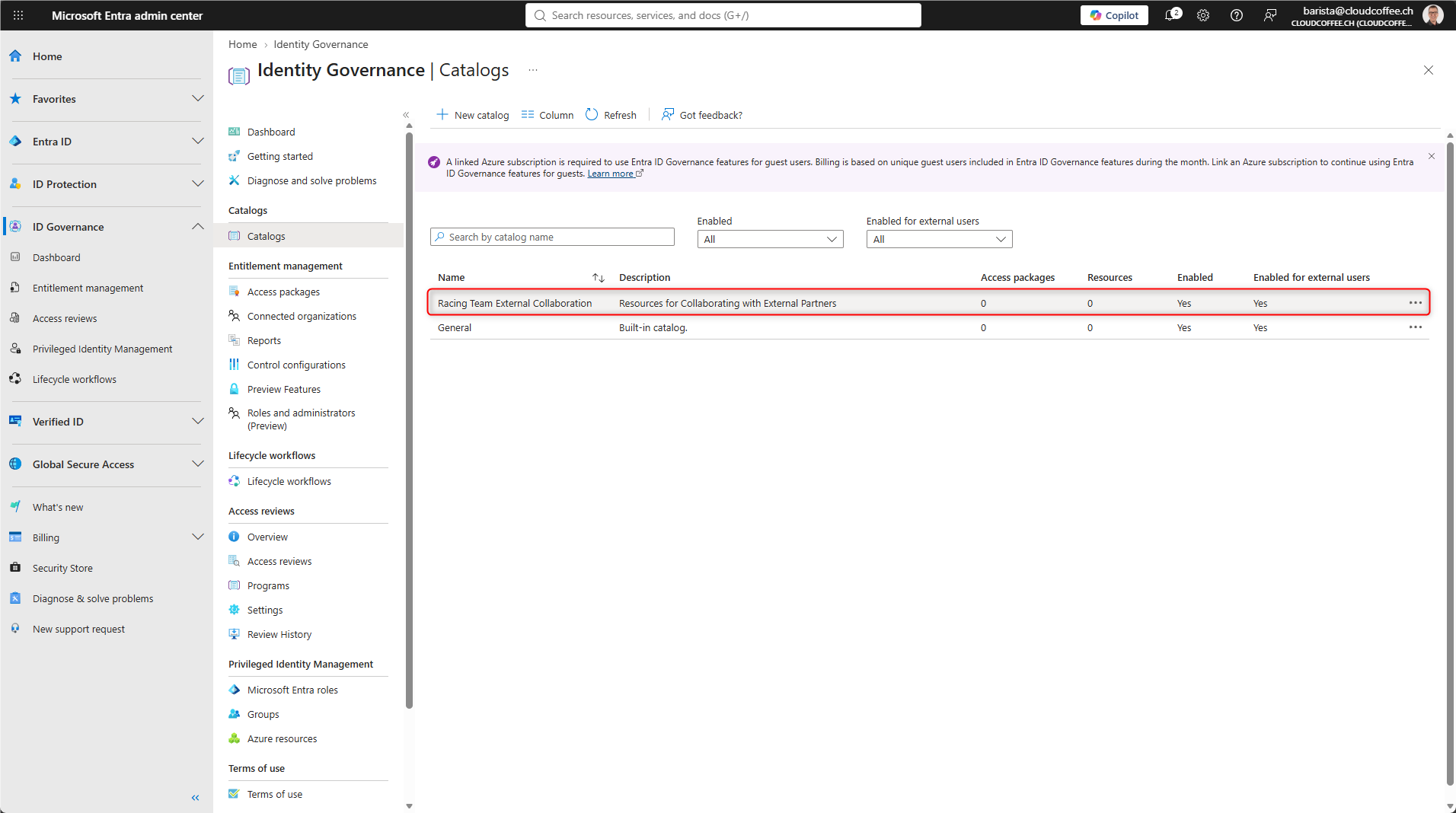
The newly created catalog then appears in the catalog overview.
Add a Resource to the Catalog
For this example, the existing Microsoft 365 group F1 Collaboration is added to the catalog as a resource.
Open the existing catalog under Microsoft Entra admin center (https://entra.microsoft.com) > ID Governance > Entitlement management > Catalogs.
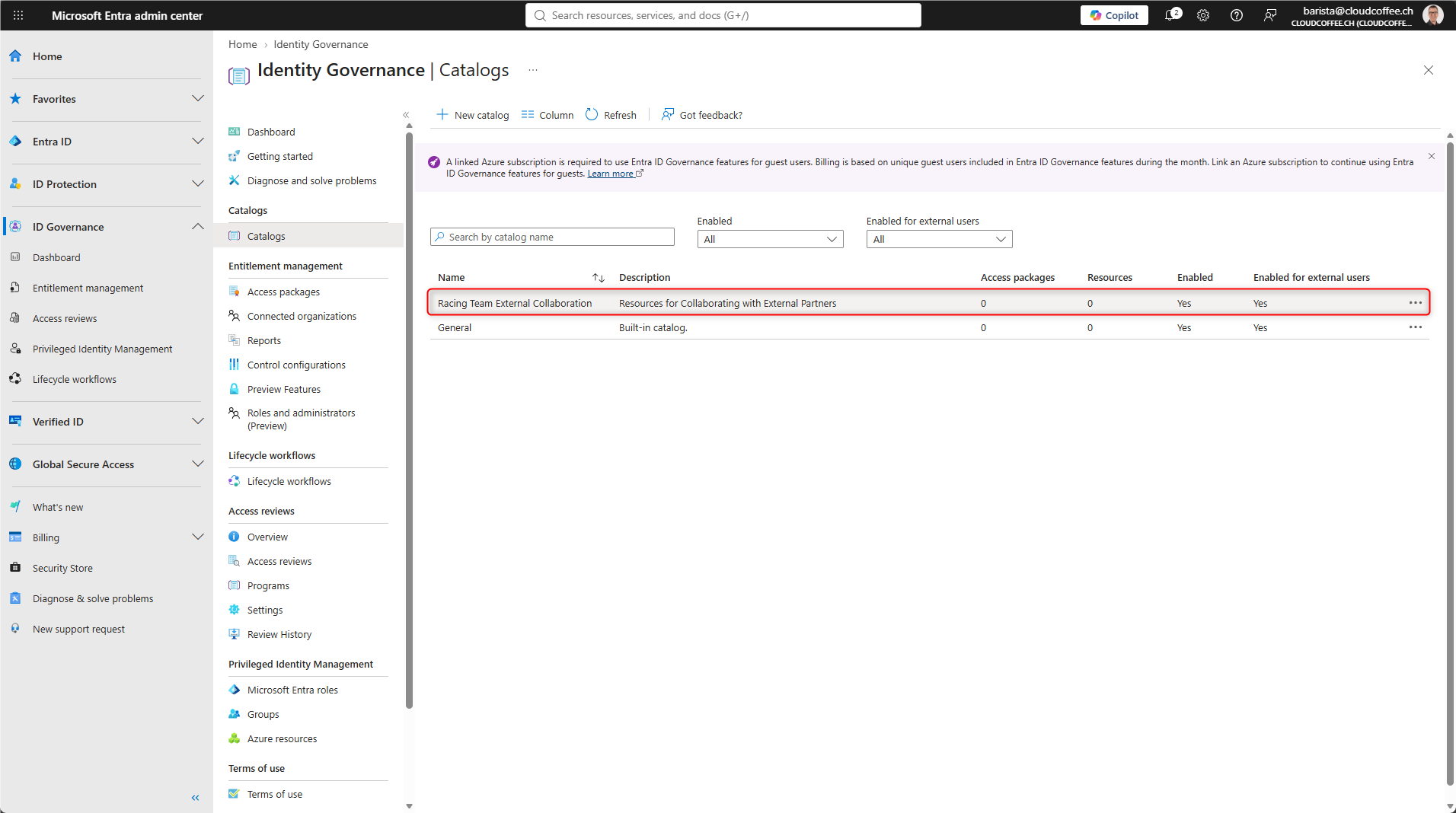
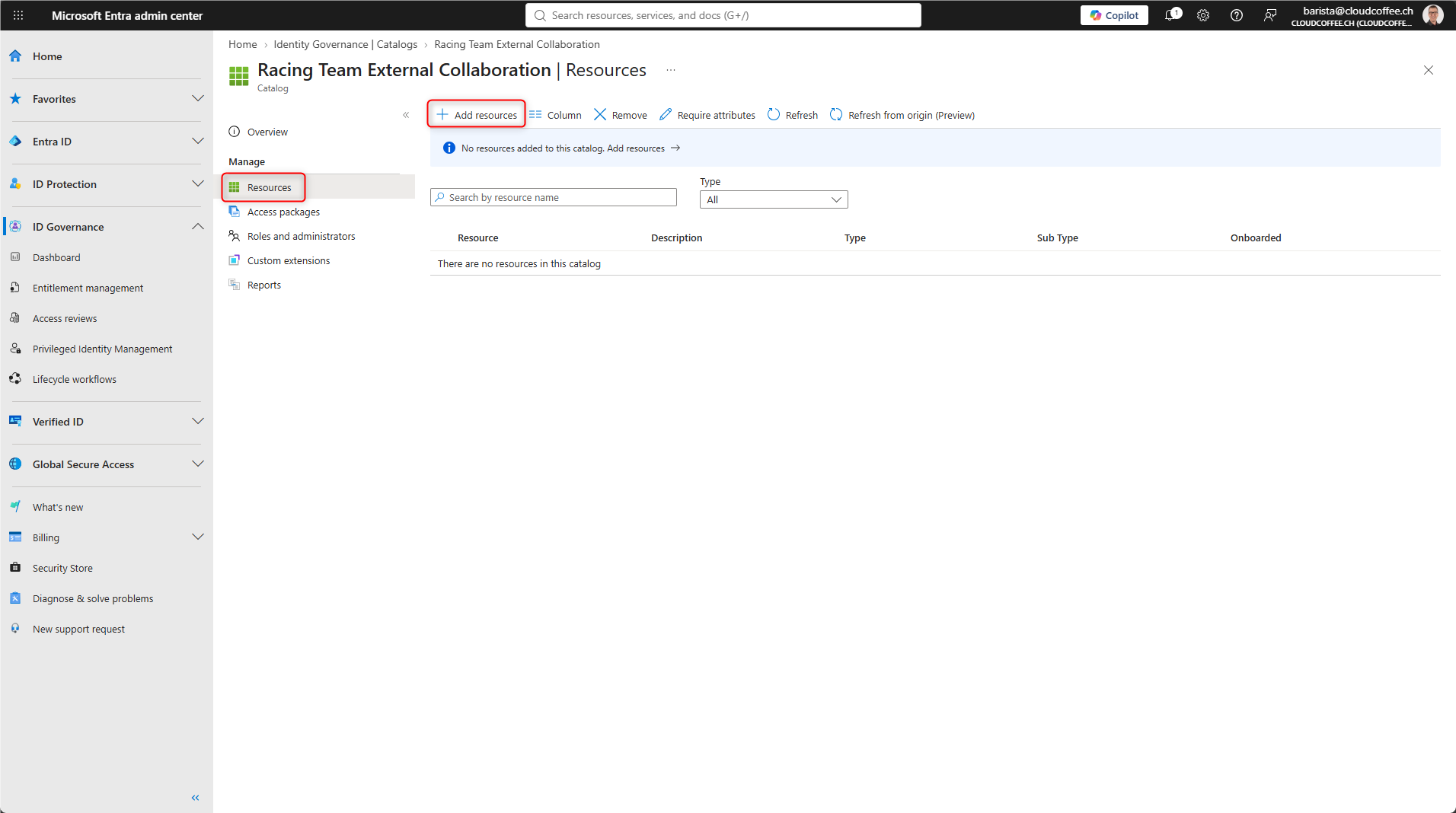
Under Resources, select Add resources.
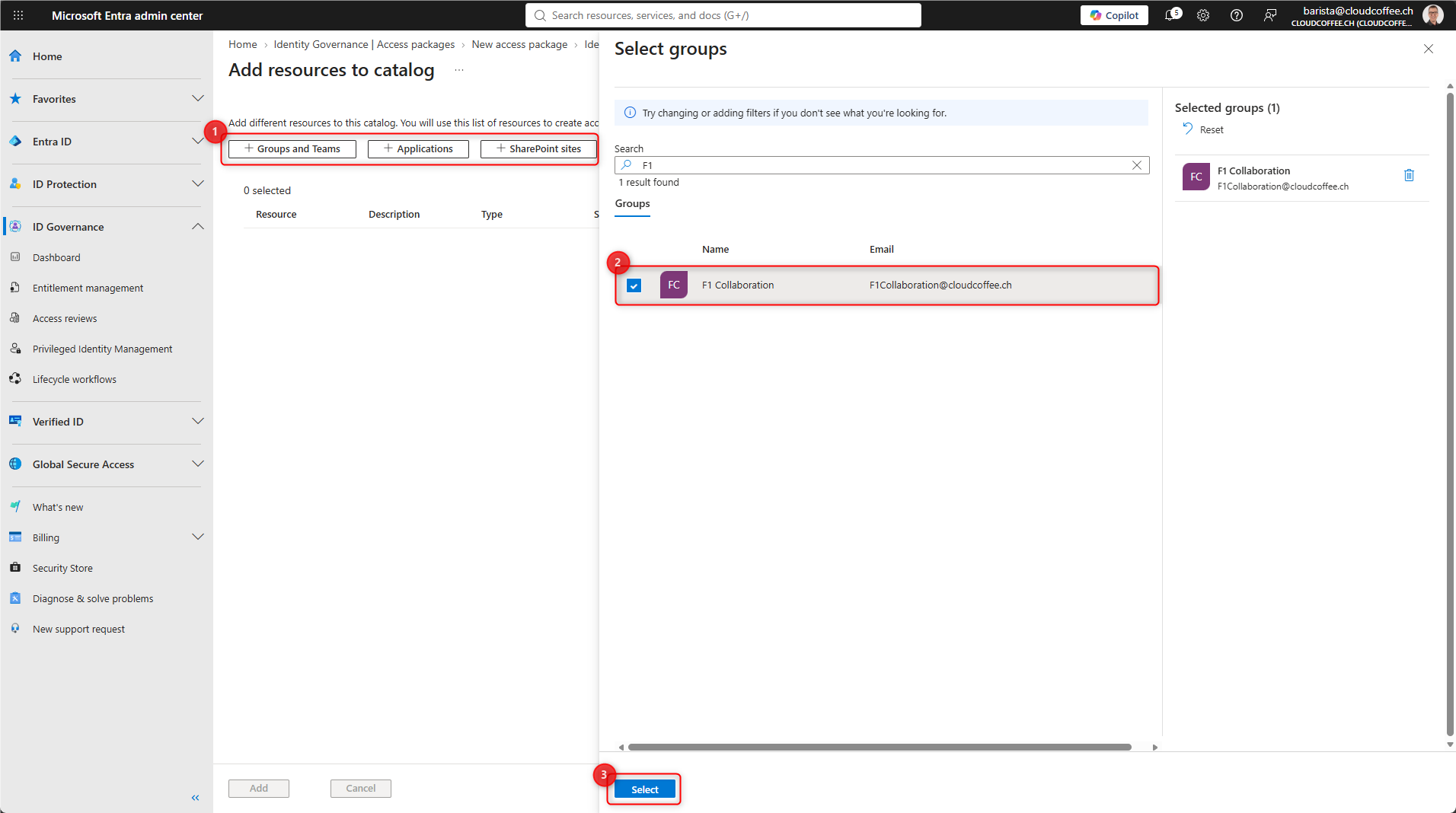
Select Groups and Teams (1), select the Microsoft 365 group F1 Collaboration (2), and add it with Select (3).
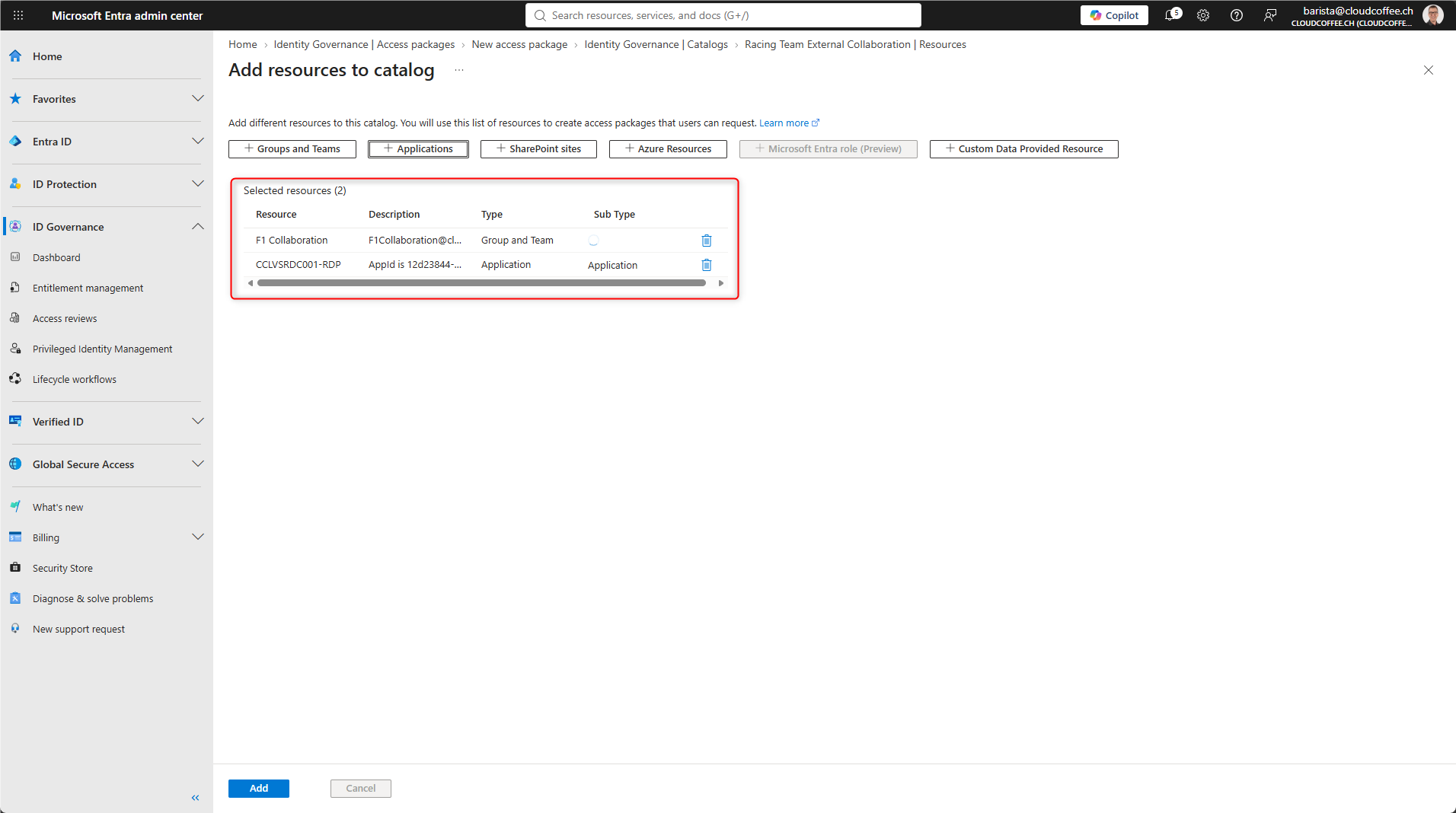
An Access Package can contain multiple resources and can, for example, provision Microsoft 365 groups, Microsoft Teams, SharePoint Online sites, and enterprise applications together.
Configure the Access Package
Create the Access Package
For this example, an Access Package is created to provision the Microsoft 365 group previously added to the catalog.
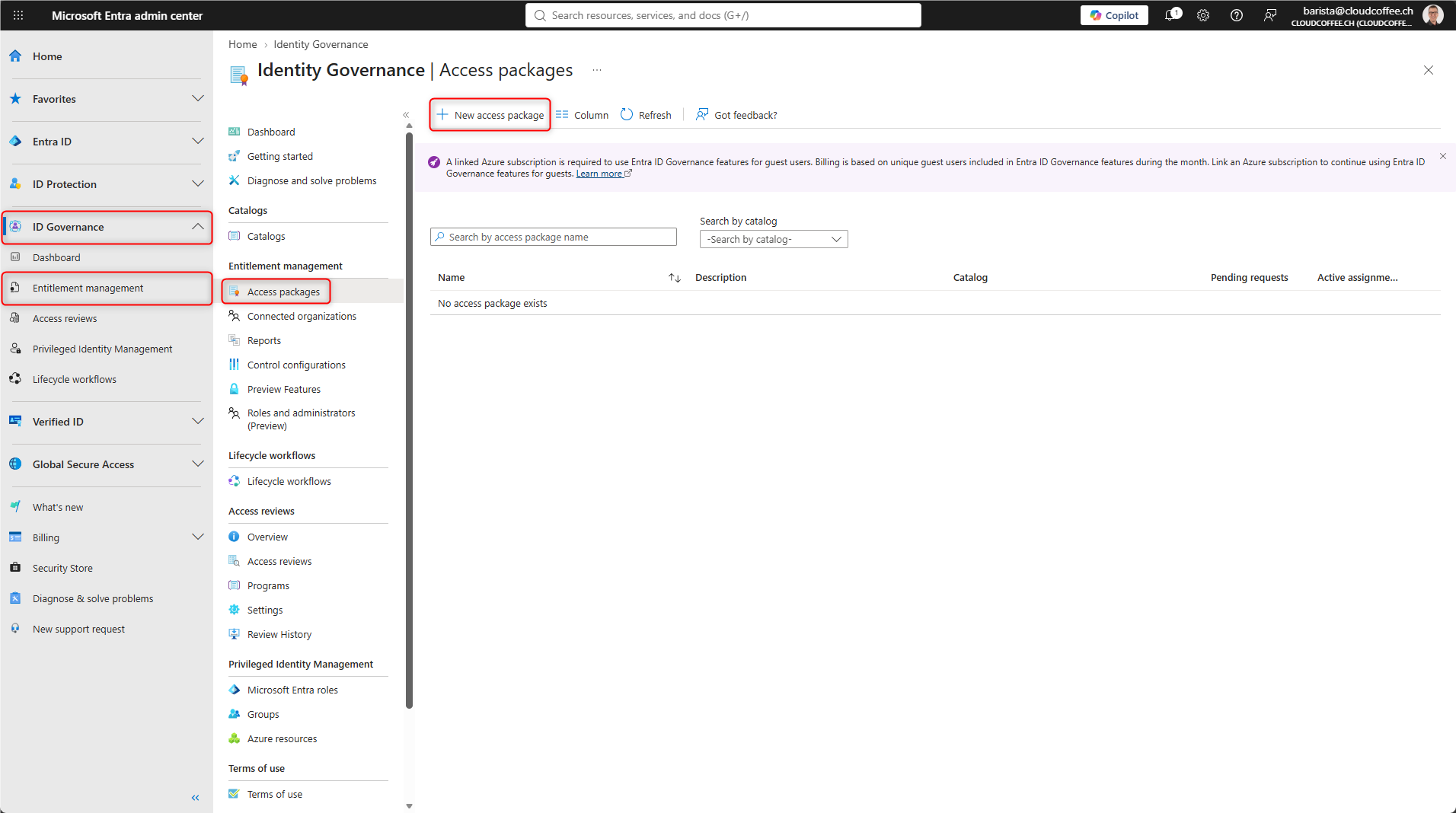
Create the Access Package under: Microsoft Entra admin center (https://entra.microsoft.com) > ID Governance > Entitlement management > Access packages > New access package
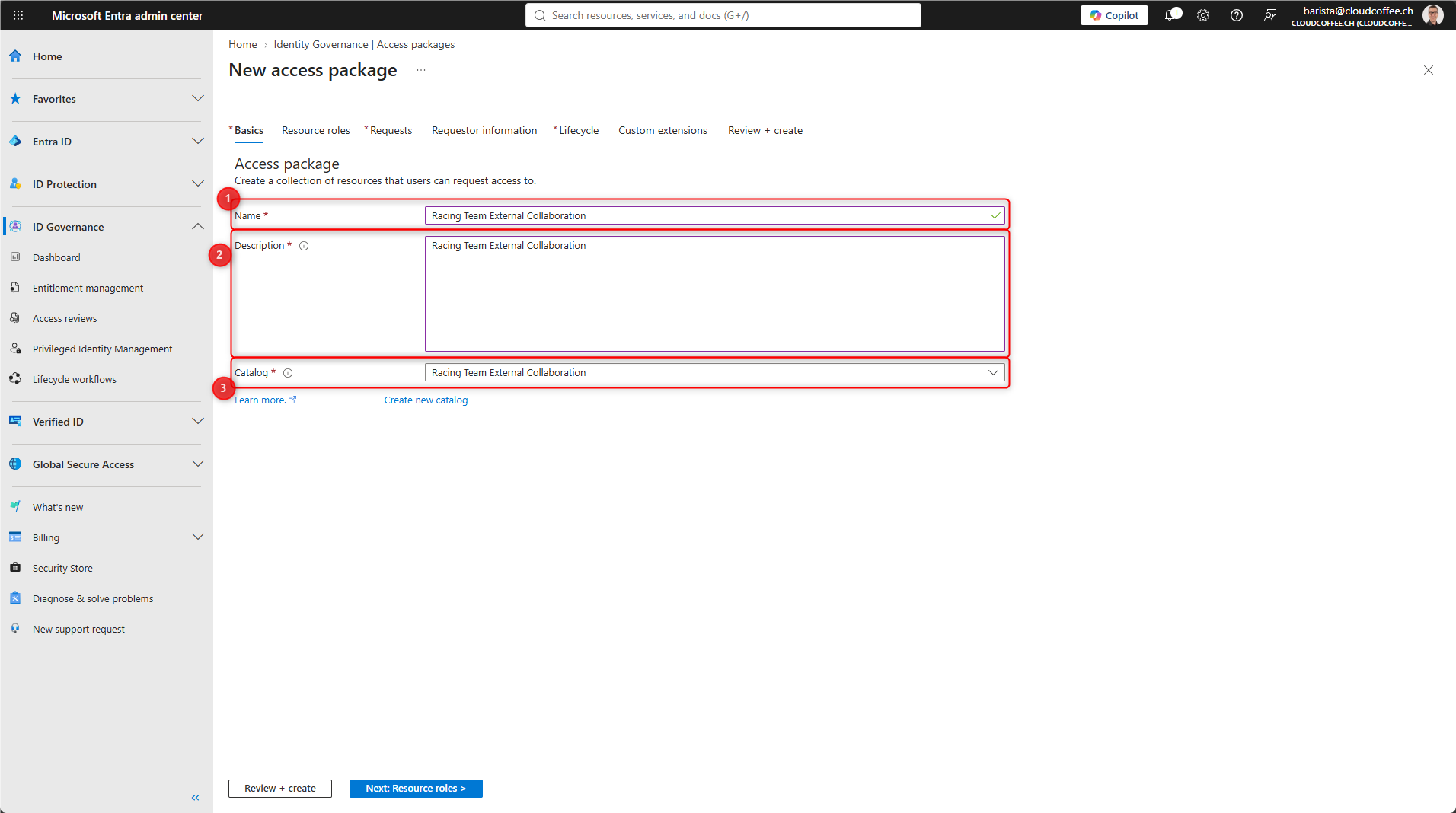
- Enter a Name for the Access Package
- Enter a Description for the Access Package
- Select the previously created Catalog
Add Resource Roles
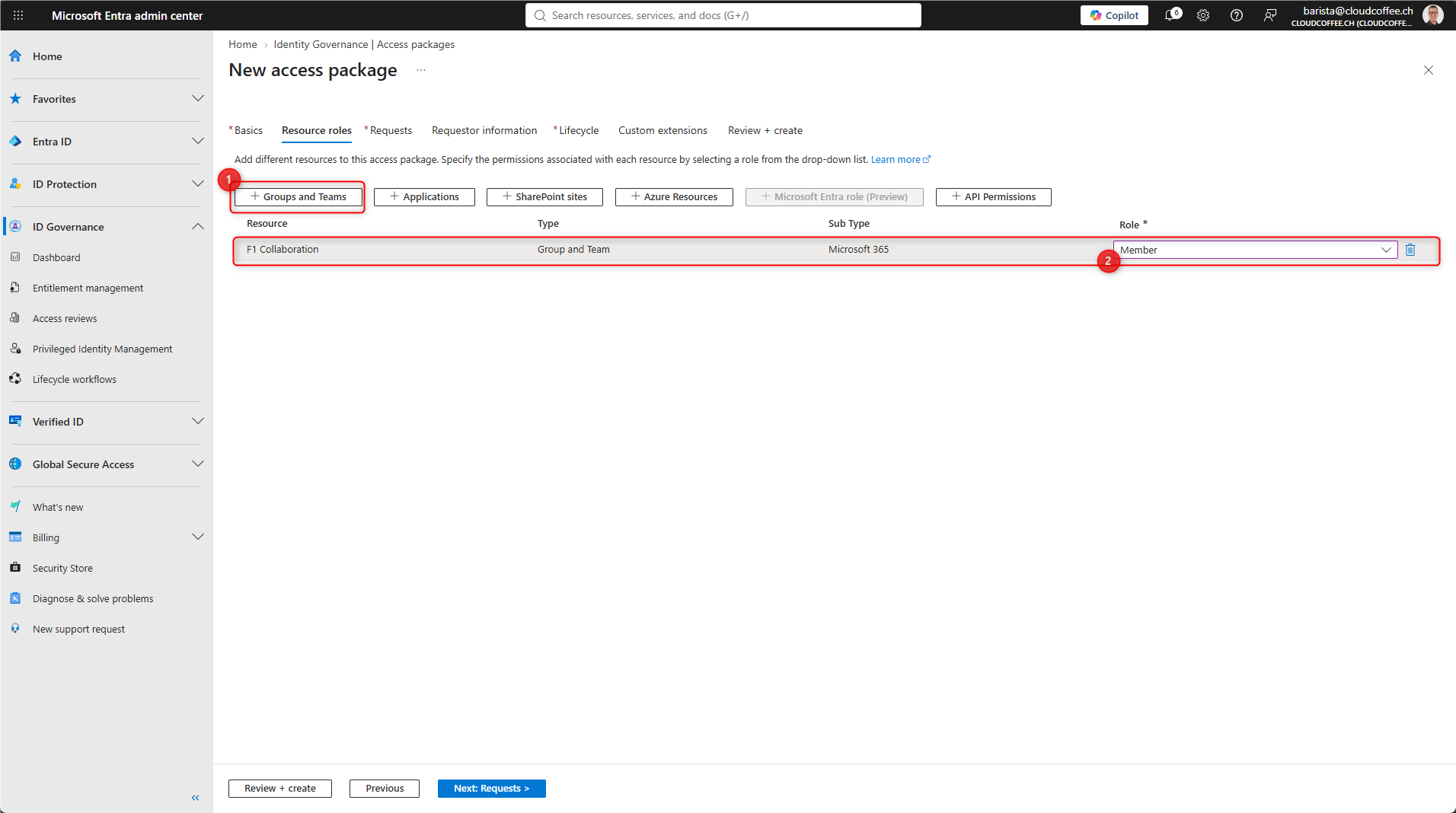
On the Resource roles tab, select the resources that the Access Package should provision. For each resource, also define the role the user receives after a successful assignment.
Select Groups and Teams, add the Microsoft 365 group F1 Collaboration, and assign the Member role. After the Access Package is successfully assigned, the external user becomes a member of the Microsoft 365 group.
Configure Requests and Approval
The Requests tab defines who can request the Access Package.
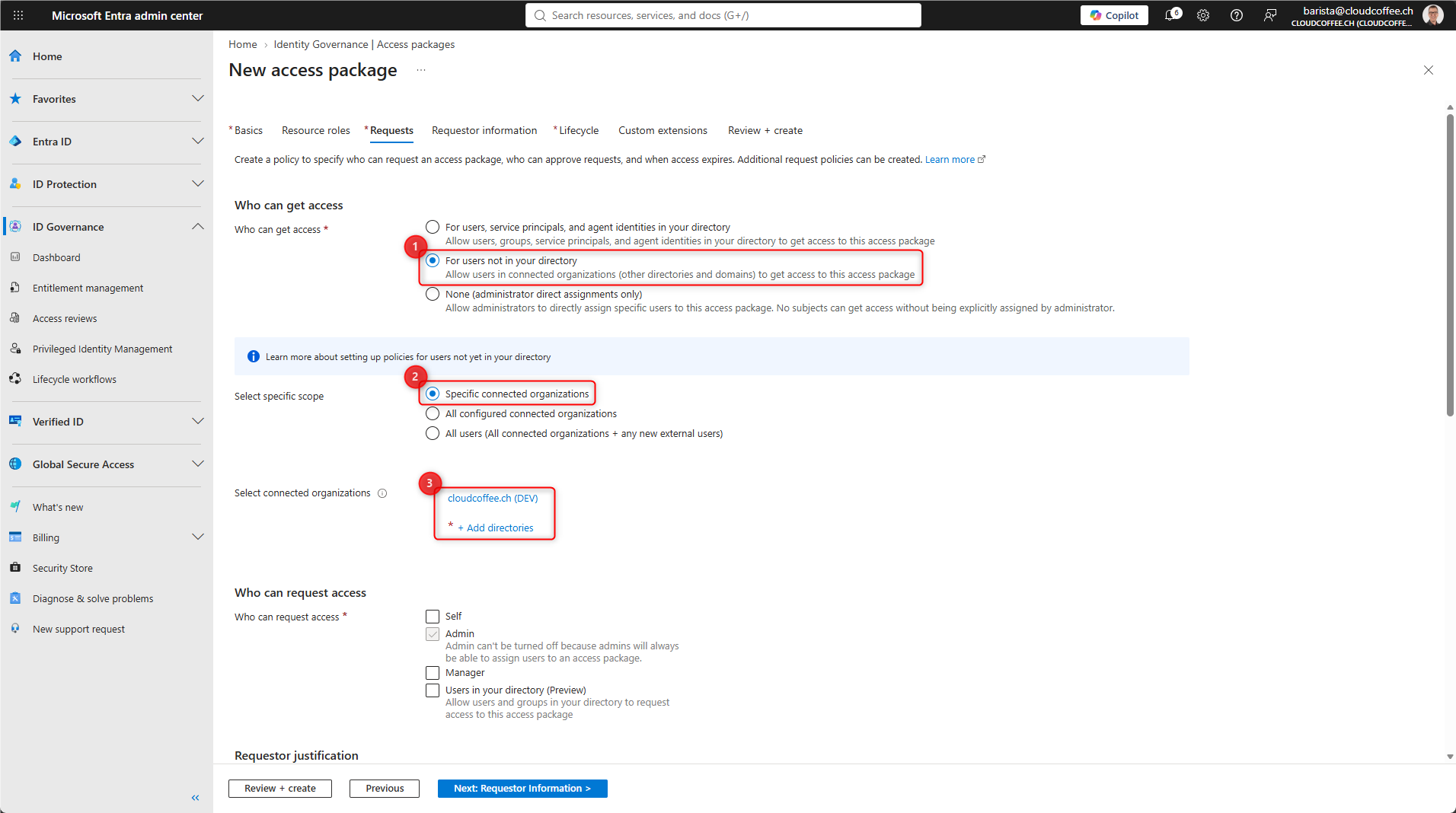
For this example, select For users not in your directory (1).
Then select Specific connected organizations (2) and add the previously configured partner organization (3).
This ensures that only users from the selected connected organizations can request the Access Package.
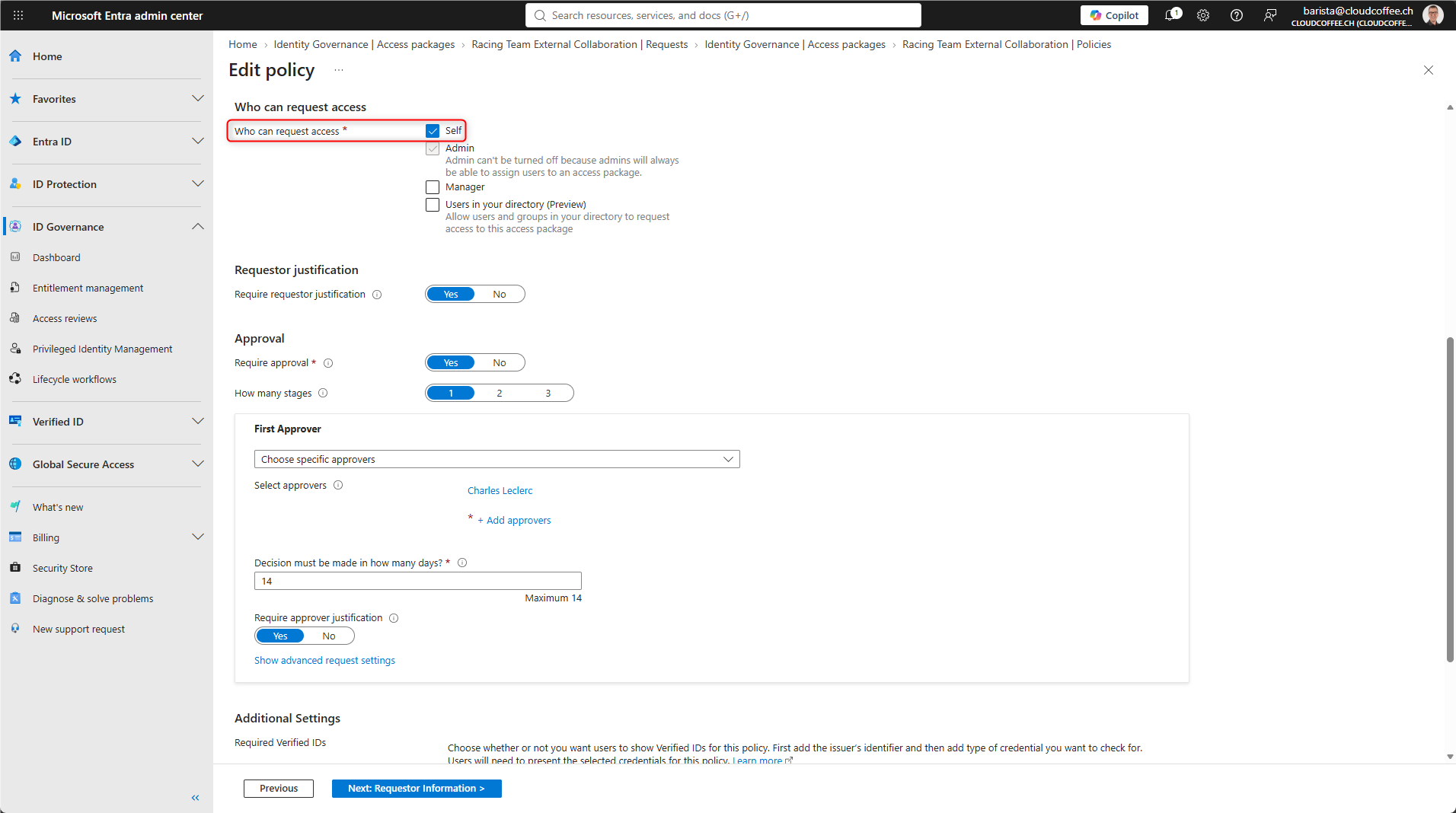
Under Who can request access, enable Self so that eligible users can request the Access Package themselves.
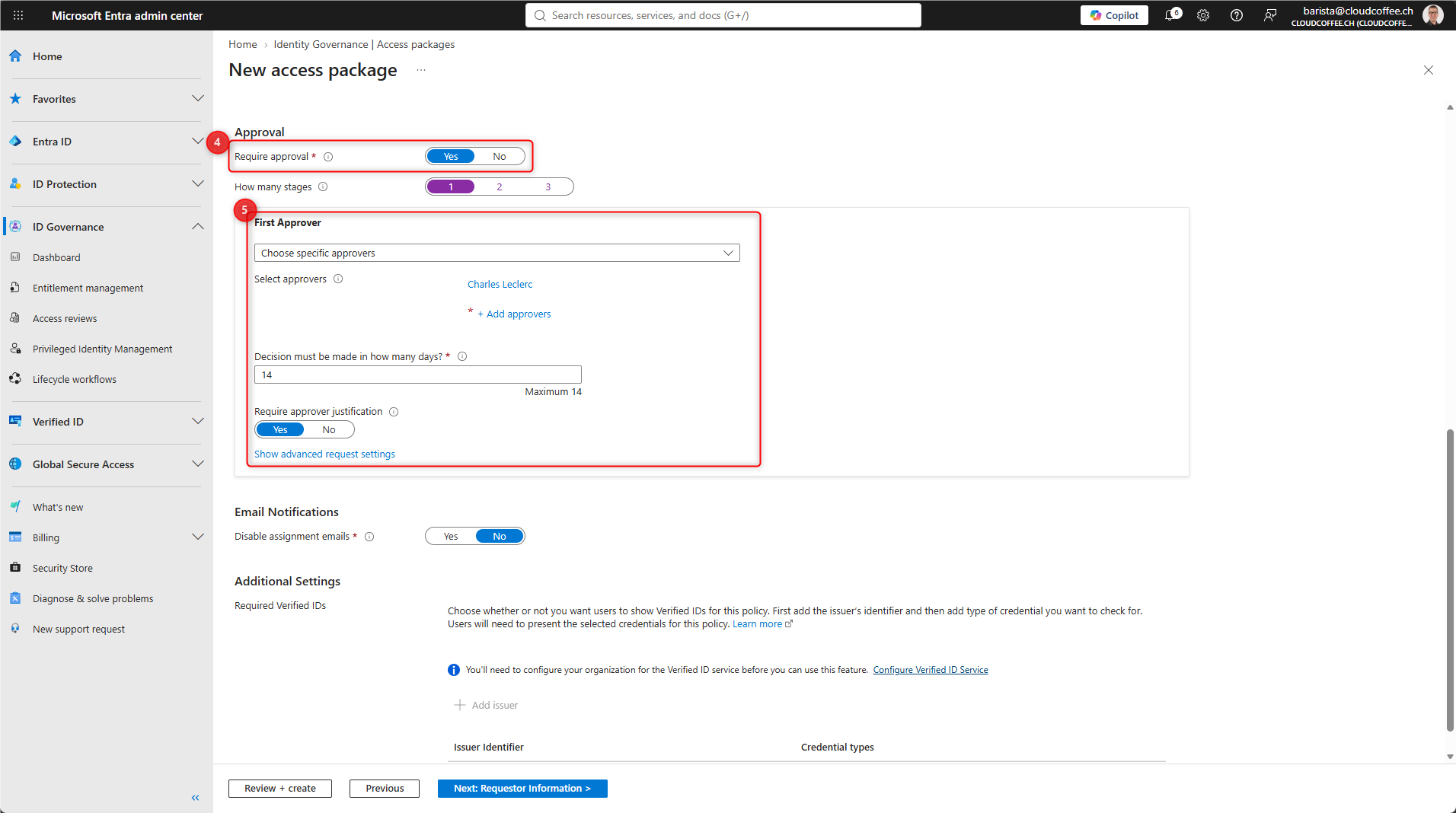
Under Approval, enable Require approval (4).
For the approver (5), select a person or group that can determine whether the external user actually requires access. Suitable approvers include:
- Project owners
- Team owners
- Application owners
- Business owners responsible for collaboration with the partner organization
The IT team should not normally approve these requests. The business owner of the resource understands the purpose and expected duration of the collaboration and can determine whether access is justified.
Microsoft Entra also supports multi-stage approval processes and alternate approvers if no decision is made within the configured time period.
Configure Assignment Duration and Access Reviews
On the Lifecycle tab, define how long the Access Package assignment remains valid.
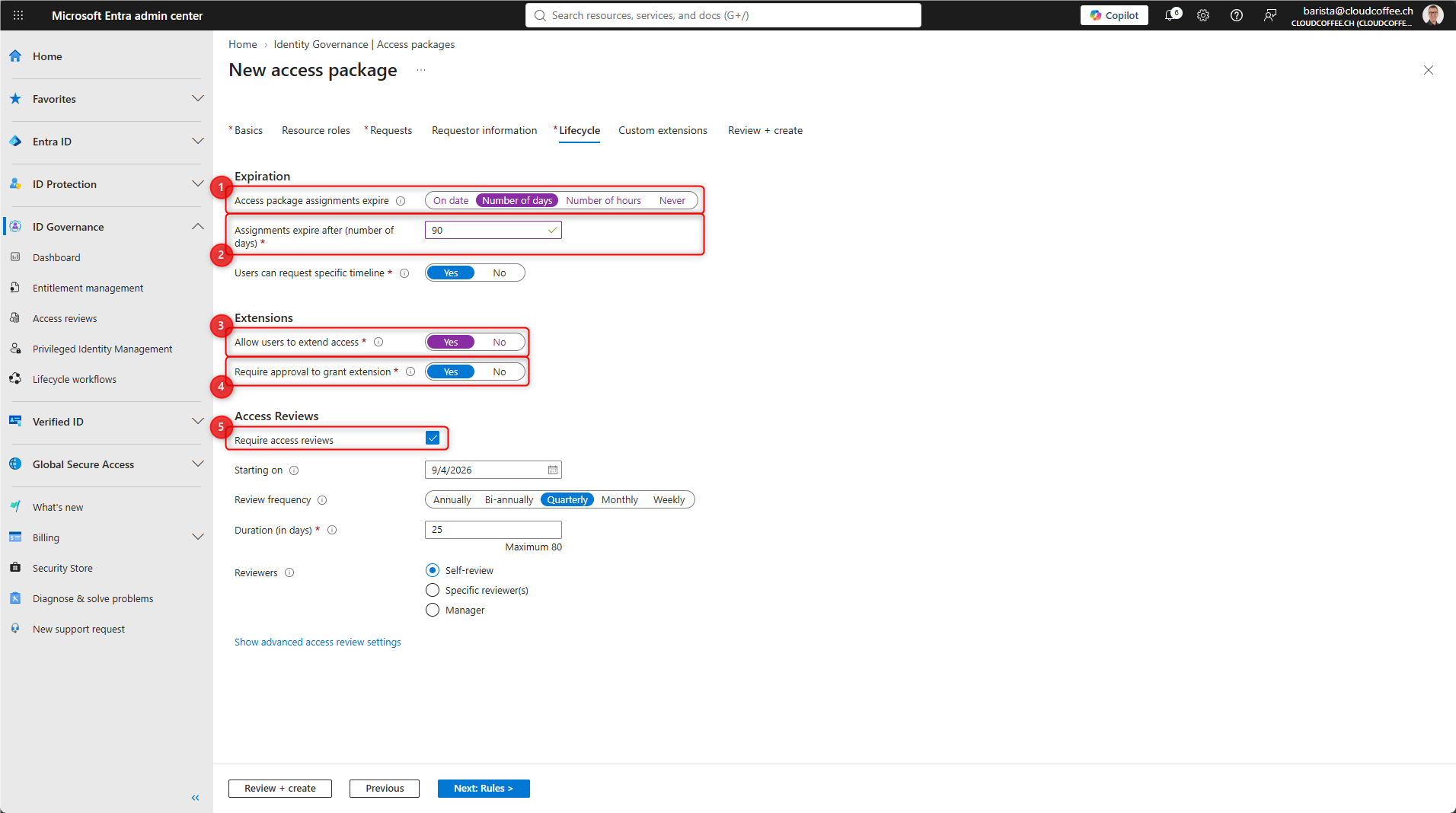
Access package assignments expire (1): Number of days
Assignments expire after (number of days) (2): 90
The assignment therefore expires 90 days after access begins.
Alternatively, a fixed expiration date can be configured, or the assignment can be configured without an expiration. For external users, a defined assignment duration is generally recommended. The duration should reflect the business purpose of the collaboration.
An extension (3) can also be allowed. If the extension requires approval (4), the approver must reconfirm the continued need for access before the assignment expires.
In addition, Access Reviews (5) can be enabled for Access Package assignments. An Access Review periodically verifies whether access is still required for longer-running assignments. The reviewer should be someone who can assess the business need for continued access.
The complete configuration of Access Reviews is covered in the post Microsoft Entra Access Reviews: Governance for User and Guest Access – cloudcoffee.ch and is not repeated here.
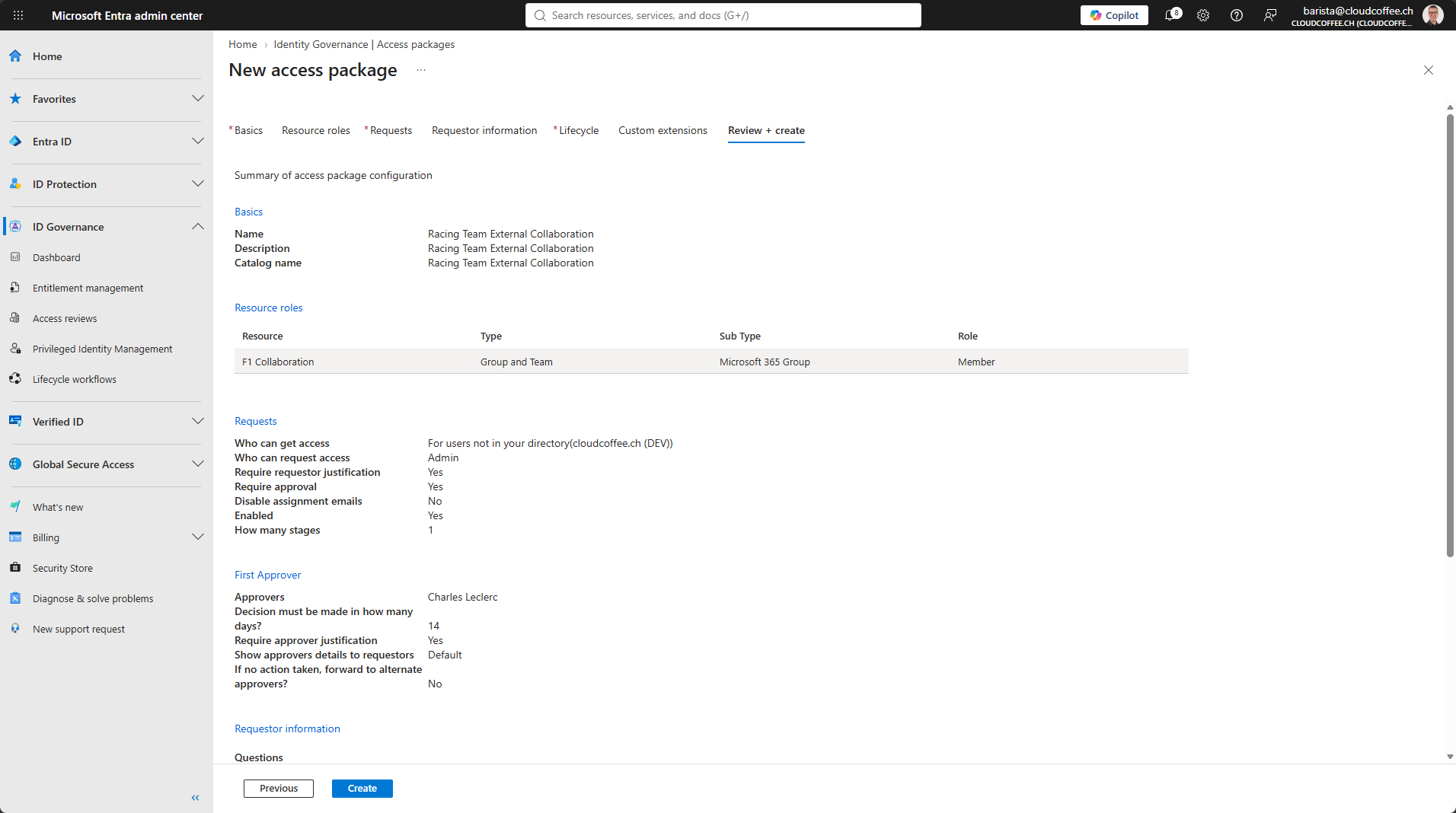
After completing the configuration, review the settings under Review + create and create the Access Package with Create.
Request and Approve the Access Package
Provide the Request Link
After the Access Package is created, its overview page provides a link to the My Access portal.
Open the Access Package under Microsoft Entra admin center (https://entra.microsoft.com) > ID Governance > Entitlement management > Access packages. The My Access portal link is available under Overview.
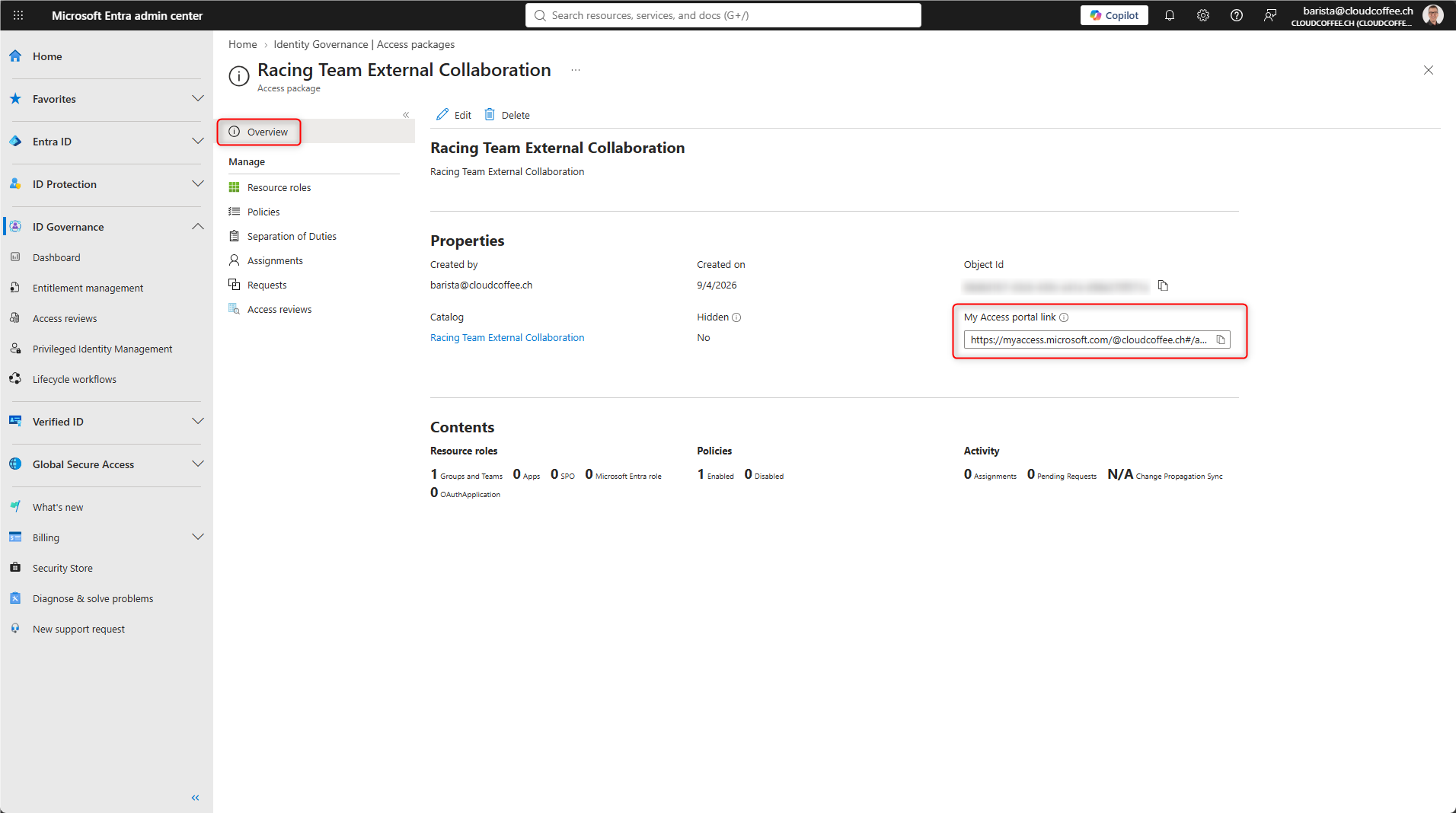
Provide this link to eligible users in the partner organization.
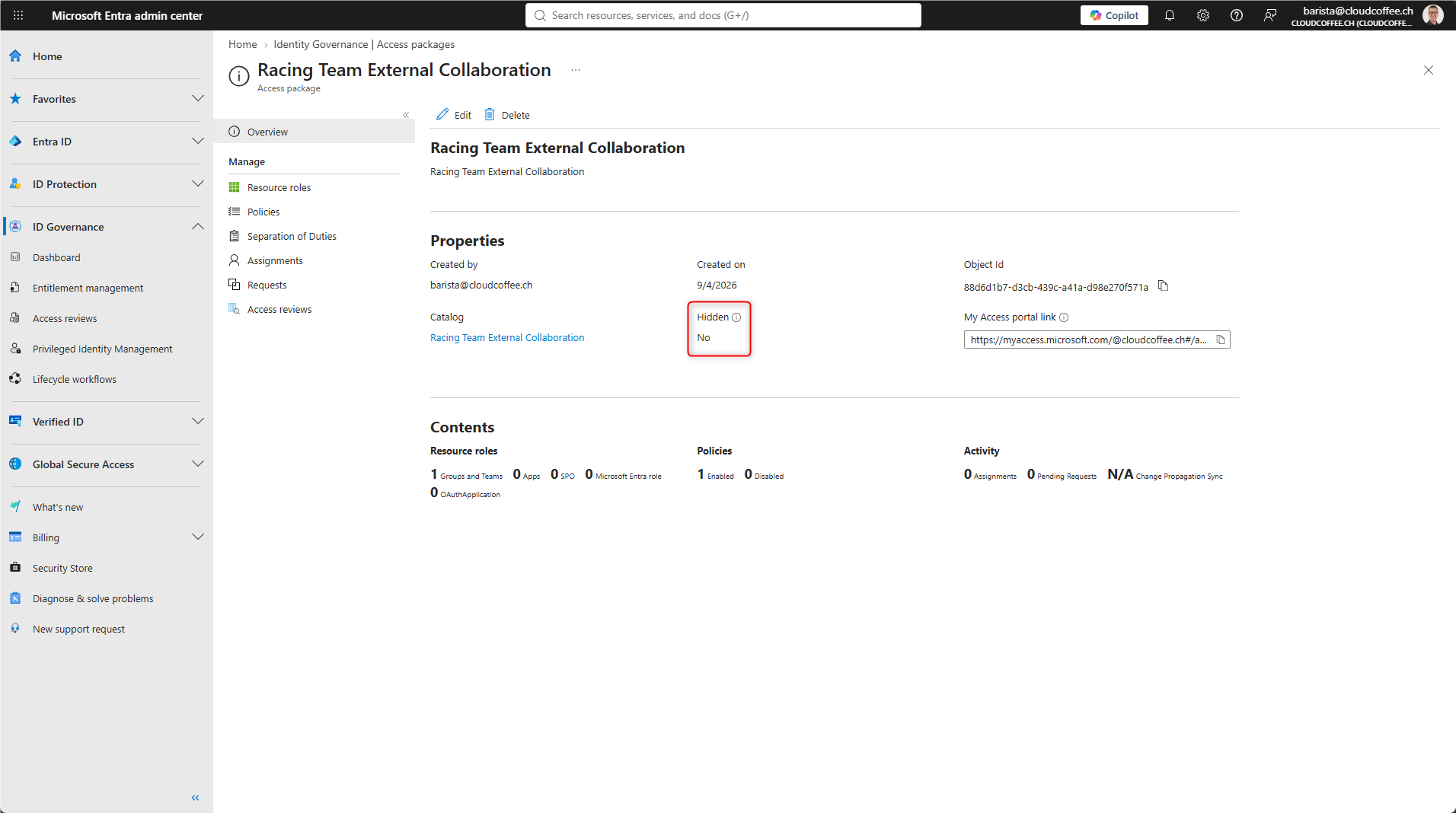
If an Access Package should only be available through a specifically shared link, enable the Hidden property. My Access then hides the Access Package from search results. Users with the direct link can still open and request it.
Request Access Package as an External User
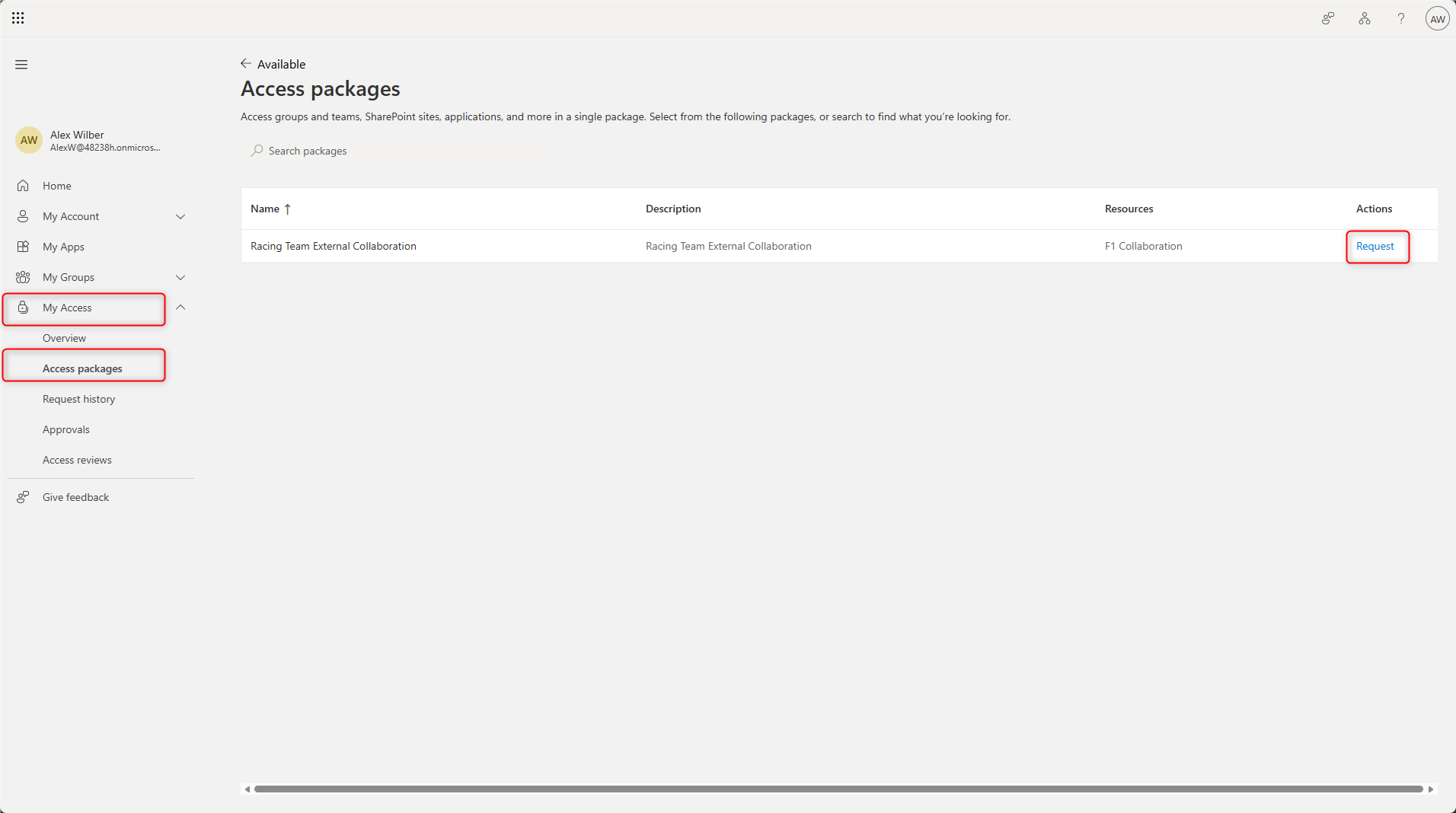
The external user opens the request link and authenticates with their existing identity.
Under My Access > Access packages, the portal displays the available Access Packages. Select Request for the required Access Package.
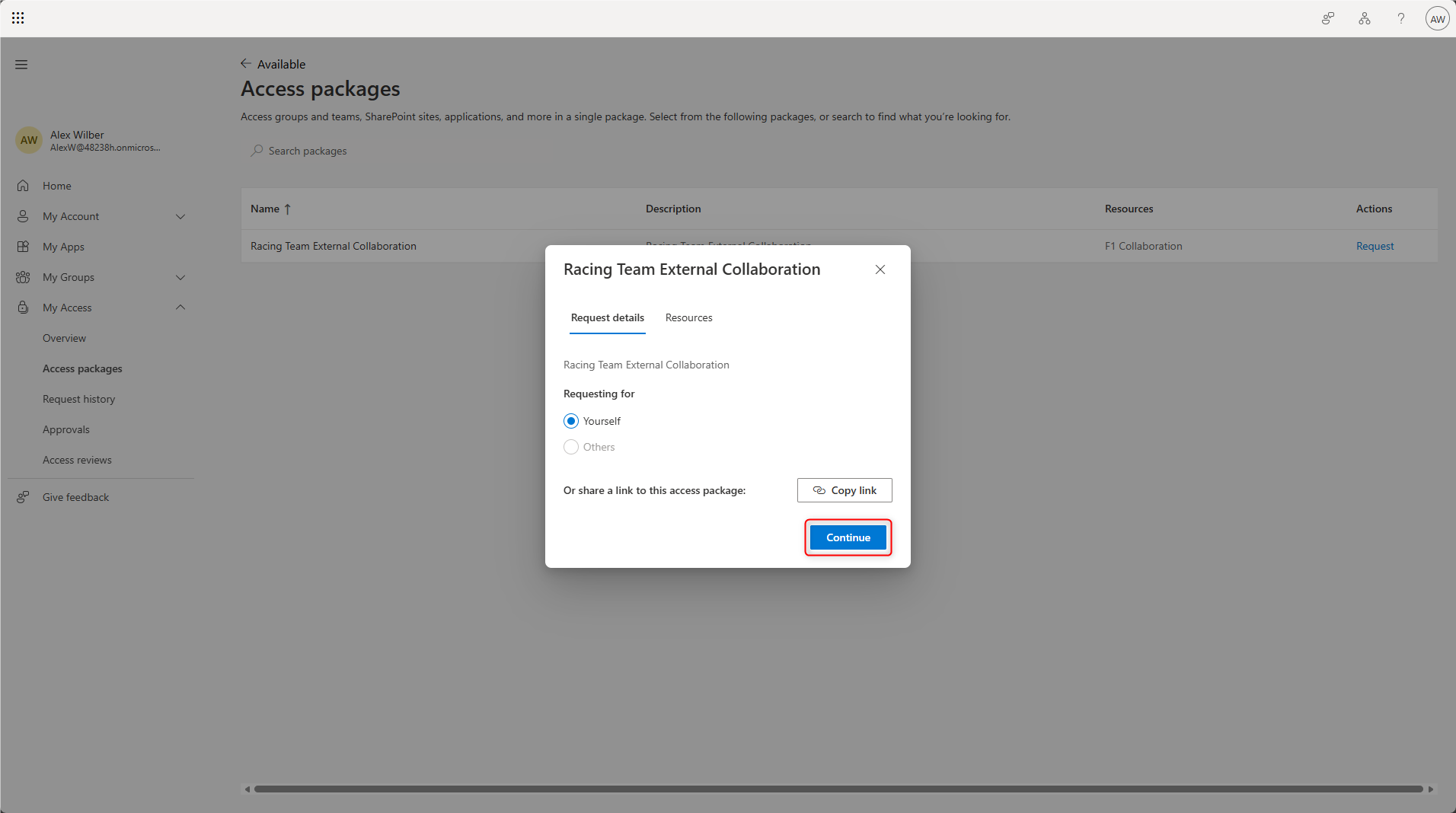
After selecting the Access Package, the request details are displayed. Select Continue to proceed with the request.
Enter a business justification and complete the request with Submit request.
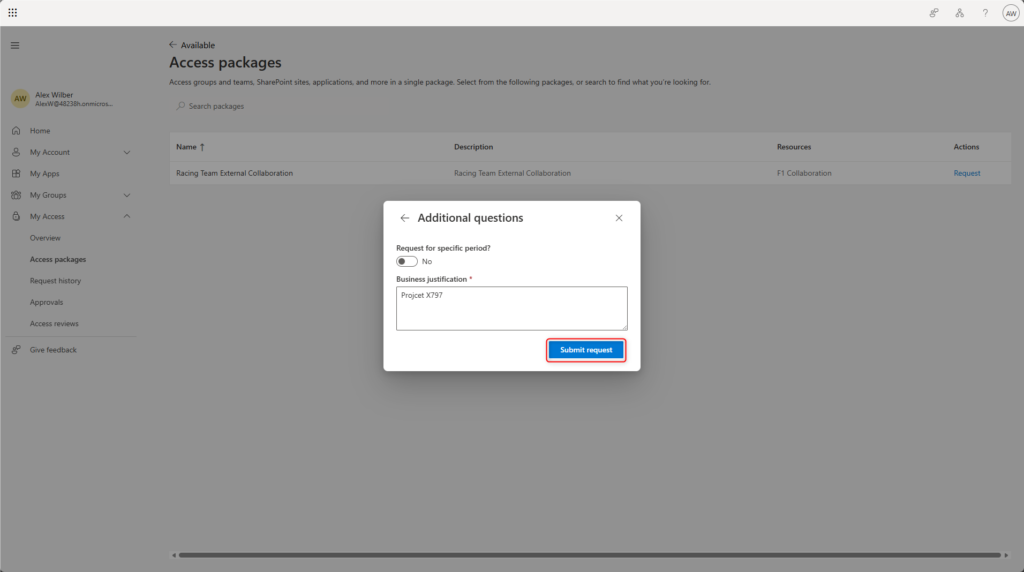
After submission, Microsoft Entra forwards the request to the configured approver.
Approve the Access Package
The configured approver can view the pending request in the My Access portal.
My Access > Approvals
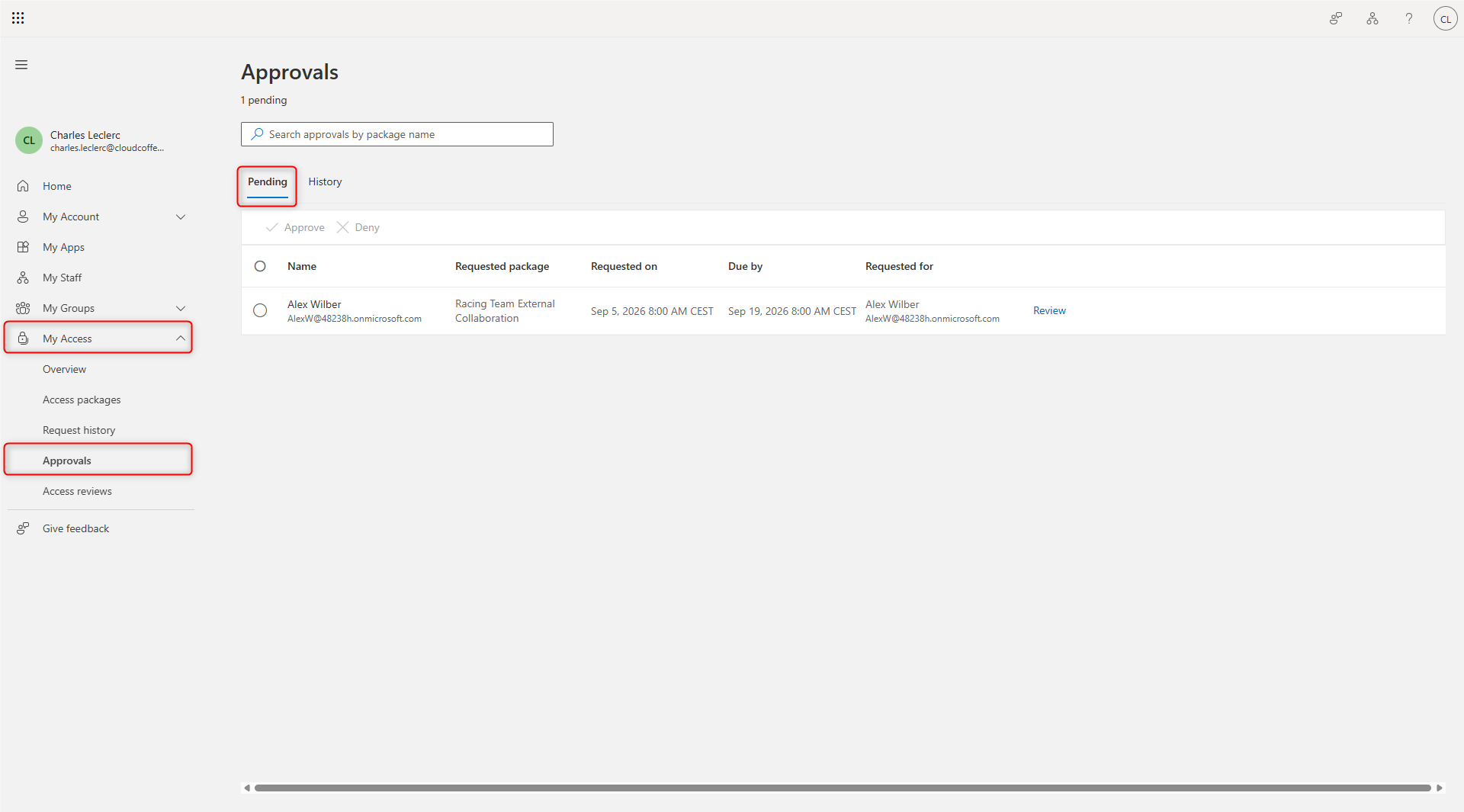
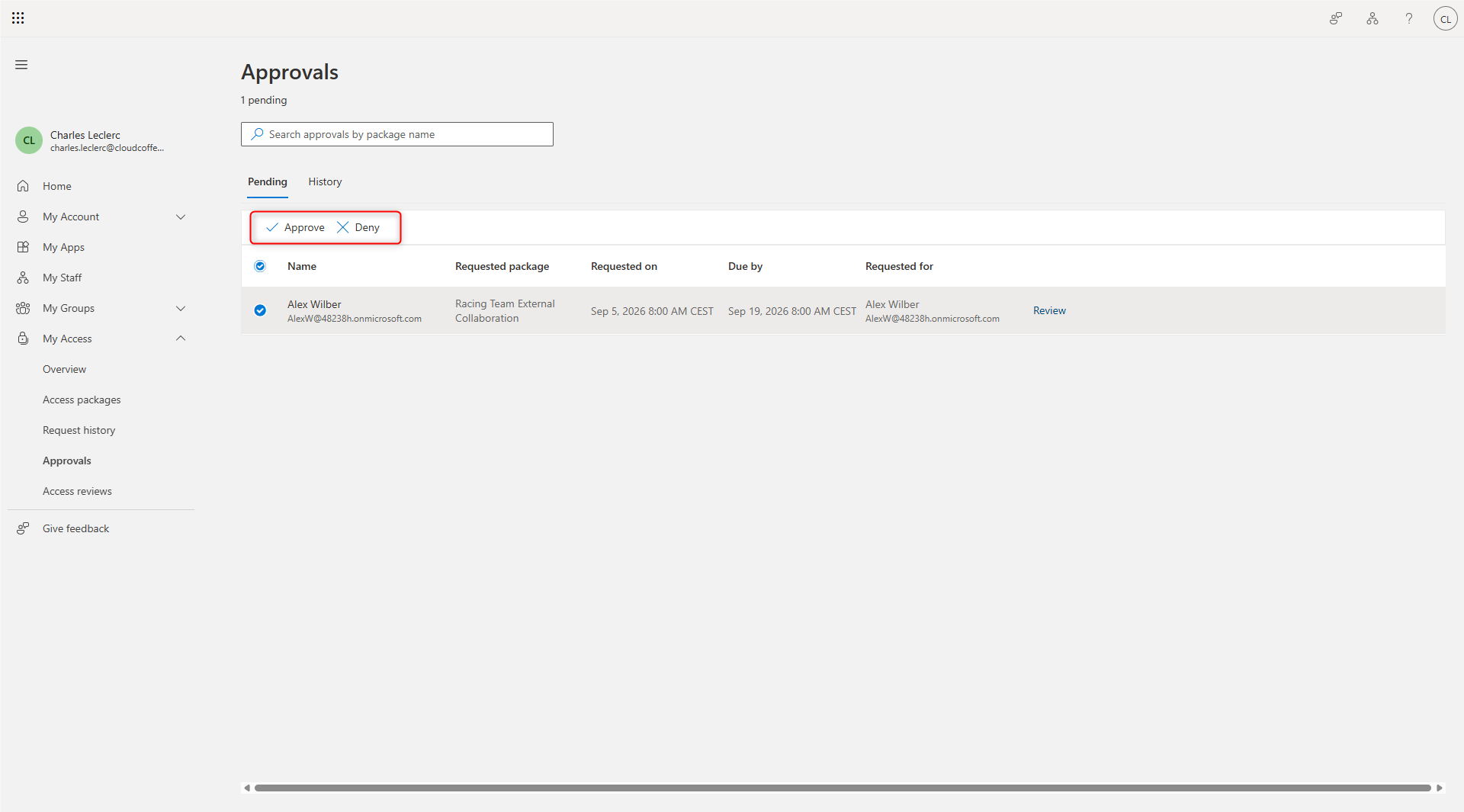
Review the request and complete the approval process with Approve or Deny.
Validation
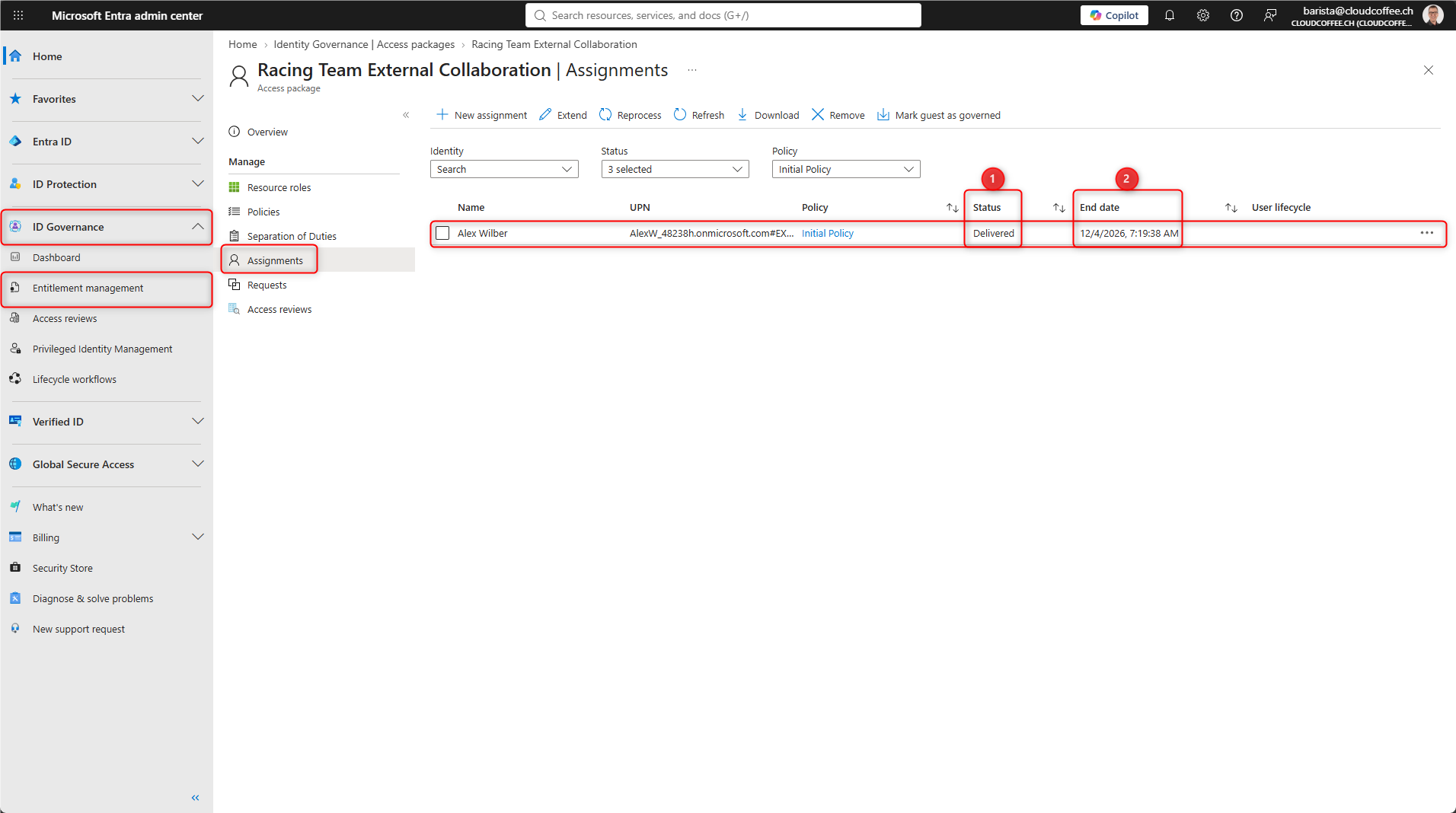
Access Package assignments are listed in the Microsoft Entra admin center (https://entra.microsoft.com) under ID Governance > Entitlement management > Access packages > select the Access Package > Assignments.
Each external user is shown with the assignment Status (1) and End date (2).
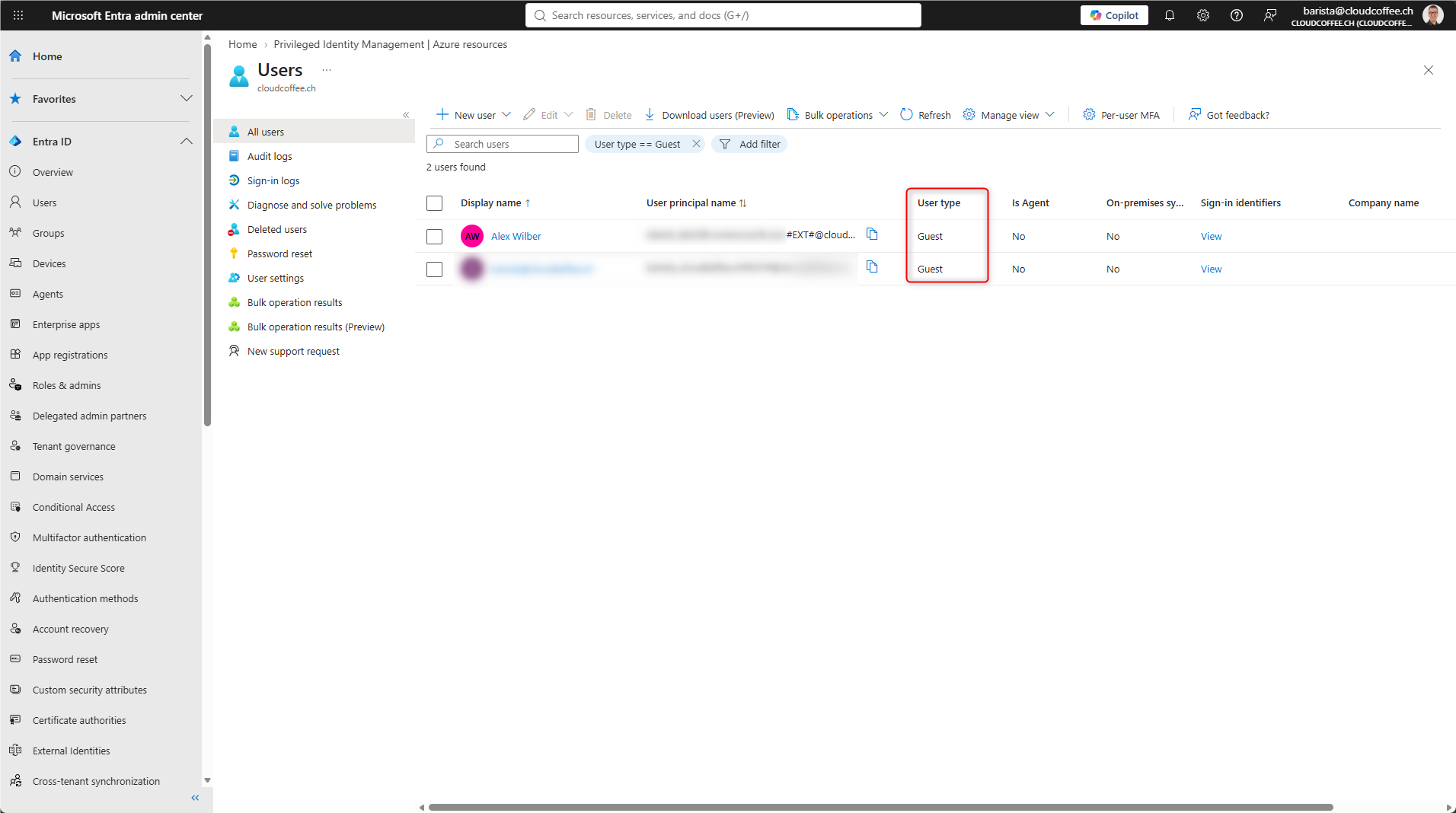
If the required guest object did not already exist before approval, Entitlement Management creates it automatically. With Microsoft Entra B2B Collaboration, the user object has the user type Guest.
Microsoft Entra admin center (https://entra.microsoft.com) > Entra ID > Users > All users
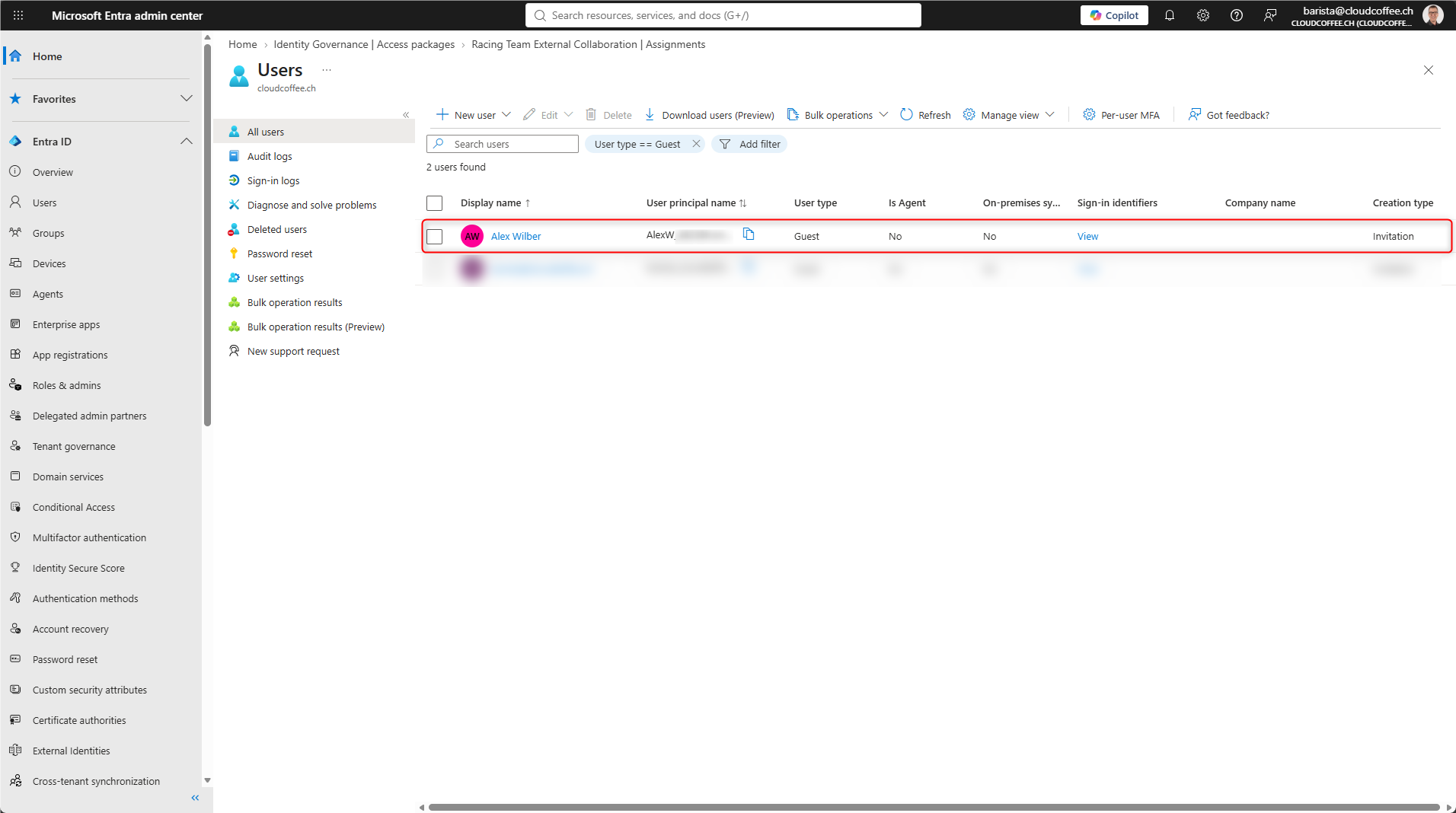
Next, verify the resource included in the Access Package.
In this example, the external user must be a member of the Microsoft 365 group F1 Collaboration.
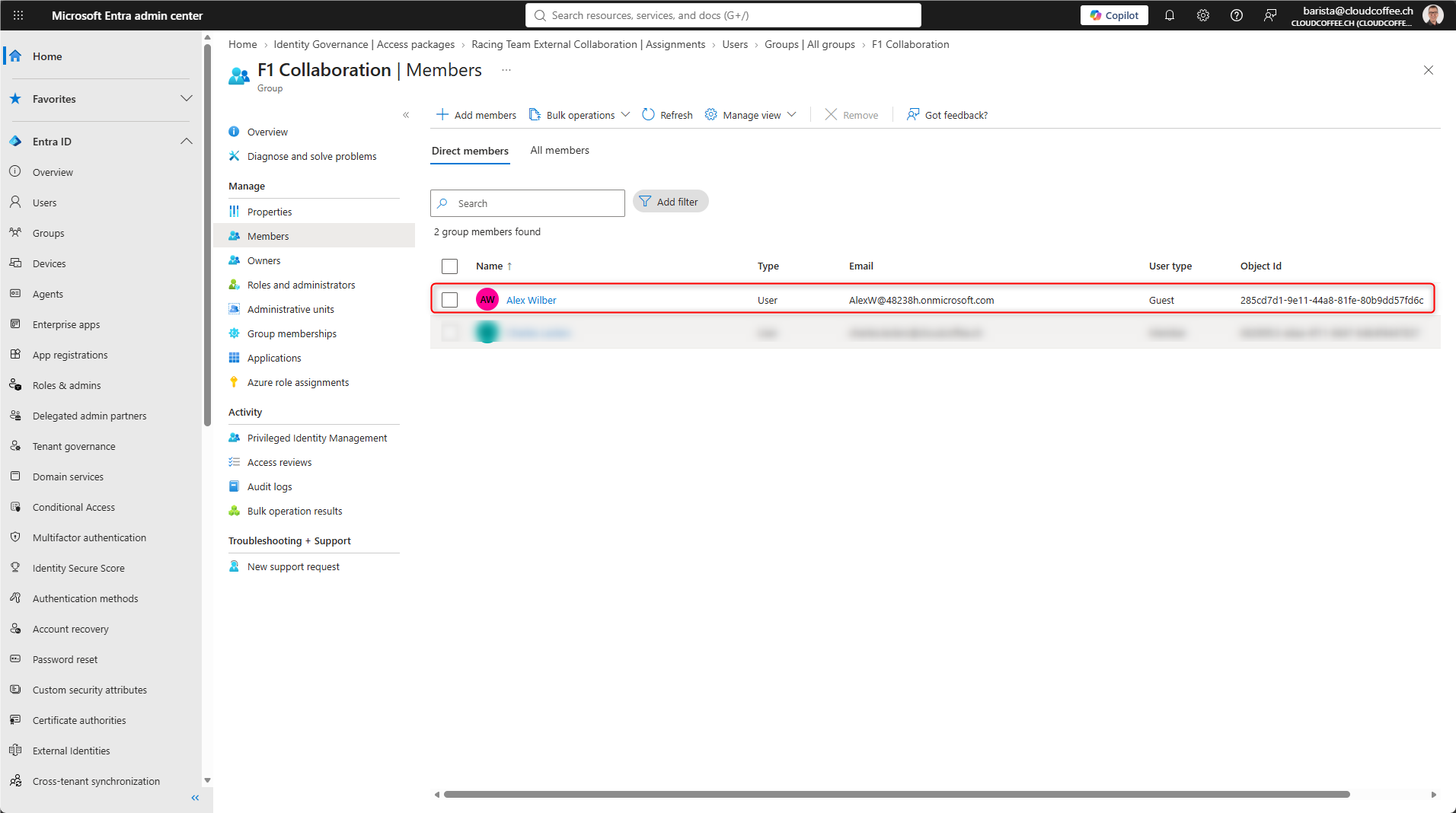
This validates the three core components of the provisioning process:
- The Access Package assignment is active
- The B2B guest object has been created
- The external user is a member of the defined Microsoft 365 group
Configure the Lifecycle of External Users
In addition to resource assignments, Entitlement Management can manage the lifecycle of external users who were added to the tenant through Entitlement Management.
Microsoft Entra admin center (https://entra.microsoft.com) > ID Governance > Entitlement management > Control configurations > Lifecycle of external users
These settings define:
- whether an external user is blocked from signing in after their last Access Package assignment ends
- after how many days the external user account is removed from the directory
By default, Entitlement Management blocks an external user invited through Entitlement Management from signing in after the user’s last Access Package assignment ends. After 30 days, Microsoft Entra removes the guest account from the directory.
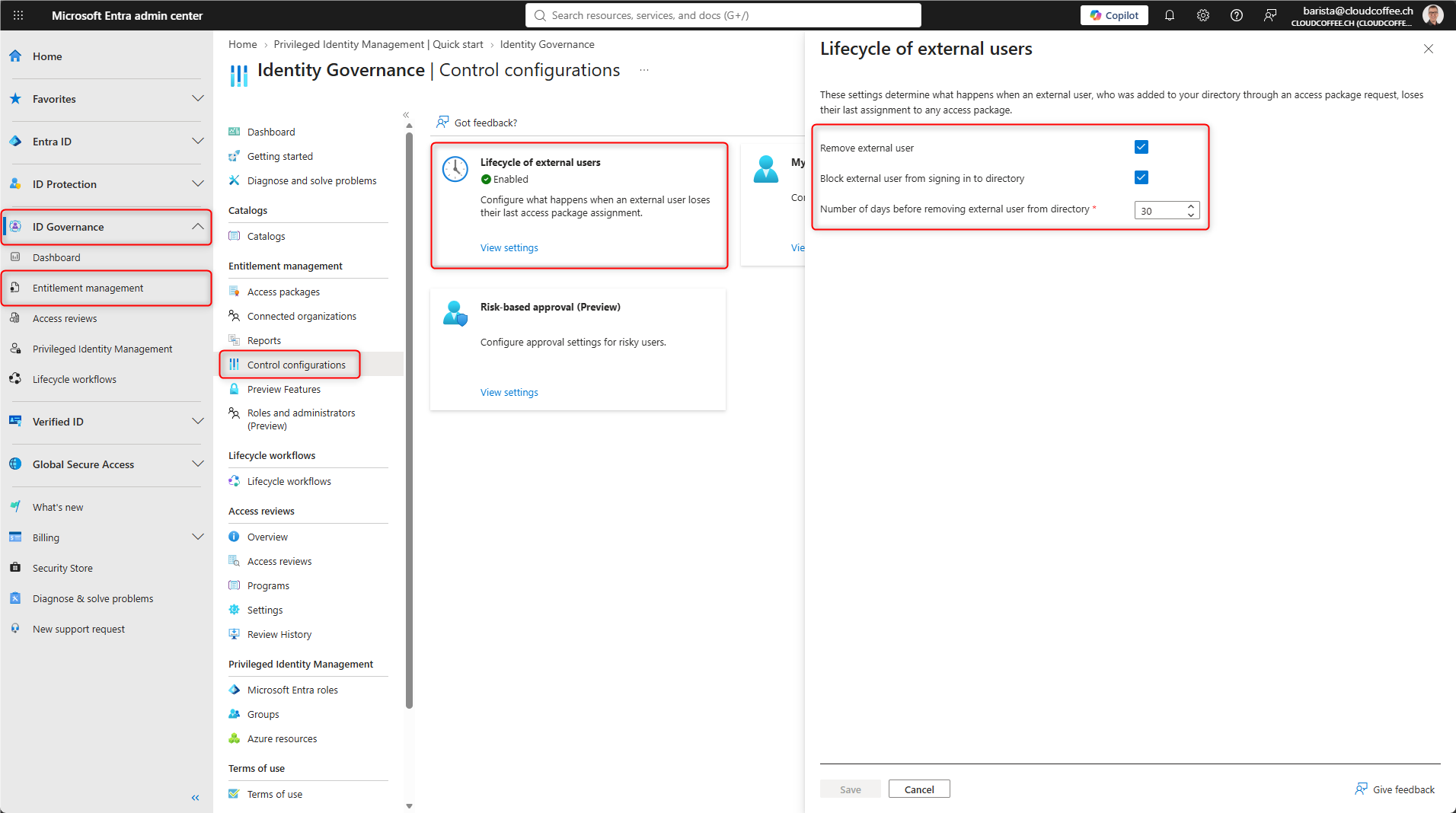
The resulting lifecycle is:
- The last Access Package assignment ends
- The permissions provisioned through Access Packages are removed
- The guest account is blocked from signing in
- The configured waiting period begins
- The guest account is removed from the tenant
Good to Know
Existing Guest Accounts Are Not Automatically Governed
The automatic lifecycle does not apply to every guest account that already exists in the Microsoft Entra tenant. Entitlement Management manages the lifecycle of external users who were invited through Entitlement Management or were subsequently brought under lifecycle management. If a guest already existed in the tenant before receiving their first Access Package assignment, the user object generally remains after the assignment ends.
Under certain conditions, existing guest accounts can be brought into the lifecycle managed by Entitlement Management by using Mark guest as governed. This capability is part of the advanced Microsoft Entra ID Governance functionality and has additional licensing and usage requirements. More information is available in the Microsoft Learn article Convert guest user lifecycle in entitlement management – Microsoft Entra – Microsoft Entra ID Governance | Microsoft Learn. The feature is not required for guests who are newly invited through Entitlement Management.
Direct Permissions Are Not Part of the Access Package
When an Access Package assignment ends, Entitlement Management removes the resource roles that were provisioned through that Access Package. An additional group membership, application assignment, or other permission granted directly does not automatically become part of the Access Package lifecycle. Direct permissions should therefore be avoided where possible.
A Guest Can Have Multiple Access Packages
An external user can have multiple Access Package assignments at the same time. Therefore, the end of a single assignment does not automatically trigger the lifecycle of the guest account. The relevant event is the end of the last managed Access Package assignment.
Connected Organizations Do Not Replace Cross-Tenant Access Settings
Connected organizations define which external organizations can be considered by Access Package policies within Entitlement Management. They do not define MFA trust, device trust, or inbound and outbound B2B access rules. These settings continue to be controlled through Microsoft Entra External ID and cross-tenant access settings. A configuration guide is available in the post Securing Microsoft Entra Guest Access: Cross-tenant Access Settings and MFA Trust – cloudcoffee.ch.
M365Con Session
The content in this article series is based on my session on Microsoft Entra guest access at M365Con. The full session covers the concepts and configuration examples discussed in these articles, along with additional topics around Conditional Access and monitoring, and is available on YouTube.
The session is also available with an English audio track. In the YouTube player, select Settings > Audio track > English.
Conclusion
Microsoft Entra guest access requires a defined lifecycle in addition to secure authentication and access conditions. A direct B2B invitation creates a guest account, but it does not define who approves access, how long the assignment remains valid, or when the user object should be removed.
With Access Packages, required resources are tied to a defined request, approval, and lifecycle process. A configured assignment duration limits how long access remains valid, while Access Reviews periodically verify the continued business need.
Lifecycle governance therefore complements the trust architecture described in the first part of this series. Cross-tenant access settings determine which organizations and claims the resource tenant trusts. Access Packages determine why an external user receives access, which resources are provisioned, and when that access ends.
Fresh content, explained with practical relevance. Stay up to date via LinkedIn and Bluesky.


No marketing. No noise. Just content.
If this post was helpful, a coffee brings back the rich aroma behind the writing.