Configure Exchange Online SMTP Relay with a Static Public IP Address
Microsoft has announced the gradual deprecation of Basic Authentication for SMTP AUTH in Exchange Online. Existing tenants will still be able to use the feature for now, but a complete removal is planned in the long term. Details about the current roadmap and the deprecation timeline are published in the Exchange Team Blog: Updated Exchange Online SMTP AUTH Basic Authentication Deprecation Timeline | Microsoft Community Hub
Modern authentication based on OAuth is the recommended replacement for SMTP AUTH Basic Authentication. However, many devices and applications do not support modern authentication. Typical examples include multifunction devices, scanners and legacy applications. For these scenarios, Microsoft continues to support sending email by using an Exchange Online SMTP relay.
When using an Exchange Online SMTP relay, no username or password authentication is required. Instead, the connection is authenticated by using an Exchange Online connector that validates the sending host based on a static public IP address or a certificate.
This article shows how to configure an Exchange Online SMTP relay with a static public IP address by using an Exchange Online connector.
Prerequisites and Licensing
Exchange Online Required
Exchange Online must be available in the Microsoft 365 tenant to use Exchange Online SMTP relay.
A dedicated mailbox for the sender is not required. However, the sender address must belong to an accepted domain in Exchange Online.
Supported Exchange Online plans include, for example:
- Exchange Online Plan 1
- Microsoft 365 Business Basic, Standard and Premium
- Microsoft 365 E3 and E5
An overview of Microsoft licensing plans and their included features is available at https://m365maps.com/.
Static Public IP Address
Authentication for the Exchange Online SMTP relay is based on the source IP address.
A static public IPv4 address is therefore required.
Port 25 TCP Required
Exchange Online SMTP relay requires TCP port 25.
The firewall and the internet service provider (ISP) must allow outbound SMTP connections on port 25.
DNS Configuration
To ensure successful delivery to external recipients, the static public IP address should be included in the SPF record. Optionally, DKIM and DMARC can also be configured. More details are available in the following blog post: Setting up SPF, DKIM and DMARC in Exchange Online – cloudcoffee.ch
Roles
The following role is sufficient to configure an Exchange Online SMTP relay, based on the principle of least privilege:
| Role | Permission |
| Exchange Administrator | Manage Exchange Online, mail flow and connectors |
Create an Exchange Online Connector for SMTP Relay
For SMTP relay using a static public IP address, an Exchange Online connector is required. This connector defines which public source IP addresses are allowed to send messages to Exchange Online without authentication.
The configuration is performed in the Exchange admin center (https://admin.exchange.microsoft.com) > Mail flow > Connectors > Add a connector
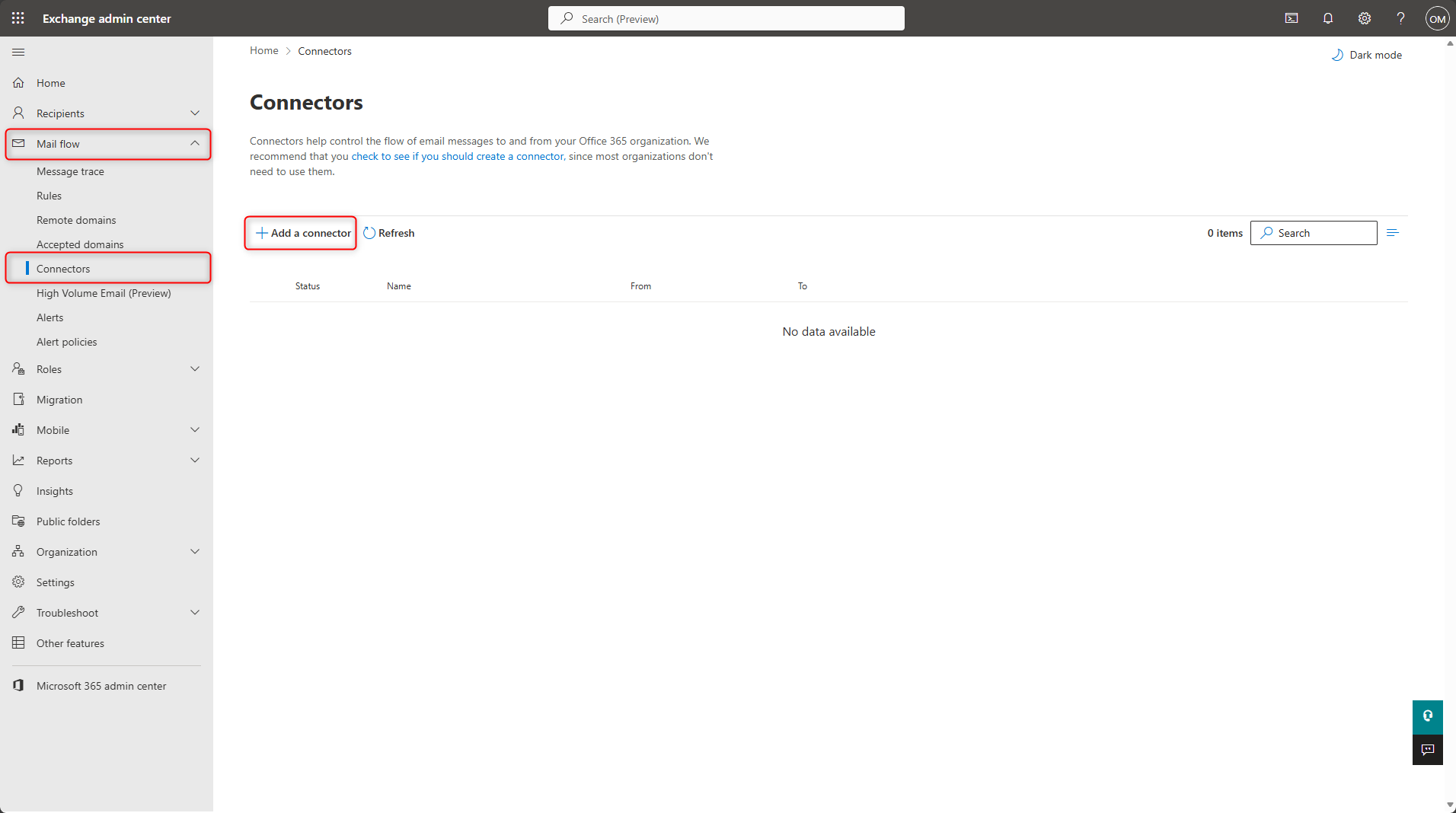
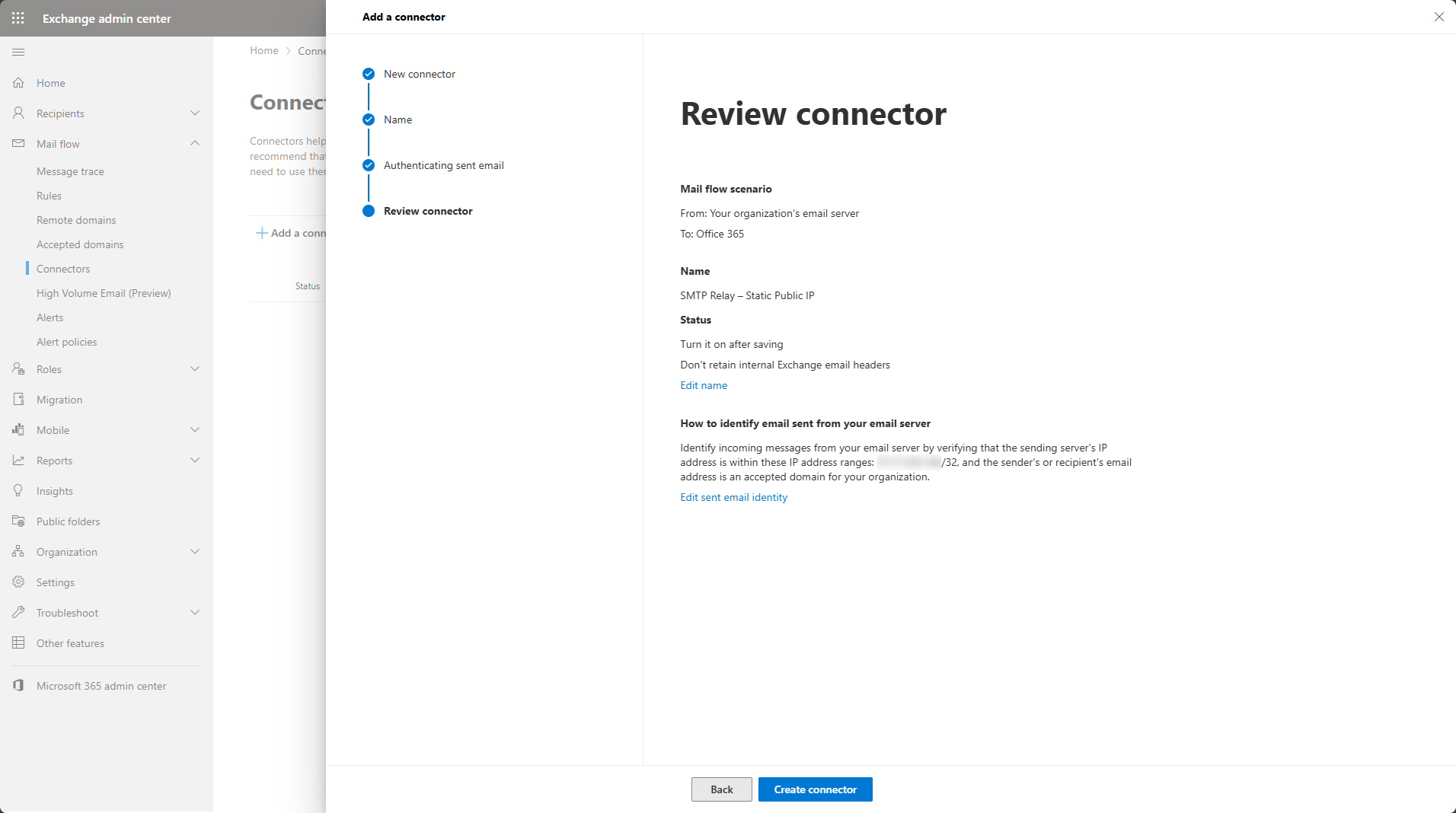
Select your organisation’s email server, then click Next.
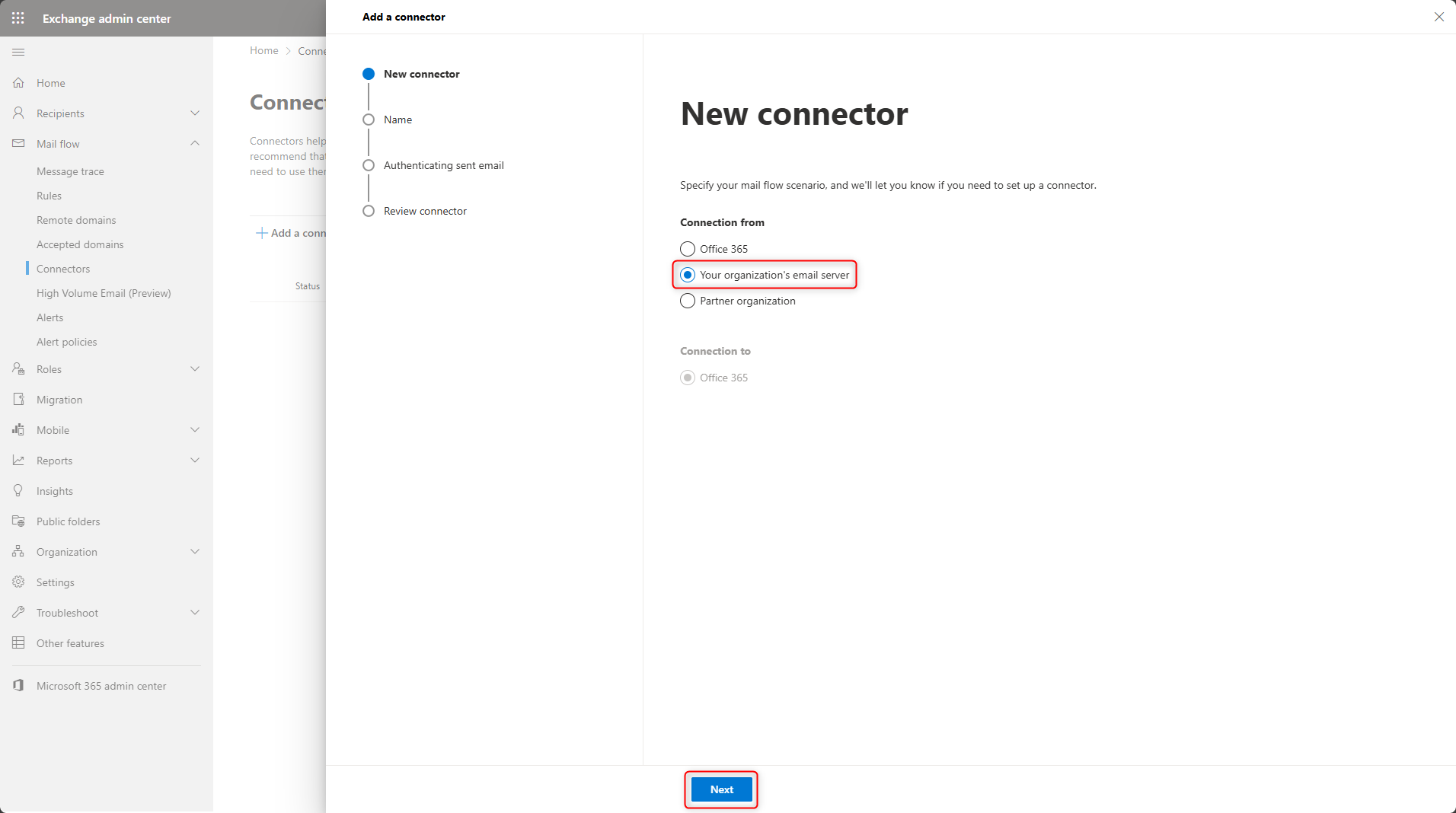
Enter a connector name, for example SMTP Relay – Static Public IP.
Select Turn it on, then click Next.
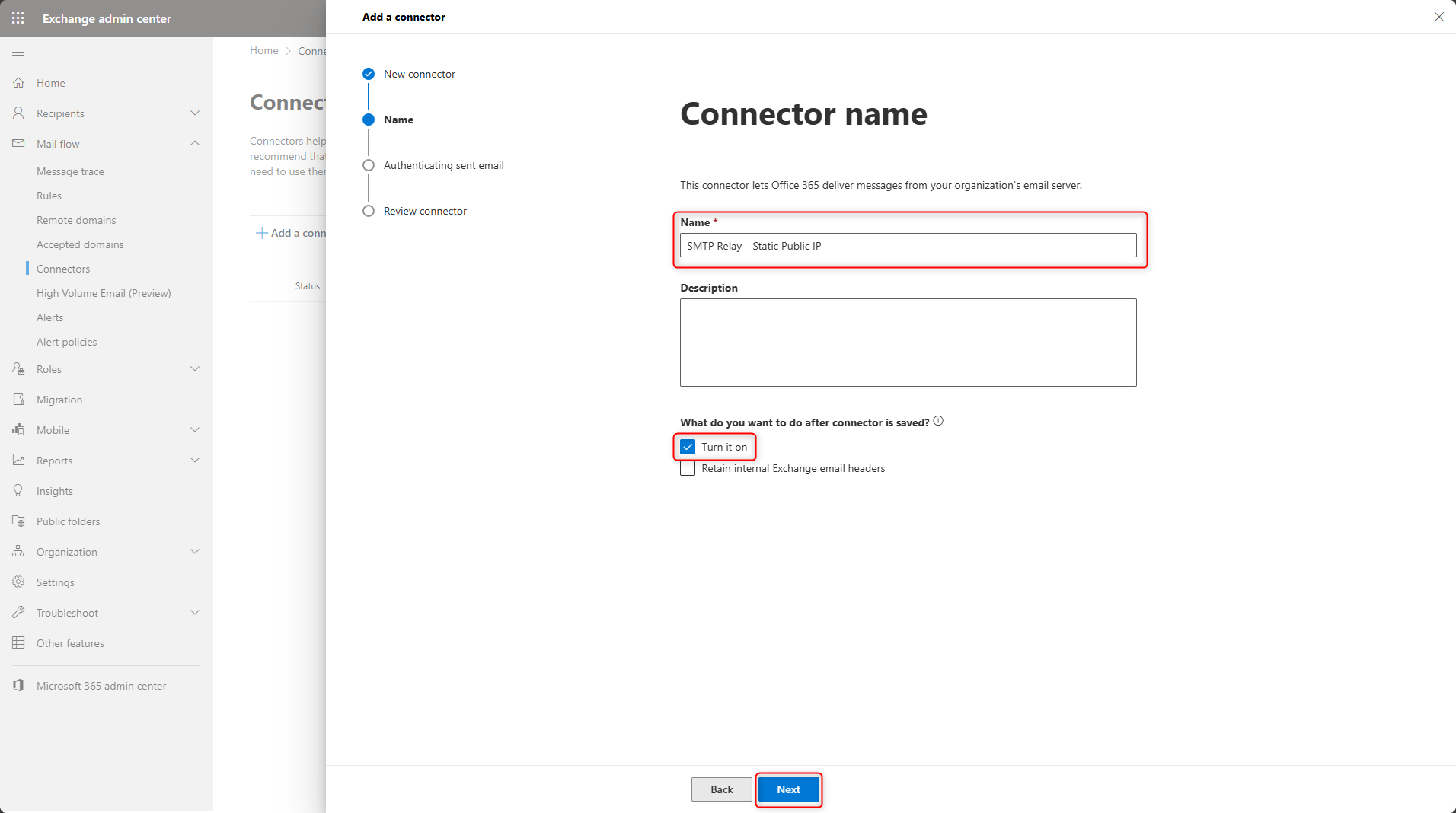
Select the authentication type By verifying that the IP address of the sending server matches one of the following IP addresses, which belong exclusively to your organization.
Enter the static public IP address, then click Next.
Review the settings, then click Create connector.
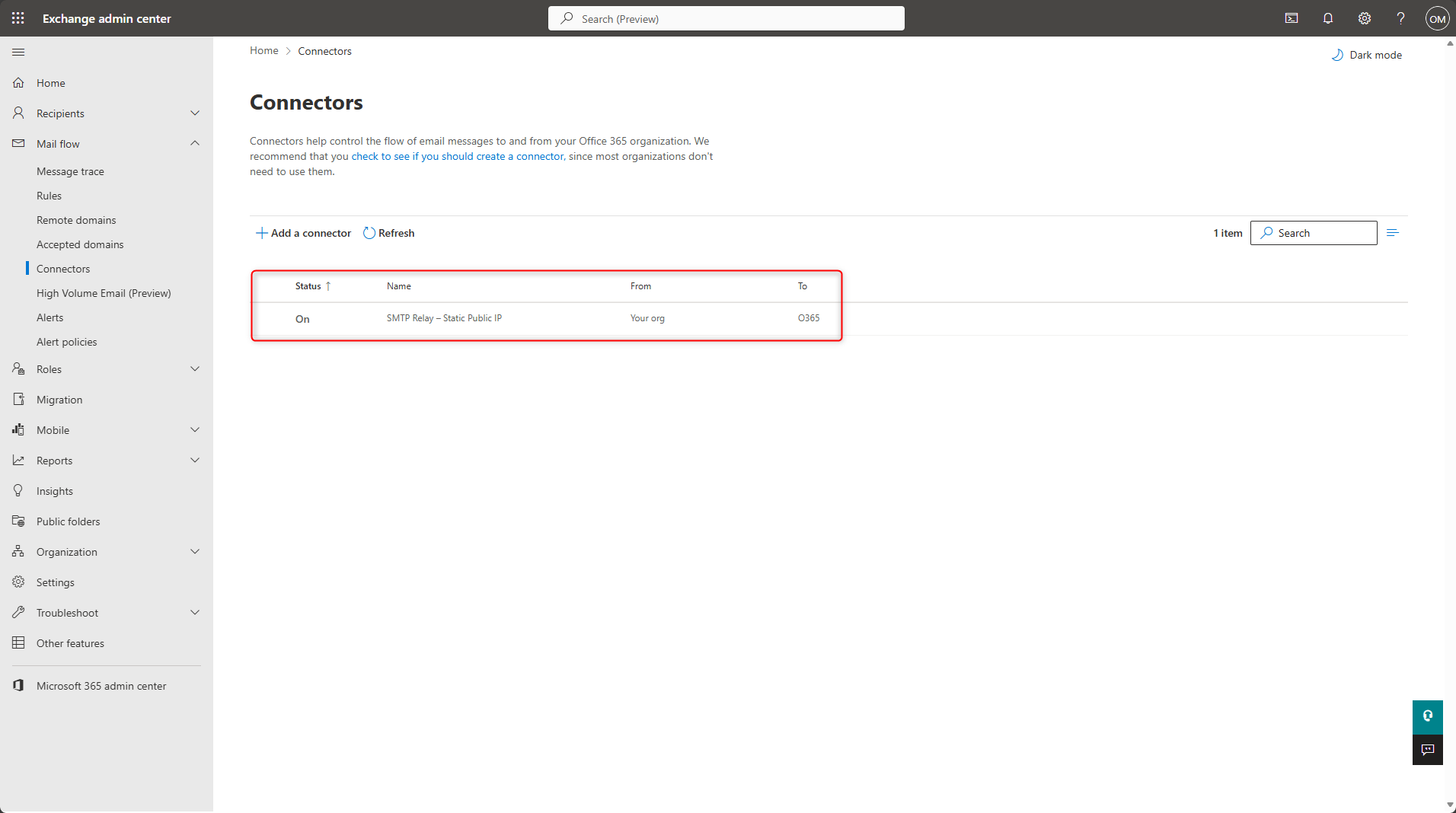
The Exchange Online connector is created and enabled.
SMTP Settings for Devices and Applications
Determine the MX Endpoint of Your Domain
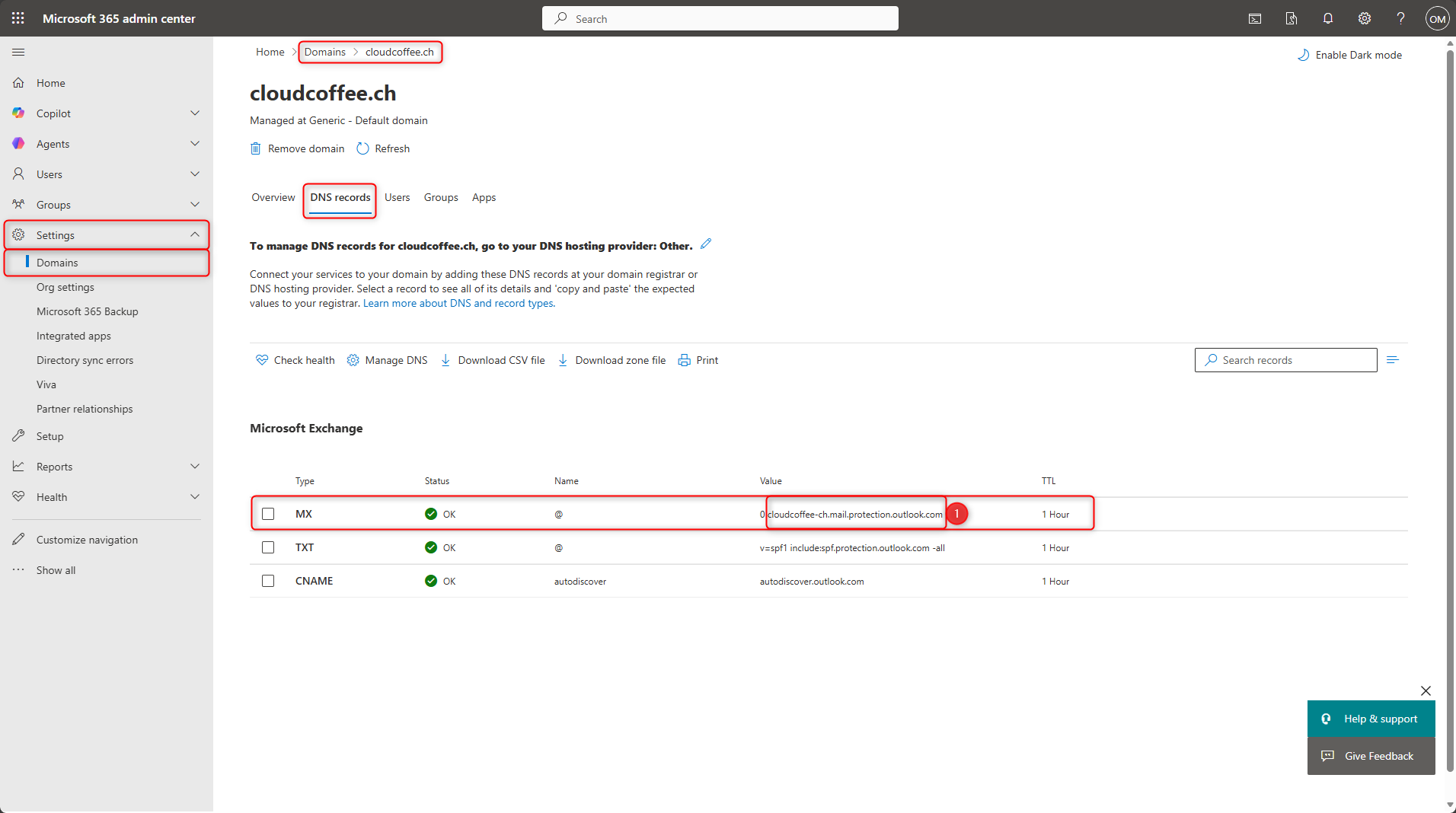
The SMTP server for the relay is not smtp.office365.com, as is often assumed, but the MX endpoint of your domain.
The MX endpoint can be found in the Microsoft 365 admin center:
Microsoft 365 admin center (https://admin.microsoft.com) > Settings > Domains > Select domain > DNS records > MX value (1)
Example of an MX endpoint: cloudcoffee-ch.mail.protection.outlook.com
This value must be configured on the device or in the application as the SMTP server.
SMTP Configuration for Devices and Applications
Devices and applications can access the Exchange Online SMTP Relay with the following details. No user name or password is required for authentication. Authentication takes place via the static public IPv4 address.
| SMTP server | MX endpoint of your domain e.g. cloudcoffee-ch.mail.protection.outlook.com |
| Port | 25 TCP |
| TLS / StartTLS | Enabled |
| Authentication | None |
| Sender address | Address from an accepted domain in Exchange Online, e.g. scanner@cloudcoffee.ch |
The sender address does not require its own mailbox. However, it must belong to an accepted domain in Exchange Online.
Test SMTP Relay with PowerShell
To verify the SMTP relay configuration, a test message can be sent using PowerShell.
The following script uses the Exchange Online SMTP relay connector and automatically determines the MX endpoint of the sender domain based on the sender address.
The following values must be configured in the script:
- Email address from the configured sender domain (1)
- Recipient address (2)
The message must be sent from a client whose outbound connection uses the static public IP address configured in the Exchange Online connector. In addition, TCP port 25 must be available for outbound connections.
# ===============================
# Configuration
# ===============================

$From = "(1)"
$To   = "(2)"

# ===============================
# Resolve domain and MX record
# ===============================

try {
    $Domain = ($From -split "@")[-1]

    if ([string]::IsNullOrWhiteSpace($Domain)) {
        throw "The sender address does not contain a valid domain."
    }

    $MxRecord = Resolve-DnsName -Name $Domain -Type MX -ErrorAction Stop |
        Sort-Object -Property Preference |
        Select-Object -First 1

    if (-not $MxRecord -or [string]::IsNullOrWhiteSpace($MxRecord.NameExchange)) {
        throw "No MX record could be resolved for domain '$Domain'."
    }

    $SmtpServer = $MxRecord.NameExchange.TrimEnd('.')

    Write-Host "Resolved domain: $Domain" -ForegroundColor Cyan
    Write-Host "Resolved MX record: $SmtpServer" -ForegroundColor Cyan
}
catch {
    Write-Host "MX record lookup failed:" -ForegroundColor Red
    Write-Host $_.Exception.Message
    return
}

# ===============================
# Test message
# ===============================

$Subject = "Exchange Online SMTP Relay Test - $(Get-Date -Format 'yyyy-MM-dd HH:mm:ss')"
$Body    = "This is a test message sent through an Exchange Online SMTP relay connector."

try {
    $Message = New-Object System.Net.Mail.MailMessage
    $Message.From = $From
    $Message.To.Add($To)
    $Message.Subject = $Subject
    $Message.Body = $Body

    $SmtpClient = New-Object System.Net.Mail.SmtpClient($SmtpServer, 25)
    $SmtpClient.EnableSsl = $true
    $SmtpClient.DeliveryMethod = [System.Net.Mail.SmtpDeliveryMethod]::Network

    $SmtpClient.Send($Message)

    Write-Host "SMTP relay test successful." -ForegroundColor Green
}
catch {
    Write-Host "SMTP relay test failed:" -ForegroundColor Red
    Write-Host $_.Exception.Message
}
finally {
    if ($Message) { $Message.Dispose() }
    if ($SmtpClient) { $SmtpClient.Dispose() }
}
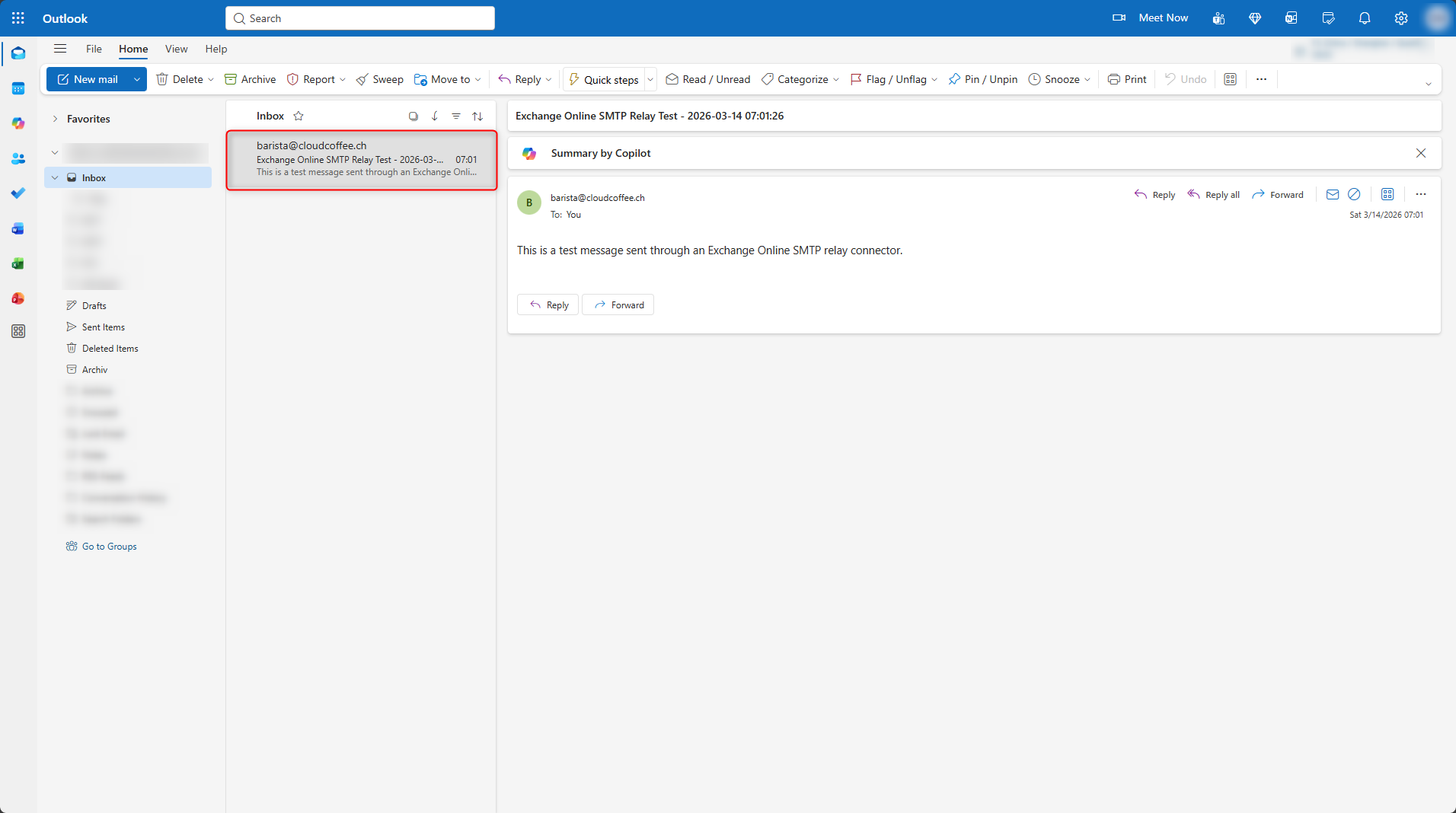
PowerShell Script Output:
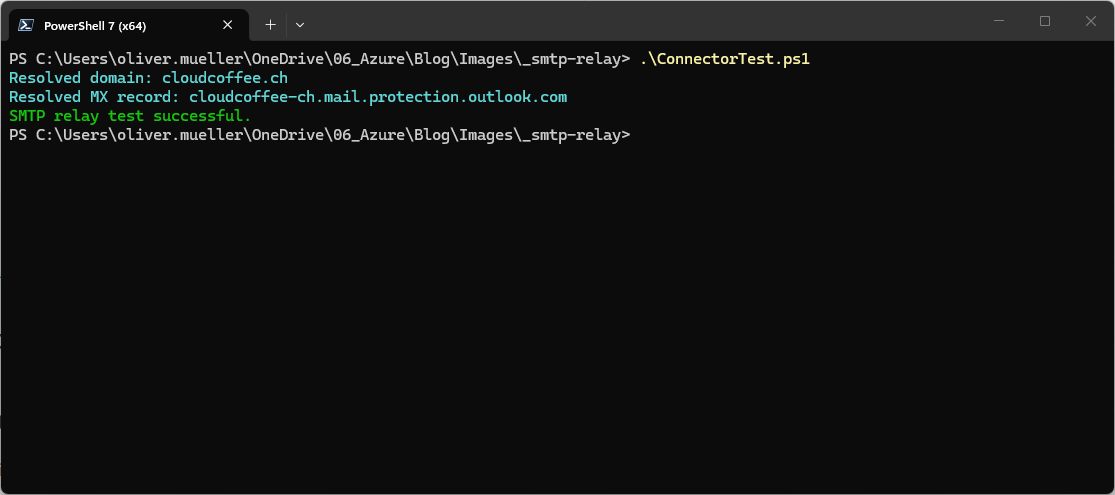
The test message was sent successfully using the Exchange Online SMTP relay connector.
If sending fails, the following section describes common issues and possible solutions: Common Issues with SMTP Relay
Common Issues with SMTP Relay
550 Relay Denied
The public IP address of the sending host does not match the IP address configured in the connector.
See Create an Exchange Online Connector for SMTP Relay
5.7.64 Tenant Not Authorised
The connector is not configured correctly or the source IP address does not match any valid connector.
See Create an Exchange Online Connector for SMTP Relay
Connection or Timeout Errors
TCP port 25 is blocked by the firewall or the ISP.
The SMTP server is configured incorrectly.
See SMTP Settings for Devices and Applications
Messages Marked as Spam
The SPF record is missing or does not include the public IP address of the sending host.
See: Setting up SPF, DKIM and DMARC in Exchange Online – cloudcoffee.ch
In addition, the reputation of the public IP address can also affect message delivery.
Good to Know
Identify Devices and Applications Using Basic Authentication
Devices and applications in your tenant that are using SMTP AUTH Basic Authentication can be identified in the sign-in logs in Microsoft Entra ID. The process is described in the following blog post: Microsoft Entra: How to Block Legacy Authentication Using Conditional Access – cloudcoffee.ch
Conclusion
With the gradual deprecation of SMTP AUTH Basic Authentication, SMTP relay using an Exchange Online connector is becoming increasingly important. An Exchange Online SMTP relay is especially suitable for devices and applications that do not support modern authentication. For these scenarios, authentication based on a static public IP address remains a robust and fully supported method.
Fresh content, explained with practical relevance. Stay up to date via LinkedIn and Bluesky.


No marketing. No noise. Just content.
If this post was helpful, a coffee brings back the rich aroma behind the writing.