Securing Microsoft Entra Guest Access: Cross-tenant Access Settings and MFA Trust
Securing Microsoft Entra Guest Access means authenticating external users in a controlled manner and clearly defining access to your organization’s resources. Microsoft 365 supports different collaboration models for this purpose. This article focuses on Microsoft Entra B2B collaboration, where a user object in the resource tenant represents the external identity and provides access to Microsoft Teams, SharePoint Online, and other applications.
In B2B collaboration, authentication and resource access are handled by two different tenants. The external user authenticates in the home tenant, which also manages the user’s credentials. The resource tenant hosts the application and determines the conditions under which access is granted. It does not maintain separate credentials for the external user. Instead, it controls the access requirements and permissions for its own resources.
By default, cross-tenant access settings allow B2B collaboration with users from other Microsoft Entra organizations. However, the resource tenant does not automatically trust MFA claims or device claims from external tenants. While these default settings simplify collaboration, they should be reviewed carefully in production tenants.
This article explains how cross-tenant access settings, MFA trust settings, authentication strengths, and Microsoft Entra Conditional Access work together to secure Microsoft Entra Guest Access.
Prerequisites and Licensing
Microsoft Entra External ID
Cross-tenant access settings are part of Microsoft Entra External ID. To configure trust settings and restrict access to specific users, groups, or applications, the resource tenant requires at least:
- Microsoft Entra ID P1 or higher
Microsoft Entra Conditional Access
The following license is required to configure the Conditional Access policies described in this article:
- Microsoft Entra ID P1 or higher
Analyzing Cross-Tenant Access Activity
Analyzing existing cross-tenant sign-in activity with the Cross-tenant access activity workbook requires the following:
- Microsoft Entra ID P1 or higher
- Log Analytics workspace
- Configured diagnostic settings to send Microsoft Entra sign-in logs to the Log Analytics workspace
For configuration details, see the Microsoft Learn article Integrate Microsoft Entra logs with Azure Monitor logs – Microsoft Entra ID | Microsoft Learn.
An overview of Microsoft licensing plans and their features is available at https://m365maps.com/.
Roles
The following roles are appropriate for configuration and verification while following the principle of least privilege.
| Role | Permission |
| Security Administrator | Manage cross-tenant access settings, Create and manage Conditional Access policies, View sign-in logs, View workbooks |
| Log Analytics Reader | Read log data in the Log Analytics workspace |
How the Home Tenant and Resource Tenant Work Together
In Microsoft Entra B2B collaboration, the home tenant authenticates the external user. It also manages the user’s credentials.
The resource tenant hosts the Microsoft 365 services or other applications. It contains a B2B user object that represents the external identity in its directory. The object does not have a separately managed password in the resource tenant.
The resource tenant uses Microsoft Entra Conditional Access policies to define the conditions under which external users can access its resources. A baseline policy typically requires MFA for all external users. For particularly sensitive applications, a separate policy can require a phishing-resistant authentication strength.
Permissions then determine which resources the user can access and what actions they are allowed to perform. Examples include membership in a Microsoft Teams team, permissions on a SharePoint site, or assignment to an enterprise application.
The resource tenant does not control the external user’s credentials. Instead, it controls the access requirements and permissions for its resources.
Preparing Cross-Tenant Access Settings
Identify Existing Cross-Tenant Access
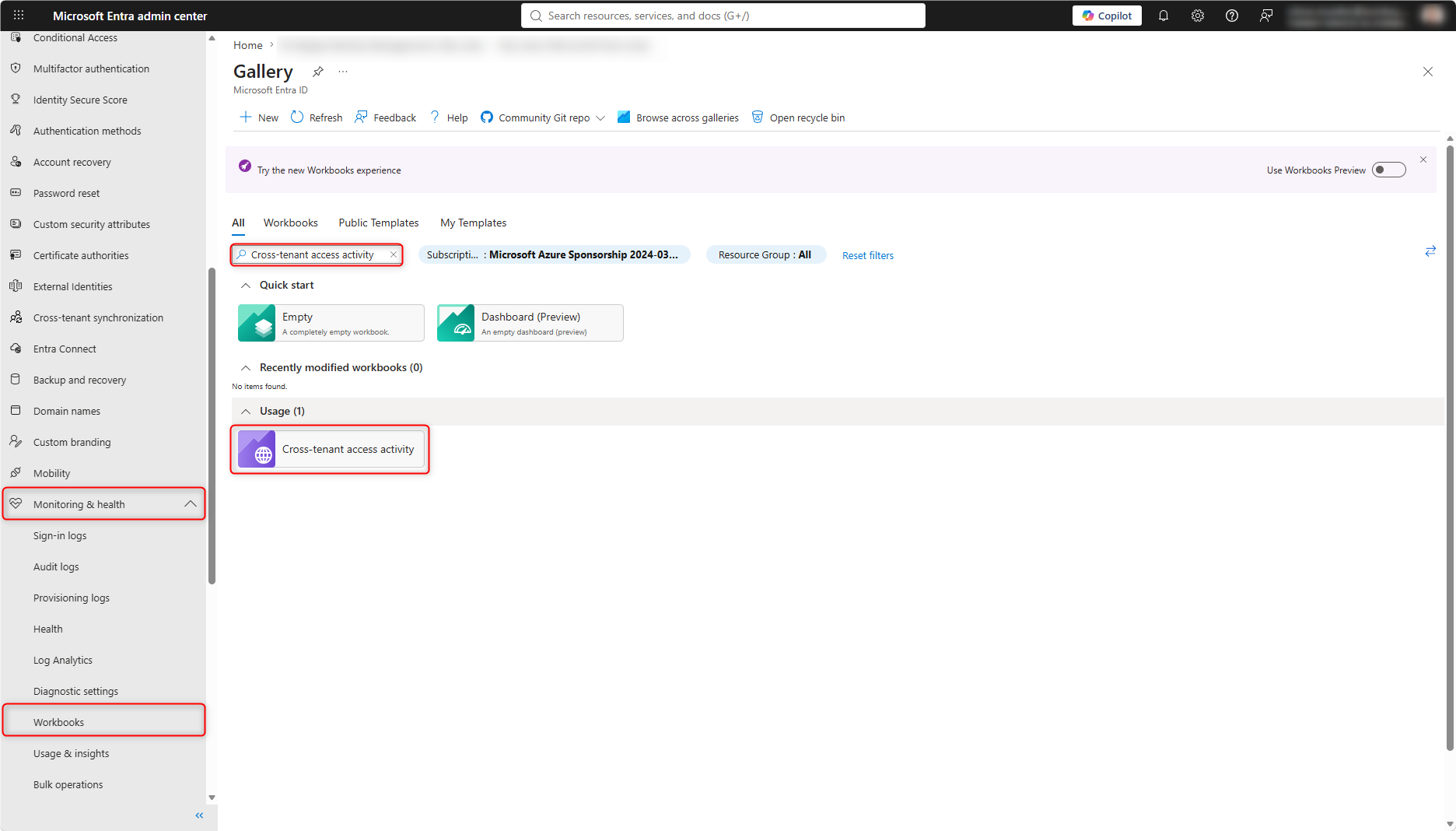
Before restricting the default settings, identify the partner organizations and applications that are actually being used. Otherwise, existing business processes may be disrupted. The Cross-tenant access activity workbook is available for this purpose. The required Log Analytics integration is described in the Prerequisites and Licensing section.
The workbook is available at:
Microsoft Entra admin center (https://entra.microsoft.com) > Entra ID > Monitoring and health > Workbooks > Cross-tenant access activity
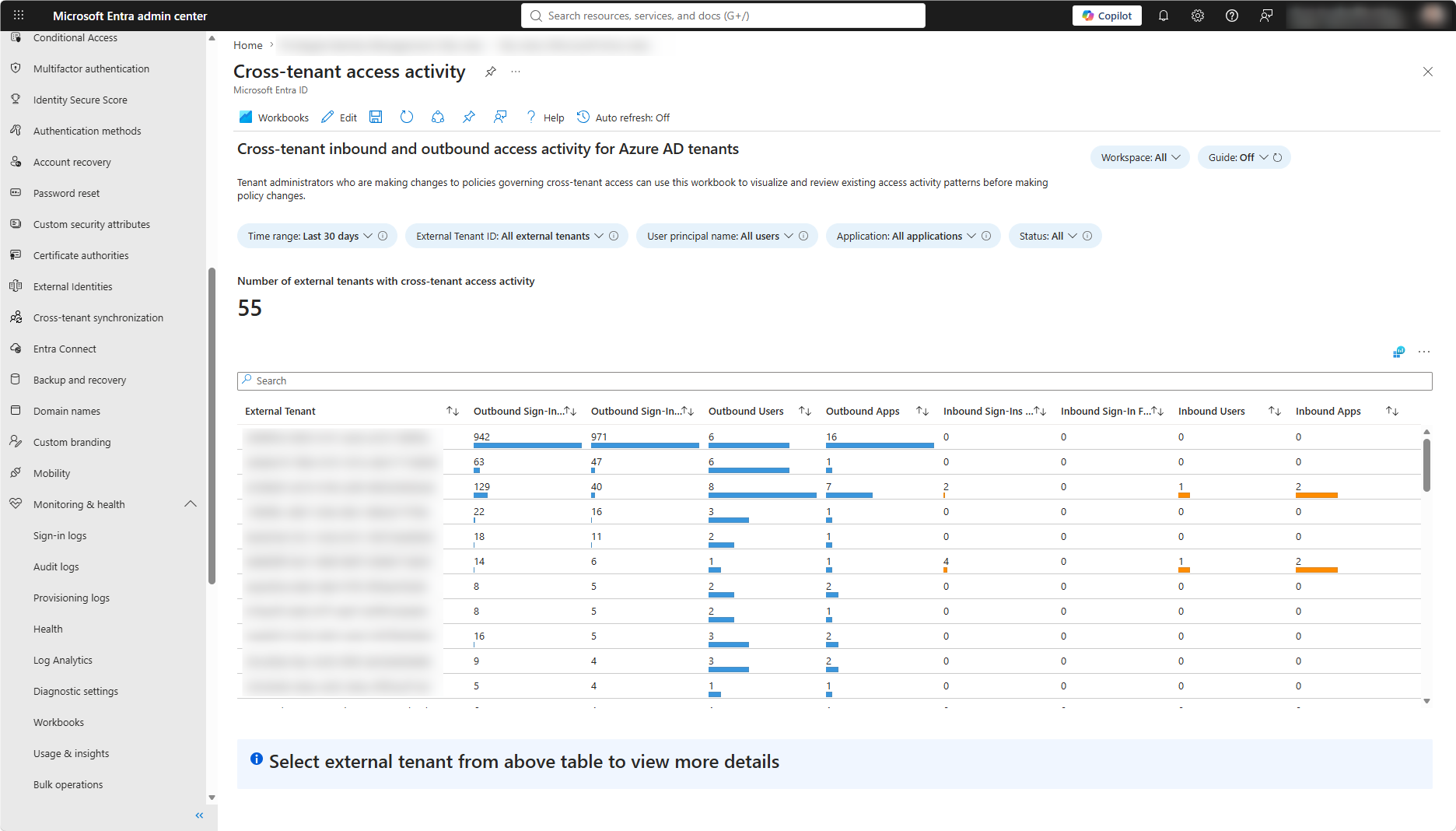
The workbook displays inbound and outbound sign-in activity recorded during the selected time range, grouped by tenant ID, application, user, and other criteria. The selectable time range is limited to 90 days. However, the workbook only displays data that was sent to the Log Analytics workspace and is still retained there.
Review the Default Cross-Tenant Access Settings
The cross-tenant access settings are available in the Microsoft Entra admin center under:
Microsoft Entra admin center (https://entra.microsoft.com) > Entra ID > External Identities > Cross-tenant access settings
Under Default settings, the policies that apply to all external Microsoft Entra organizations without an organization-specific configuration are displayed.
The default settings are:
- Inbound B2B collaboration: Allows all external users and groups to access all internal applications
- Outbound B2B collaboration: Allows all internal users and groups to access all external applications
- MFA and device trust: By default, the resource tenant does not trust MFA claims or claims from compliant devices or Microsoft Entra hybrid joined devices in external tenants
- B2B Direct Connect: Inbound and outbound access is blocked for all users, groups, and applications
- Tenant restrictions: Control access to applications in external tenants by using external identities on managed devices and corporate networks. By default, “All blocked” is configured. This setting takes effect only after Tenant Restrictions v2 has been configured. For more information, see Configure Tenant Restrictions – Microsoft Entra ID – Microsoft Entra External ID | Microsoft Learn.
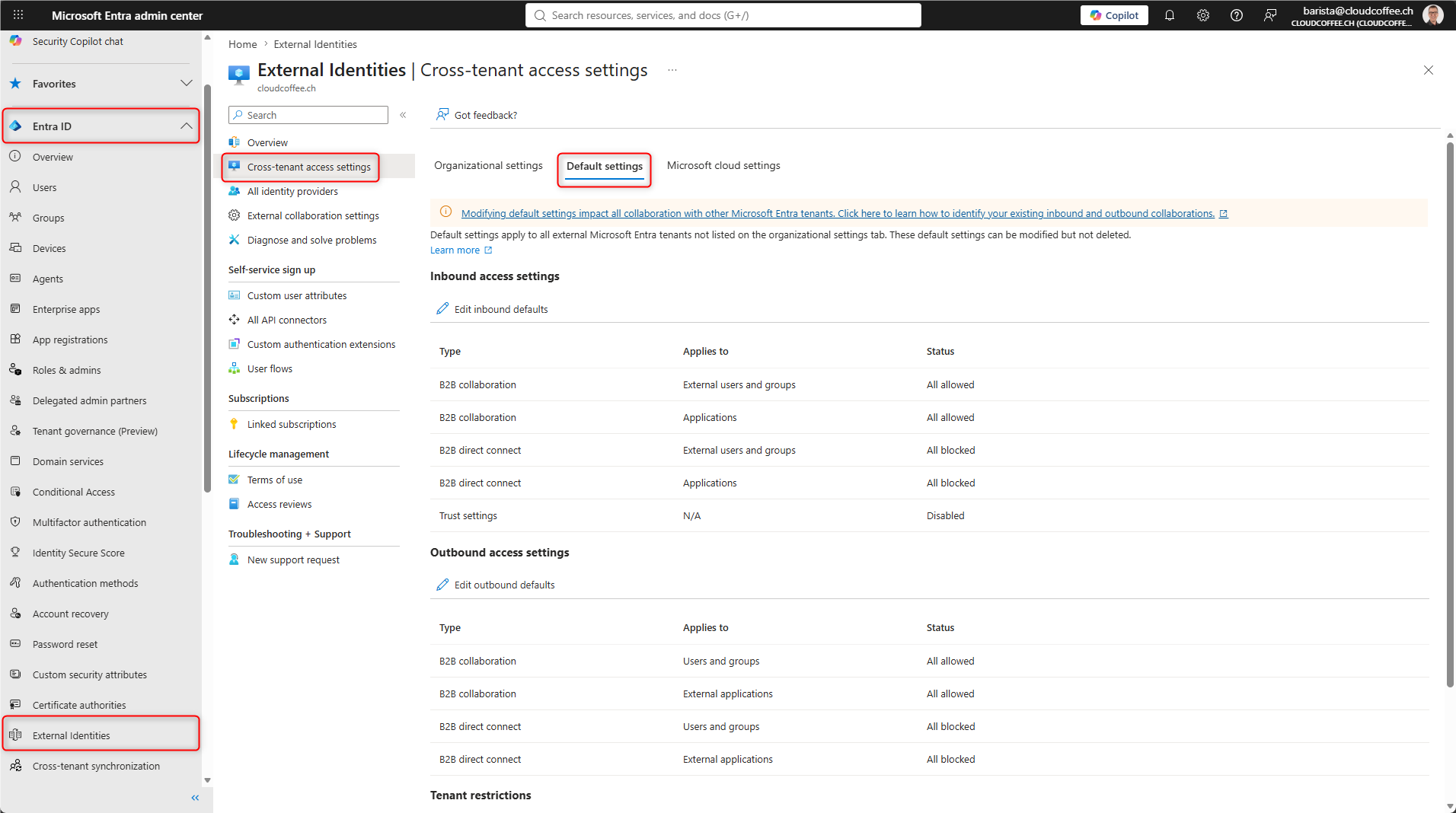
The default settings simplify collaboration but do not automatically meet the organization’s security and compliance requirements. They should therefore be reviewed in every production tenant.
Configure a Partner Organization
Add a Partner Organization
For trusted partner organizations, an organization-specific configuration is recommended. This overrides the default settings only for the selected partner organization.
Microsoft Entra admin center (https://entra.microsoft.com) > Entra ID > External Identities > Cross-tenant access settings > Organizational settings
Select Add organization, then enter the tenant ID or the fully qualified domain name (FQDN) of the partner organization.
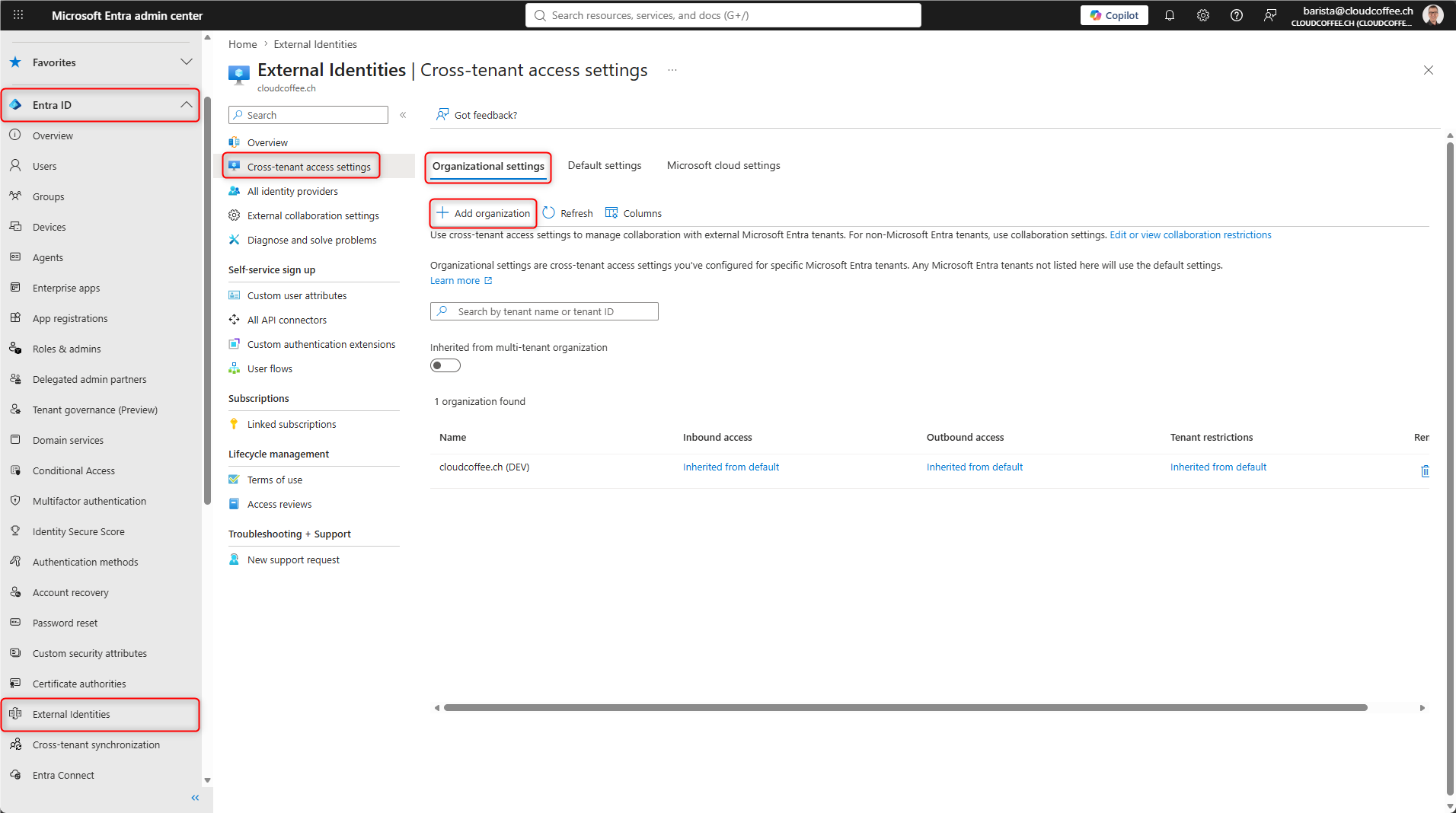
After the organization is added, it initially inherits all default settings. Use the links in the Inbound access, Outbound access, or Tenant restrictions columns to create an organization-specific configuration.
This article focuses on inbound B2B collaboration access and the associated trust settings. These settings secure external users’ access to the organization’s resources. Outbound access and tenant restrictions remain unchanged and continue to use the default settings.
Configure Inbound B2B Collaboration Access
Inbound B2B collaboration access determines which users from the partner organization can access which applications in the resource tenant.
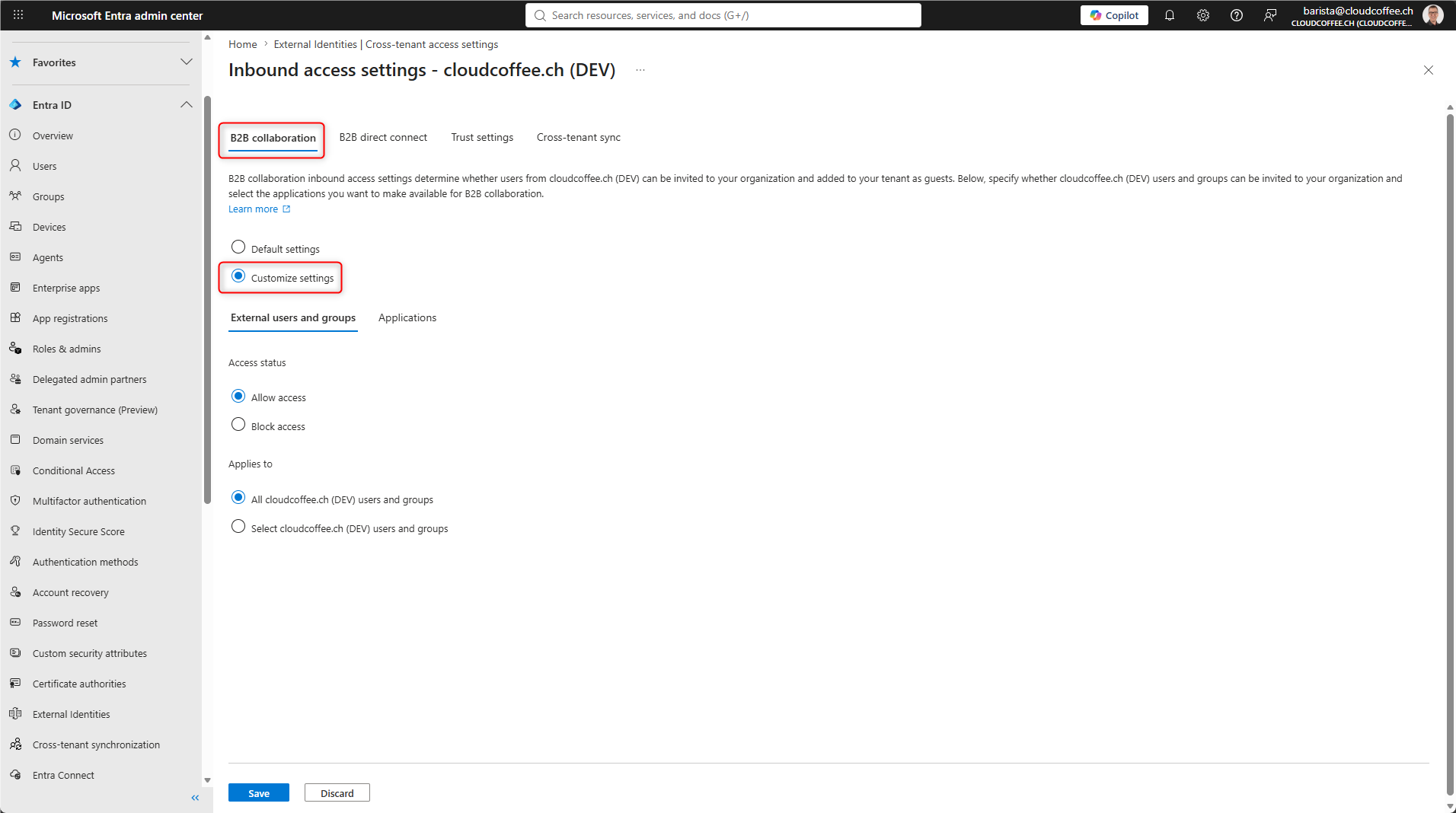
For the added organization, go to Inbound access > B2B collaboration, then select Customize settings.
On the External users and groups tab, choose whether to allow all external users or only specific users and groups. To configure individual users or groups, you need their object IDs from the partner tenant. Then, on the Applications tab, specify whether all internal applications or only selected applications are accessible.
Configure Trust Settings
Under Inbound access > Trust settings, specify which claims from the partner tenant are trusted:
- Trust multifactor authentication from Microsoft Entra tenants
- Trust compliant devices
- Trust Microsoft Entra hybrid joined devices
All three settings are disabled by default.
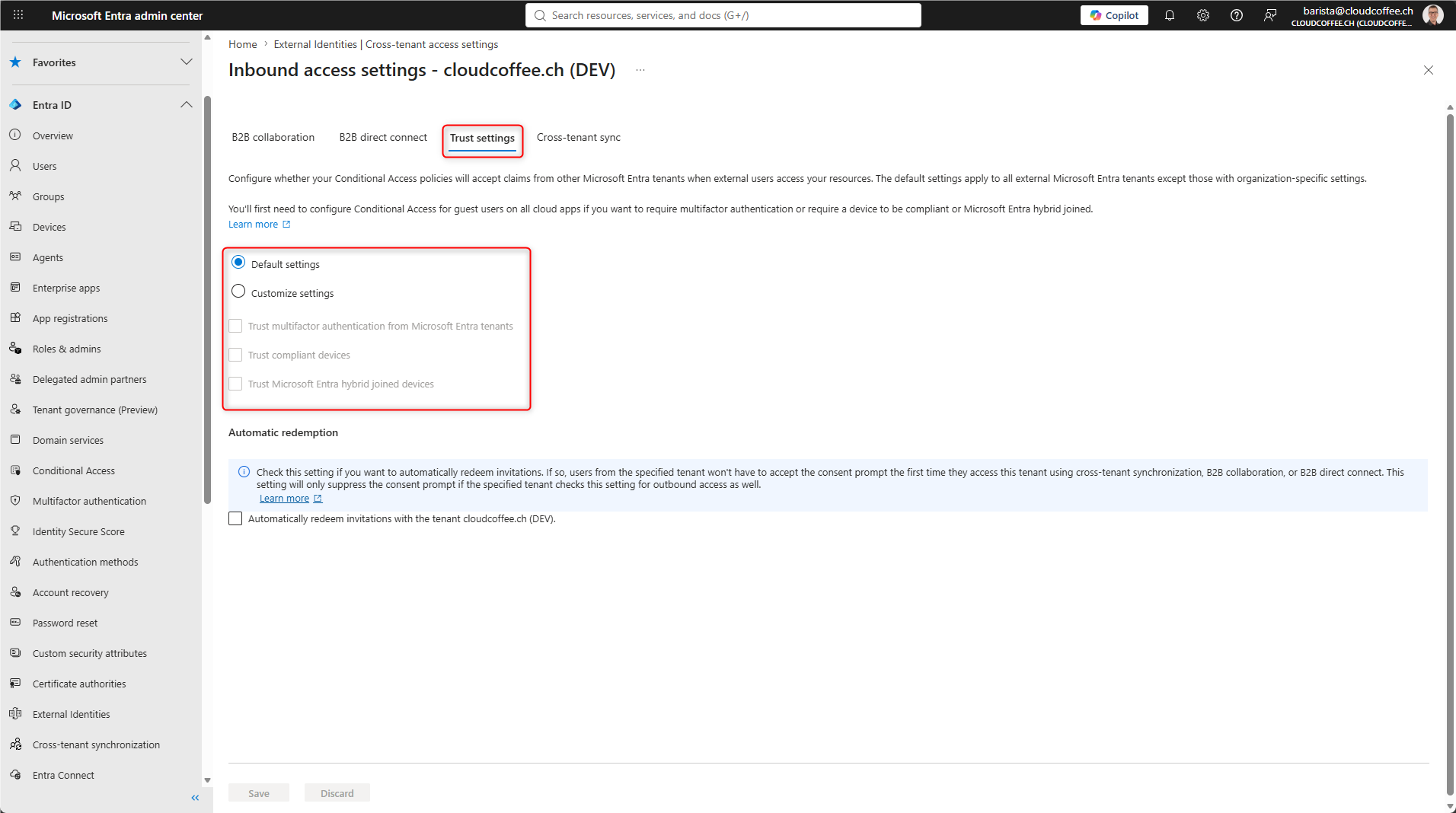
If MFA trust is enabled, the MFA claim from the home tenant can satisfy the MFA requirement of a Microsoft Entra Conditional Access policy in the resource tenant. If the user has not yet completed MFA in the home tenant, Microsoft Entra ID triggers it there. The resource tenant continues to require MFA but accepts the claim issued by the partner tenant. The differences between the two MFA models are described in the section MFA for Guests: Two Different Models.
If trust for compliant devices is enabled, the resource tenant accepts the device compliance state from the partner tenant. The compliance policies defined by the partner in Microsoft Intune therefore determine whether the device is considered compliant. The same principle applies to Microsoft Entra hybrid joined devices.
Trust settings should only be enabled for known partners whose security posture has been assessed and documented.
MFA for Guests: Two Different Models
MFA Without Trust
The resource tenant requires MFA but does not accept an MFA claim from the home tenant. The guest must complete MFA in the resource tenant and, if necessary, register an additional authentication method.
Advantages:
- Control over the authentication methods allowed in the resource tenant
- No dependency on the partner’s MFA configuration
- Suitable security baseline for unknown or infrequently used partners
Disadvantages:
- Additional registration and maintenance of an authentication method in the resource tenant
- A separate MFA prompt during sign-in
- Increased support overhead
MFA With Trust
The resource tenant requires MFA and accepts the MFA claim from the home tenant. The guest uses the MFA provided by their own organization and does not need to register an additional authentication method or complete a separate MFA challenge in the resource tenant. If the user has not yet completed MFA in the home tenant, Microsoft Entra ID triggers it there.
Advantages:
- No additional MFA registration in the resource tenant
- No separate MFA challenge in the resource tenant
- Reduced support overhead
- Suitable for trusted partners with a verified MFA security posture
Disadvantages:
- Dependency on the partner’s MFA configuration
- Changes to the partner’s MFA security posture are not automatically visible in the resource tenant
MFA without trust is the secure default. MFA with trust should only be enabled for trusted partners whose MFA security posture has been assessed and is reviewed regularly.
Microsoft Entra Conditional Access Policies for External Users
Configure Microsoft Entra Conditional Access
Microsoft Entra Conditional Access policies allow external identities to be selected by the following six user types:
- B2B collaboration guest users
- B2B collaboration member users
- B2B direct connect users
- Local guest users
- Service provider users
- Other external users
This makes it possible to secure the external user types that are actually used while blocking those that are not required. A baseline MFA policy for B2B collaboration guest users can be created under the following path:
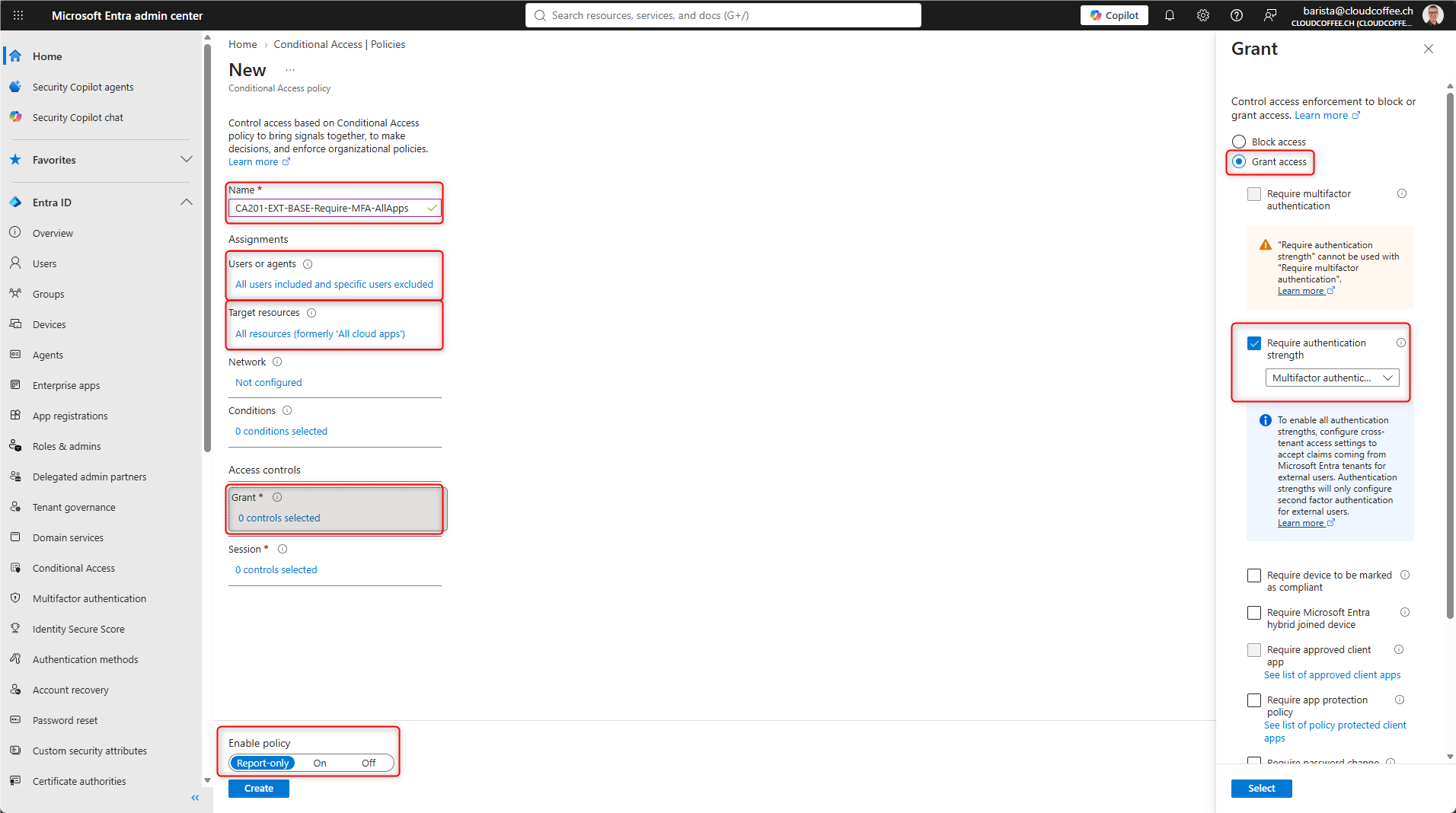
Microsoft Entra admin center (https://entra.microsoft.com) > Entra ID > Conditional Access > Policies > Create new policy
Assign a name to the policy.
Naming recommendations are described in the Microsoft Learn article Plan Your Microsoft Entra Conditional Access Deployment – Microsoft Entra ID | Microsoft Learn.
Under Users or agents > Users and groups > Guest or external users, select the B2B collaboration guest users. Depending on your environment, also select any additional external identity types that are in use.
Under Target resources > Resources, select the required applications.
Under Grant > Grant access, select Require authentication strength, then choose the required authentication strength.
Before enabling new policies, validate them by using Report-only mode, the Conditional Access What If tool, and a test user.
A recommended Microsoft Entra Conditional Access policy set for external users consists of multiple policies:
- A baseline MFA policy for all external user types in use
- Stronger authentication requirements for sensitive applications
- Session controls, such as sign-in frequency, for selected scenarios
- Blocking of unused external user types
Authentication Strengths for Sensitive Resources
An authentication strength defines which authentication methods can satisfy an MFA requirement.
For standard access, any multifactor authentication method may be sufficient. For sensitive or privileged applications, a phishing-resistant authentication strength can require a FIDO2 security key, a passkey, Windows Hello for Business, or certificate-based authentication.
For external Microsoft Entra users, the evaluation of the authentication strength depends on whether the resource tenant trusts the MFA claim from the home tenant.
- With MFA trust, Microsoft Entra evaluates whether the method used in the home tenant satisfies the required authentication strength
- Without MFA trust, the guest must satisfy the required authentication strength by using a method registered in the resource tenant
Microsoft Entra admin center (https://entra.microsoft.com) > Entra ID > Authentication methods > Authentication strengths
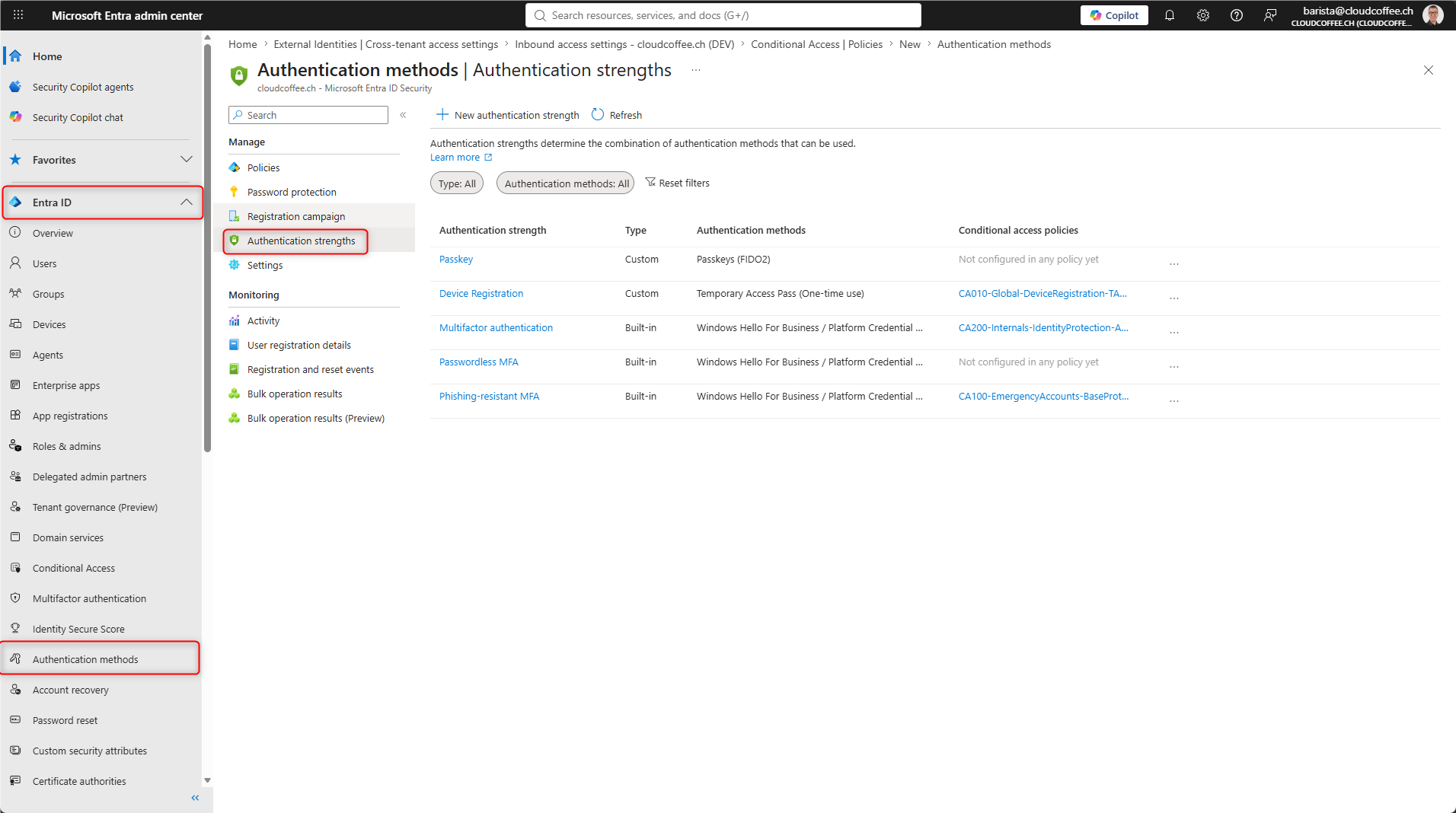
Authentication Strengths currently apply only to external users who authenticate with Microsoft Entra ID.
Good to Know
External Collaboration Settings Remain Relevant
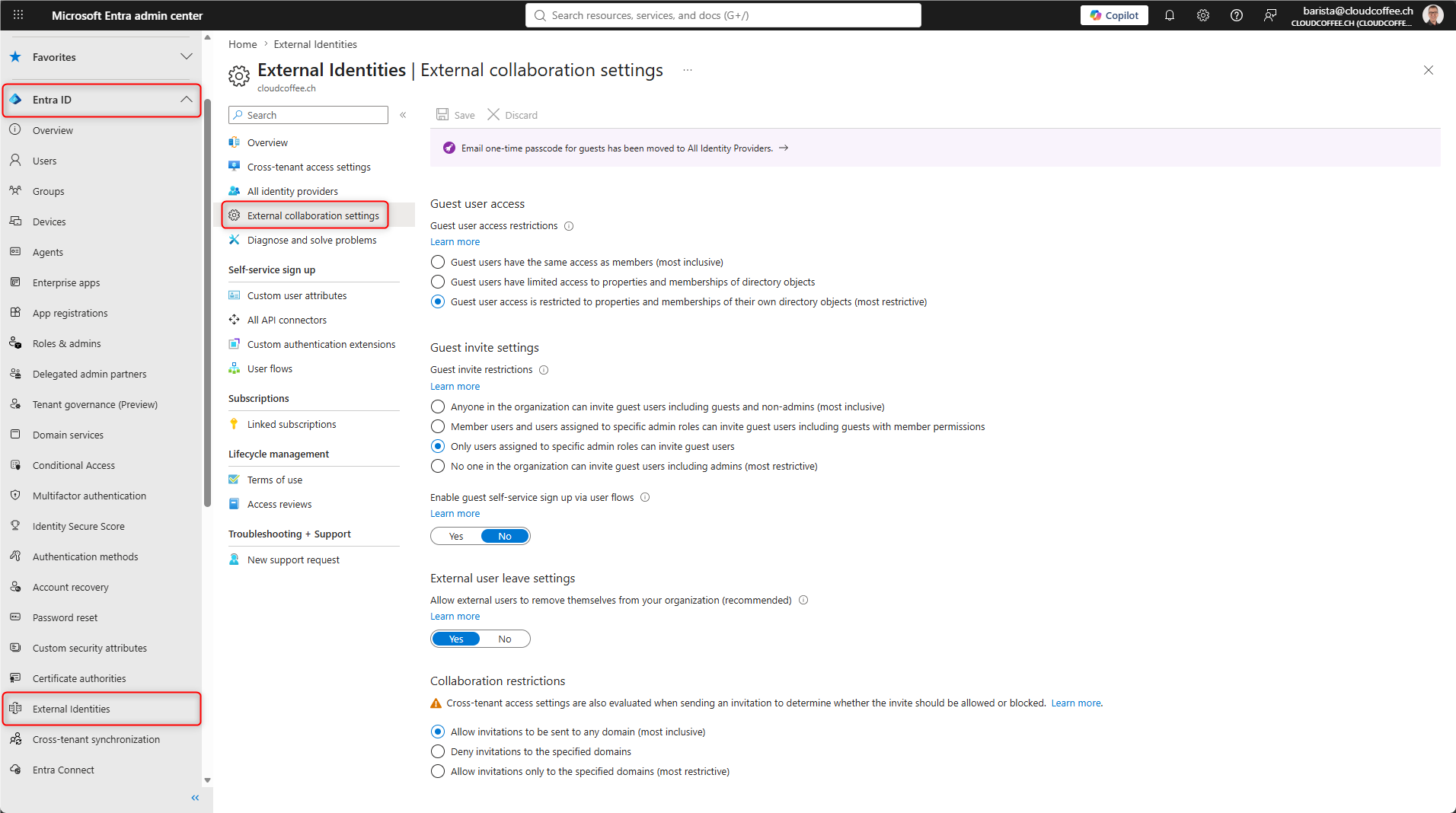
Cross-tenant access settings do not replace the External collaboration settings. These settings continue to control which roles can invite guests, which domains are allowed or blocked for invitations, and much more.
Microsoft Entra admin center (https://entra.microsoft.com) > Entra ID > External Identities > External collaboration settings
B2B Direct Connect Is a Separate Access Type
B2B Direct Connect is used for shared channels in Microsoft Teams and does not create a guest object in the resource tenant. It is blocked by default and must be enabled by both organizations. A detailed configuration is available in the article Azure AD B2B Direct Connect for shared channels in Microsoft Teams – cloudcoffee.ch.
Review Outbound Access as Well
Inbound access protects your organization’s resources. Outbound access controls which internal users can access applications in external tenants. Granting outbound access too broadly can result in uncontrolled collaboration and data exfiltration. Outbound access should therefore be reviewed regularly.
M365Con Session
The content in this article series is based on my session on Microsoft Entra guest access at M365Con. The full session covers the concepts and configuration examples discussed in these articles, along with additional topics around Conditional Access and monitoring, and is available on YouTube.
The session is also available with an English audio track. In the YouTube player, select Settings > Audio track > English.
Conclusion
Microsoft Entra Guest Access cannot be secured with a single Microsoft Entra Conditional Access policy. Cross-tenant access settings control which partner organizations, users, and applications are allowed. Trust settings determine whether MFA and device claims from the home tenant are accepted. Microsoft Entra Conditional Access policies enforce additional requirements, such as MFA for baseline access or phishing-resistant authentication strengths for highly sensitive resources.
MFA without trust is the recommended secure default. For trusted partner organizations, MFA trust can be enabled selectively, provided their MFA security level has been assessed and the trust relationship is reviewed regularly. External user types that are not required should be blocked.
Fresh content, explained with practical relevance. Stay up to date via LinkedIn and Bluesky.


No marketing. No noise. Just content.
If this post was helpful, a coffee brings back the rich aroma behind the writing.