Microsoft Entra Global Secure Access Troubleshooting Guide
Microsoft Entra Global Secure Access (GSA) enables secure access to Microsoft 365 services, internet resources, and private applications through a unified endpoint client combined with centrally managed configuration.
Issues in Microsoft Entra Global Secure Access can originate at multiple layers, including the client, traffic forwarding profile processing, name resolution, proxy configurations, or the interaction with authentication and Microsoft Entra Conditional Access. Effective Microsoft Entra Global Secure Access Troubleshooting therefore requires a structured approach to root cause analysis. This article outlines relevant troubleshooting steps on the client side and within the Microsoft Entra admin center, and explains how to systematically identify and resolve issues. Insights gained from real world deployments are continuously incorporated into this article.
Client-Side Troubleshooting
Basic Client Functionality Check
Check Client Status
Check the taskbar icon status: The icon reflects the current state of the Microsoft Entra Global Secure Access (GSA) client. Under normal conditions, it displays a green status indicator and shows the status Connected when hovered over.
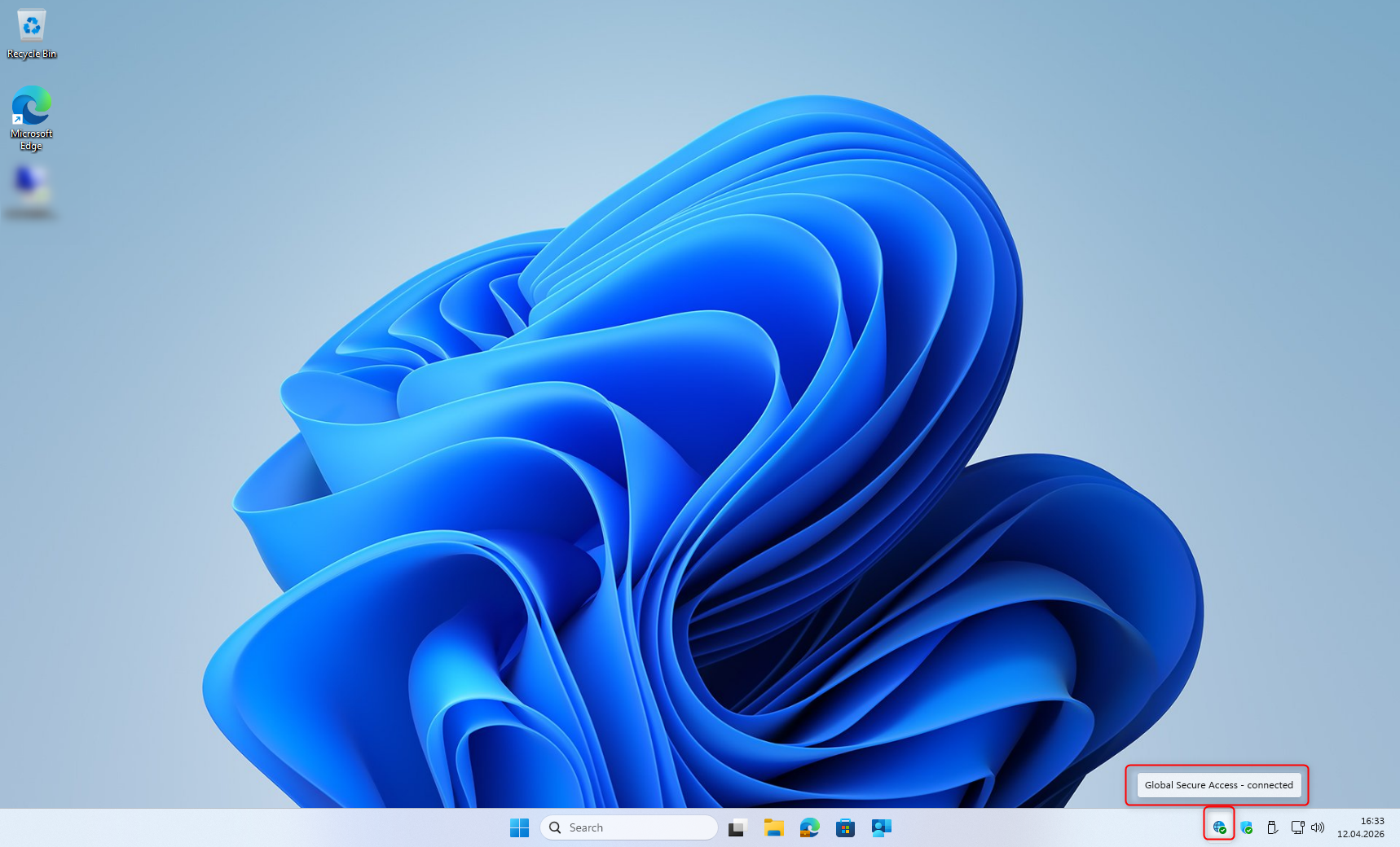
If the icon appears grey or shows Disabled by your organization:
- The client determines its connection status by accessing http://www.msftconnecttest.com/redirect
- No traffic forwarding profile is assigned
- Authentication of the Microsoft Entra Global Secure Access client has failed

Ensure DNS Functionality
The Microsoft Entra Global Secure Access (GSA) client uses the DNS servers configured on the Windows network adapter for name resolution. Reliable DNS resolution is a prerequisite for the client to correctly identify and process FQDN based traffic.
nslookup microsoft.com
nslookup graph.microsoft.com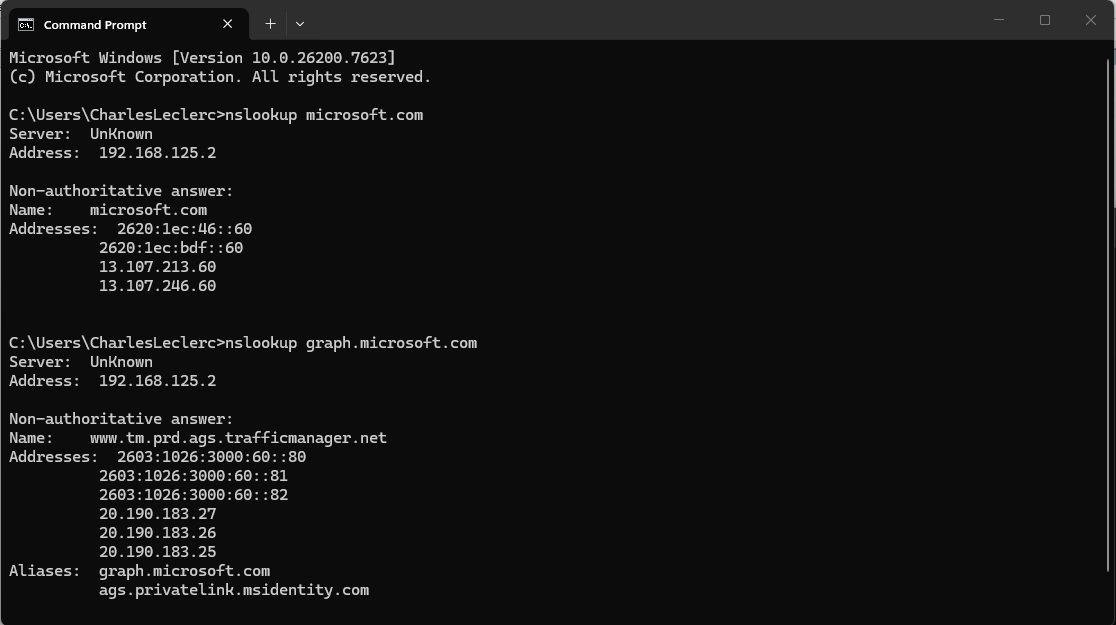
If name resolution fails, verify the following:
- Ensure the configured DNS server is reachable (for example, ping <DNS-Server-IP>)
- Verify that port 53 (UDP) to the DNS server is not blocked by a firewall
Check Services
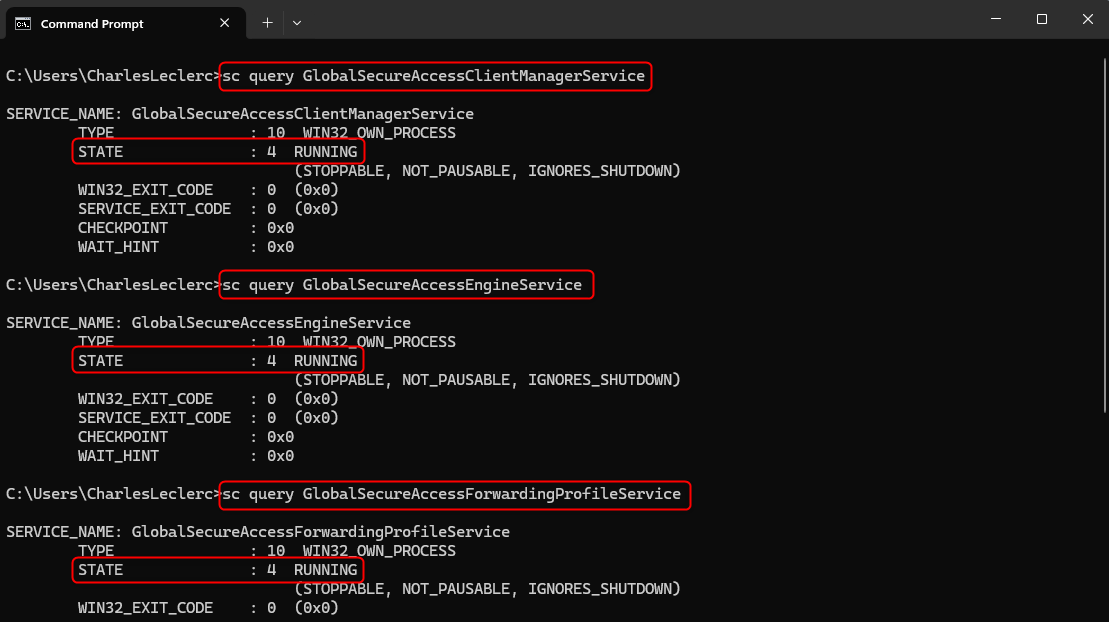
The Global Secure Access Client Manager Service, Global Secure Access Engine Service, Global Secure Access Forwarding Profile Service, and Global Secure Access Tunneling Service must be in a Running state. The status can be verified using the command prompt:
sc query GlobalSecureAccessClientManagerService
sc query GlobalSecureAccessEngineService
sc query GlobalSecureAccessForwardingProfileService
sc query GlobalSecureAccessTunnelingService
Each service must return the status STATE: 4 RUNNING. If a service is stopped, it can be restarted using the Services console (services.msc). If a service fails to start, review the corresponding events in Event Viewer > Windows Logs > System.
Network Connectivity to Microsoft Entra Global Secure Access Endpoints
| Endpoint | Purpose |
| login.microsoftonline.com | Microsoft Entra ID authentication |
| graph.microsoft.com | Download traffic forwarding profiles |
| *.globalsecureaccess.microsoft.com | GSA Service Edge |
| *.edgediagnostic.globalsecureaccess.microsoft.com | Diagnostic endpoints for traffic forwarding profiles |
Test connectivity (PowerShell):
Test-NetConnection -ComputerName "login.microsoftonline.com" -Port 443
Test-NetConnection -ComputerName "graph.microsoft.com" -Port 443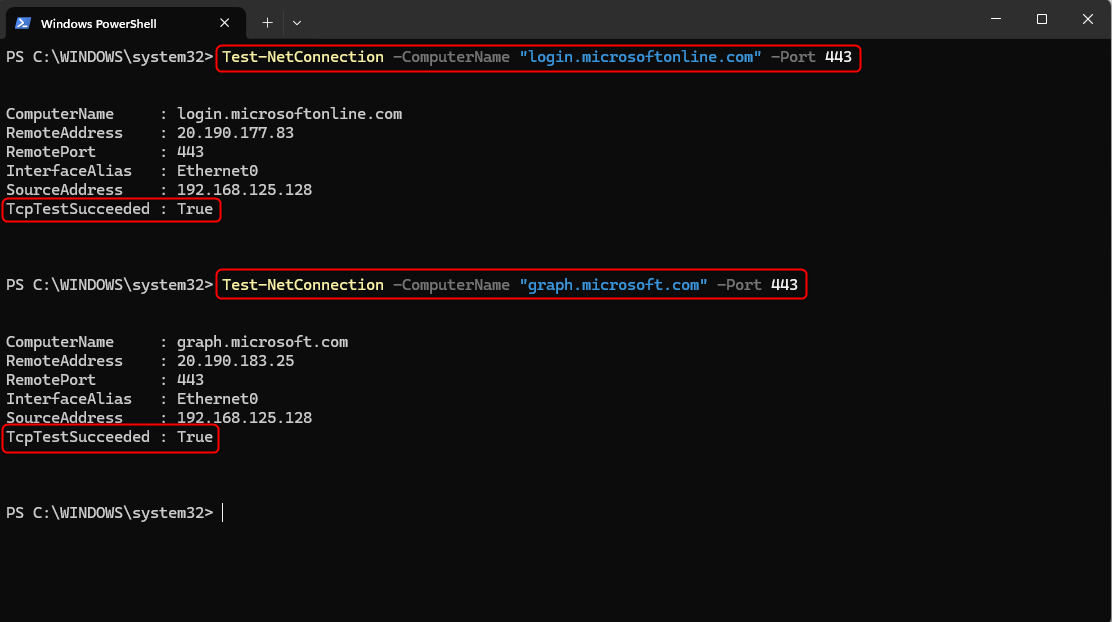
Test diagnostic endpoints for Microsoft 365 and Private Access (PowerShell):
Invoke-WebRequest https://m365.edgediagnostic.globalsecureaccess.microsoft.com:6543/connectivitytest/ping
Invoke-WebRequest https://private.edgediagnostic.globalsecureaccess.microsoft.com:6543/connectivitytest/ping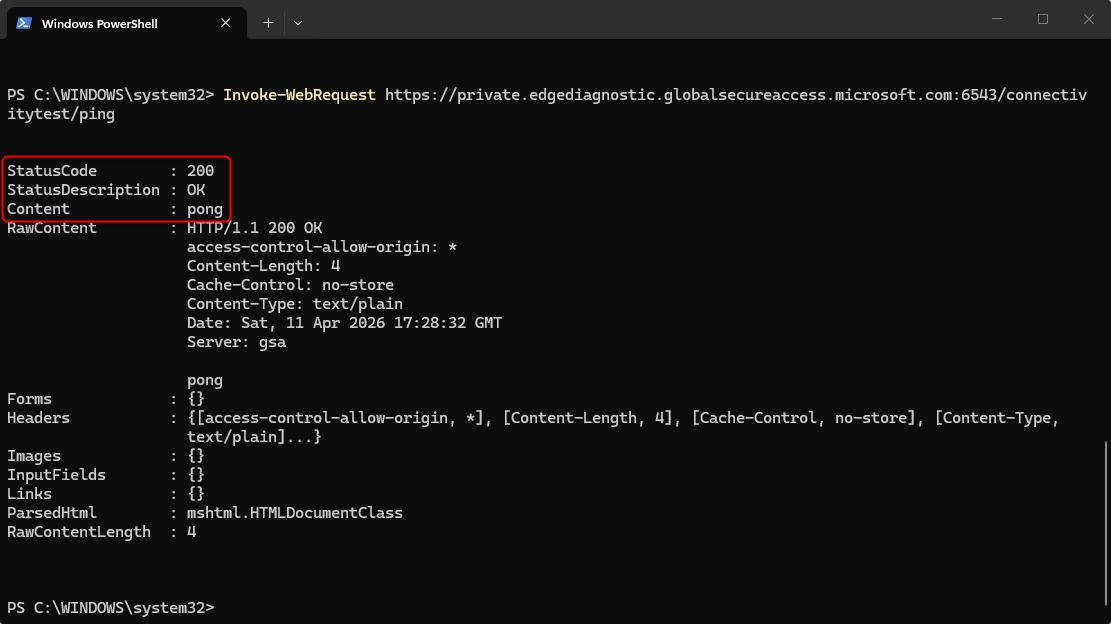
If TcpTestSucceeded: False is returned or access to the diagnostic endpoints fails, verify the following:
- Verify that no firewall is blocking outbound traffic (TCP 443 or port 6543) to the endpoints
- Check whether TLS inspection is enabled
Connections to the Microsoft Entra Global Secure Access endpoints must not be decrypted or modified - Verify whether a proxy is configured
The Microsoft Entra Global Secure Access (GSA) client does not support outbound proxies - Ensure that the diagnostic endpoints are not blocked by network filters or web gateways
The Microsoft Entra Global Secure Access service uses Anycast networking. As a result, no static IP addresses are assigned per region, and restricting access to specific IP addresses or regions is not supported. Firewall rules must therefore allow the global Anycast IP ranges. The current ranges are documented in Microsoft Learn under Global Secure Access points of presence and IP addresses – Global Secure Access | Microsoft Learn
Verify Traffic Forwarding Profiles
Microsoft Entra Global Secure Access (GSA) uses three traffic forwarding profiles that define which network traffic is routed through the tunnel:
| Profile | Purpose |
| Microsoft 365 | Exchange Online, SharePoint Online, and other Microsoft 365 services |
| Private Access | Access to internal applications and resources |
| Internet Access | General internet traffic and web content filtering |
The Microsoft Entra Global Secure Access (GSA) client stores the traffic forwarding profiles as JSON entries in the Windows Registry and retrieves them via Microsoft Graph.
The registry key ForwardingProfileTimestamp indicates when the profile was last updated by the service (UTC). This allows verification of whether changes to Microsoft Entra Global Secure Access profiles have already been applied on the client. After a change, it can take up to one hour for the client to apply the updated profile.
HKEY_LOCAL_MACHINE\SOFTWARE\Microsoft\Global Secure Access Client\ForwardingProfile

HKEY_LOCAL_MACHINE\SOFTWARE\Microsoft\Global Secure Access Client\ForwardingProfileTimestamp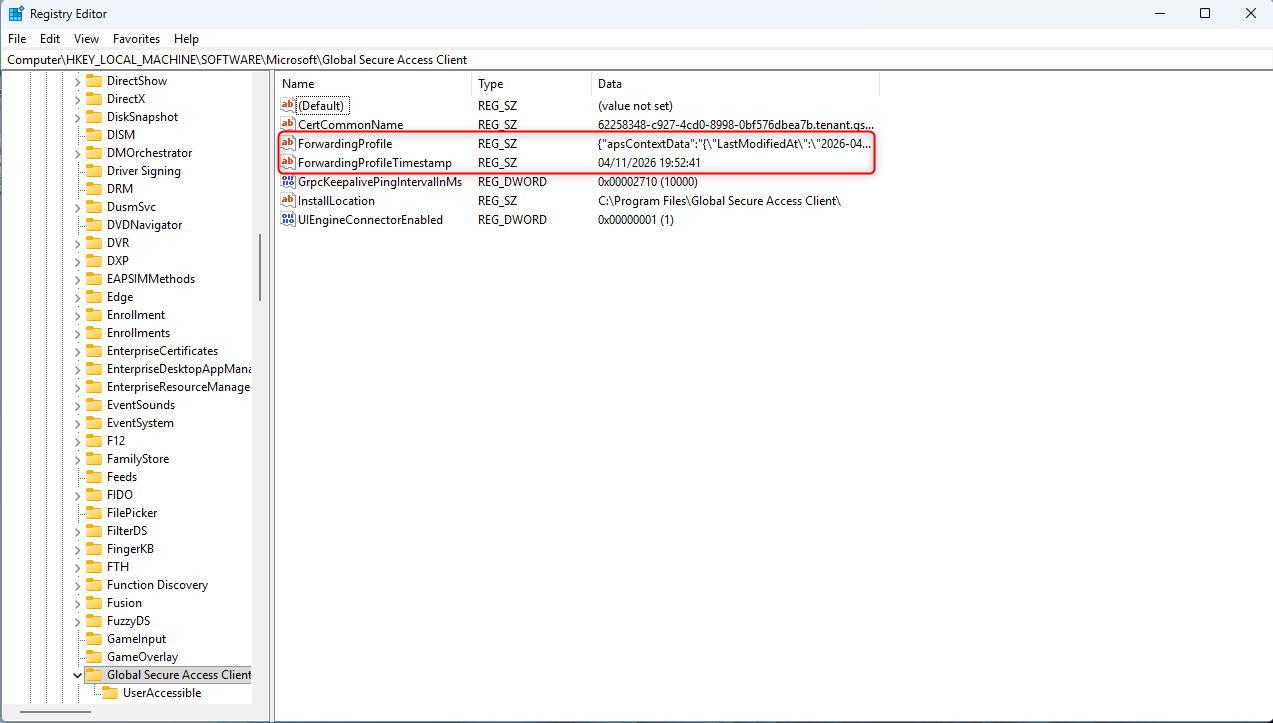
Alternatively, the status can be verified directly in the Microsoft Entra Global Secure Access (GSA) client:
Microsoft Entra Global Secure Access Client > right click the taskbar icon > Advanced Diagnostics > Overview
The Forwarding profile last checked field indicates when the client last queried the service (UTC).
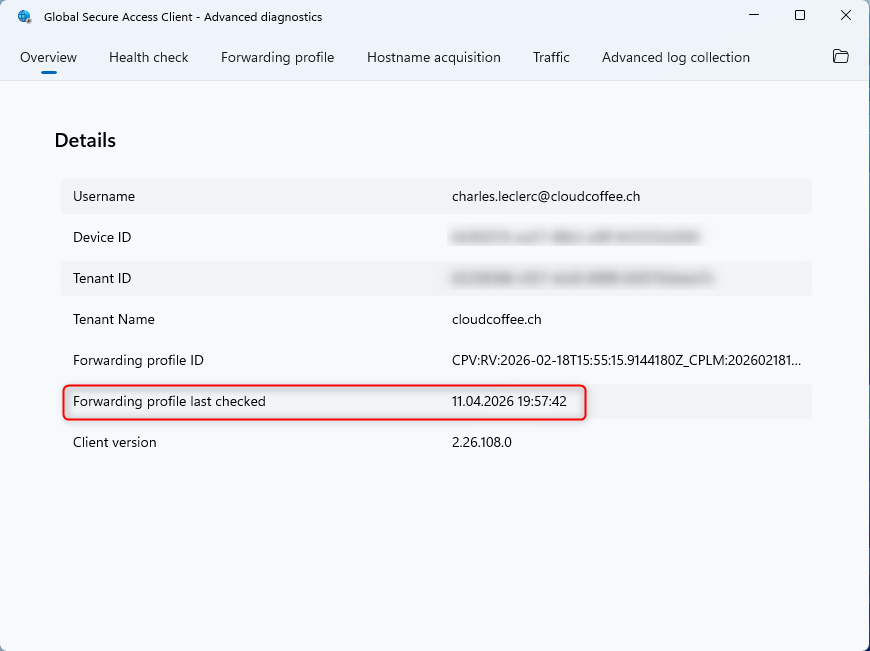
If no traffic forwarding profile is available or the timestamp is outdated, verify the following:
- Ensure network connectivity to Microsoft Graph
- Verify profile assignment to users:
Microsoft Entra admin center > Global Secure Access > Connect > Traffic forwarding - Users must be direct members of the assigned group, nested group memberships are not supported
- Manually reload the traffic forwarding profiles:
Delete the ForwardingProfileTimestamp registry key and restart the GlobalSecureAccessForwardingProfileService service
Device Status and Primary Refresh Token (PRT)
The device must be Microsoft Entra joined or Microsoft Entra hybrid joined. This is a prerequisite for using Microsoft Entra Global Secure Access. Scenarios with Microsoft Entra registered devices (BYOD) are supported for Microsoft Entra Private Access in public preview. Further details are available in the following article: Microsoft Entra Private Access BYOD: Access Internal Resources with Entra Registered Devices – cloudcoffee.ch
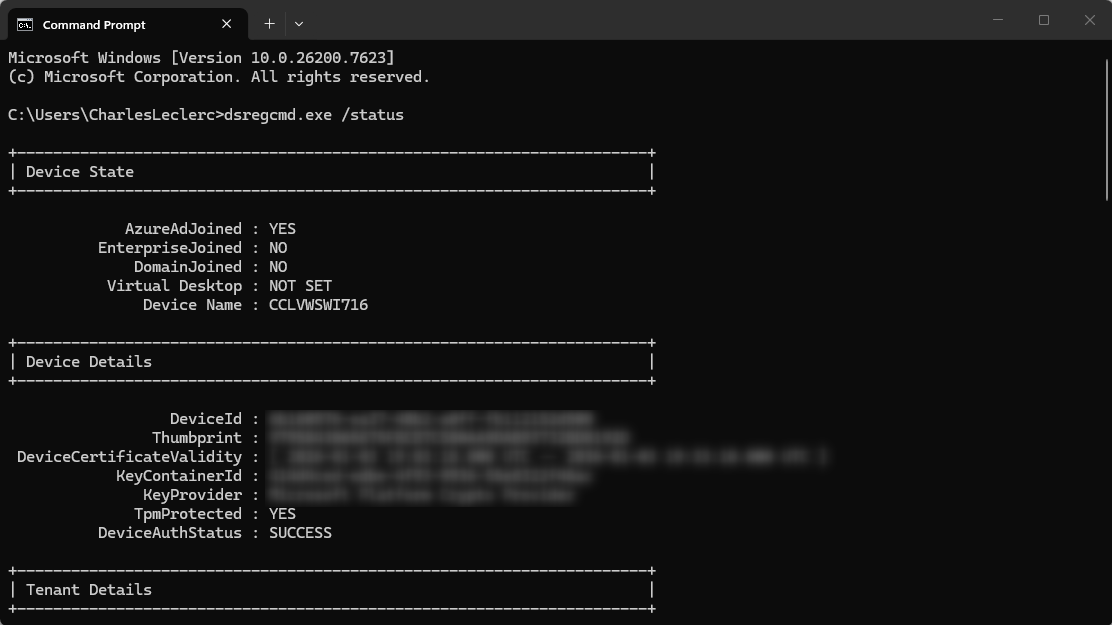
Check device status and Primary Refresh Token (PRT):
dsregcmd.exe /statusRelevant fields in the output:
| Attribute | Expected value | Meaning |
| AzureAdJoined | Yes | Device is Microsoft Entra joined |
| DomainJoined | Yes (for hybrid) | Device is Microsoft Entra hybrid joined |
| AzureAdPrt | Yes | Primary Refresh Token is present |
| TenantId | Tenant GUID | Indicates the connected tenant |
If AzureAdPrt: NO is shown, no valid Primary Refresh Token (PRT) is present and the Microsoft Entra Global Secure Access (GSA) client cannot authenticate. Typical causes include an improperly joined device, missing network connectivity to Microsoft Entra authentication endpoints, or Microsoft Entra Conditional Access policies blocking the sign in.
Check Proxy Configuration
If a proxy is configured, the Microsoft Entra Global Secure Access endpoints must be defined as exceptions. The required endpoints and IP ranges are documented in the following Microsoft Learn article: Global Secure Access points of presence and IP addresses – Global Secure Access | Microsoft Learn
Check proxy configuration:
netsh winhttp show proxy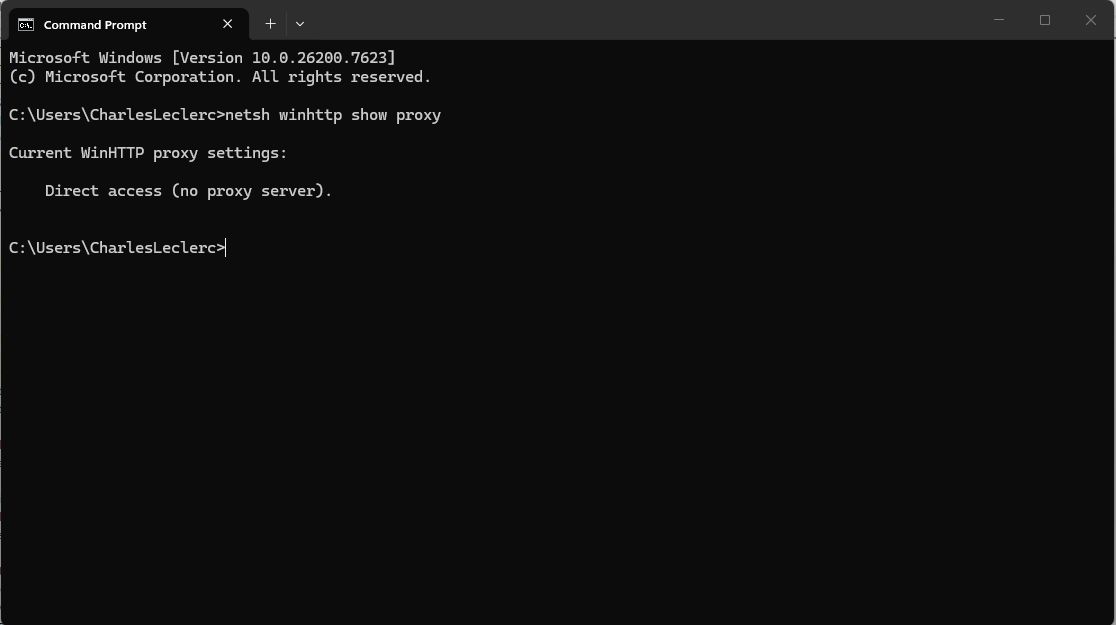
Advanced Diagnostics Tools
The Microsoft Entra Global Secure Access (GSA) client includes Advanced Diagnostics, an integrated analysis environment. It enables validation of connectivity, policy processing, DNS behavior, and actual network traffic directly on the client. The tool can be accessed via the Microsoft Entra Global Secure Access client icon in the taskbar:
Microsoft Entra Global Secure Access Client > Right-click on the icon in the taskbar > Advanced Diagnostics

The following sections describe the tool’s capabilities and how they are used for troubleshooting.
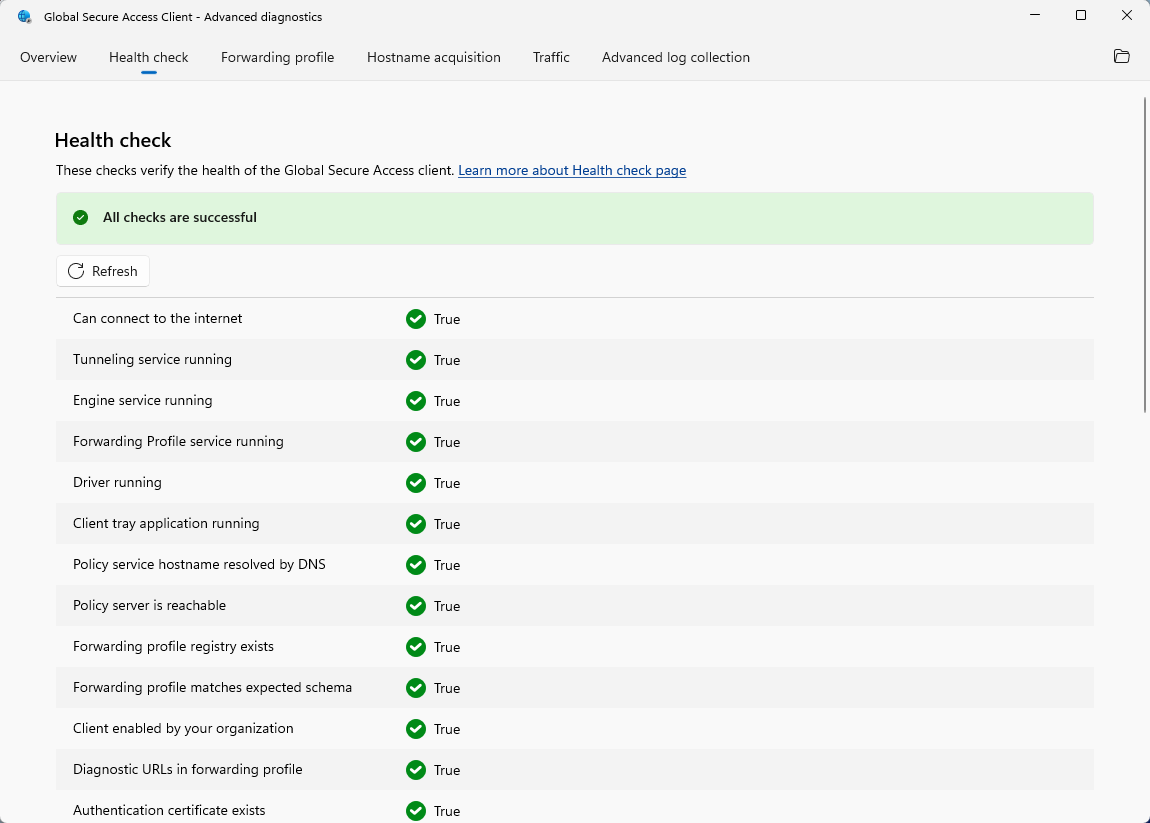
Health Check
The Health Check in Advanced Diagnostics performs automated validation of connectivity and overall functionality of the Microsoft Entra Global Secure Access (GSA) client. Some checks are interdependent, so issues should be addressed in sequence. Always resolve the first detected error before rerunning the evaluation using Refresh.
Forwarding Profile
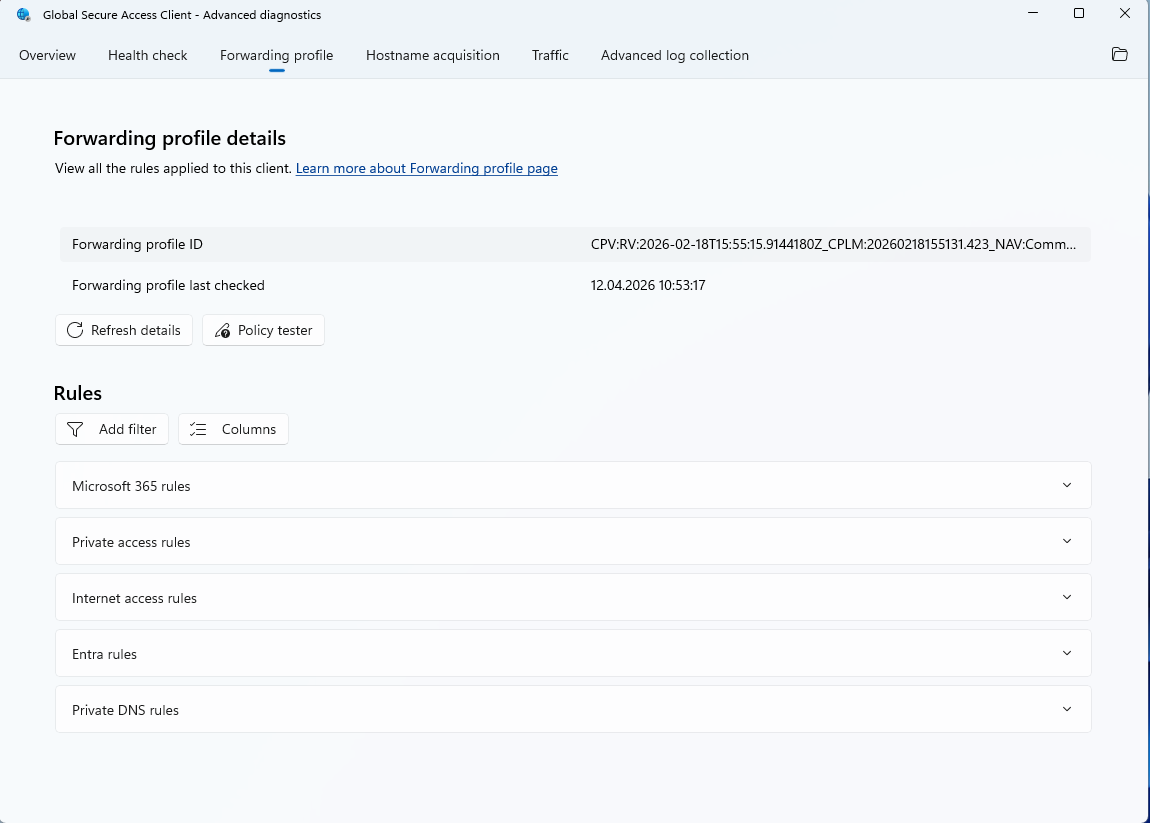
The Forwarding profile tab displays all active rules of the Microsoft Entra Global Secure Access (GSA) client, grouped by the traffic forwarding profiles Microsoft 365, Private Access, and Internet Access.
Each rule includes the destination (IP address or FQDN), protocol, port, and the applied action (Tunnel or Bypass).
The Policy tester can be used to determine which rule applies to a specific destination. After entering a target (FQDN or IP address), the client indicates whether the traffic is tunneled or routed directly.
Use Refresh details to update the displayed data from the client cache if the traffic forwarding profile has changed since the last refresh.
Hostname Acquisition
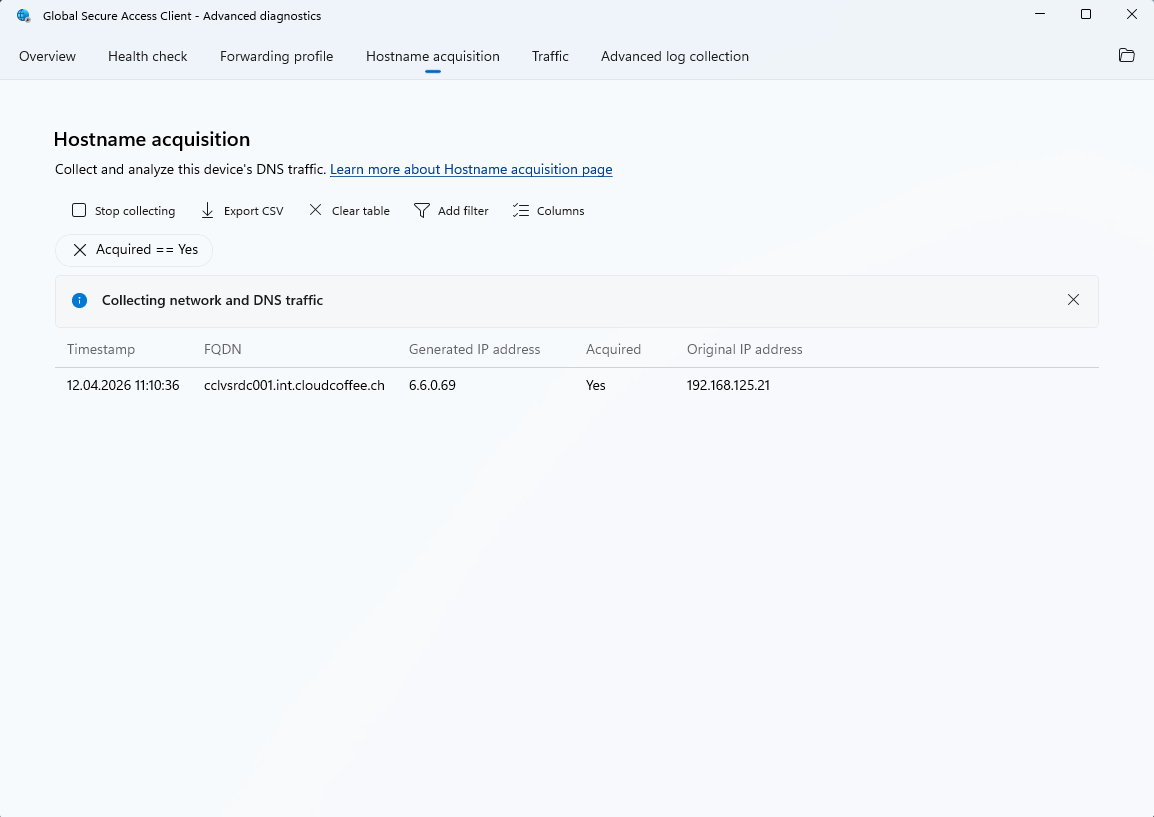
The Hostname acquisition tab provides real time visibility into which FQDNs are captured by the Microsoft Entra Global Secure Access (GSA) client. This is based on the FQDN rules defined in the traffic forwarding profiles.
- Select Start collecting
- Trigger the desired behavior or scenario
- Select Stop
For each captured hostname, the following information is displayed:
- Timestamp: Time of capture
- FQDN: Requested hostname
- Generated IP address: Internally generated IP address
- Acquired (Yes/No): Indicates whether the hostname was matched by a rule in the traffic forwarding profile
- Original IP address: Original IPv4 address returned by DNS
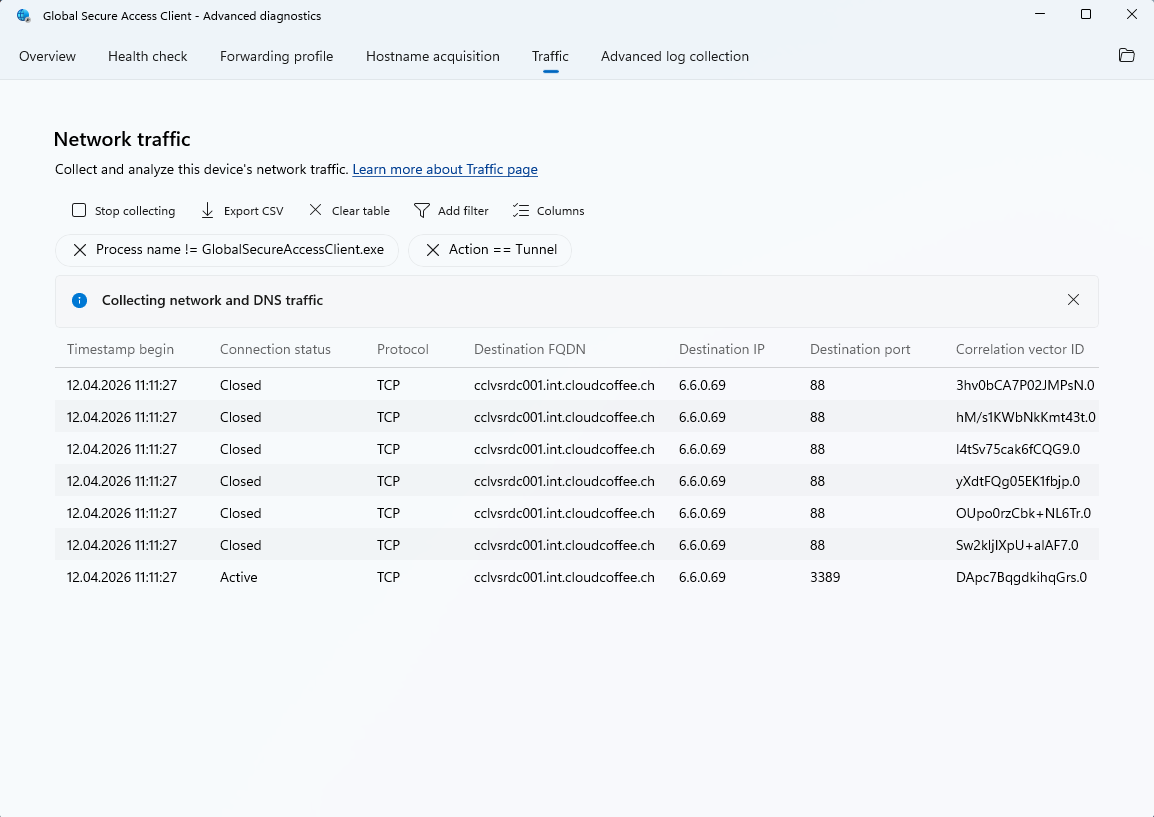
Traffic
The Traffic tab provides real time visibility into established connections and how they are processed.
For analysis, data collection can be started and a specific scenario can be reproduced:
- Apply filters to the traffic as needed
- Select Start collecting
- Trigger the desired behavior
- Select Stop
For each connection, the following information is available:
- Timestamp: Time of the connection
- Connection status: Current state of the connection
- Protocol: Protocol used (TCP/UDP)
- Destination FQDN / IP: Target address of the connection
- Destination port: Target port
- Correlation vector ID: Unique identifier for end to end traceability
The collected data can be exported as a CSV file for further analysis.
Advanced Log Collection
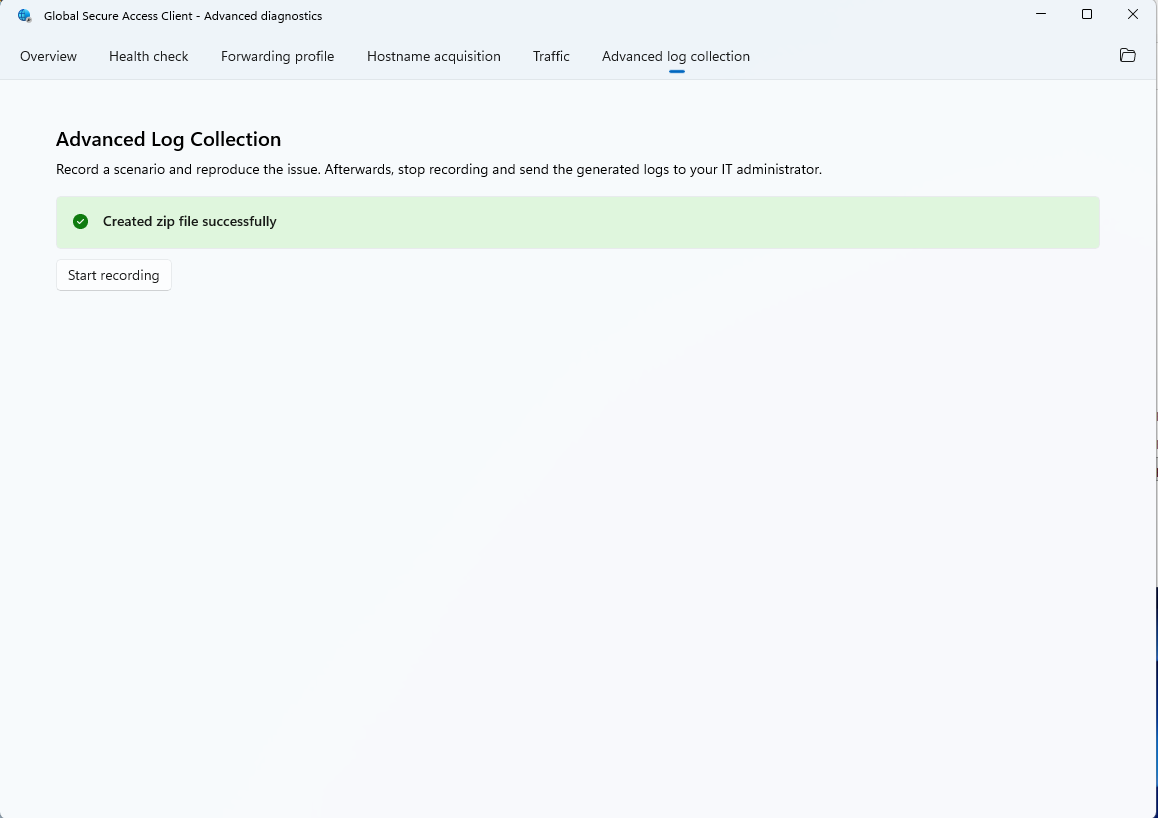
Advanced Log Collection enables the capture of detailed diagnostic data from the Microsoft Entra Global Secure Access (GSA) client. The collected data is used to analyse complex scenarios and can support further investigation or escalation to support.
Procedure:
- Select Start recording
- Reproduce the issue or wait for it to occur again
- Select Stop recording
The recorded data is saved as a ZIP file under: C:\Program Files\Global Secure Access Client\Logs.
The contents of the ZIP file are described in the following Microsoft Learn article: Troubleshoot the Global Secure Access Client for Windows: Advanced Diagnostics – Global Secure Access | Microsoft Learn
Typical contents of the ZIP file:
- GSA specific ETL logs
- Output of dsregcmd /status
- JSON policy data
- NRPT table and latency test results
- System information
- DNS client logs
- Installed applications and IP configuration
- Network capture
- Health Check results
Analyze Event Viewer
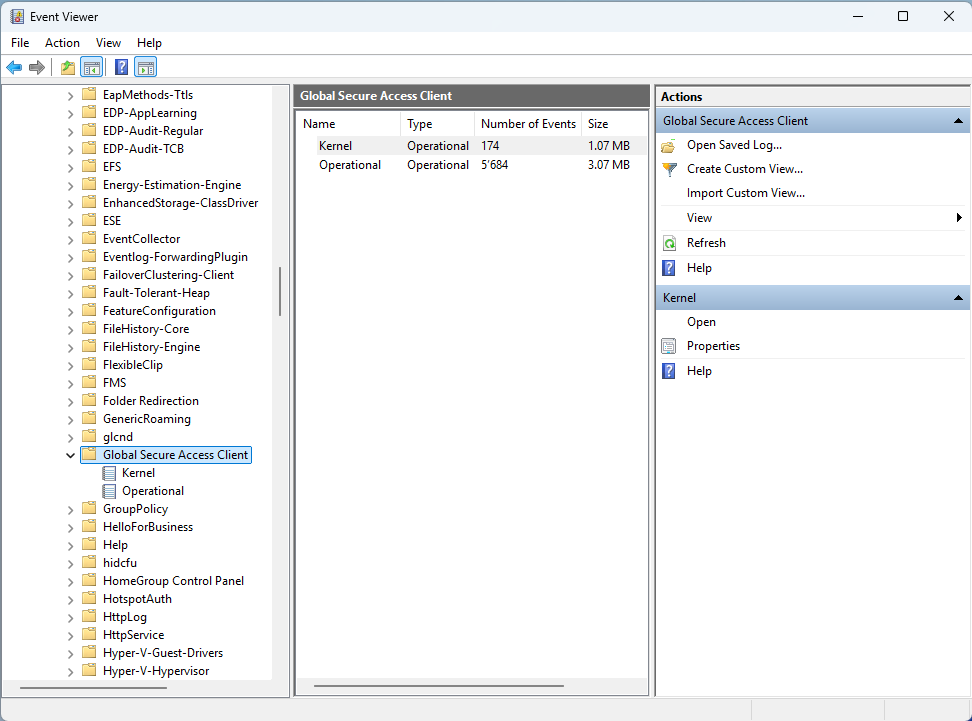
Windows Event Viewer provides detailed logs for the Microsoft Entra Global Secure Access (GSA) client. The logs are available under the following path:
Event Viewer > Applications and Services Logs > Microsoft > Windows > Global Secure Access Client
Two log types are available:
- Operational: Client-side events such as connection failures, authentication issues, and status changes
- Kernel: Events generated by the kernel mode driver
TraceRT Analysis on the Client
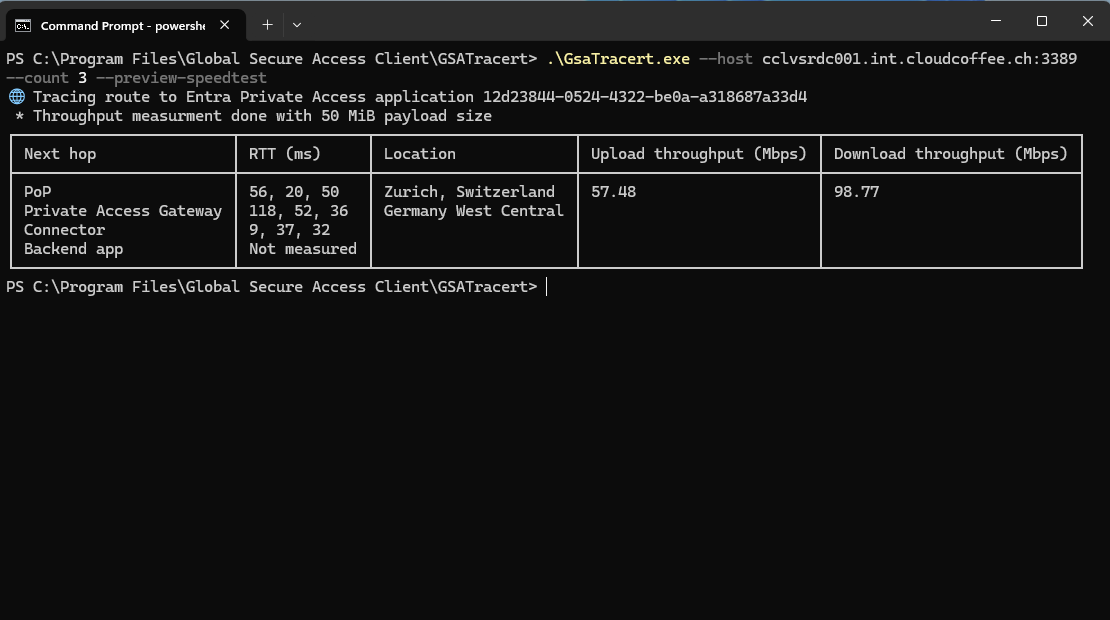
Starting with version 2.24.117, the Microsoft Entra Global Secure Access (GSA) client includes a built-in traceroute tool for analysing network paths and latency. In addition to standard hop analysis, it identifies the latency bottleneck (RTT bottleneck) and the Global Secure Access Edge location (PoP location) used.
Location: C:\Program Files\Global Secure Access Client\GSATracert\GsaTracert.exe
The tool supports the following parameters:
- –app-id: Tests a specific Microsoft Entra Private Access application using its Application ID
- –host: Target system specified as hostname or IP address, including an optional port
- –count: Number of iterations (1 to 10)
- –log: Output path for the log file
- –preview-speedtest: Enables an experimental throughput measurement between the client and the service edge
Troubleshooting in the Microsoft Entra Admin Center
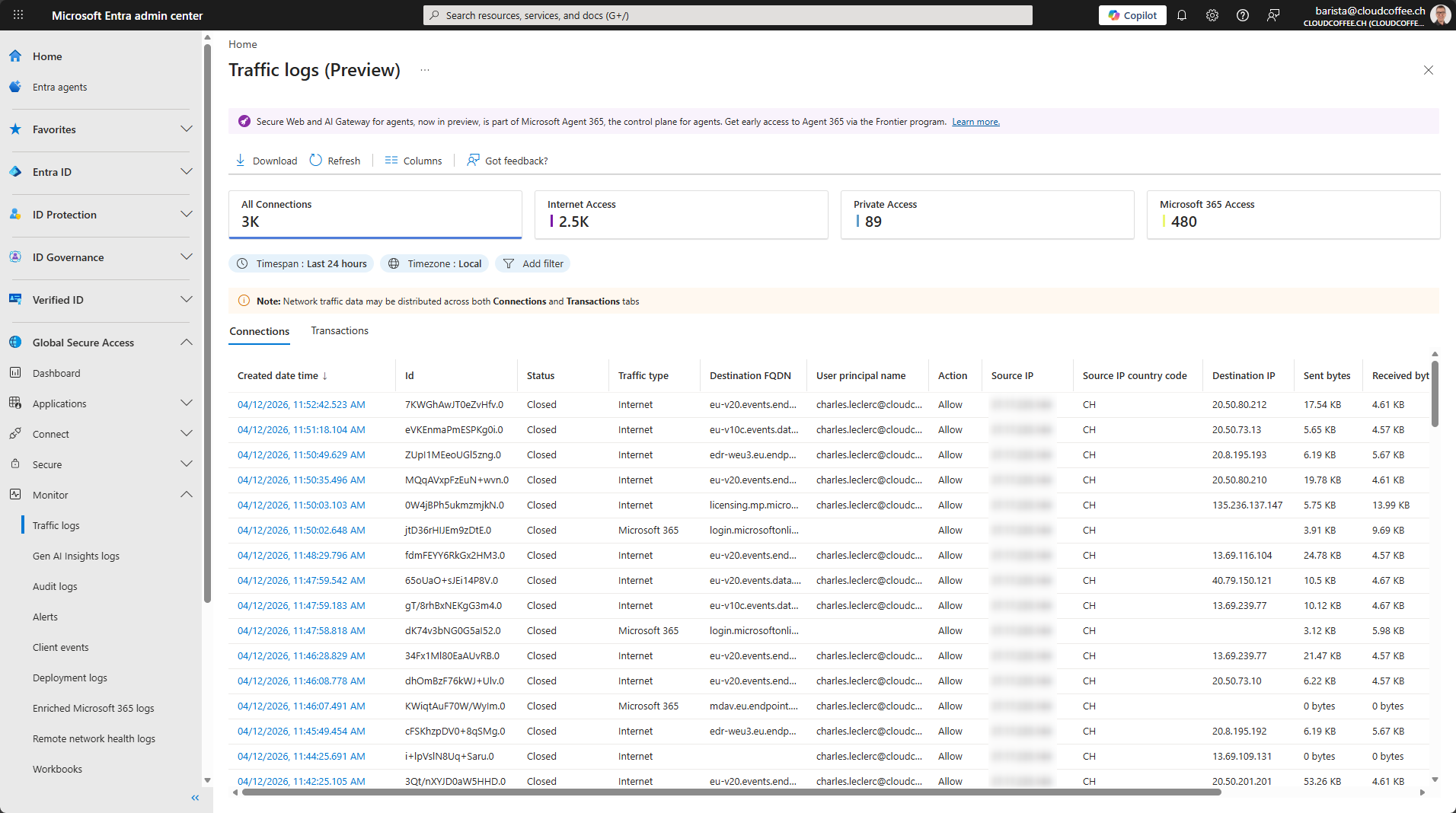
Traffic Logs
Traffic logs provide visibility into network traffic processed by the Microsoft Entra Global Secure Access (GSA) service. They support connection analysis and provide insights into how requests are handled by the service.
Microsoft Entra admin center (https://entra.microsoft.com) > Global Secure Access > Monitor > Traffic logs
Authentication and Conditional Access
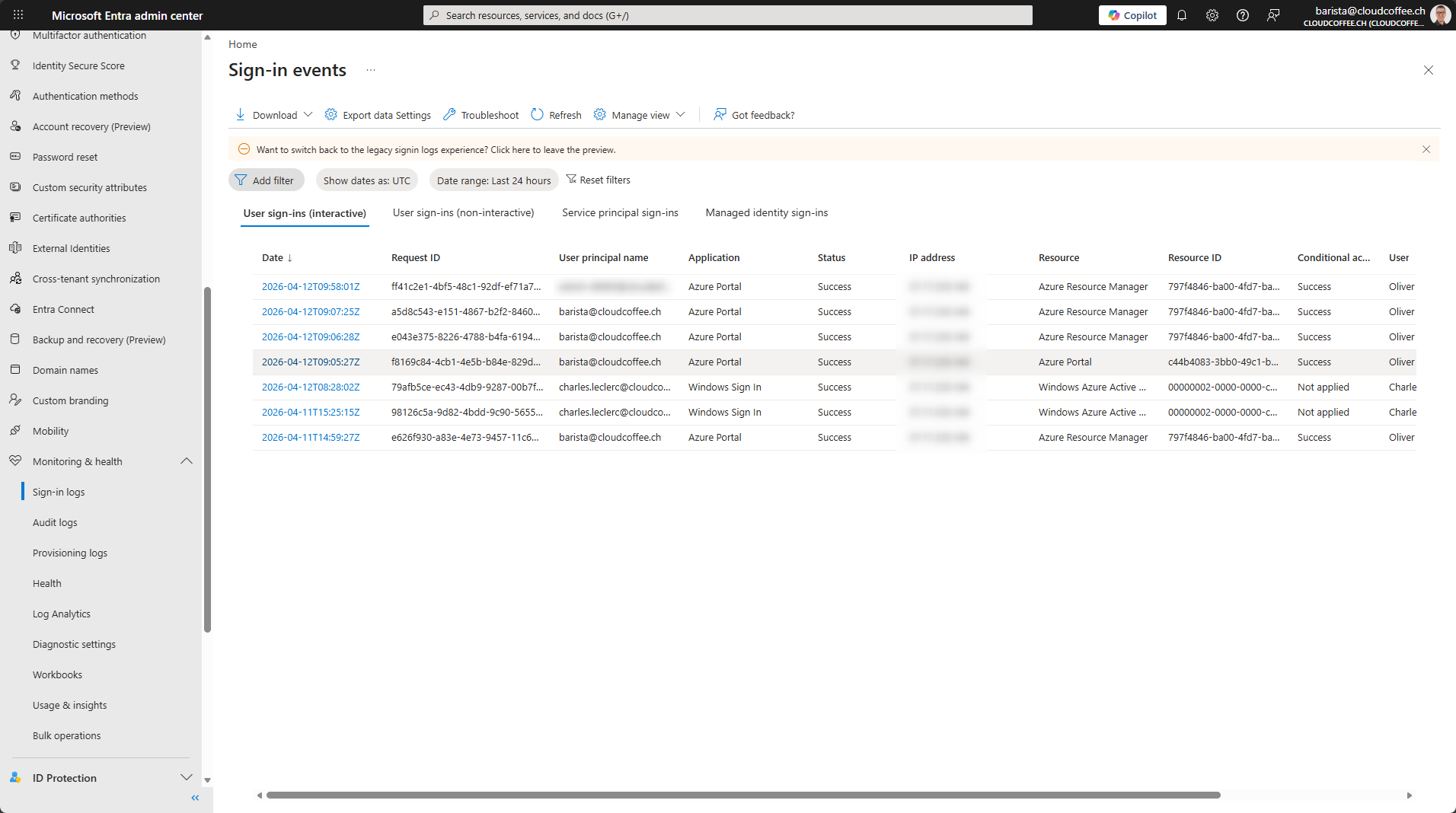
Microsoft Entra sign-in logs enable analysis of authentication events. They provide detailed information on successful and failed sign-ins, as well as insights into the evaluation of Microsoft Entra Conditional Access policies.
The sign-in logs are available in the Microsoft Entra admin center (https://entra.microsoft.com) > Entra ID > Monitoring and health > Sign-in logs:
Network Compliance for Conditional Access
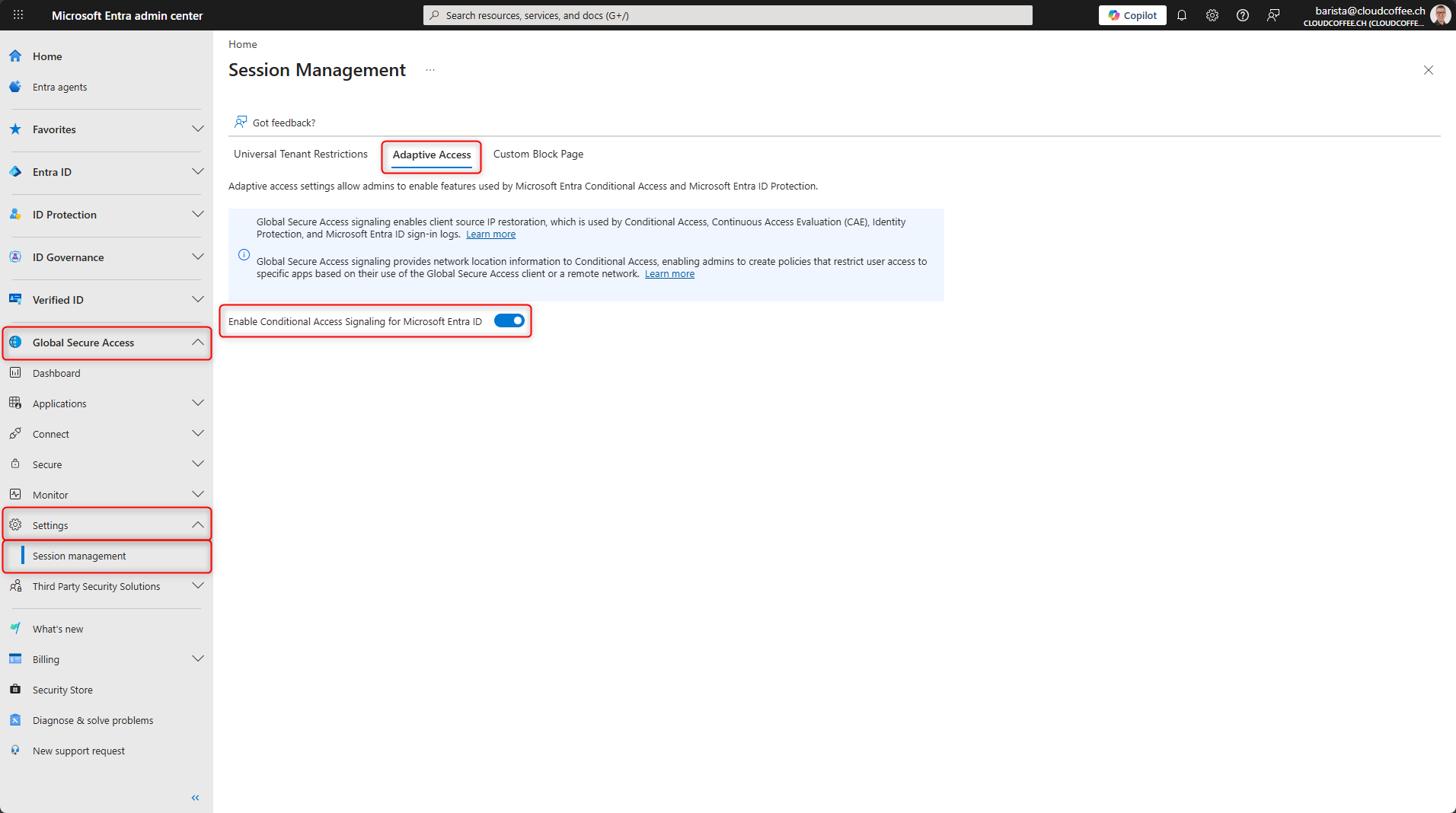
To ensure that traffic routed through Microsoft Entra Global Secure Access is recognized as a Compliant Network in Microsoft Entra Conditional Access policies, Conditional Access signaling must be enabled.
Microsoft Entra admin center (https://entra.microsoft.com) > Global Secure Access > Settings > Session management > Adaptive Access > Enable Conditional Access signaling for Microsoft Entra ID
Conclusion
Microsoft Entra Global Secure Access provides diagnostic capabilities for targeted analysis of unexpected behavior. Common causes include unreachable endpoints, inconsistent traffic forwarding profiles, authentication issues, and misconfigured proxy settings. Advanced Diagnostics, along with traffic logs and sign-in logs in the Microsoft Entra admin center, provide the necessary data to systematically identify root causes.
Fresh content, explained with practical relevance. Stay up to date via LinkedIn and Bluesky.


No marketing. No noise. Just content.
If this post was helpful, a coffee brings back the rich aroma behind the writing.