Secure Device Registration in Microsoft Entra and Microsoft Intune
By default, users can register devices in Microsoft Entra ID. Each device is represented as an object in Microsoft Entra ID and can be used for authentication and access. Once a user account is compromised, attackers can register their own devices and establish persistent access.
Device registration is a security-critical process and must be secured. It is essential to define who is allowed to register devices, under which conditions registration is permitted, and which device types are accepted. Microsoft Entra ID and Microsoft Intune provide multiple control mechanisms that can be combined to enforce these requirements. Only when device registration is properly controlled can device compliance and Microsoft Entra Conditional Access be implemented effectively.
This article shows how to enforce controlled device registration using Microsoft Entra ID and Microsoft Intune.
Secure Device Registration in Microsoft Entra
Without the appropriate configuration, users can register devices themselves. This setting should be reviewed and restricted. The control applies only to the user, not to the device itself.
Controlling Which Users Can Register Devices
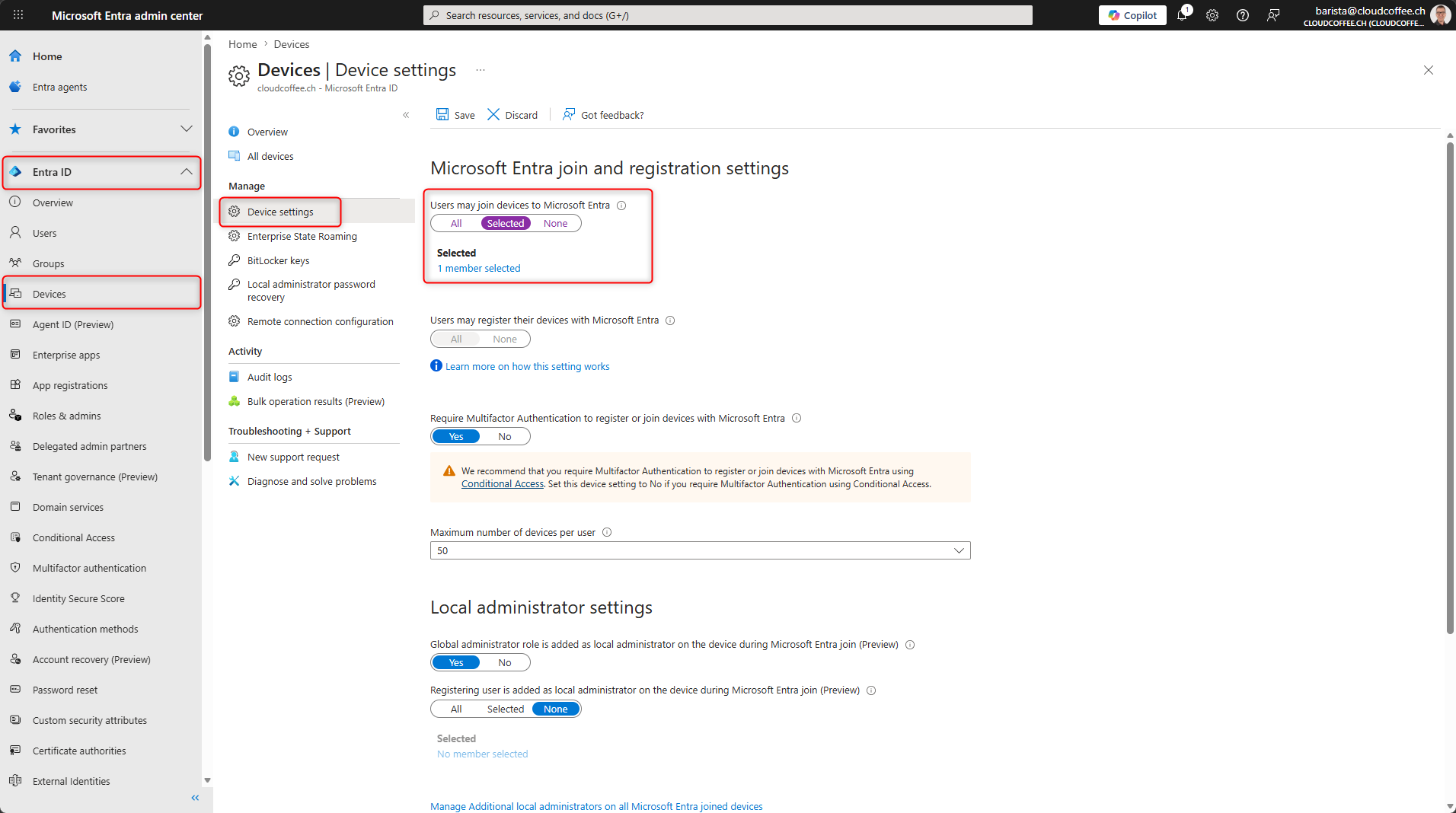
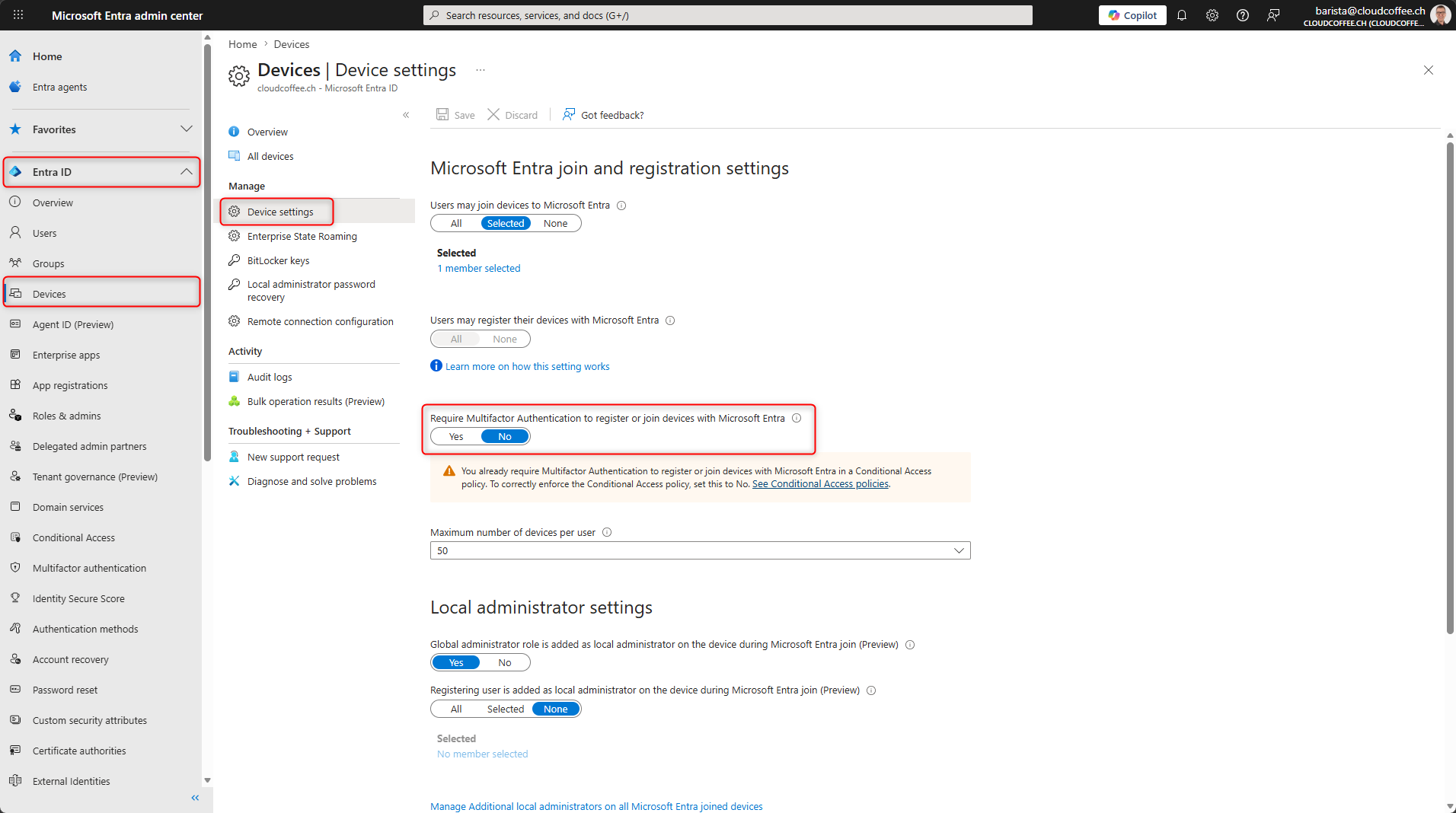
Device settings in Microsoft Entra ID define who can register devices.
In the Microsoft Entra admin center (https://entra.microsoft.com), navigate to Entra ID > Devices > Device settings. Set Users may join devices to Microsoft Entra to Selected and select a user group.
Require Multi-Factor Authentication for Device Registration
During device registration, multi-factor authentication should always be required. The following options can be used to enforce this.
MFA via Device Settings (Not Recommended)
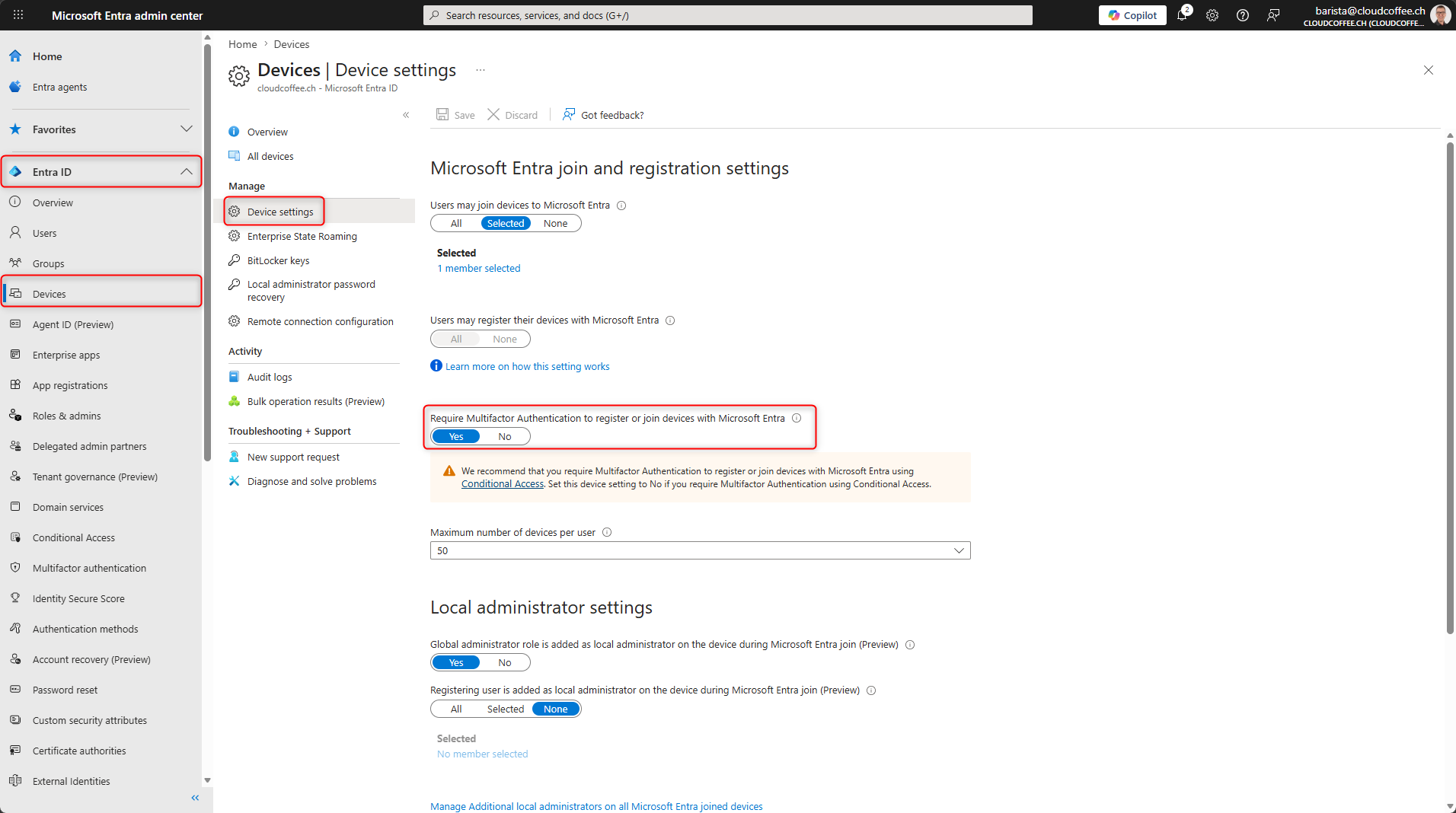
In the Microsoft Entra admin center (https://entra.microsoft.com), navigate to Entra ID > Devices > Device settings and enable the option Require Multifactor Authentication to register or join devices with Microsoft Entra.
MFA via Microsoft Entra Conditional Access (Recommended)
Enforcing multi-factor authentication for device registration via Microsoft Entra Conditional Access is the recommended approach. It enables additional conditions to control when device registration is allowed, including trusted networks, authentication methods, or user- and sign-in risk.
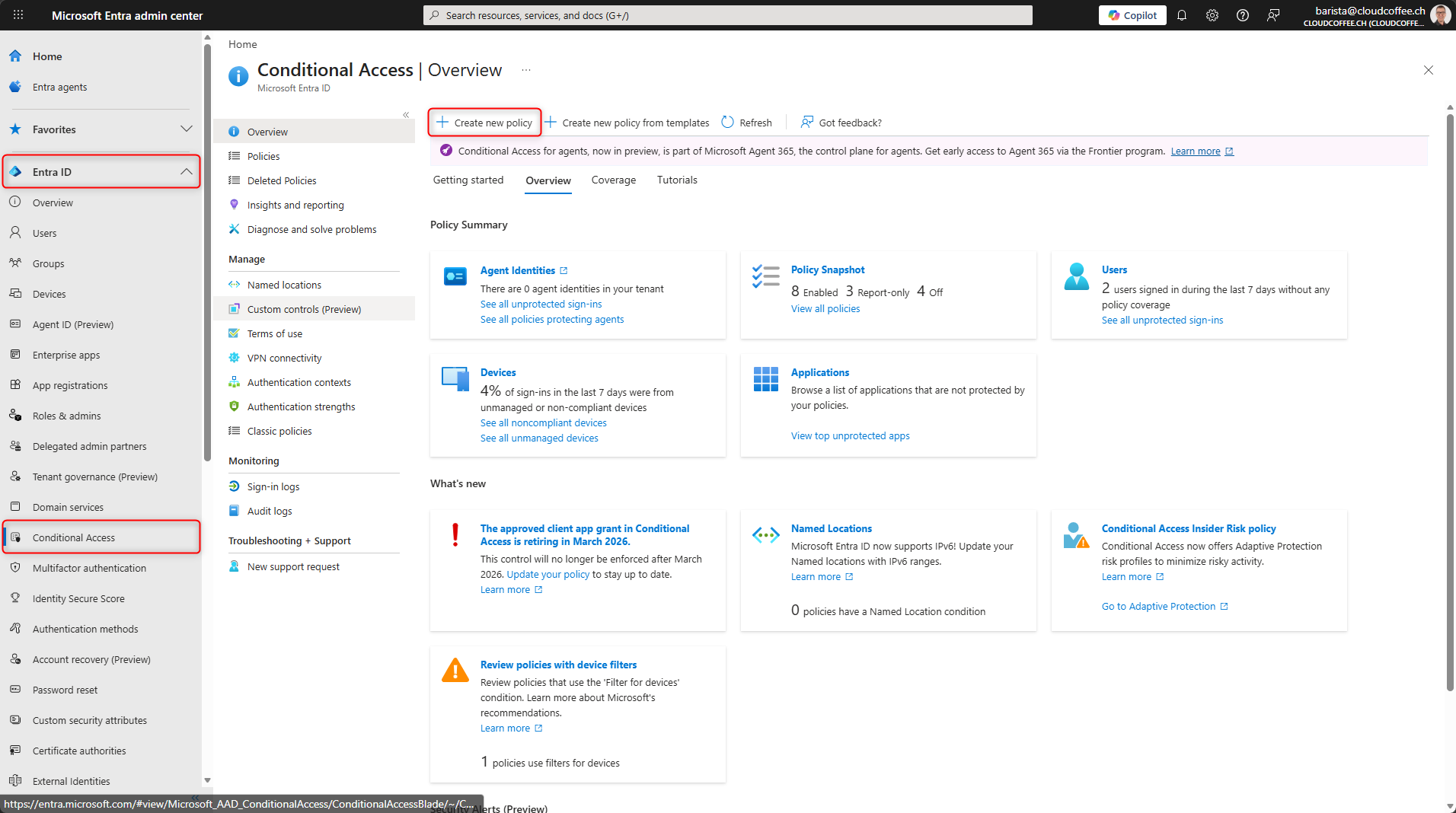
In the Microsoft Entra admin center (https://entra.microsoft.com), go to Entra ID > Conditional Access > Create new policy.
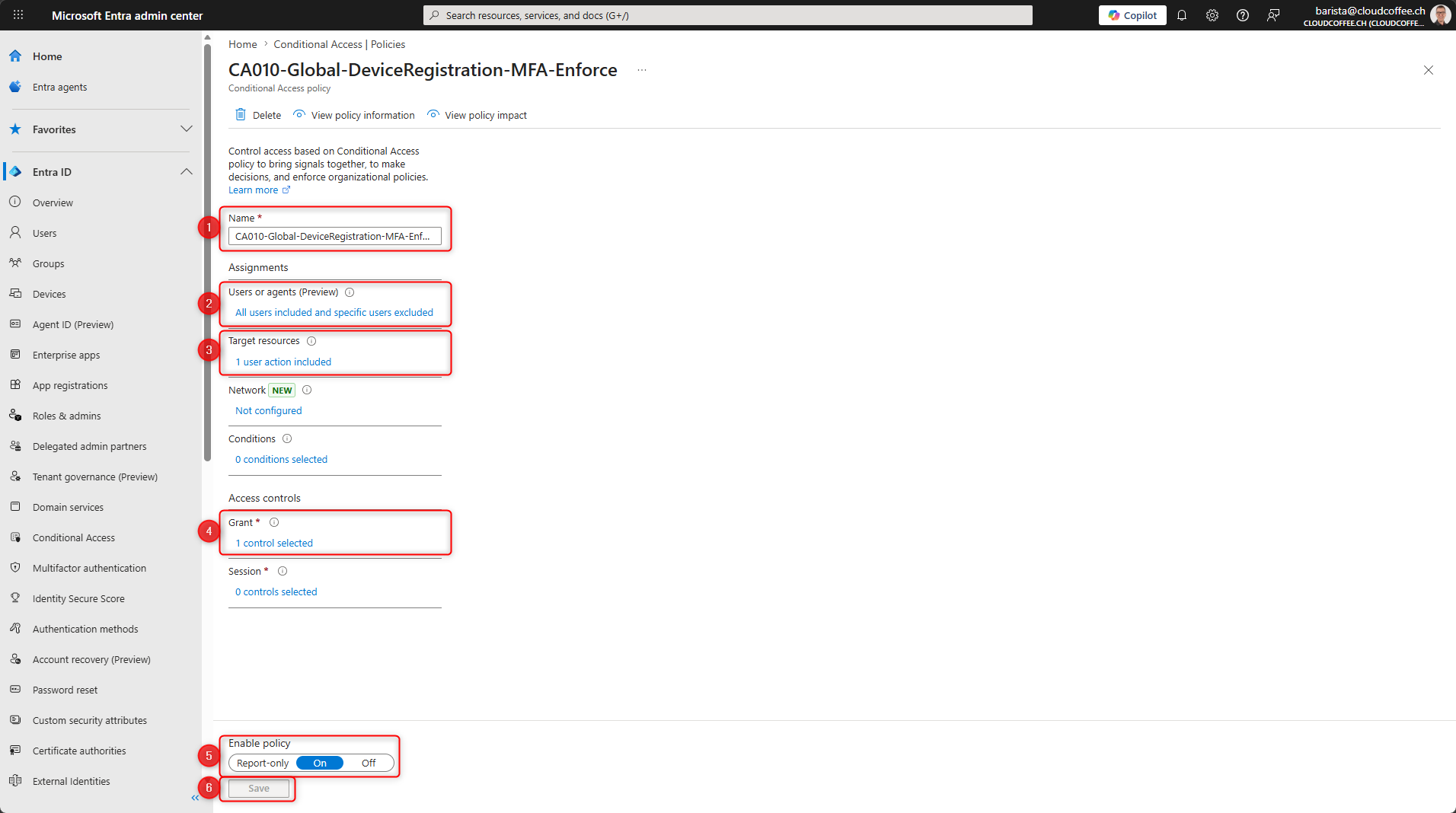
- Name: Provide a name for the Microsoft Entra Conditional Access policy
- Users: Select all users and exclude emergency access accounts
- Target resources:
Policy type: Select User actions and choose Register or join devices - Grant: Select Require multifactor authentication
- Enable policy: Set to On
- Create the policy to save and enable it
Additional conditions can be added as needed.
Important
If multi-factor authentication is enforced via Microsoft Entra Conditional Access, disable the option Require Multifactor Authentication to register or join devices with Microsoft Entra.
In the Microsoft Entra admin center (https://entra.microsoft.com), go to Entra ID > Devices > Device settings.
Configure Enrollment Restrictions in Microsoft Intune
Configure Device Platform Restrictions
The join types differ in terms of management, control, and integration into security mechanisms. Microsoft Entra distinguishes between:
- Microsoft Entra Joined
- Microsoft Entra Hybrid Joined
- Microsoft Entra Registered
Microsoft Entra Registered devices, in particular, provide limited control capabilities and should only be allowed when explicitly required.
Device types and platforms can be controlled through enrollment restrictions in Microsoft Intune. For example, personally owned devices or specific platforms can be blocked. This configuration prevents unwanted platforms or Microsoft Entra Registered devices from being added.
Microsoft Intune admin center (https://intune.microsoft.com) > Devices > Enrollment > Device platform restriction
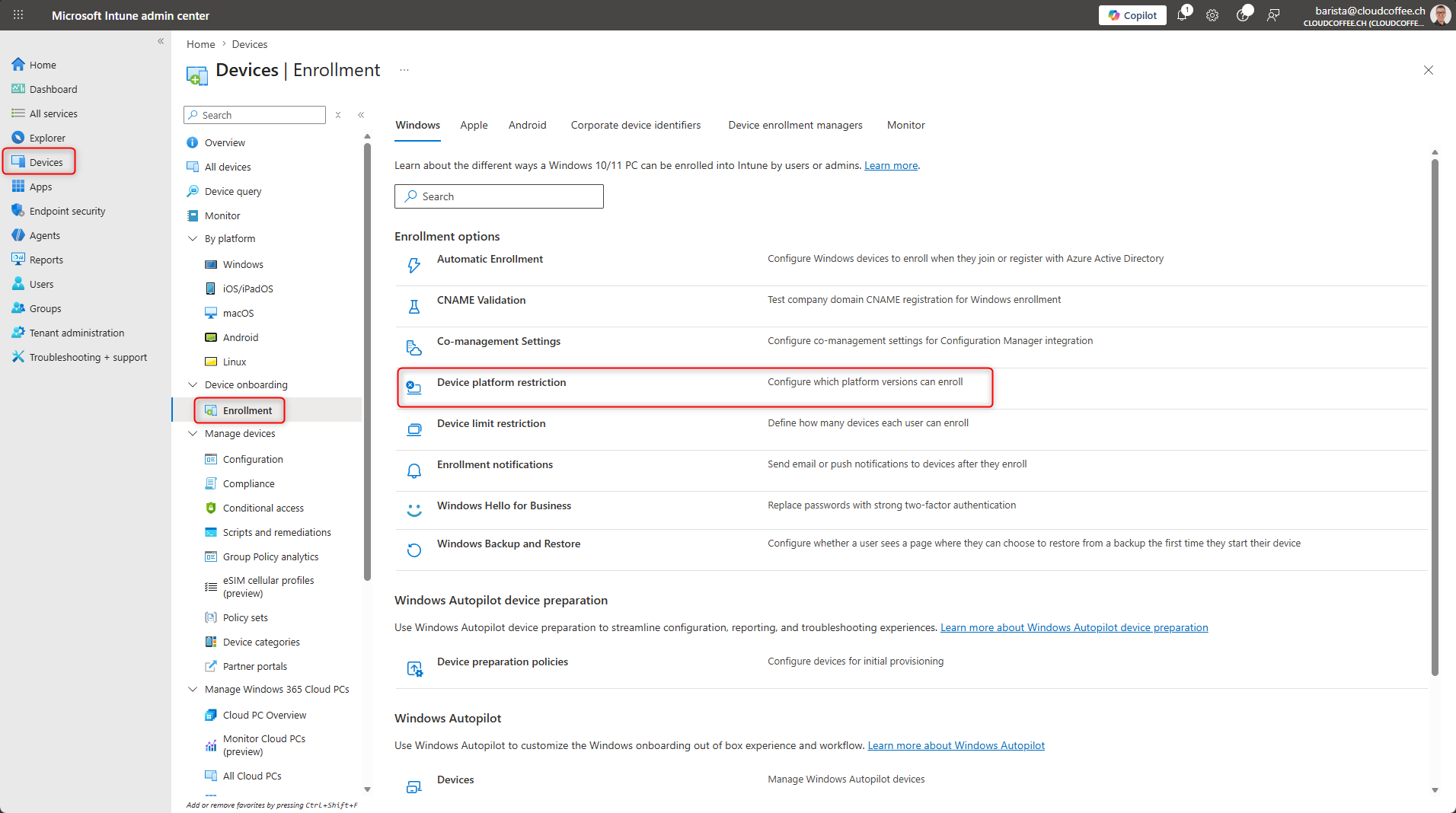
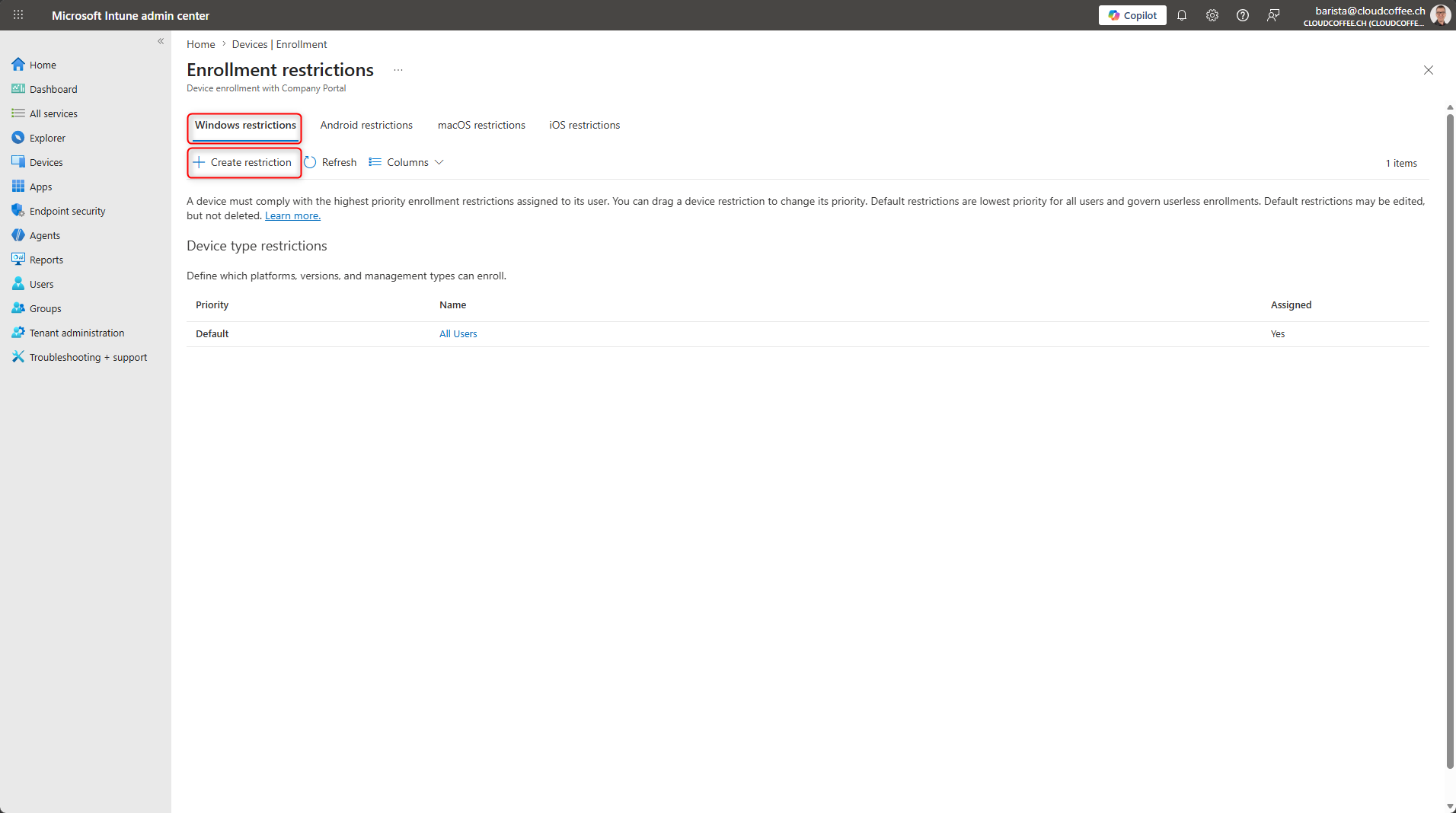
In the following example, personally owned Windows devices (BYOD) are blocked from enrolling in Microsoft Intune. To achieve this, create a new enrollment restriction with a higher priority. The existing default policy remains unchanged.
Windows restrictions > Create restriction
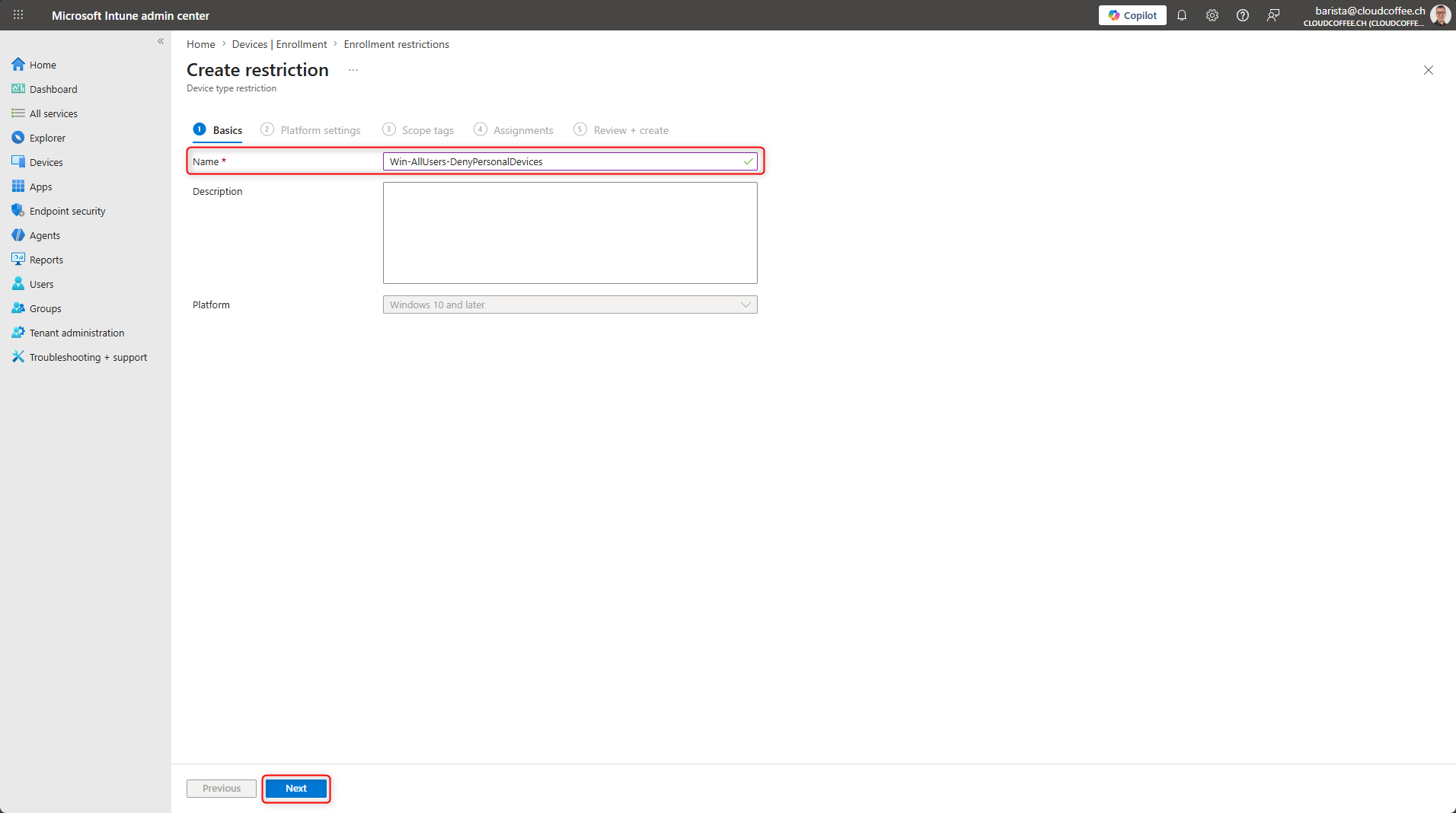
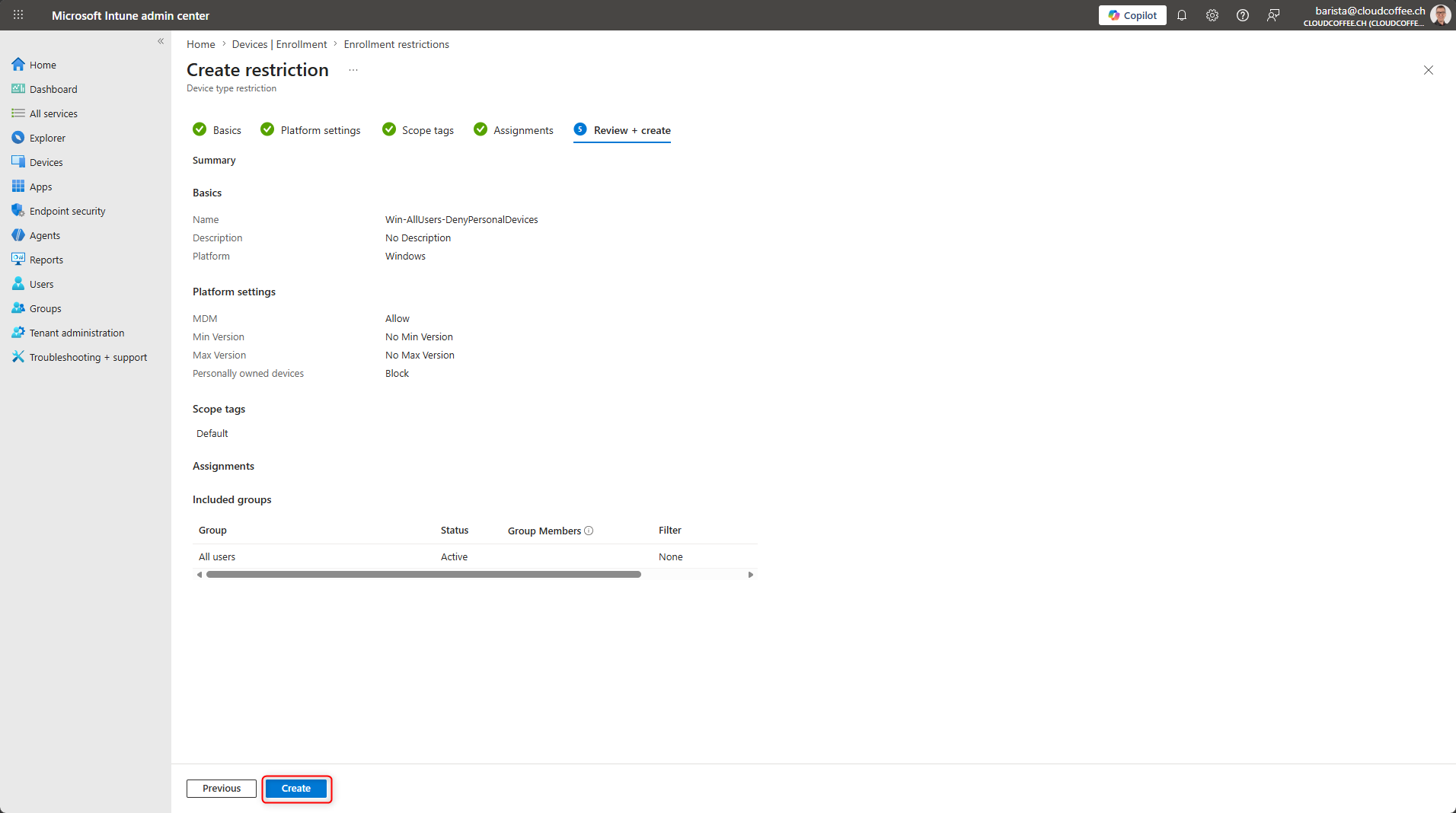
Provide a name for the enrollment restriction, for example Win-AllUsers-DenyPersonalDevices.
In the platform settings, set Personally owned devices to Block.
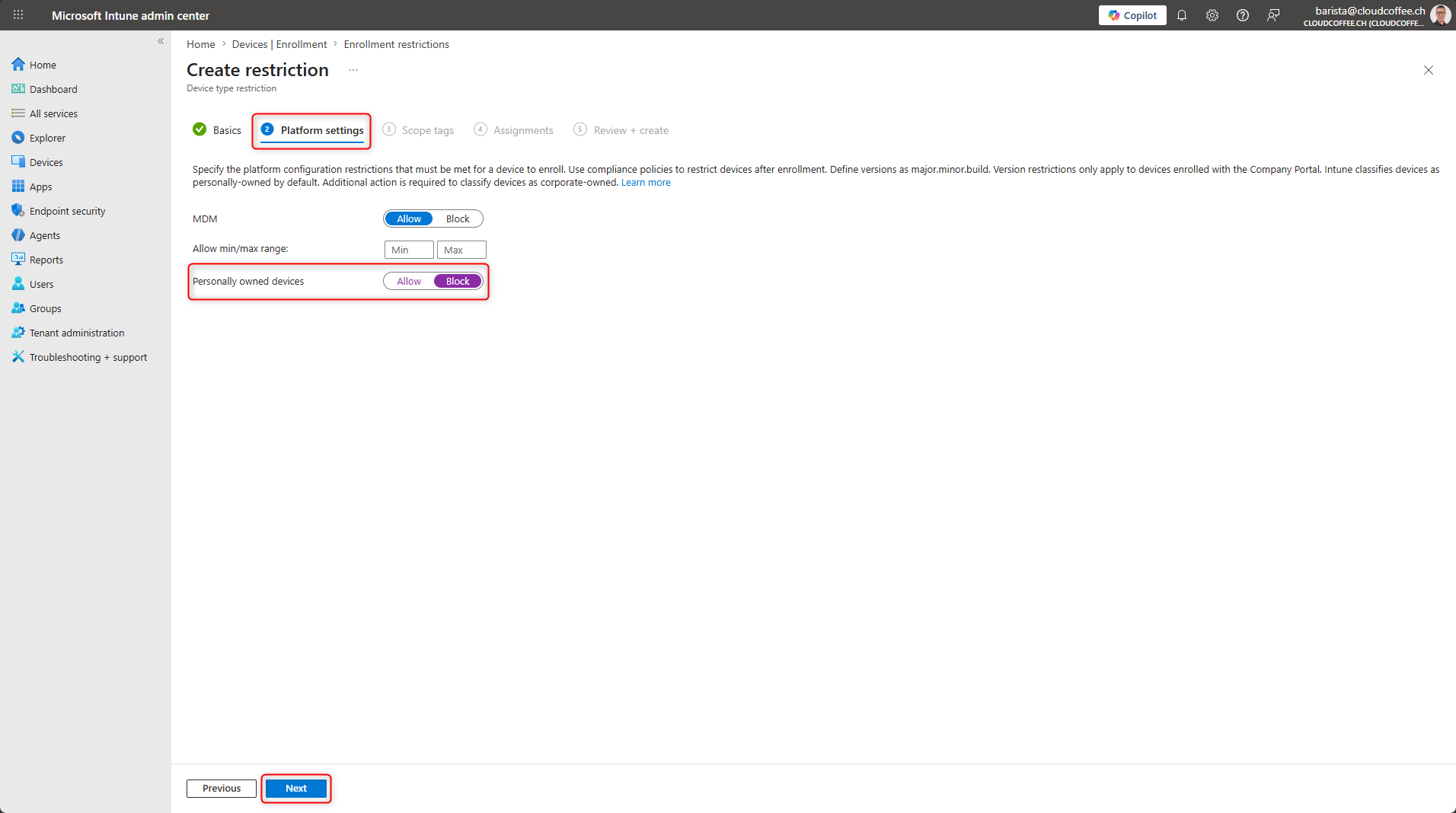
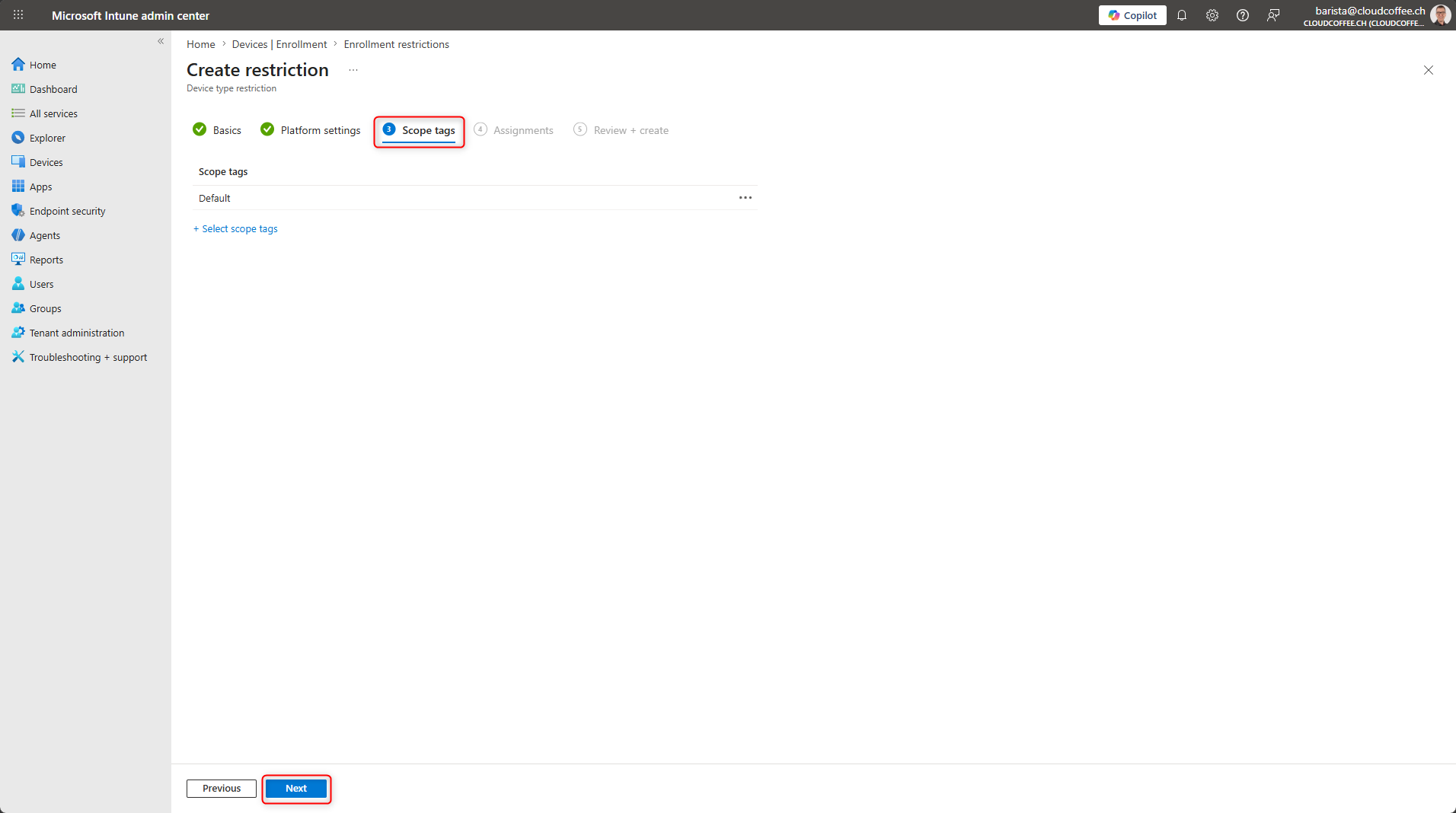
Configure Scope tags as needed.
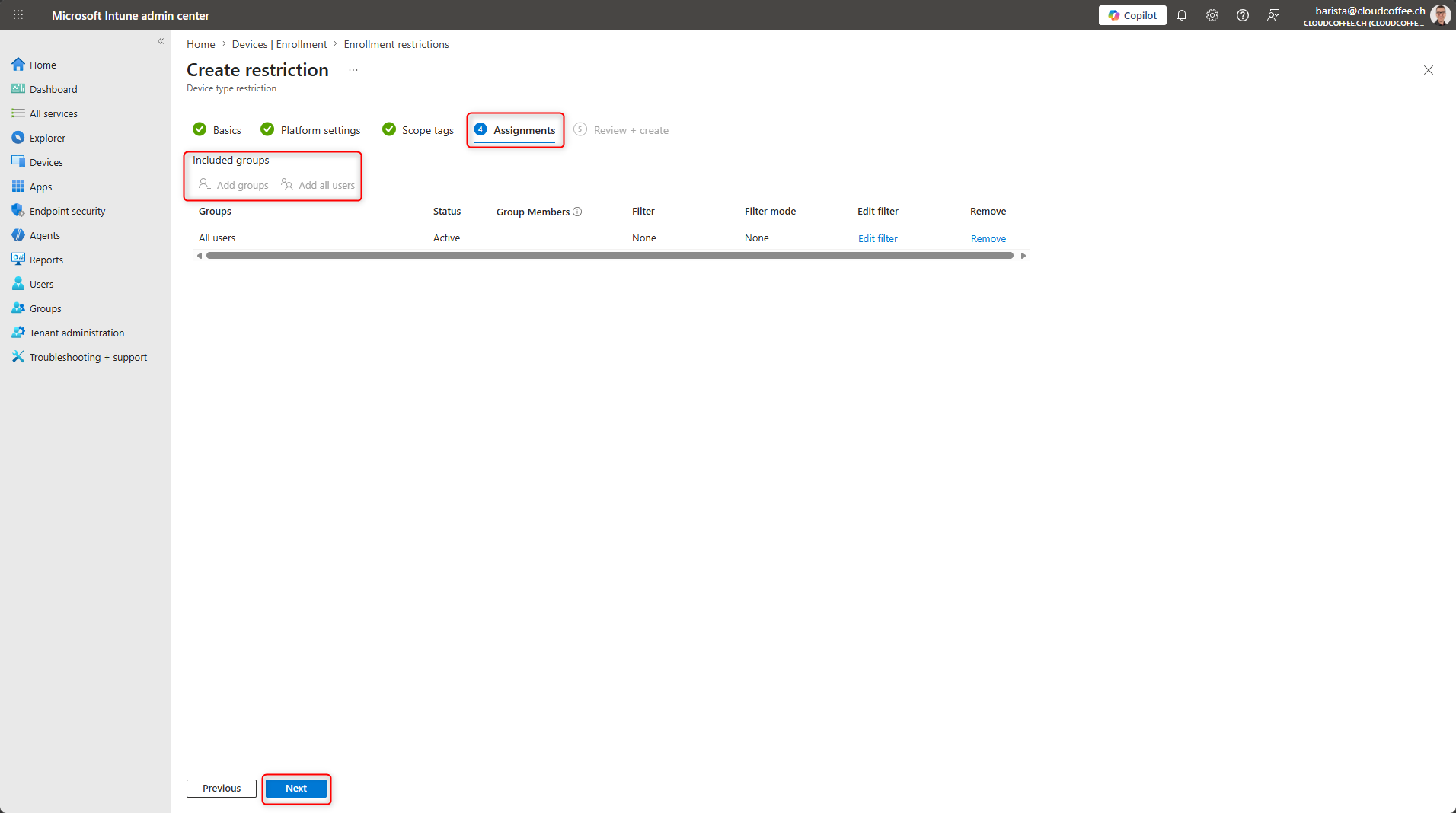
Under Assignments, select Add groups or Add all users.
Review the enrollment restriction and select Create to save it.
The newly created enrollment restriction is now active with a higher priority than the default policy.
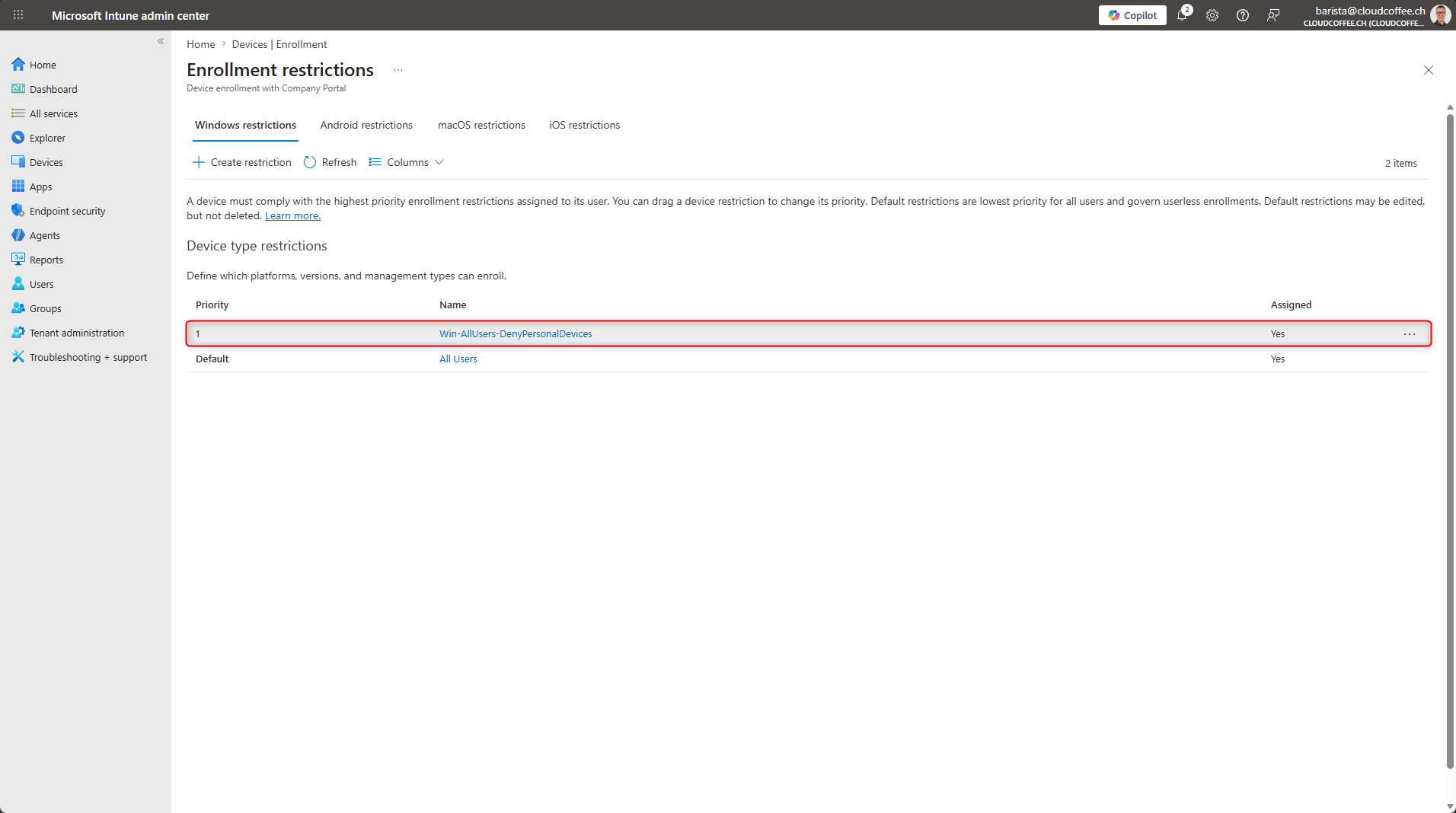
Configure enrollment restrictions for Android, macOS, and iOS in the same way.
Device Limit Restrictions in Microsoft Intune
The number of devices a user can enroll in Microsoft Intune is controlled through device limit restrictions. This prevents users from enrolling an excessive number of devices. The default limit is five devices per user. In many environments, reducing this value is recommended. A limit of three devices per user has proven effective in practice and covers typical scenarios such as laptops and smartphones. At the same time, it helps prevent compromised accounts or misconfigurations from resulting in uncontrolled device enrollment.
Microsoft Intune admin center (https://intune.microsoft.com) > Devices > Enrollment > Device limit restriction
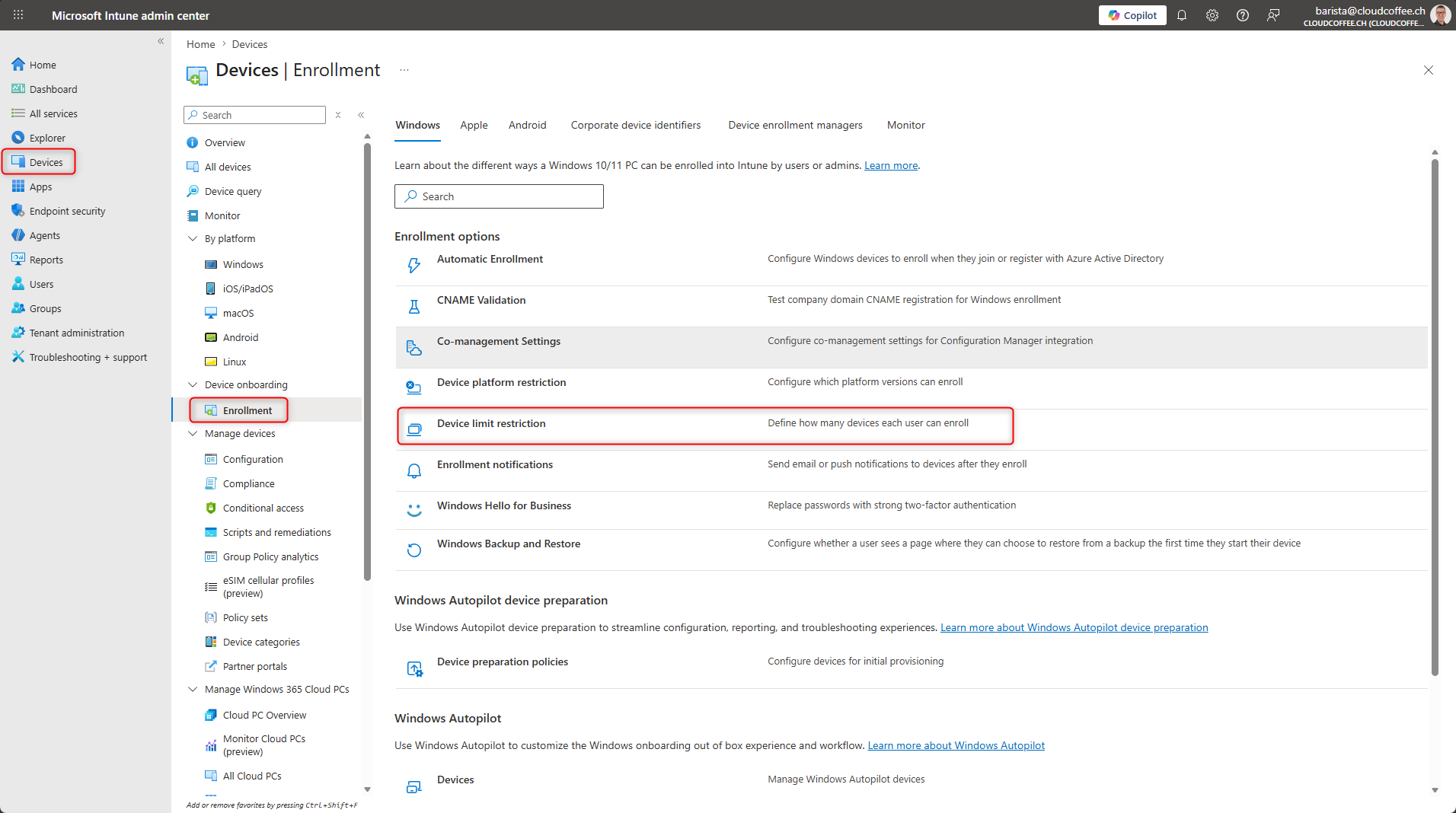
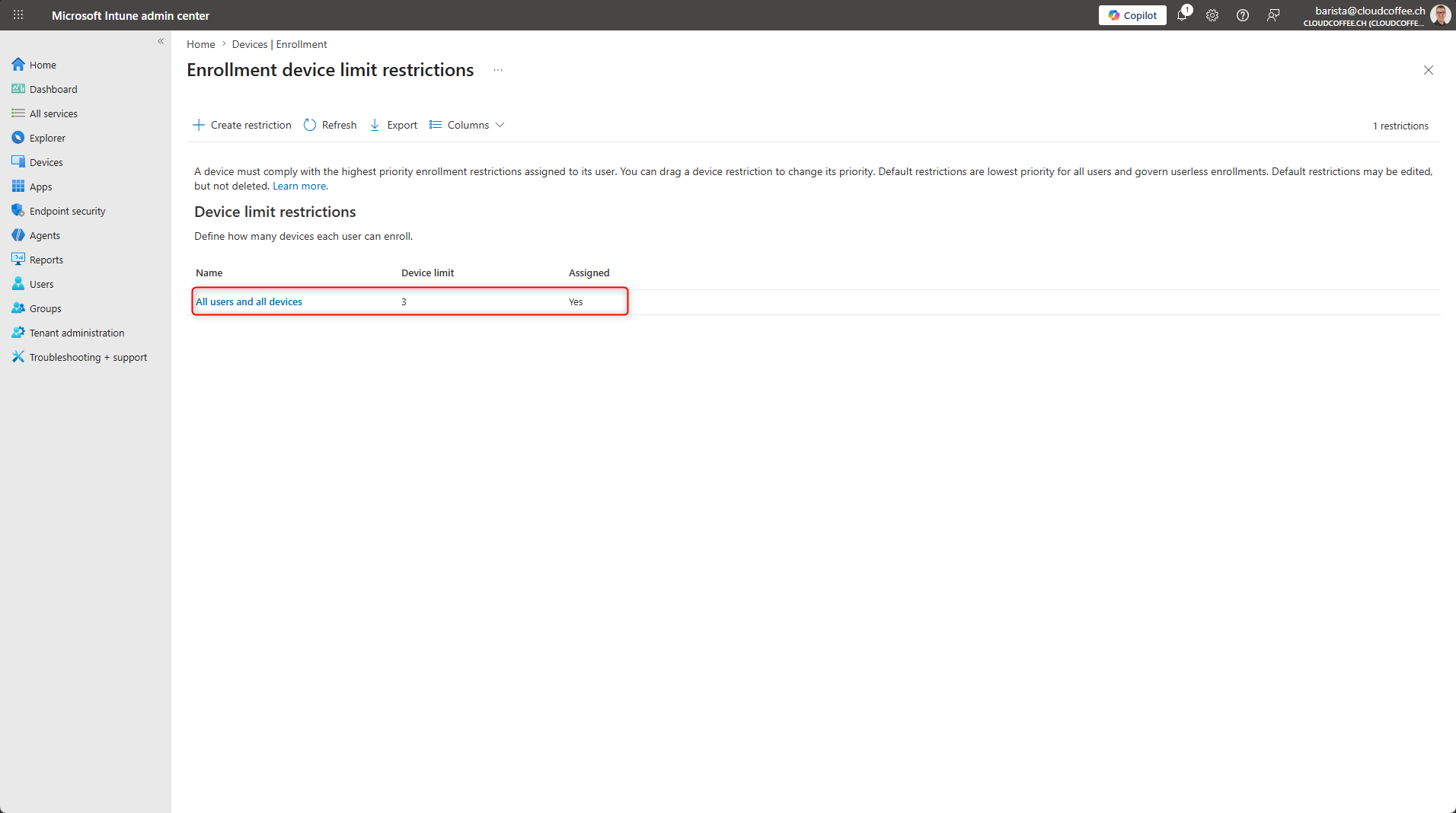
In the following example, the default device limit per user is reduced to 3.
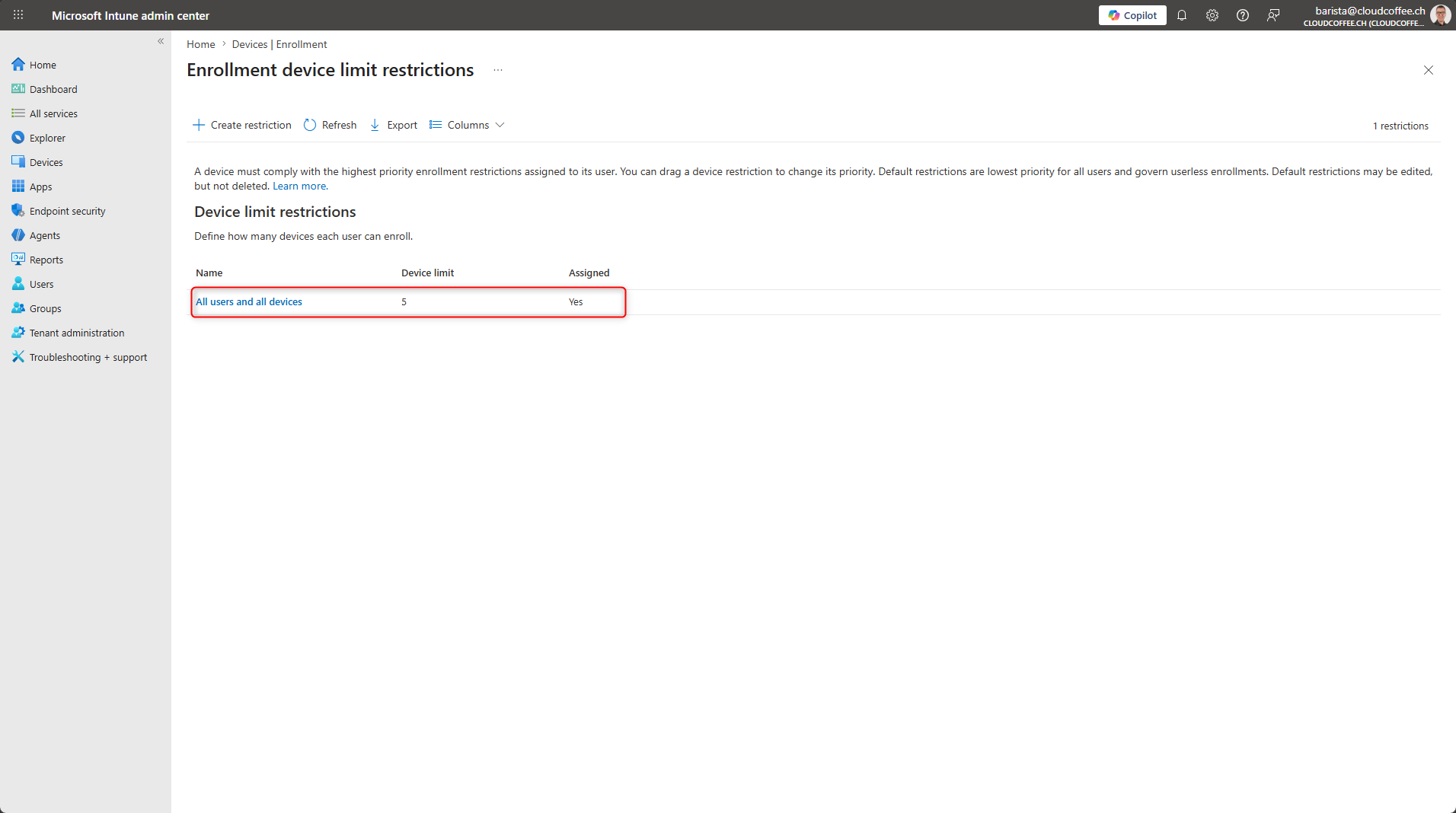
Select the default policy All users and all devices.
Select Properties > Edit
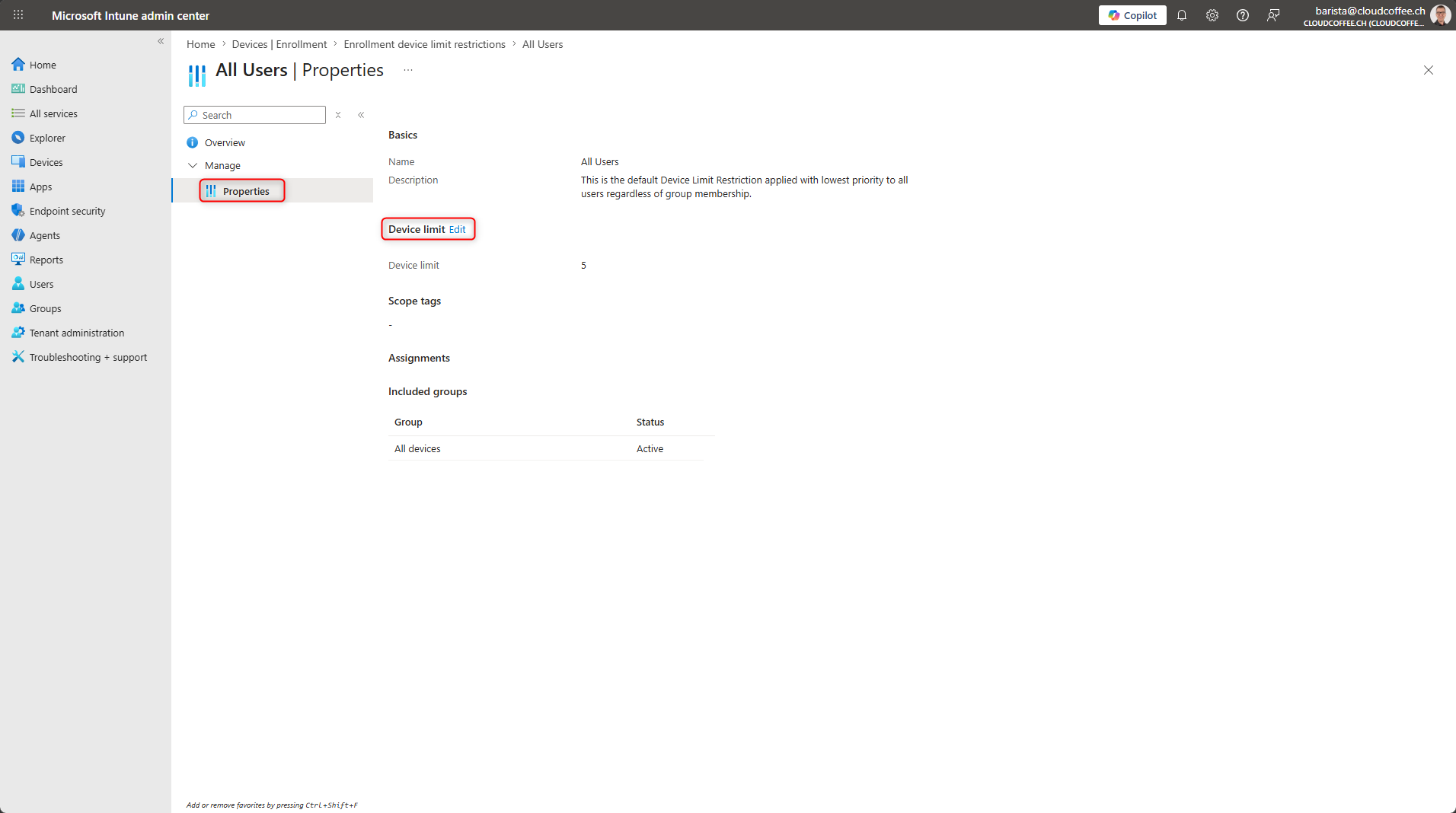
Set the device limit to 3
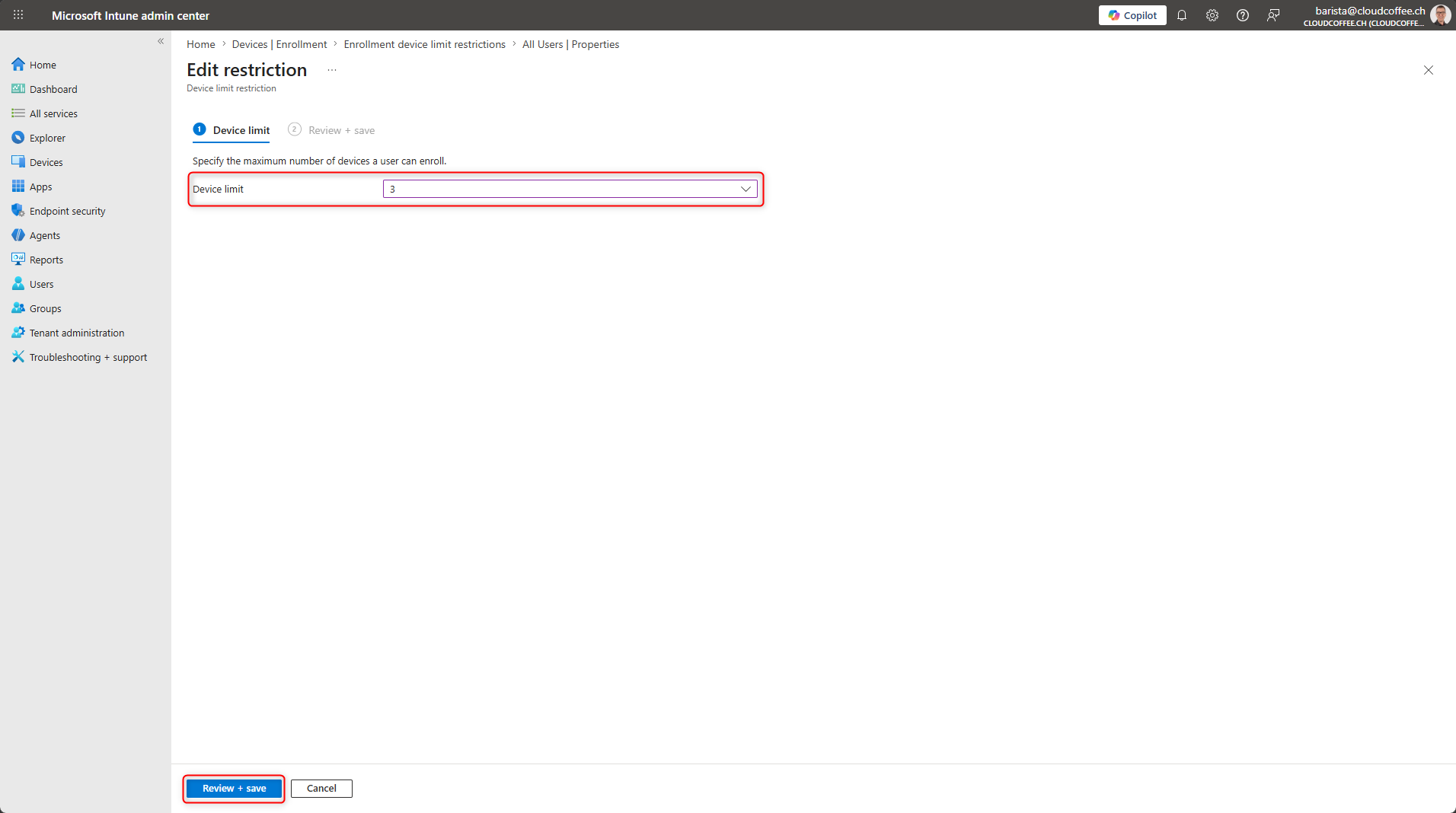
Select Save
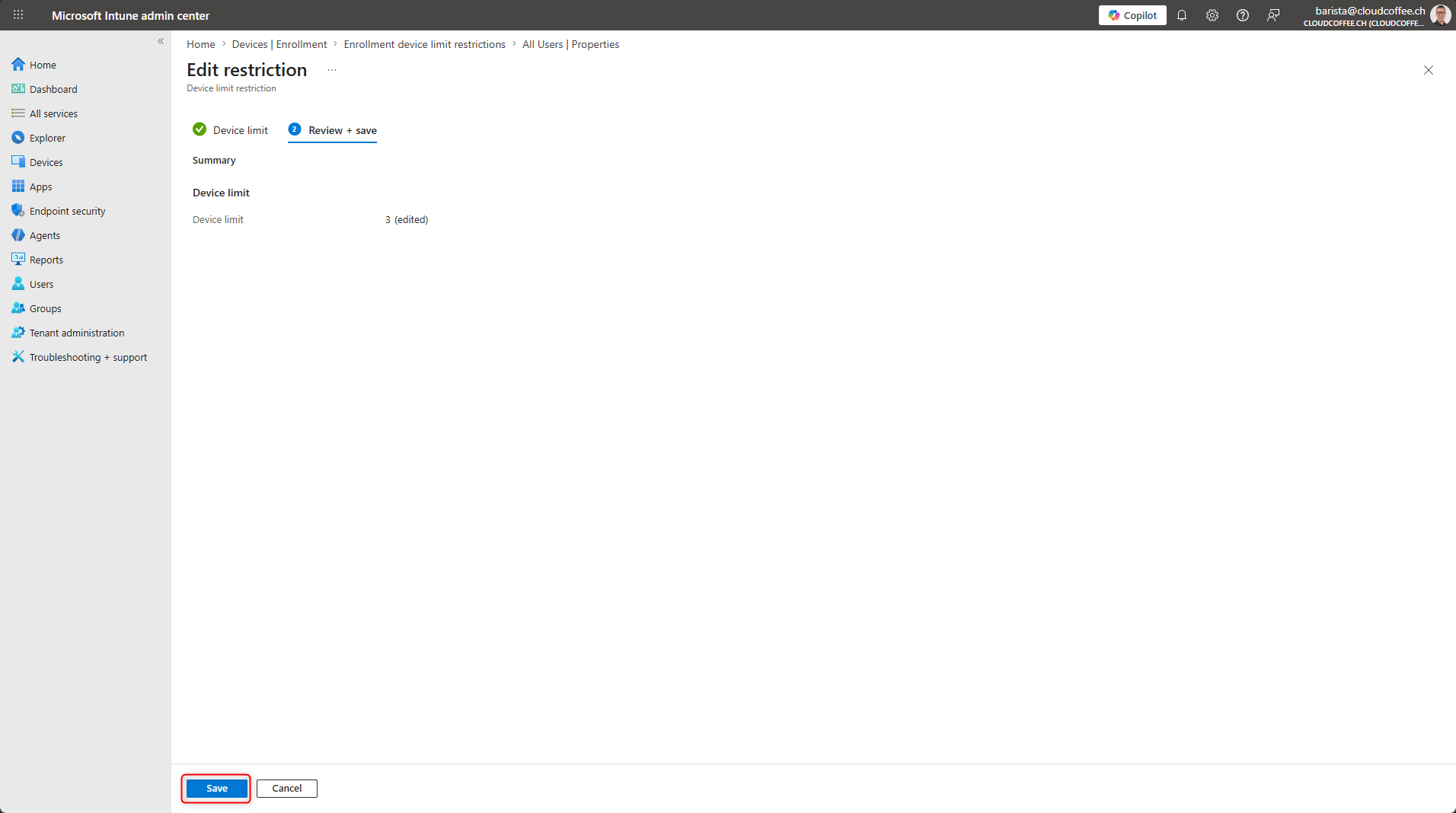
The default policy now allows up to three device registrations per user.
Bonus Tip
Secure Device Registration with Temporary Access Pass
In many environments, device registration is performed directly by the user. Using a Temporary Access Pass allows this process to be more tightly controlled. A Temporary Access Pass is issued by an authorized user and can be limited to a specific period of time. This effectively ties device registration to an additional approval step.
This approach enables a four-eyes principle. Device registration is only possible when a second user actively supports the process by issuing a Temporary Access Pass. At the same time, the registration window is limited to the validity period of the Temporary Access Pass. This reduces the risk of unauthorized registrations and provides additional control over device onboarding.
This setup is implemented using a combination of authentication strengths and Microsoft Entra Conditional Access.
Enable Temporary Access Pass as an Authentication Method
If the Temporary Access Pass authentication method is not yet enabled in Microsoft Entra, the required steps are described in the following blog post: Temporary Access Pass in Microsoft Entra: Configuration and Usage – cloudcoffee.ch
Configure Authentication Strengths
In the following steps, an authentication strength is configured that allows only the Temporary Access Pass as a sign-in method.
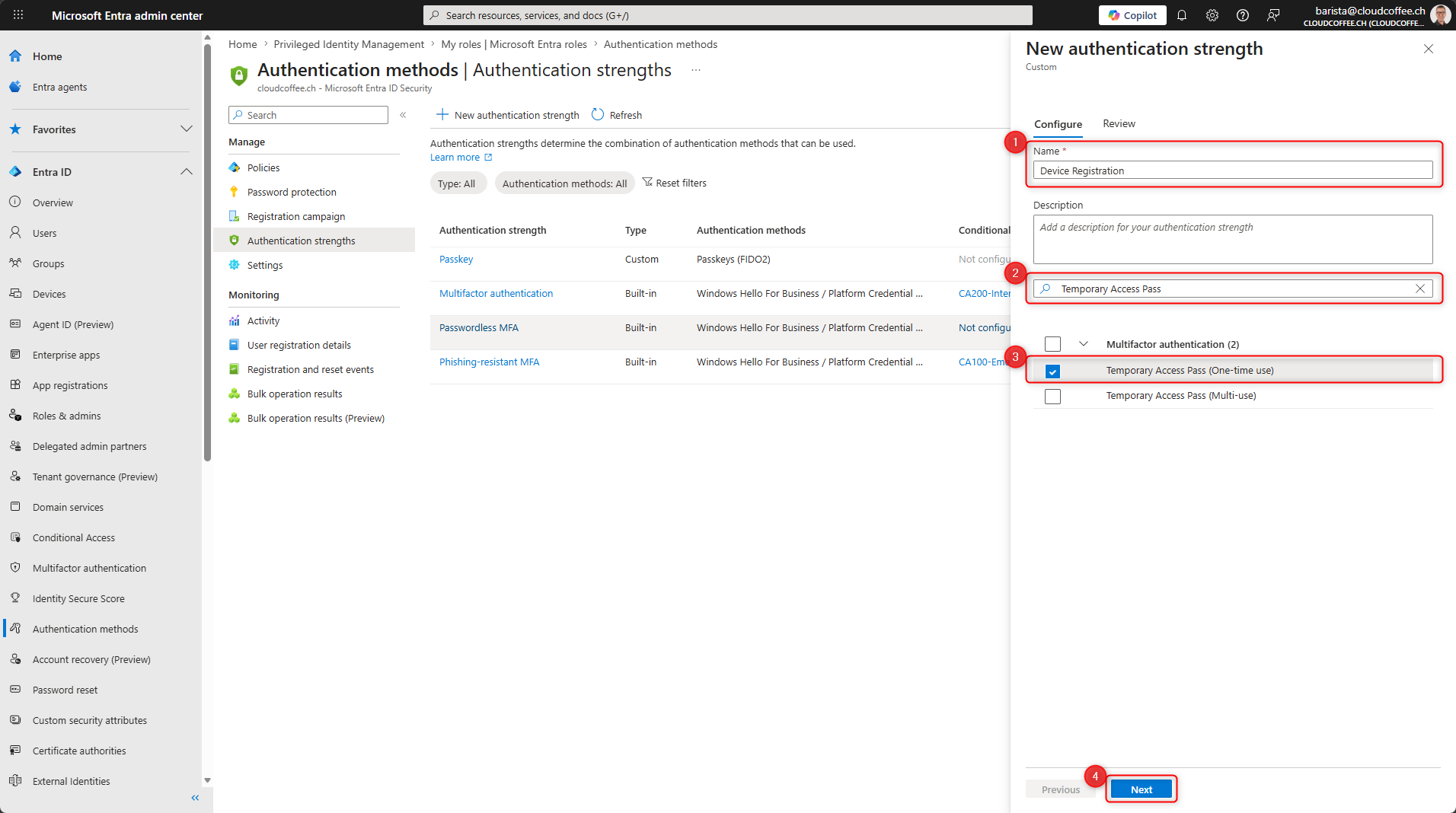
In the Microsoft Entra admin center (https://entra.microsoft.com), go to Entra ID > Authentication methods > Authentication strengths and select New authentication strength
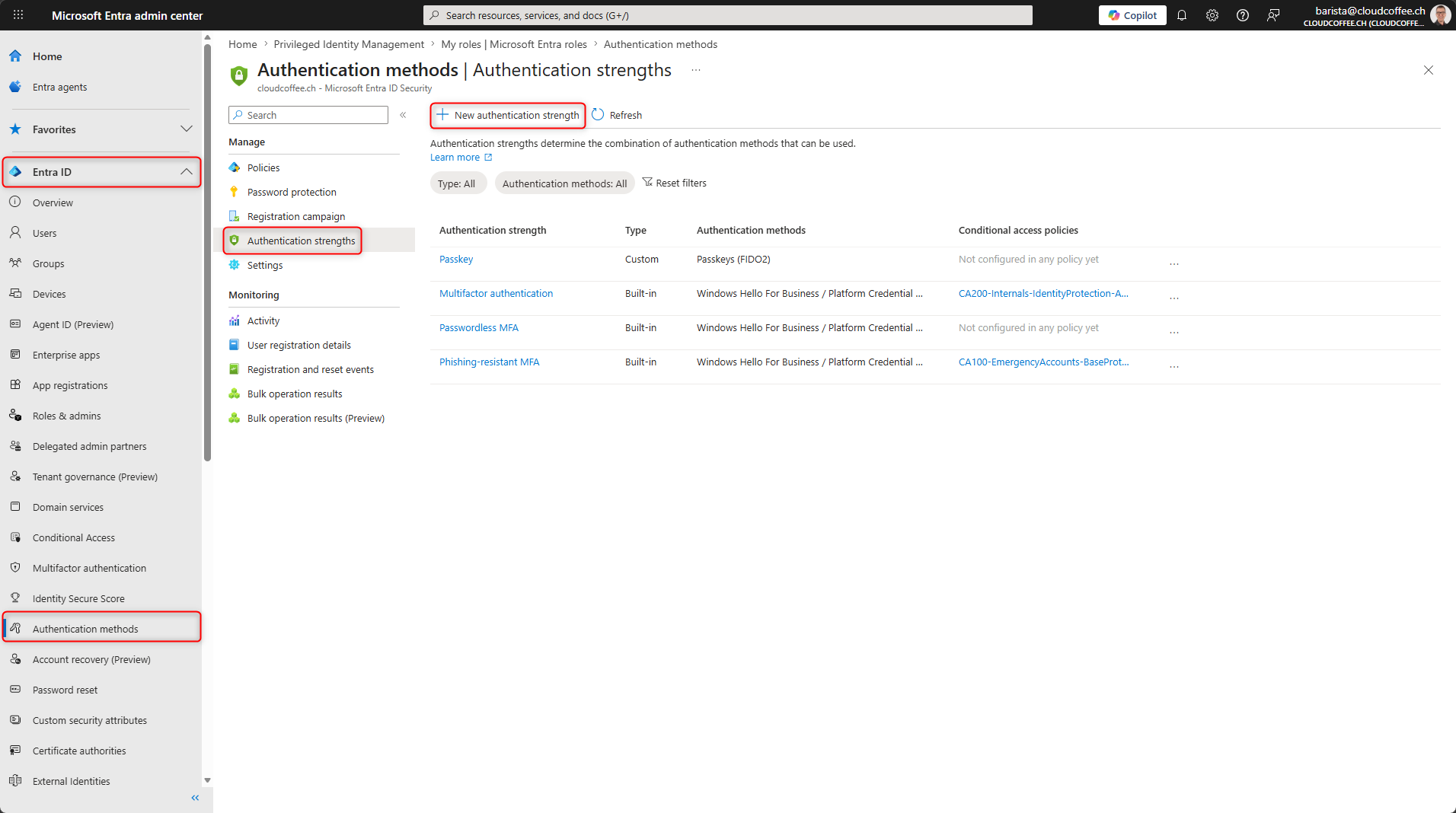
- Name: Provide a name for the authentication strength, for example Device Registration
- Filter: Set to Temporary Access Pass
- Enable Temporary Access Pass (One-time use)
- Select Next
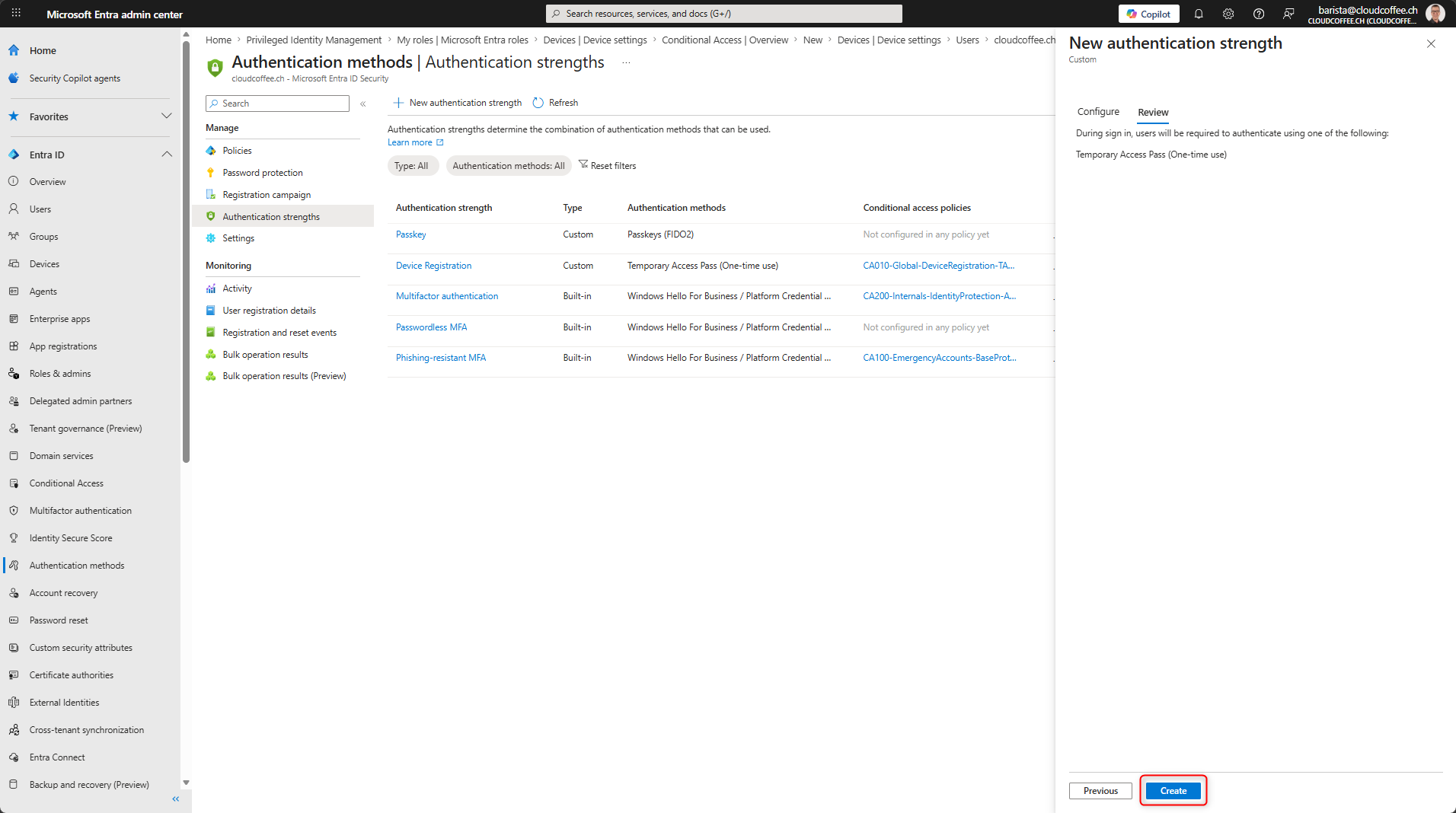
Review the settings and select Create.
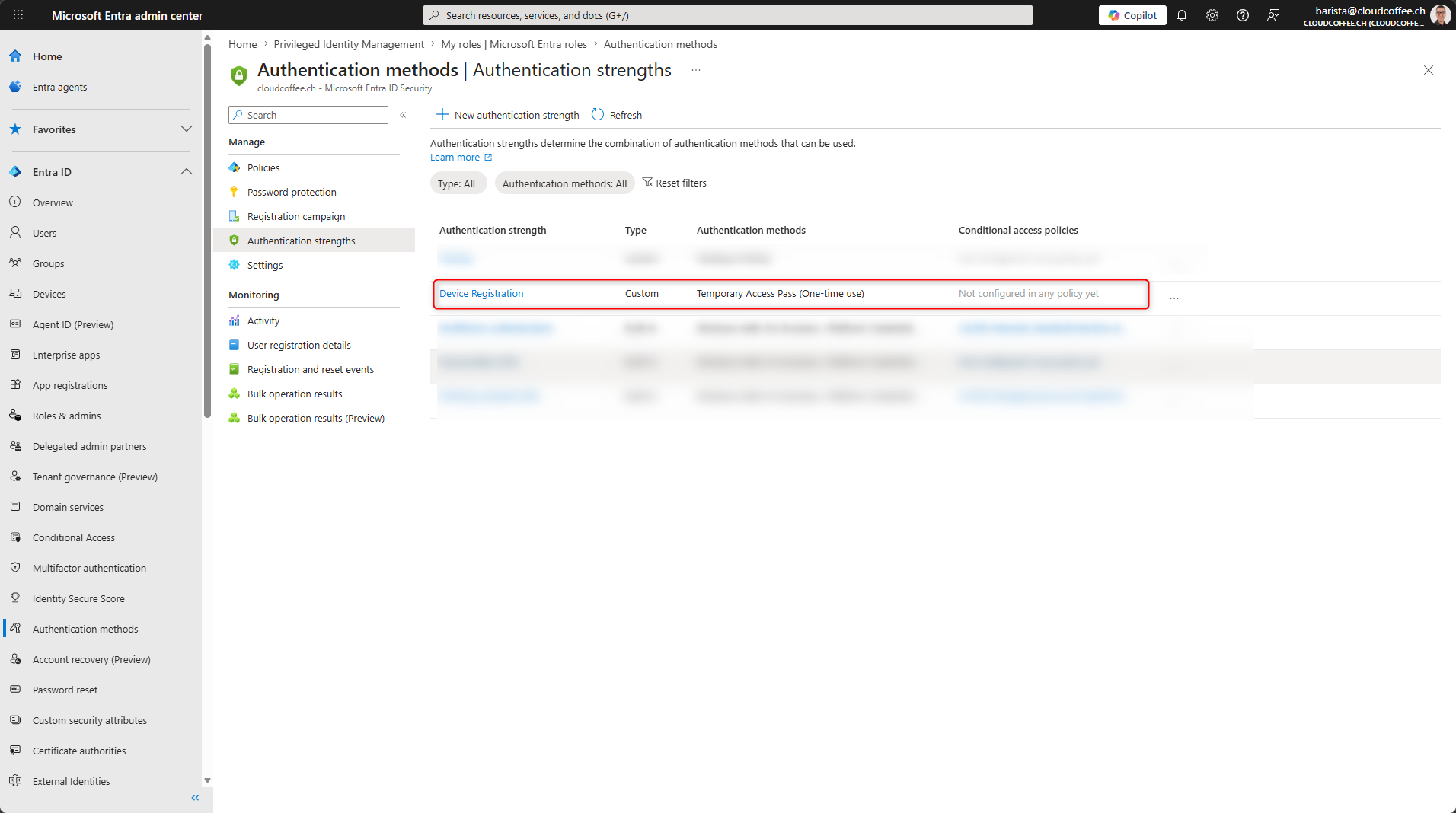
The authentication strength has been created and can now be used.
Create a Microsoft Entra Conditional Access Policy for Device Registration Using Temporary Access Pass
The authentication strength created earlier can now be used in Microsoft Entra Conditional Access as a requirement for device registration.
In the Microsoft Entra admin center (https://entra.microsoft.com), go to Entra ID > Conditional Access > Create new policy.
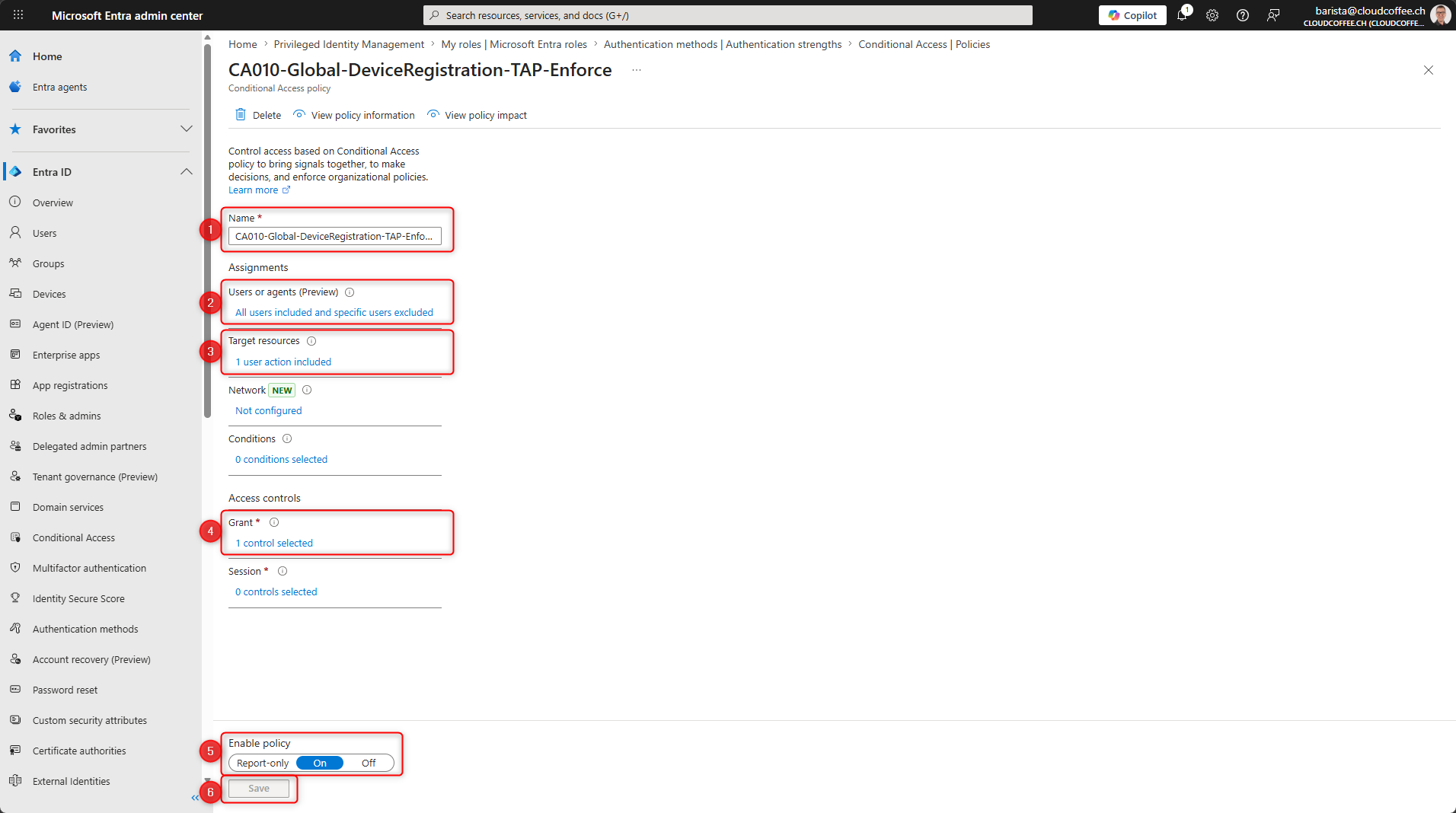
- Name: Provide a name for the Microsoft Entra Conditional Access policy
- Users: Select all users and exclude emergency access accounts
- Target resources:
Policy type: Select User actions and choose Register or join devices - Grant: Select Require authentication strength and choose Device Registration
- Enable policy: Set to On
- Create the policy to save and enable it
From this point forward, device registration is only possible using a Temporary Access Pass.
Conclusion
Device registration in Microsoft Entra is a security-critical process. Limiting registration to defined user groups, enforcing multi-factor authentication via Microsoft Entra Conditional Access, and applying enrollment restrictions in Microsoft Intune enable controlled and secure device registration. Additional measures such as device limits and Temporary Access Passes further reduce the risk.
Fresh content, explained with practical relevance. Stay up to date via LinkedIn and Bluesky.


No marketing. No noise. Just content.
If this post was helpful, a coffee brings back the rich aroma behind the writing.