Securing Microsoft Entra Guest Access (3/3): Monitoring with Log Analytics, KQL, and Alert Rules
Whether it’s a new partner organization, a change to a trust setting, or a guest sign-in to a sensitive application, day-to-day operations generate events that matter to the security of external access. Reviewing the logged activity helps determine whether those events align with the intended policies.
Microsoft Entra provides sign-in logs and audit logs for this purpose. Sign-in logs provide information about sign-ins, authentication, and Conditional Access. Audit logs record changes within the tenant, including invitations to external users and changes to cross-tenant access settings. Microsoft describes the available information in Sign-in log activity details and Audit log activities
This article shows how to send these logs to Log Analytics workspaces and analyze them with Kusto Query Language (KQL). It focuses on invitations to external users, incoming B2B Collaboration sign-ins, and changes to cross-tenant access settings. An Azure Monitor alert rule adds notifications for selected events.
The three-part Securing Microsoft Entra Guest Access series covers:
- Part 1 of 3: Cross-tenant Access Settings and MFA Trust
- Part 2 of 3: Lifecycle Management with Access Packages and Access Reviews
- Part 3 of 3: Monitoring with Log Analytics, KQL, and Alert Rules (coming soon)
TL;DR
- Diagnostic settings send Microsoft Entra sign-in logs and audit logs to Log Analytics workspaces
- KQL queries help identify guest invitations, sign-ins from undocumented partner organizations, and changes to access settings
- Azure Monitor alert rules notify you about selected events
Prerequisites and Licensing
Microsoft Entra ID
Analyzing Microsoft Entra sign-in and audit logs in Log Analytics requires at least a Microsoft Entra ID P1 or P2 license.
Azure Subscription and Log Analytics Workspaces
An Azure subscription is required to deploy the Log Analytics workspace and configure Azure Monitor alerting.
Roles
The following Microsoft Entra and Azure roles support the configuration while following the principle of least privilege:
Microsoft Entra RBAC
| Role | Permission |
| Security Administrator | Configure Microsoft Entra diagnostic settings |
Microsoft Azure RBAC
| Role | Permission |
| Monitoring Contributor | Manage Azure Monitor alert rules and action groups |
| Log Analytics Contributor | Create and configure a Log Analytics workspace |
| Log Analytics Reader | Read log data in the workspace and run KQL queries |
Send Microsoft Entra Logs to Log Analytics Workspaces
Create a Log Analytics Workspace
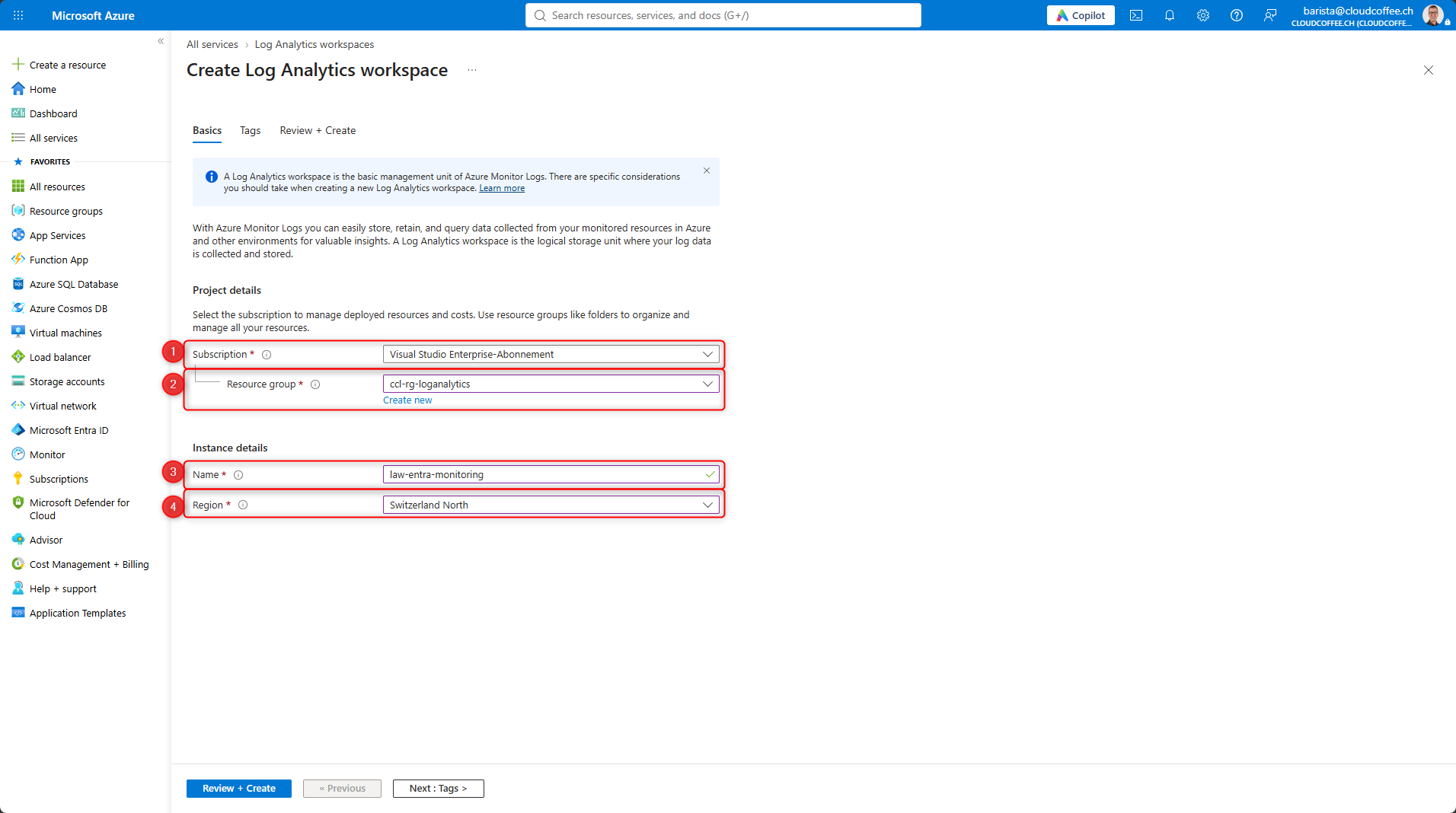
The Log Analytics workspace stores the sign-in and audit logs sent to it and makes them available for KQL queries. Create the workspace in the Azure portal. If a suitable workspace already exists, skip this step.
Azure Portal (https://portal.azure.com) > All services > Log Analytics workspaces > Create
- Subscription: Select the Azure subscription for the workspace
- Resource group: Select an existing resource group or create a new one
- Name: Enter a name for the workspace, such as law-entra-monitoring
- Region: Select a region based on your data residency requirements
Select Review + Create, then select Create to complete the configuration
Configure Diagnostic Settings
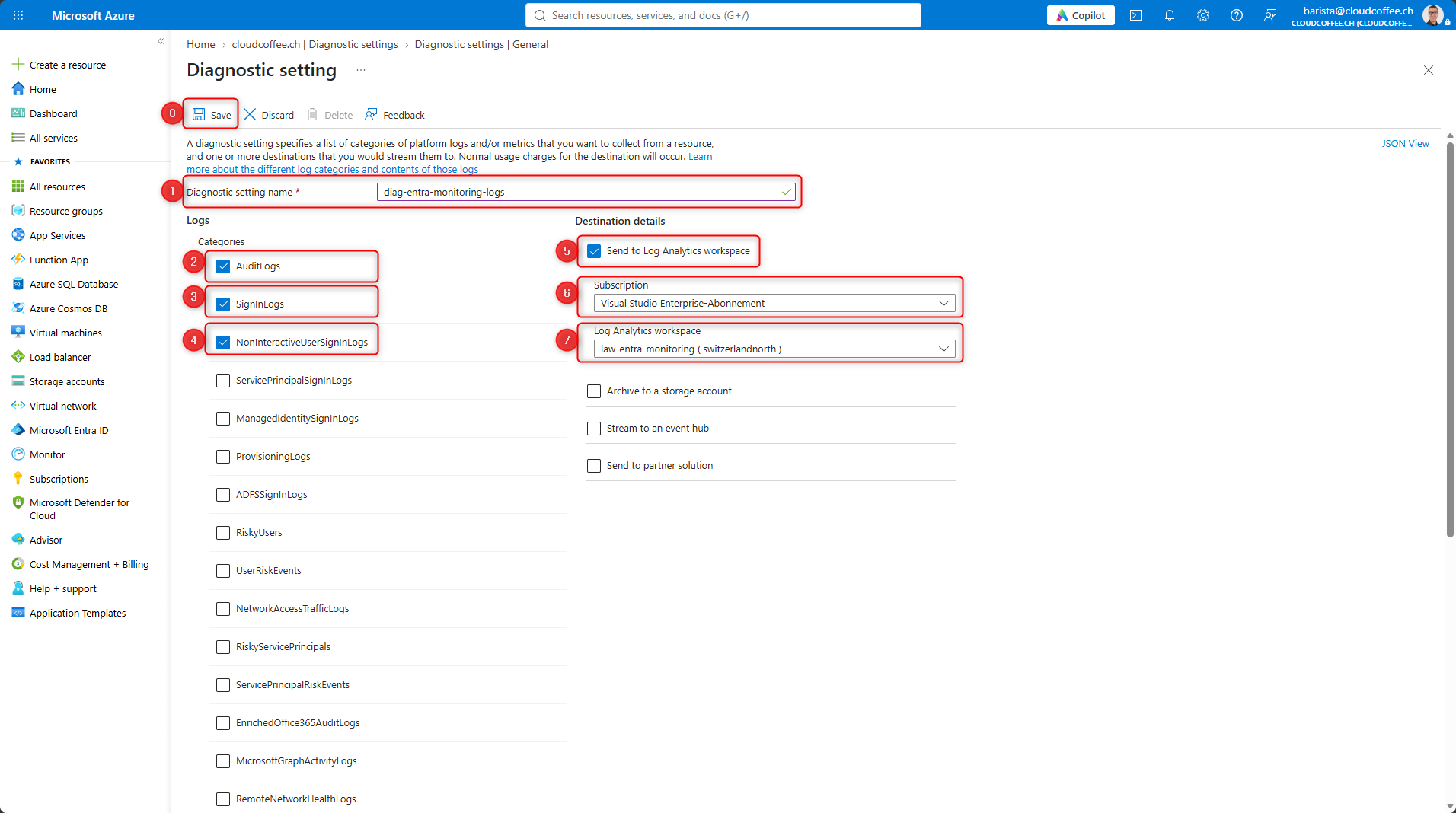
Configure the transfer of sign-in and audit logs to the Log Analytics workspace in the Microsoft Azure Portal.
Azure Portal (https://portal.azure.com) > Microsoft Entra ID > Monitoring > Diagnostics settings > Add diagnostics setting
Enter a diagnostic setting name (1), such as diag-entra-monitoring-logs.
For this monitoring scenario, select the AuditLogs (2), SignInLogs (3), and NonInteractiveUserSignInLogs (4) categories. Under Destination details, select Send to Log Analytics workspace (5). Then select the Azure subscription (6) and the Log Analytics workspace (7).
Select Save (8) to complete the configuration.
Verify Log Ingestion
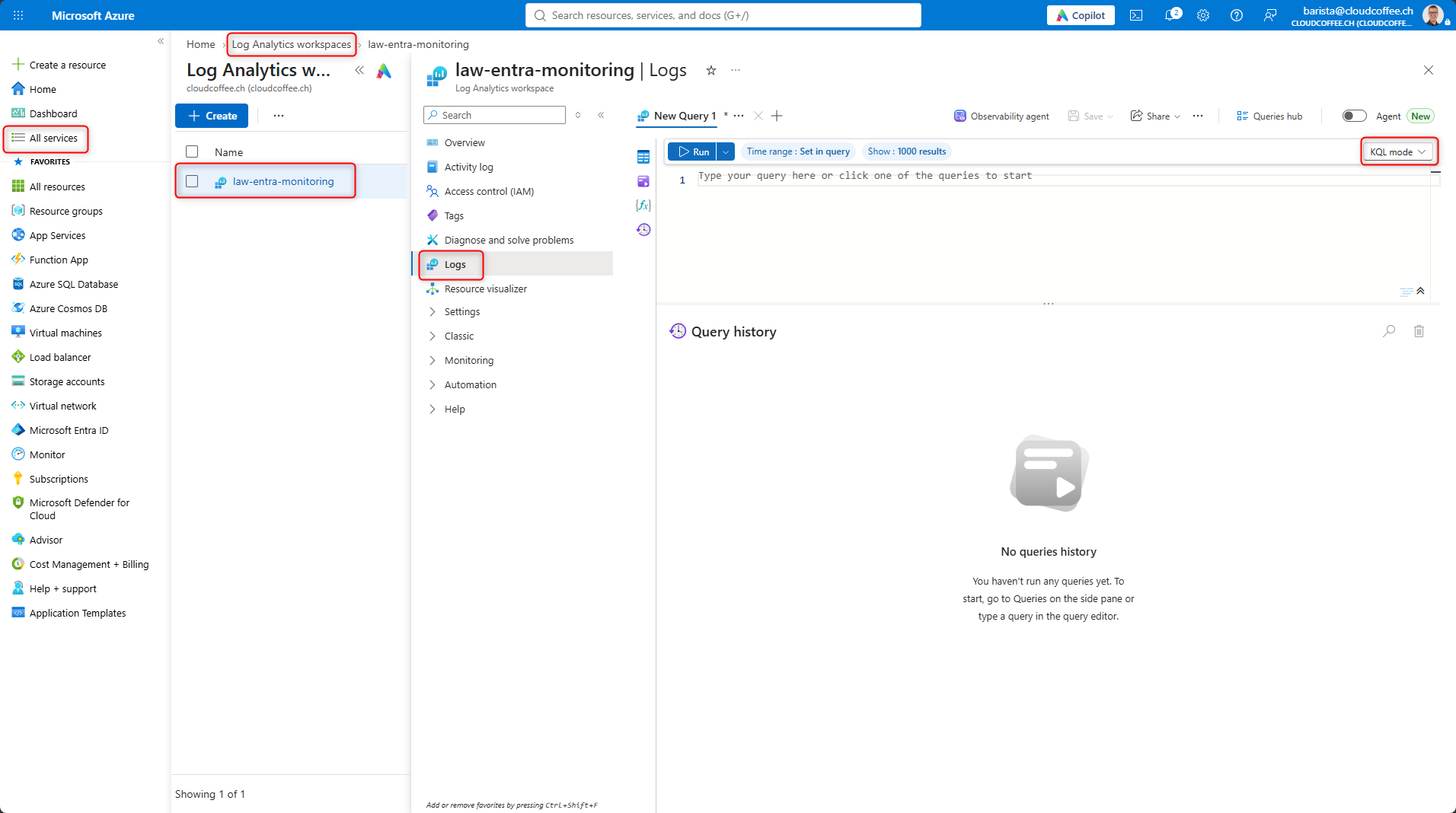
It can take up to three days for sign-in and audit logs to appear in the Log Analytics workspace. Once they do, verify the log ingestion in the Azure portal.
Azure Portal (https://portal.azure.com) > All services > Log Analytics workspaces > Select a workspace > Logs
Switch to KQL mode.
Each query below returns events from the past 24 hours, or all available events if log ingestion began less than 24 hours ago.
User Sign-Ins
SigninLogs
| where TimeGenerated >= ago(24h)
| top 10 by TimeGenerated desc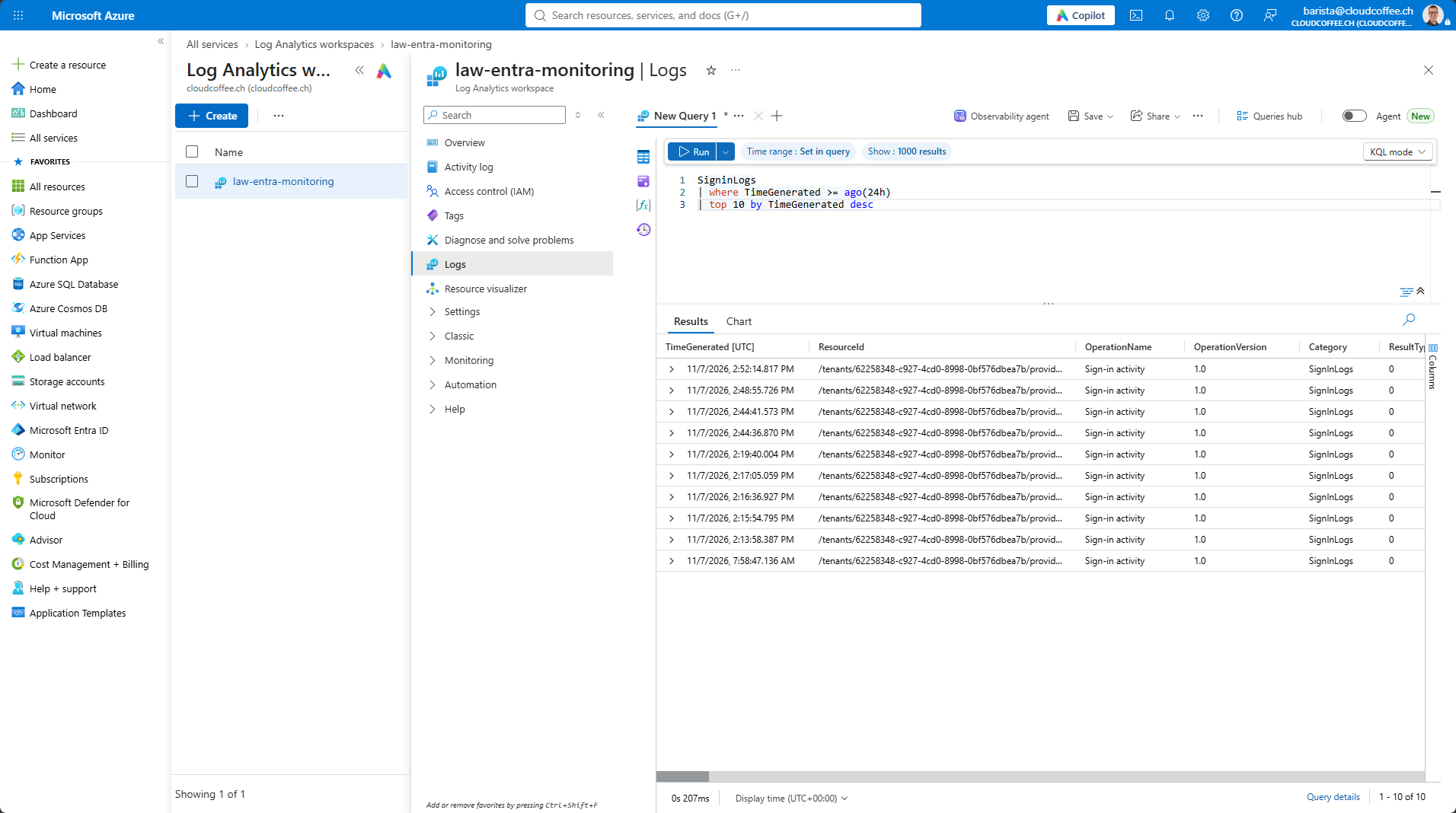
Noninteractive User Sign-Ins
AADNonInteractiveUserSignInLogs
| where TimeGenerated >= ago(24h)
| top 10 by TimeGenerated desc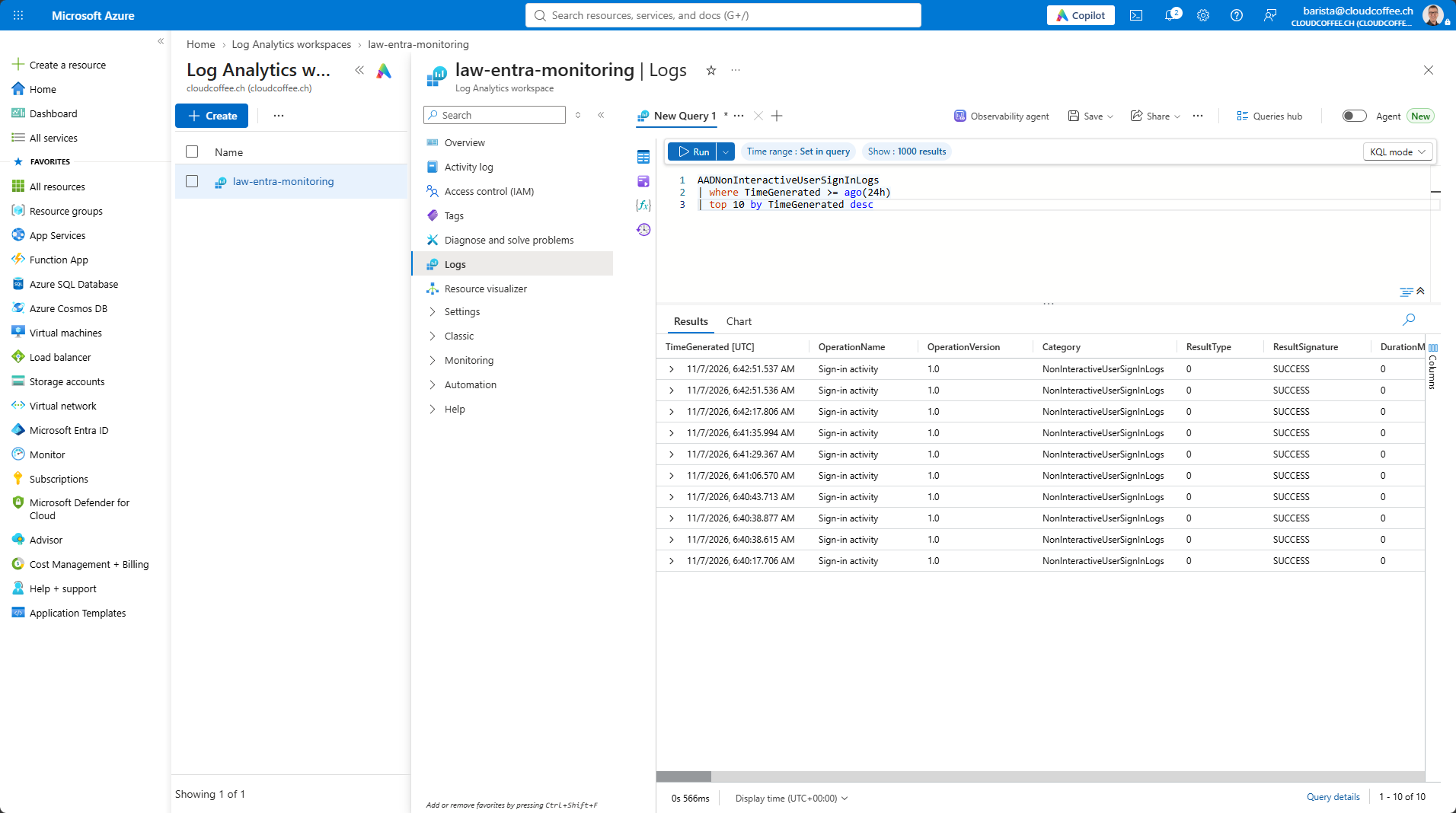
Audit Logs
AuditLogs
| where TimeGenerated >= ago(24h)
| top 10 by TimeGenerated desc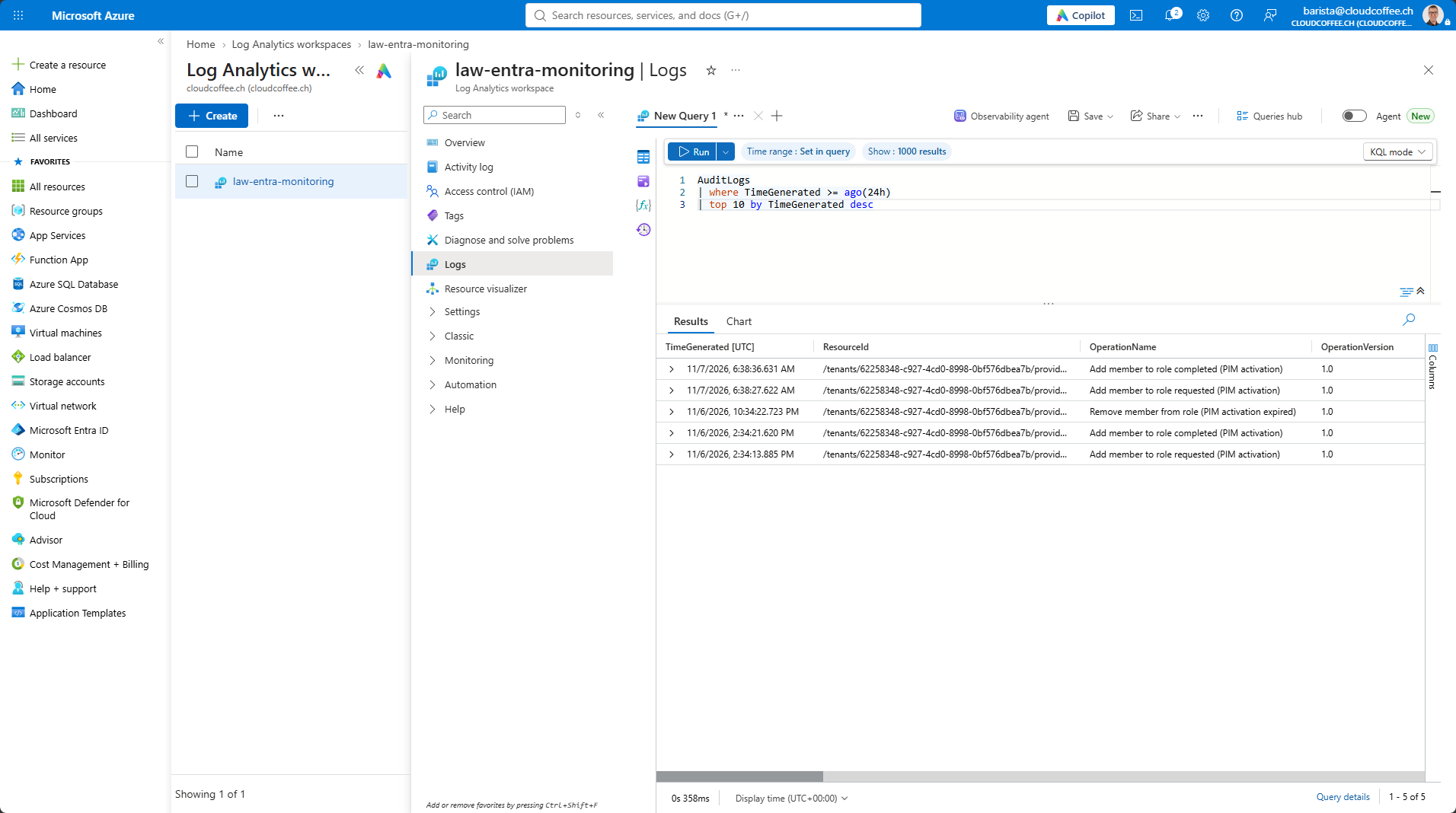
Monitor Microsoft Entra Guest Access with KQL
The following KQL queries in the Log Analytics workspace address three specific questions:
- Who is inviting guests?
- Which B2B sign-ins come from undocumented partner organizations?
- Who is changing which cross-tenant access settings?
Invitations to External Users
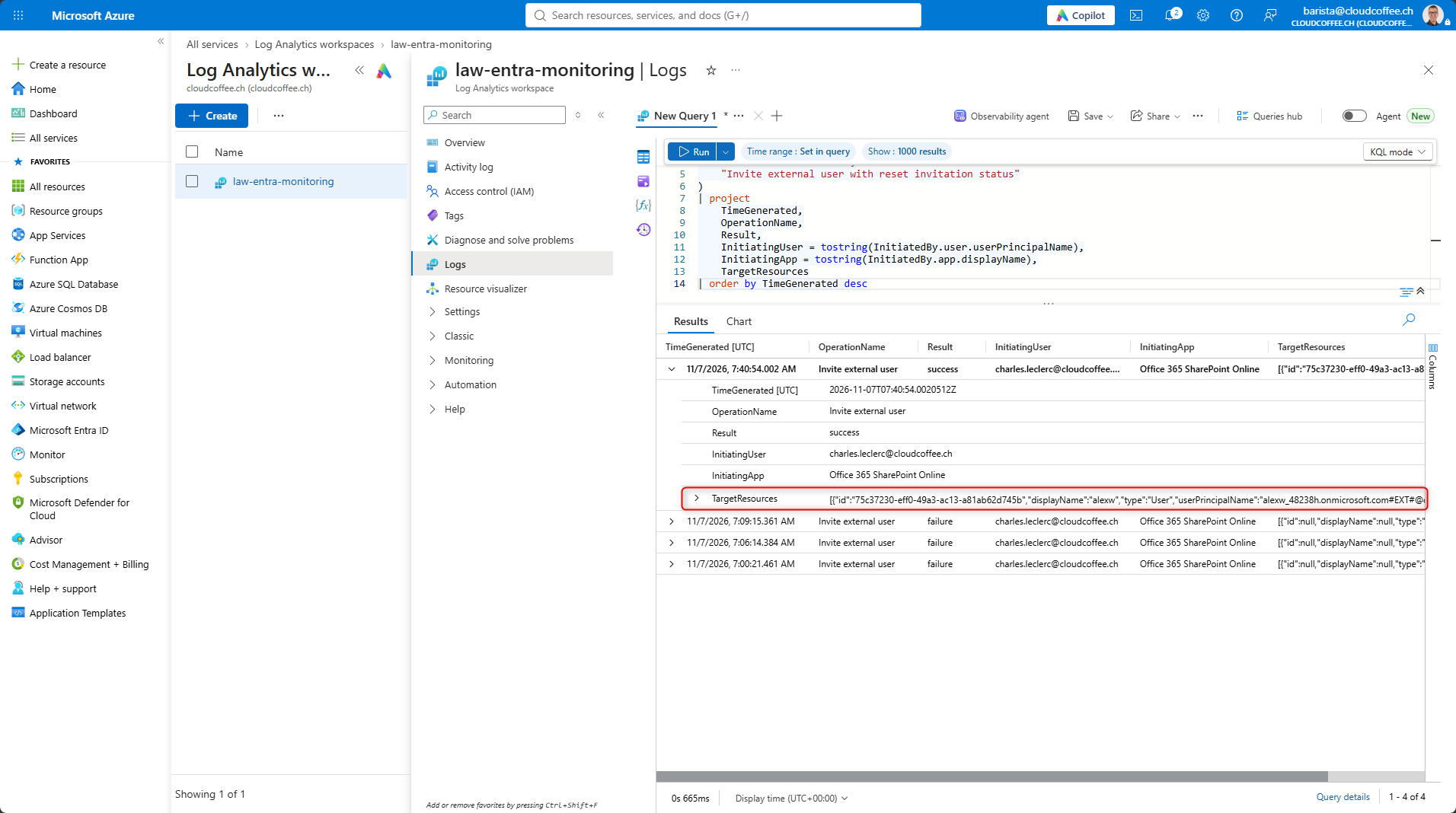
Microsoft Entra records invitations to external users as audit log activities. The following query shows which identity or application initiated the invitation during the past seven days and which external user was invited.
AuditLogs
| where TimeGenerated >= ago(7d)
| where OperationName in (
    "Invite external user",
    "Invite external user with reset invitation status"
)
| project
    TimeGenerated,
    OperationName,
    Result,
    InitiatingUser = tostring(InitiatedBy.user.userPrincipalName),
    InitiatingApp = tostring(InitiatedBy.app.displayName),
    TargetResources
| order by TimeGenerated desc
InitiatingUser contains the identity that initiated the invitation. If an application initiated the invitation, see InitiatingApp instead.
TargetResources contains the external user object associated with the invitation, along with any other affected objects.
Sign-Ins from Undocumented Partner Organizations
The following query identifies successful incoming B2B Collaboration sign-ins from tenants that are not listed as documented partner organizations. For more information about configuring partner organizations, see Securing Microsoft Entra Guest Access: Cross-tenant Access Settings and MFA Trust – cloudcoffee.ch
Replace the KnownPartnerTenants placeholder with the tenant IDs of the documented partner organizations. These IDs are not included in the sign-in logs, so the query cannot retrieve the list automatically. In this example, the IDs are specified directly in the query. Update the list manually whenever the partner relationships change. CrossTenantAccessType limits the results to B2B Collaboration sign-ins.
Know of a simple way to automate this? I’d be glad to hear your suggestions on LinkedIn.
let KnownPartnerTenants = dynamic([
    "11111111-1111-1111-1111-111111111111",
    "22222222-2222-2222-2222-222222222222"
]);
union
    (SigninLogs
     | where TimeGenerated >= ago(7d)
     | project
         CreatedDateTime,
         UserId,
         AADTenantId,
         HomeTenantId,
         ResourceTenantId,
         CrossTenantAccessType,
         ResourceDisplayName,
         SignInStatus = tostring(Status)),
    (AADNonInteractiveUserSignInLogs
     | where TimeGenerated >= ago(7d)
     | project
         CreatedDateTime,
         UserId,
         AADTenantId,
         HomeTenantId,
         ResourceTenantId,
         CrossTenantAccessType,
         ResourceDisplayName,
         SignInStatus = tostring(Status))
| where ResourceTenantId == AADTenantId
| where HomeTenantId != ResourceTenantId
| where CrossTenantAccessType =~ "b2bCollaboration"
| where isnotempty(HomeTenantId)
| where HomeTenantId !in (KnownPartnerTenants)
| extend ErrorCode = toint(parse_json(SignInStatus).errorCode)
| where ErrorCode == 0
| summarize
    LogRecords = count(),
    Users = dcount(UserId),
    Resources = make_set(ResourceDisplayName, 20),
    LastSignIn = max(CreatedDateTime)
    by HomeTenantId
| order by LastSignIn desc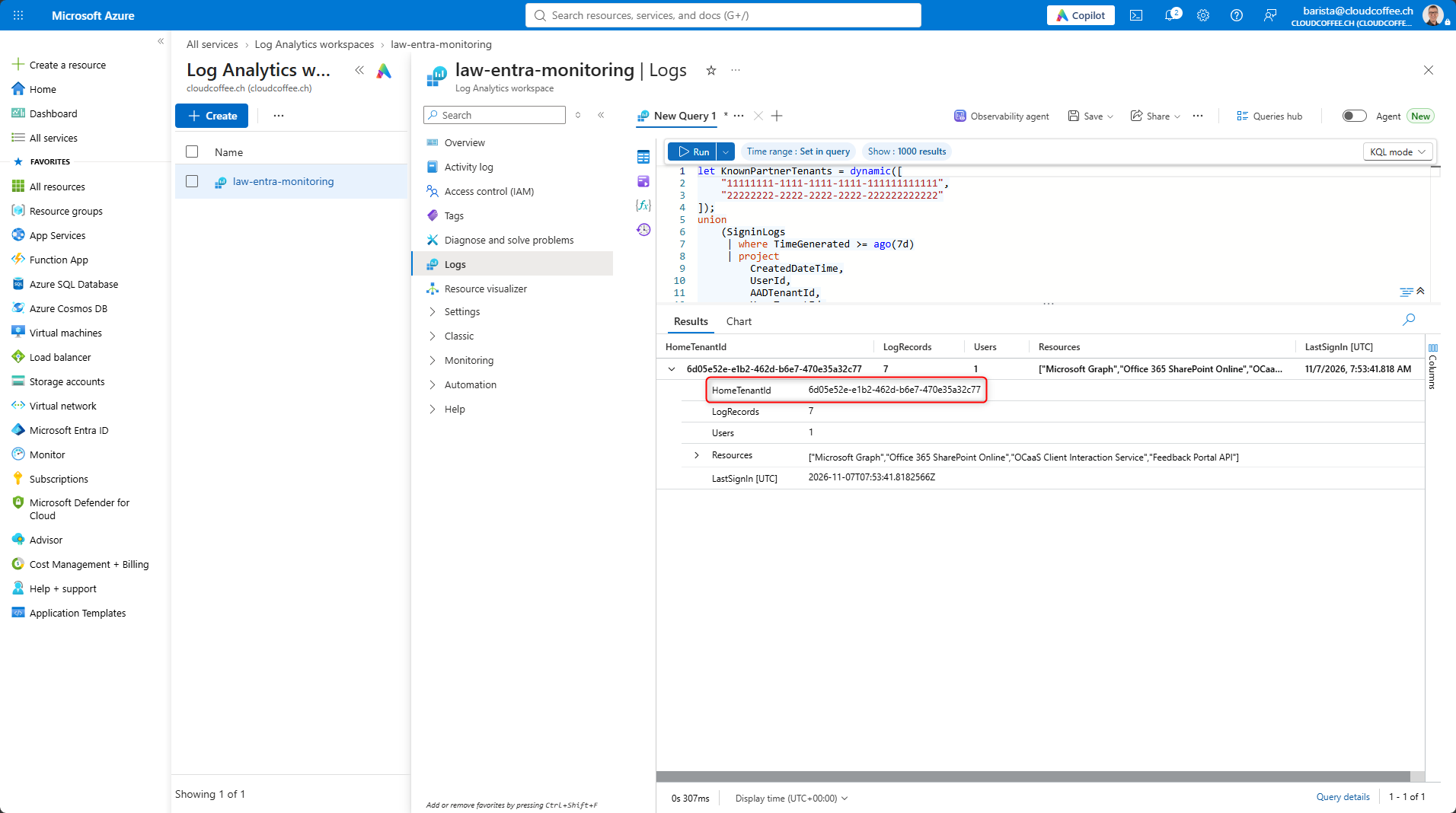
A result from this query may indicate a new partner relationship or an incomplete partner list. Review and update the list regularly.
Changes to Cross-Tenant Access Settings
Changes to cross-tenant access settings can affect the security of guest access, including which MFA claims and device claims from external tenants are trusted.
The following query shows the activities recorded during the past seven days:
AuditLogs
| where TimeGenerated >= ago(7d)
| where Category == "CrossTenantAccessSettings"
| project
    TimeGenerated,
    Id,
    OperationName,
    Result,
    InitiatingUser = tostring(InitiatedBy.user.userPrincipalName),
    InitiatingApp = tostring(InitiatedBy.app.displayName),
    TargetResources
| order by TimeGenerated desc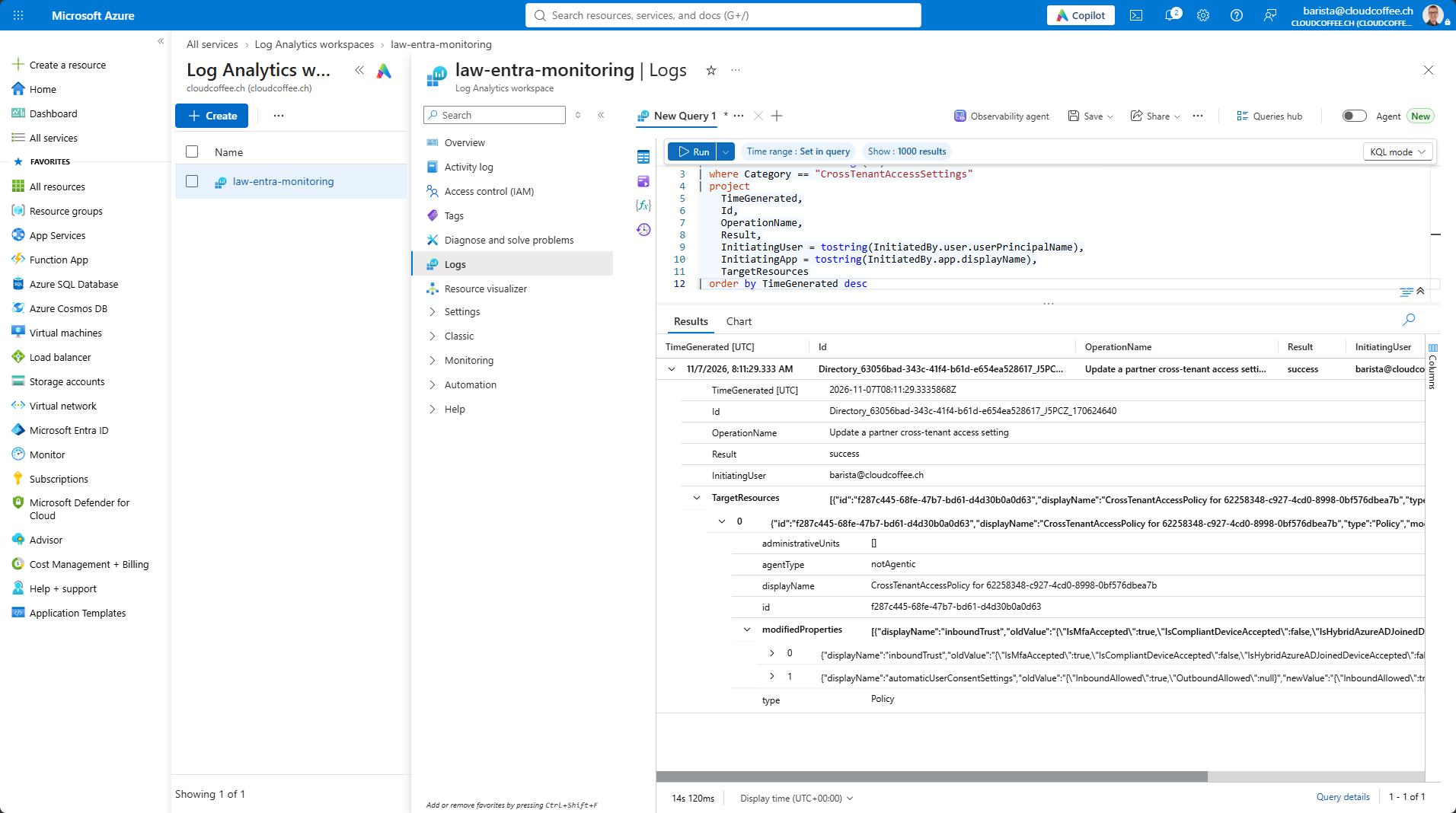
Configure Azure Monitor Alert Rules
Azure Monitor alert rules automatically monitor security-related events, eliminating the need to run KQL queries manually on a regular basis.
Activities involving cross-tenant access settings should be monitored. The example query below includes both successful and failed events, making failed change attempts visible as well. Successful changes can directly affect the security of guest access.
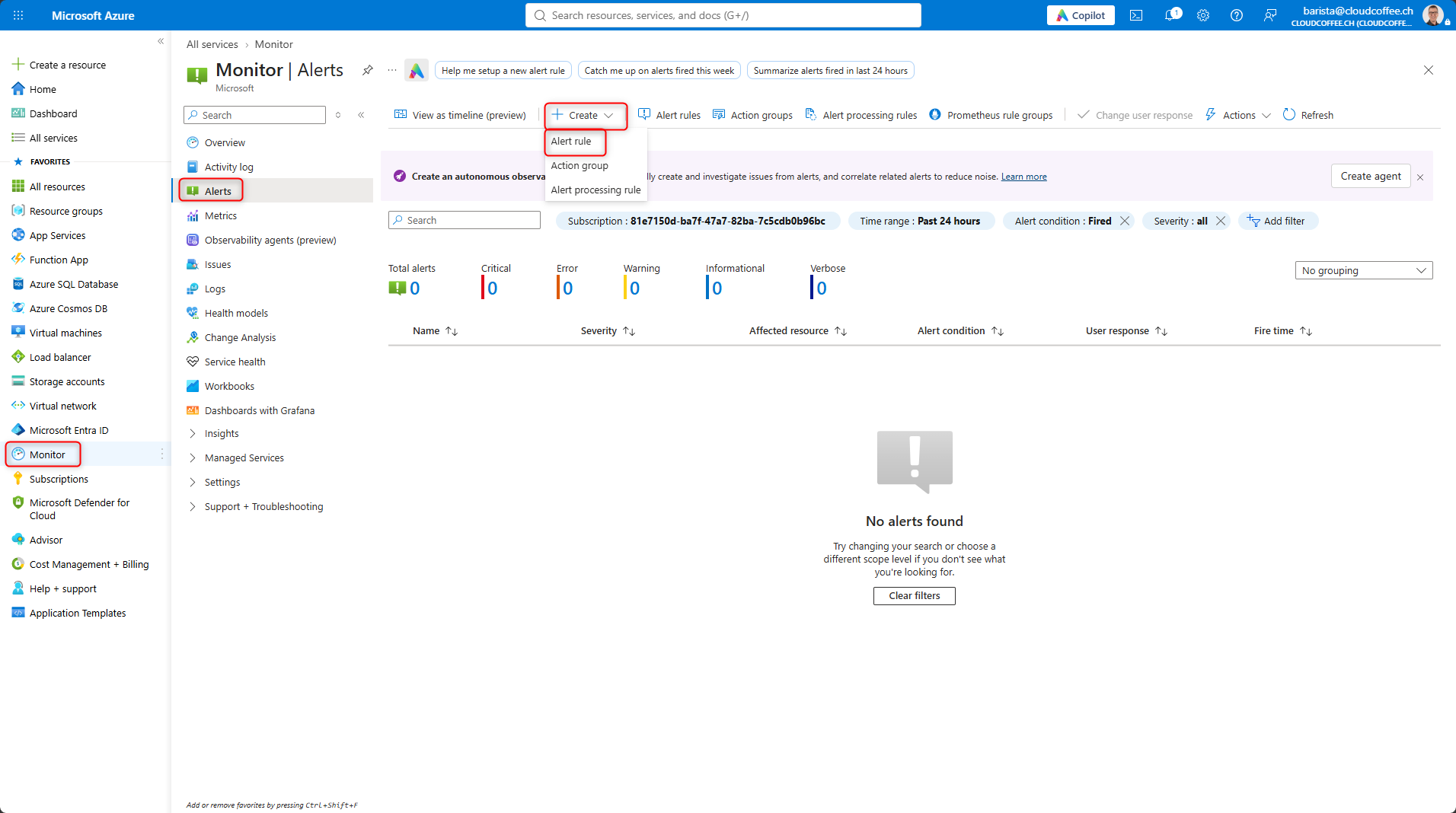
Azure Portal (https://portal.azure.com) > Monitor > Alerts > Create > Alert rule
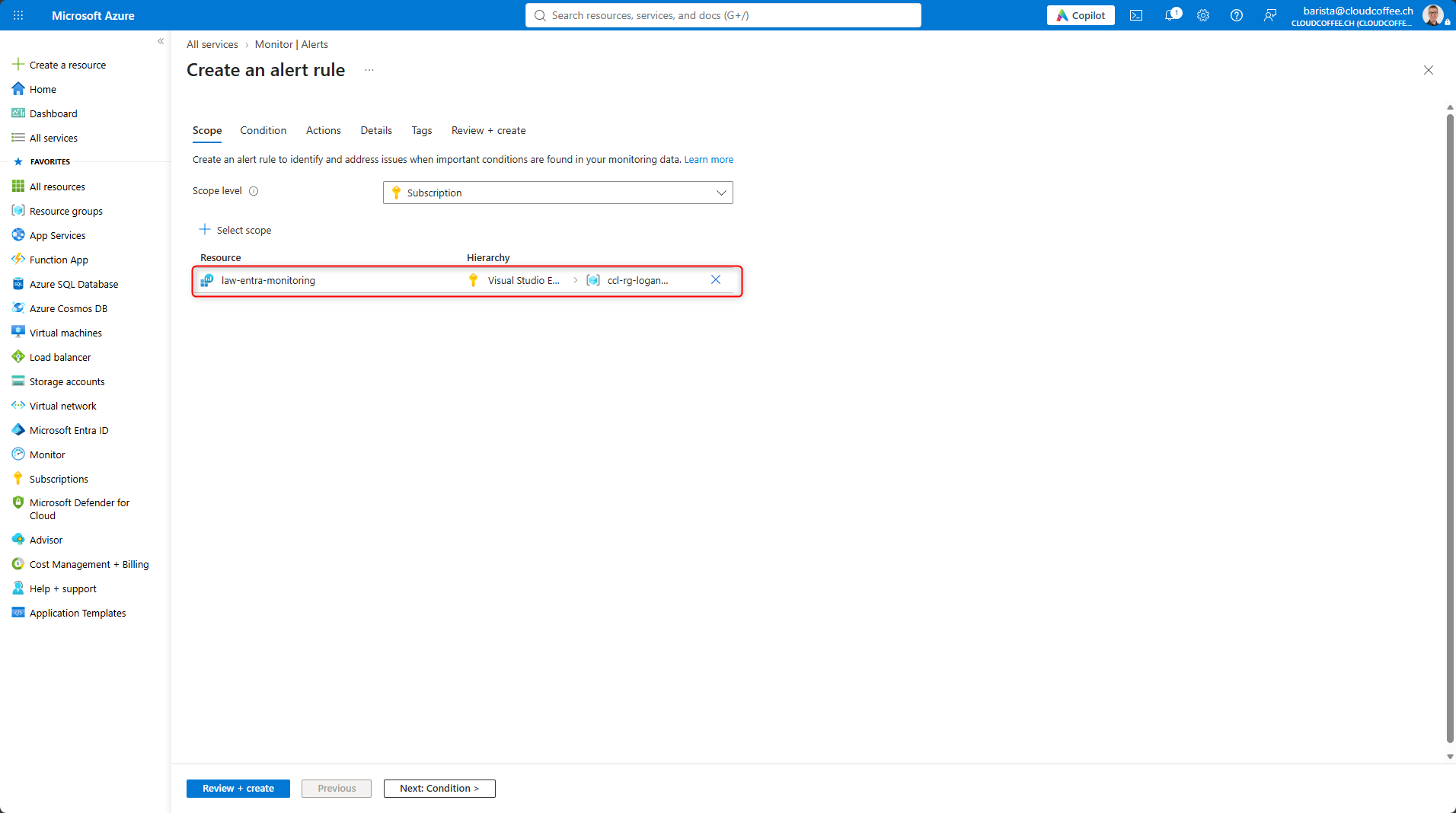
Select the Log Analytics workspace containing the Microsoft Entra audit logs as the Scope.
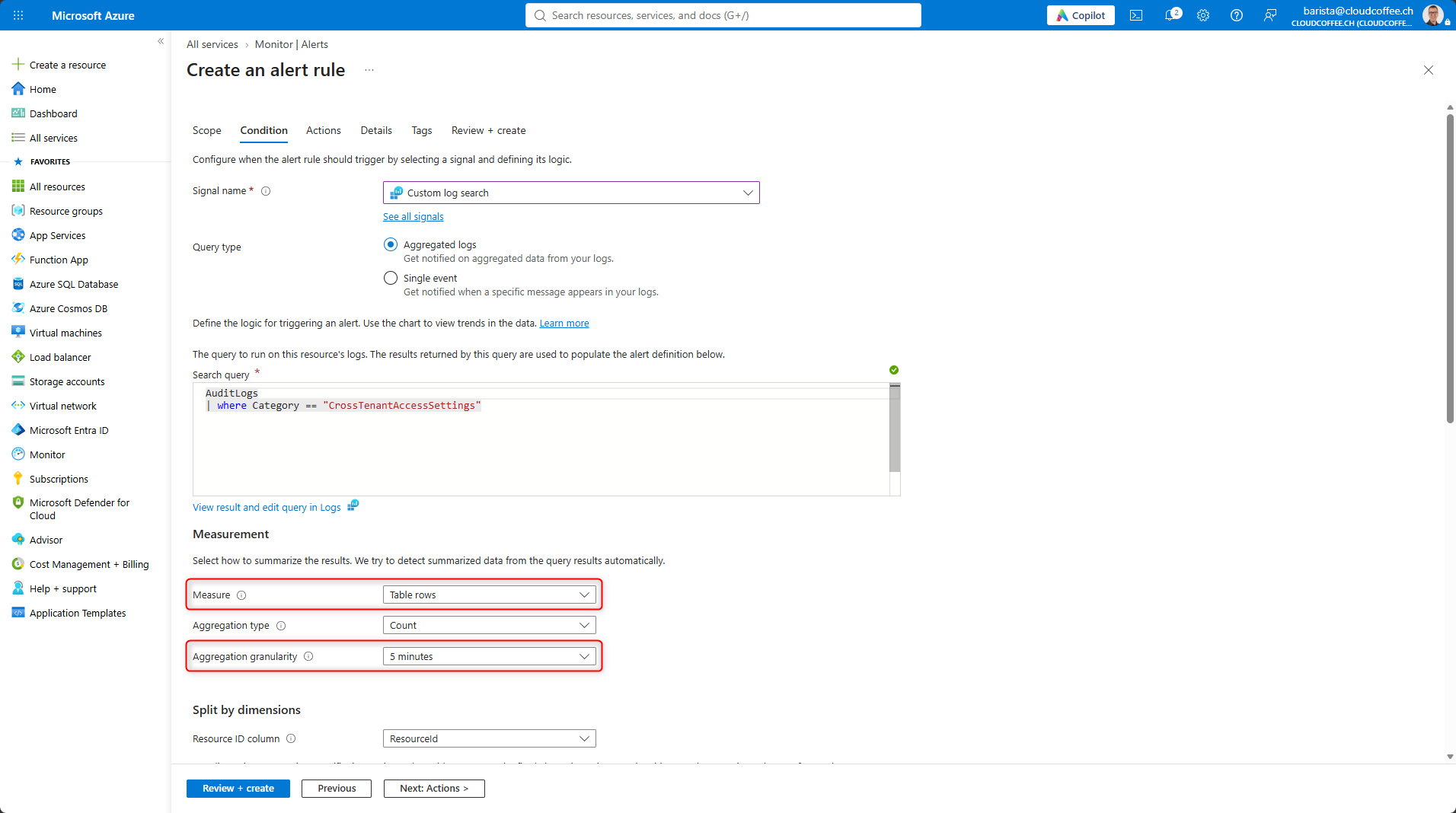
Under Conditions, select Custom log search as the signal type and use the following KQL query as an example. Then select Continue Editing Alert.
AuditLogs
| where Category == "CrossTenantAccessSettings"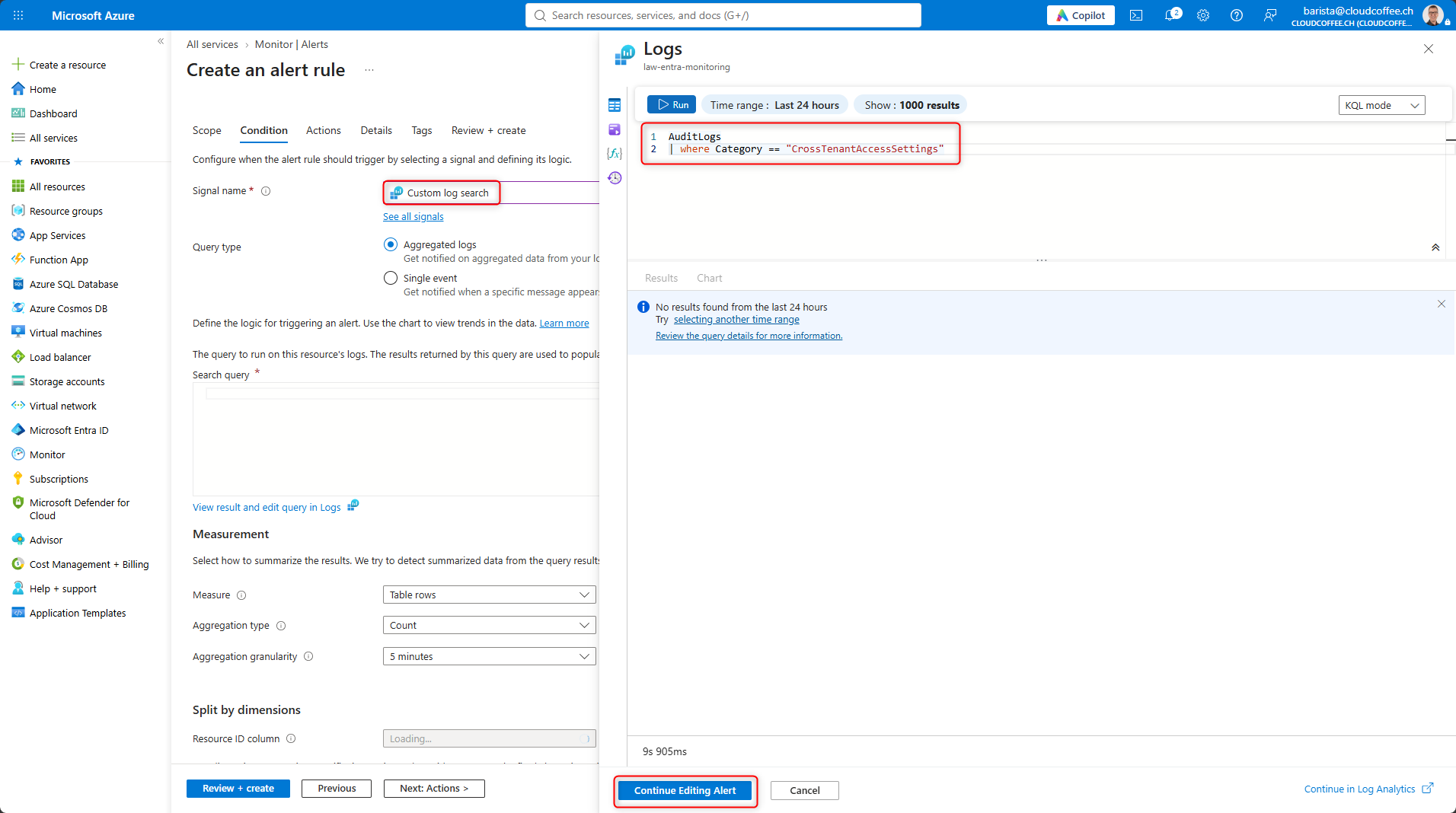
Select Table rows as the measurement, then set the aggregation interval under Aggregation granularity.
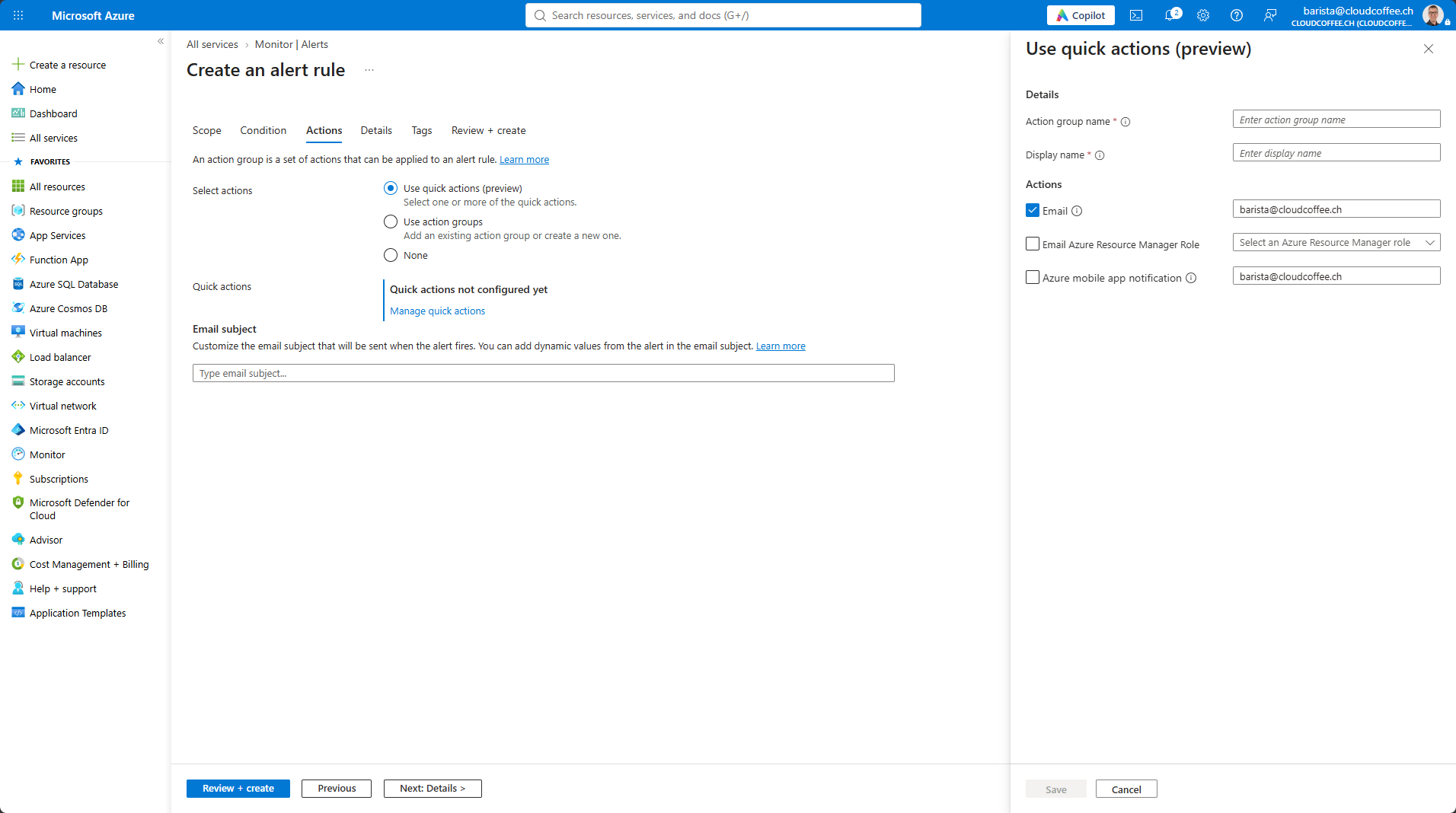
Under Actions, configure a quick action directly in the alert rule, or select an existing action group or create a new one. Quick actions can send email notifications, while action groups provide reusable notifications and support further automation.
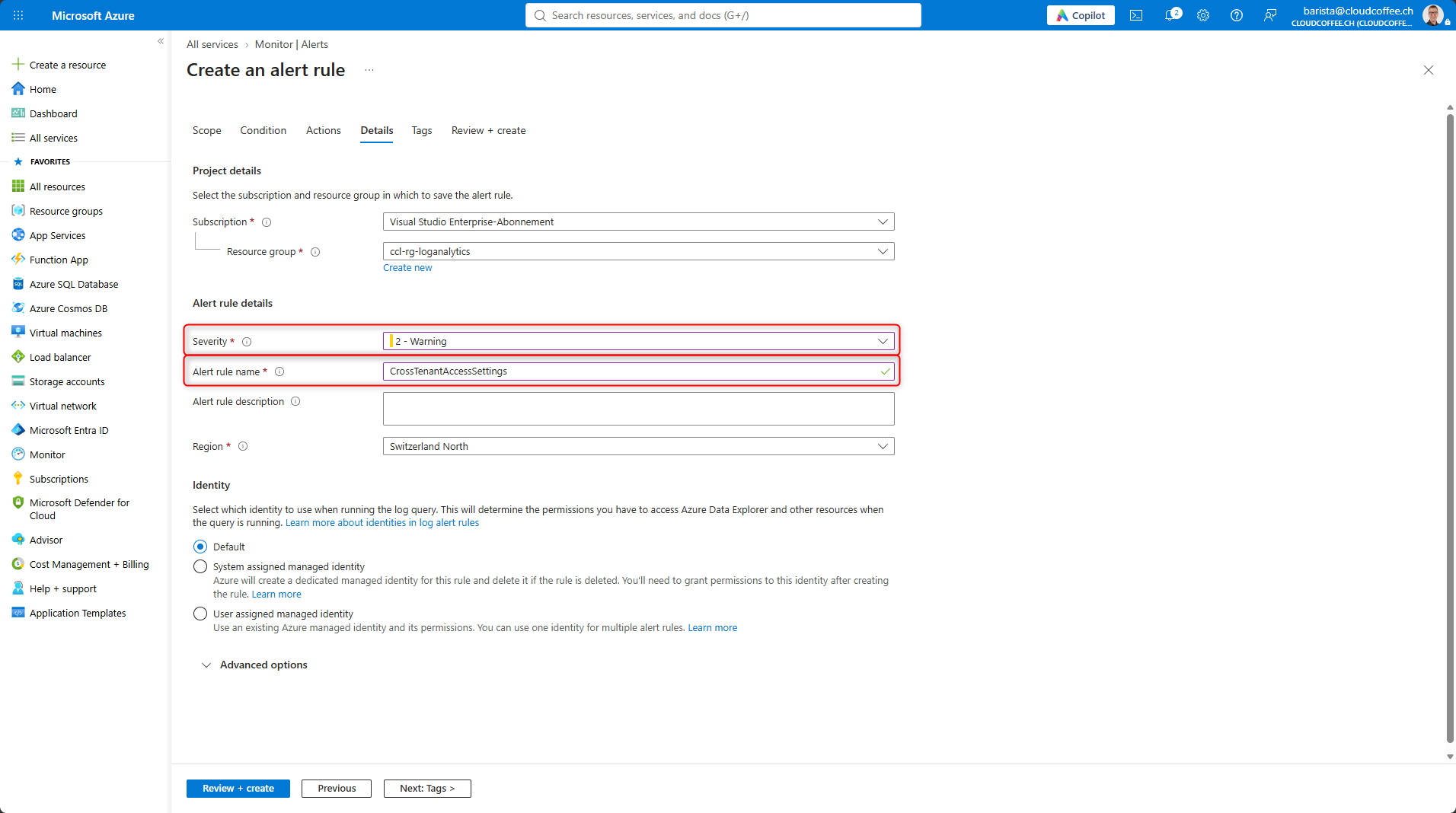
Under Details, specify the alert rule name and severity, then select Review + Create to complete the configuration.
The complete configuration process for log search alert rules is described in the Microsoft Learn article Create Azure Monitor log search alert rules – Azure Monitor | Microsoft Learn.
Additional alert rules can be created to meet specific monitoring requirements.
M365Con Session
The content in this article series is based on my session on Microsoft Entra guest access at M365Con. The full session covers the concepts and configuration examples discussed in these articles, along with additional topics around Conditional Access and monitoring, and is available on YouTube.
The session is also available with an English audio track. In the YouTube player, select Settings > Audio track > English.
Conclusion
Securing Microsoft Entra Guest Access requires a monitoring layer in addition to trust, access control, and lifecycle governance. Sign-in logs show which external identities access resources. Audit logs record guest invitations and changes to security-relevant settings. Diagnostic settings send this data to Log Analytics workspaces for analysis.
KQL turns the collected logs into repeatable controls. It can be used to identify access from unknown partner organizations, guest invitations, and changes to cross-tenant access settings. Azure Monitor alert rules complement these queries by providing active notifications for events that should not depend on manual review.
The approach described in this article provides a simple foundation for monitoring Microsoft Entra Guest Access. Depending on the requirements, it can be extended with Microsoft Sentinel or other centralized security monitoring solutions.
Security does not end with configuration. Monitoring is what shows whether the intended controls are actually working in production.
Fresh content, explained with practical relevance. Stay up to date via LinkedIn and Bluesky.


No marketing. No noise. Just content.
If this post was helpful, a coffee brings back the rich aroma behind the writing.