Disable Entra Connect Seamless SSO – Step-by-Step Guide
Seamless Single Sign-On (Seamless SSO) is an optional feature in Microsoft Entra Connect that enables domain-joined Windows devices on the internal network to automatically sign in to Microsoft Entra ID without requiring users to re-enter their credentials. Seamless SSO extends Active Directory by providing a single sign-on mechanism for cloud services such as Microsoft 365 and connected SaaS applications.
During configuration, Active Directory uses the Kerberos authentication protocol and creates a dedicated computer account named AZUREADSSOACC in the on-premises directory. This account links the local identity to Entra ID and is used exclusively for seamless SSO operations.
During the sign-in process, a domain-joined Windows device on the internal network requests a Kerberos ticket for the AZUREADSSOACC account from a domain controller.
Using Integrated Windows Authentication (IWA), the device automatically sends this ticket to Microsoft Entra ID for validation. The authentication completes silently, without any additional user input.
Seamless SSO requires a direct network connection to the domain controller and is therefore not applicable outside the corporate network, as Kerberos connectivity is unavailable.
In modern cloud-first environments with Microsoft Entra joined or Microsoft Entra hybrid joined devices, seamless SSO has become obsolete because the Primary Refresh Token (PRT) already provides a seamless single sign-on experience.
Seamless SSO is an optional feature. Disabling it reduces complexity and potential attack surfaces without negatively affecting the overall user experience.
This article explains why Seamless Single Sign-On (Seamless SSO) in Microsoft Entra Connect is no longer required in modern environments and outlines the key reasons to disable Entra Connect Seamless SSO. It also provides detailed steps to verify and turn off Seamless SSO in Entra Connect. The objective is to reduce the attack surface and administrative overhead without affecting the user sign-in experience.
Prerequisites
Entra Connect with Seamless Single Sign-On enabled
Microsoft Entra Connect is configured with the Seamless Single Sign-On (Seamless SSO) feature.
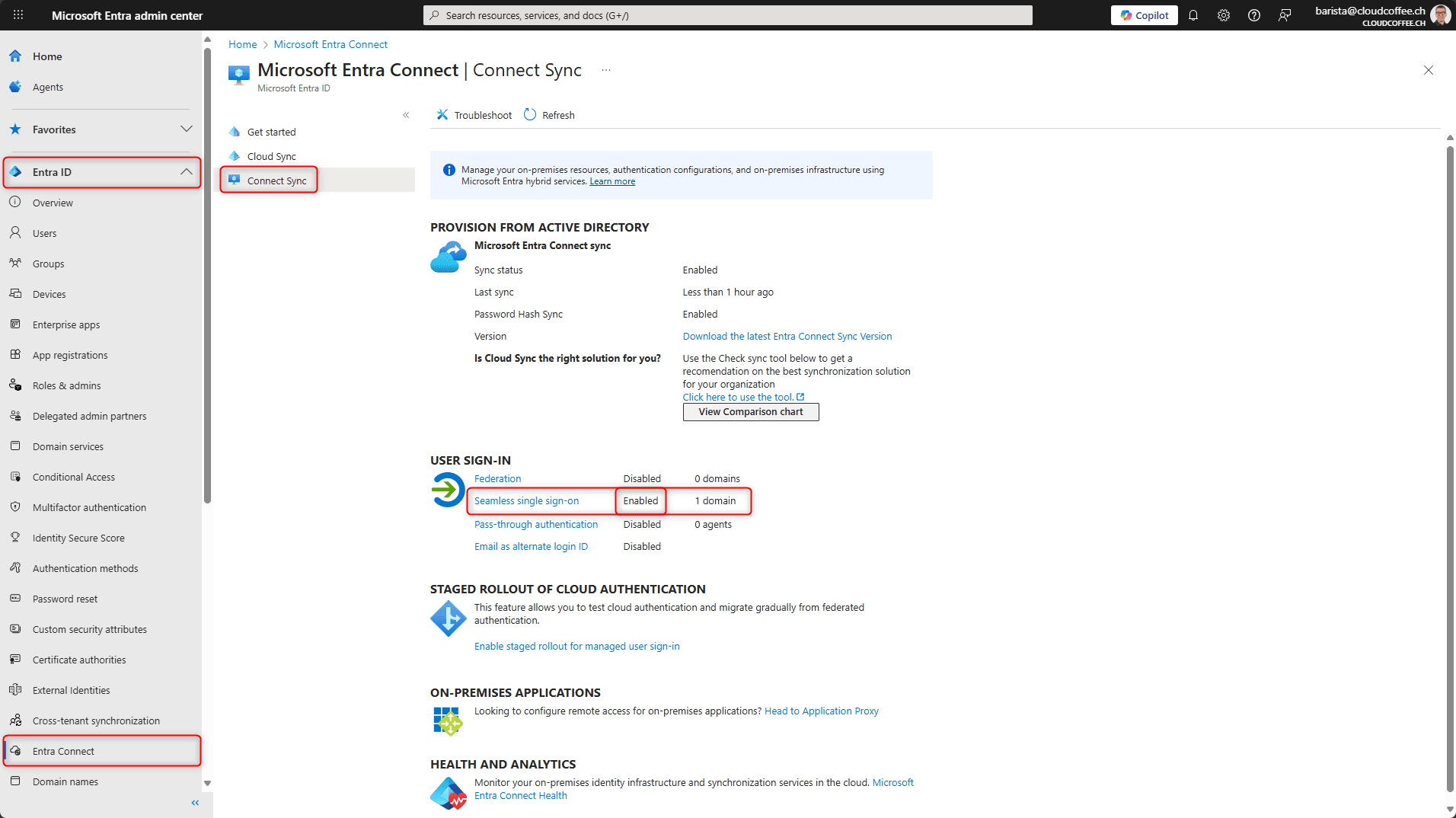
The Seamless Single Sign-On status is shown as Enabled in the Microsoft Entra admin center (https://entra.microsoft.com) under Entra ID > Entra Connect > Connect synchronization.
Roles
Disabling Seamless Single Sign-On (Seamless SSO) in Microsoft Entra Connect requires the following role, according to the principle of least privilege:
| Role | Permission |
| Hybrid Identity Administrator | Manage directory synchronization using Microsoft Entra Connect |
Devices
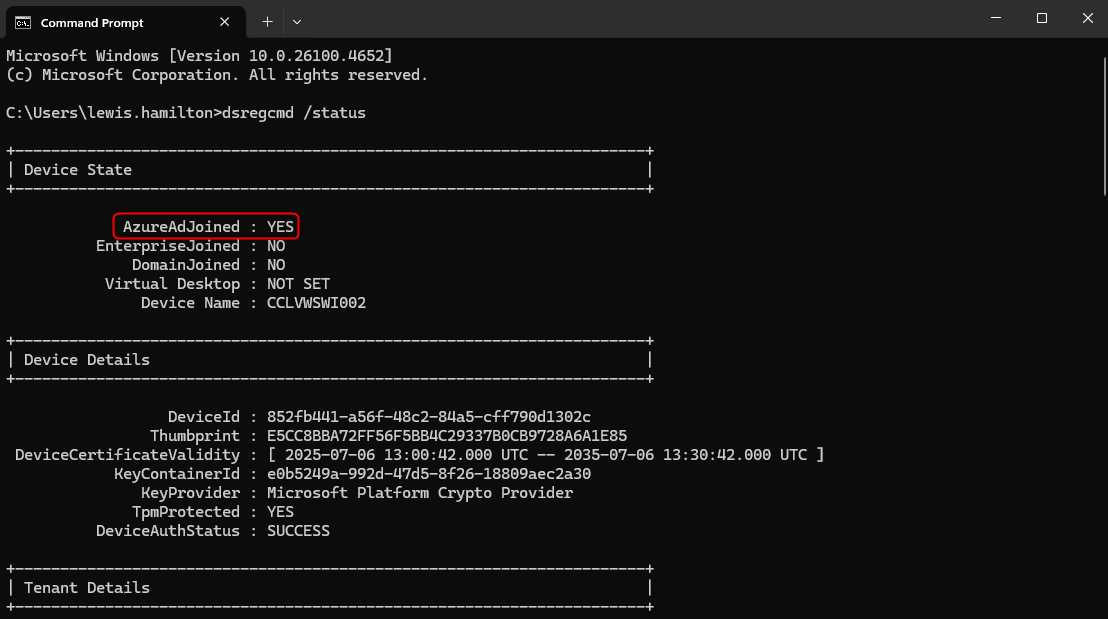
All devices are either Microsoft Entra joined or Microsoft Entra hybrid joined.
The current status can be verified using the following command:
|
1 |
dsregcmd /status |
Why it makes sense to disable Entra Connect Seamless SSO
In modern environments, Seamless Single Sign-On (Seamless SSO) has become technically obsolete.
There are several reasons to disable Entra Connect Seamless SSO:
- No longer necessary due to modern authentication
Microsoft Entra joined and Microsoft Entra hybrid joined devices use the Primary Refresh Token (PRT), which enables seamless single sign-on without relying on Kerberos. As a result, an additional SSO mechanism such as Seamless SSO is no longer required. - Reduced attack surface
The AZUREADSSOACC account holds elevated permissions in Active Directory, and a compromise could allow attackers to manipulate authentication flows or gain unauthorised access. - Reduced complexity
Maintaining the AZUREADSSOACC account introduces administrative overhead, including the periodic Kerberos key rollover. During this process, administrators must regularly renew the stored key to maintain the security of Seamless Single Sign-On (see blog post: Microsoft Entra: Roll Over Kerberos Decryption Key). Disabling Seamless SSO simplifies the environment and reduces operational maintenance. - Modern authentication instead of seamless SSO
In hybrid identity scenarios, Seamless SSO is now primarily maintained for backward compatibility and is increasingly being replaced by modern authentication protocols such as OAuth 2.0 and OpenID Connect. - Recommendation
Seamless Single Sign-On (Seamless SSO) is an optional feature. Environments that already use Microsoft Entra ID with modern authentication can typically disable Entra Connect Seamless SSO without any negative impact on user sign-in.
Disabling Seamless Single Sign-On (Seamless SSO) reduces complexity, minimises potential security risks, and makes the authentication architecture more transparent. In modern Microsoft Entra environments, the Primary Refresh Token (PRT) provides the same seamless sign-in experience – yet with stronger security and without any dependency on the on-premises network infrastructure.
Check whether Seamless Single Sign-On is active
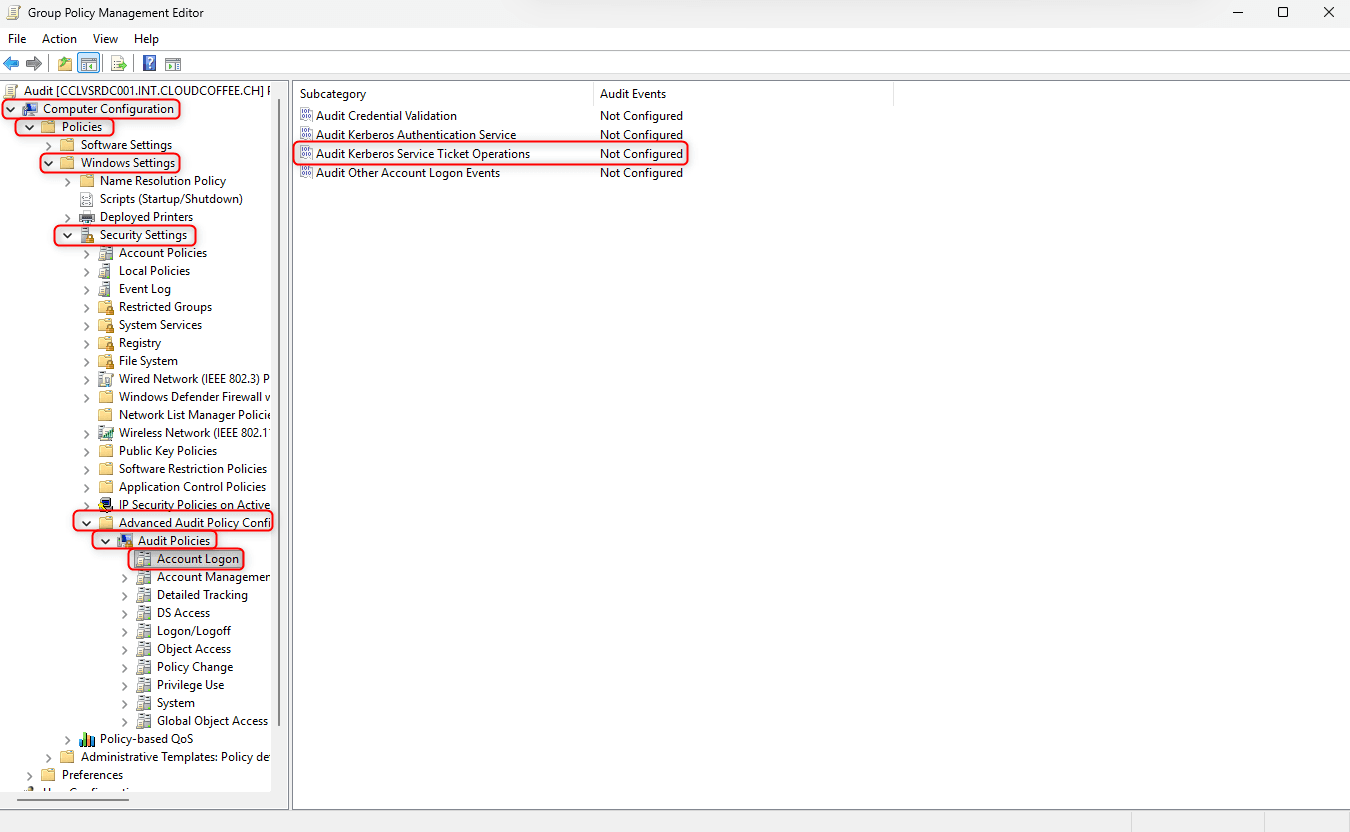
Before Seamless Single Sign-On (Seamless SSO) is disabled, it is recommended to verify whether the feature is currently in use. This can be done by logging sign-in activity through Windows Security Auditing. Enable the Audit Kerberos Service Ticket Operations under Account Logon Policies to capture relevant authentication events. A Group Policy Object (GPO) can be used to activate this setting and apply it to all domain controllers.
Computer Configuration > Policies > Windows Settings > Security Settings > Advanced Audit Policy Configuration > Audit Policies > Account Logon > Audit Kerberos Service Ticket Operations
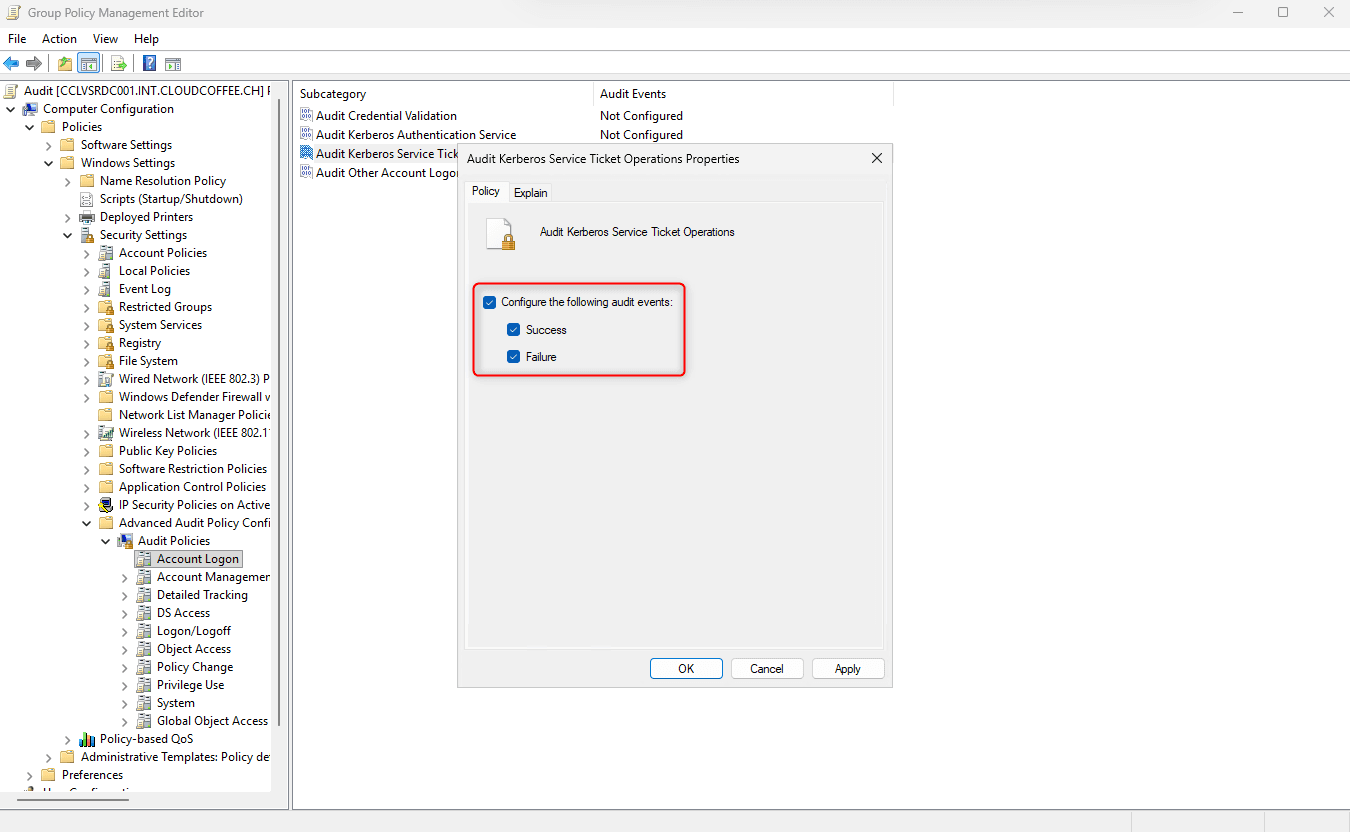
Enable auditing for Success and Failure events
After a few days, the Event Viewer under Windows Logs > Security can be filtered by Event ID 4769. Entries showing the Service Name AZUREADSSOACC$ (1) indicate that Seamless Single Sign-On (Seamless SSO) is being used. The corresponding user account is listed in the Account Name (2) field.
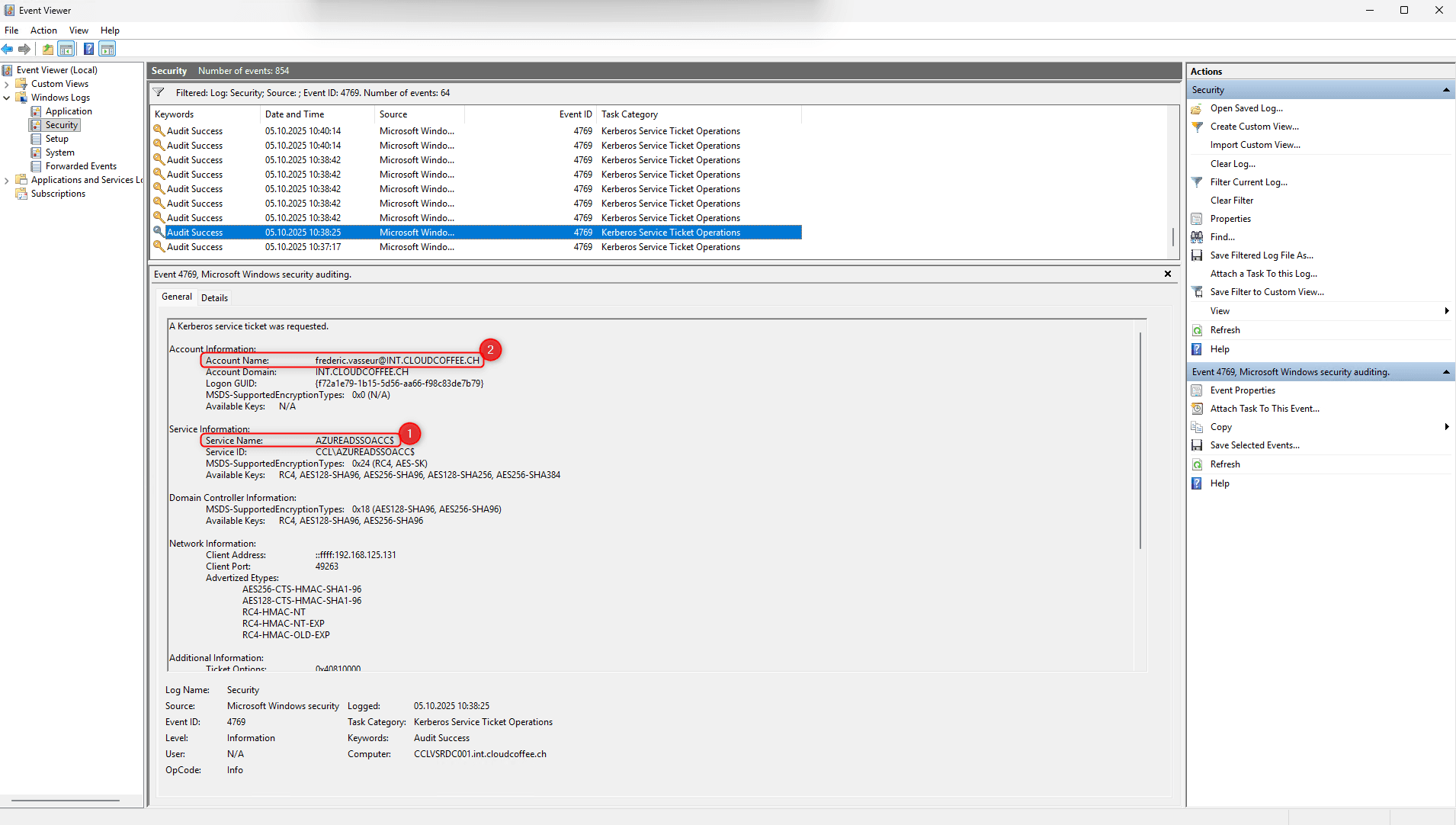
If entries with Event ID 4769 appear in the Event Viewer, these events should be analyzed and the affected sign-ins reviewed before disabling Seamless Single Sign-On (Seamless SSO).
Disable Entra Connect Seamless Single Sign-On
The disabling process is performed directly in Microsoft Entra Connect. The existing configuration is modified so that sign-ins using Seamless Single Sign-On (Seamless SSO) are no longer possible.
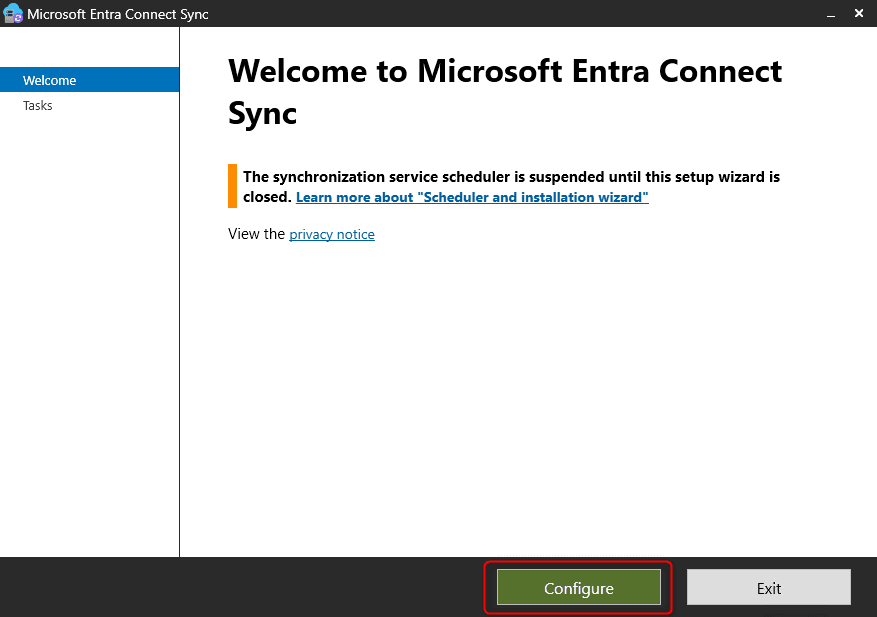
Open Microsoft Entra Connect and select Configure
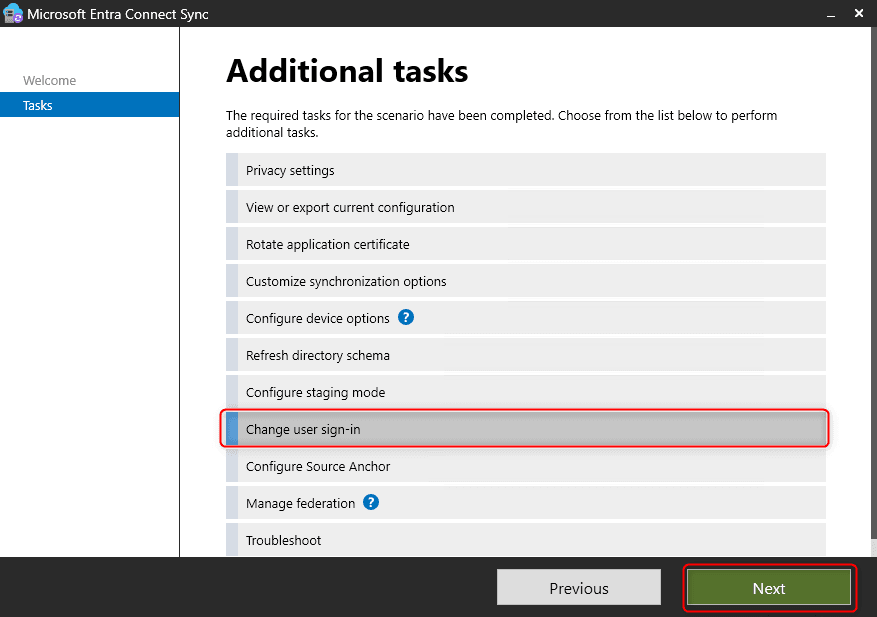
Select Change user sign-in
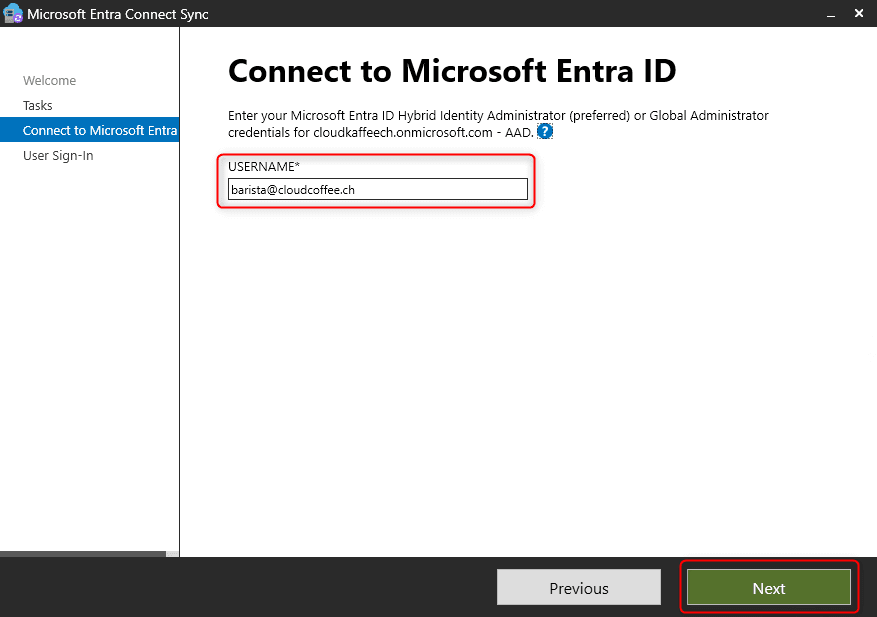
Sign in with a user account that has been assigned the Hybrid Identity Administrator role
Disable the Enable single sign-on option
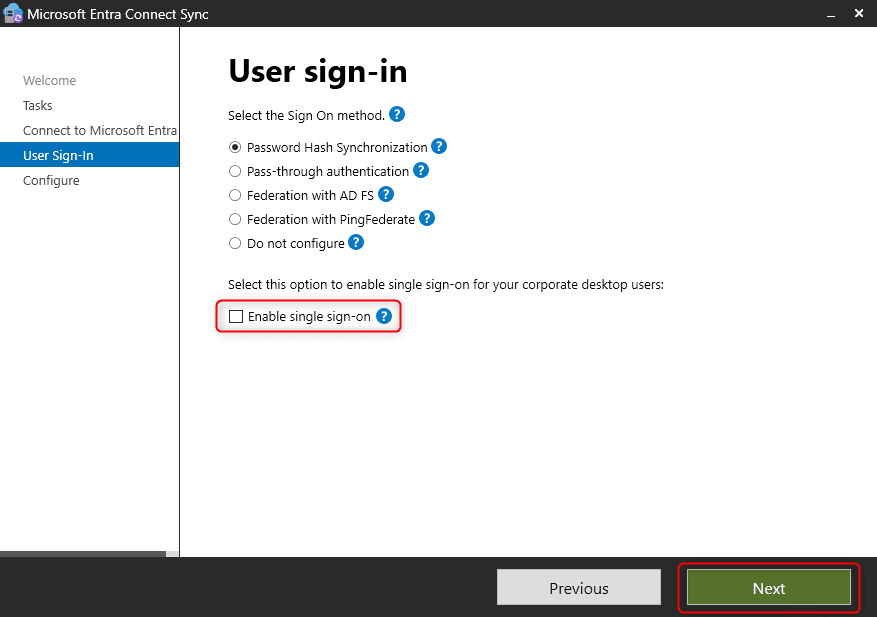
Save the configuration by selecting Configure
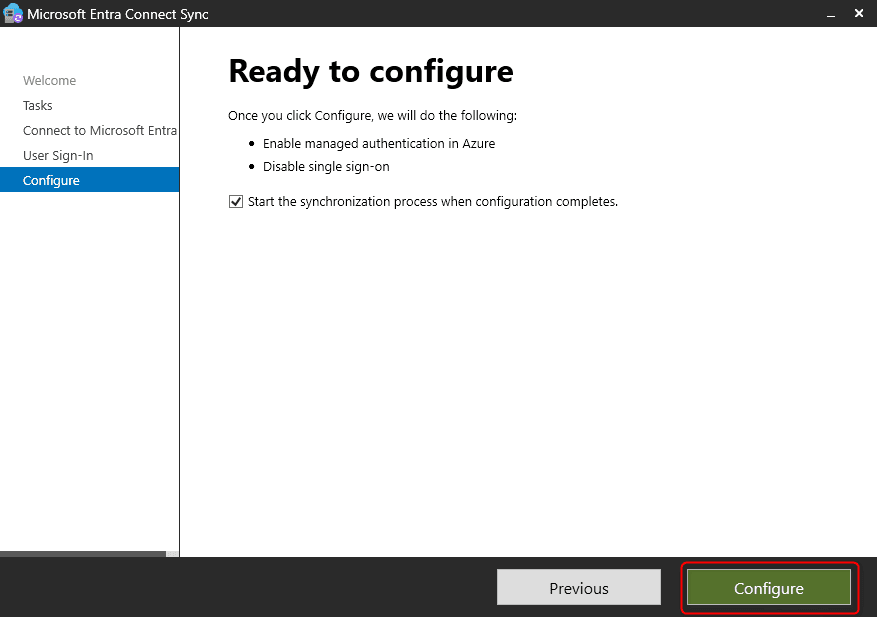
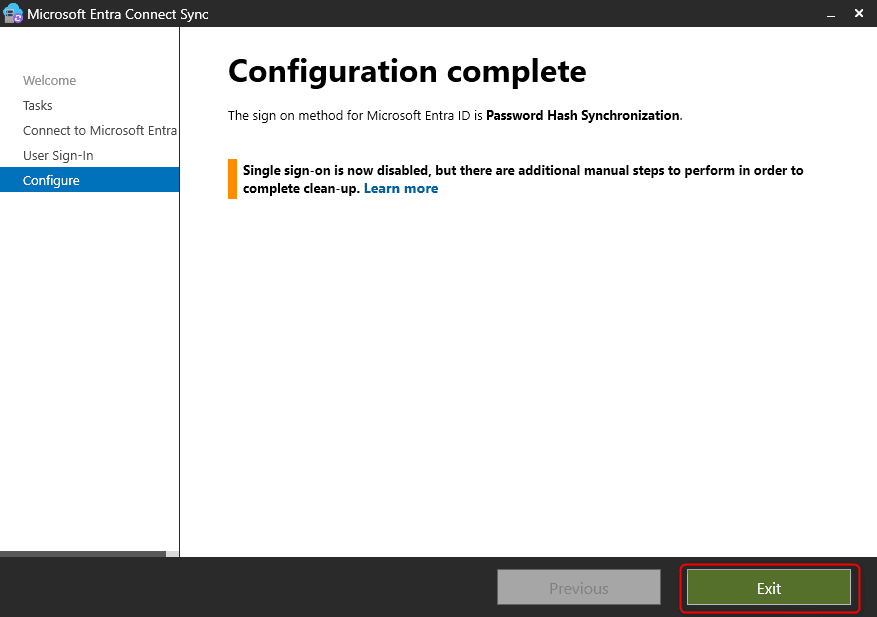
The configuration change completes after a few minutes
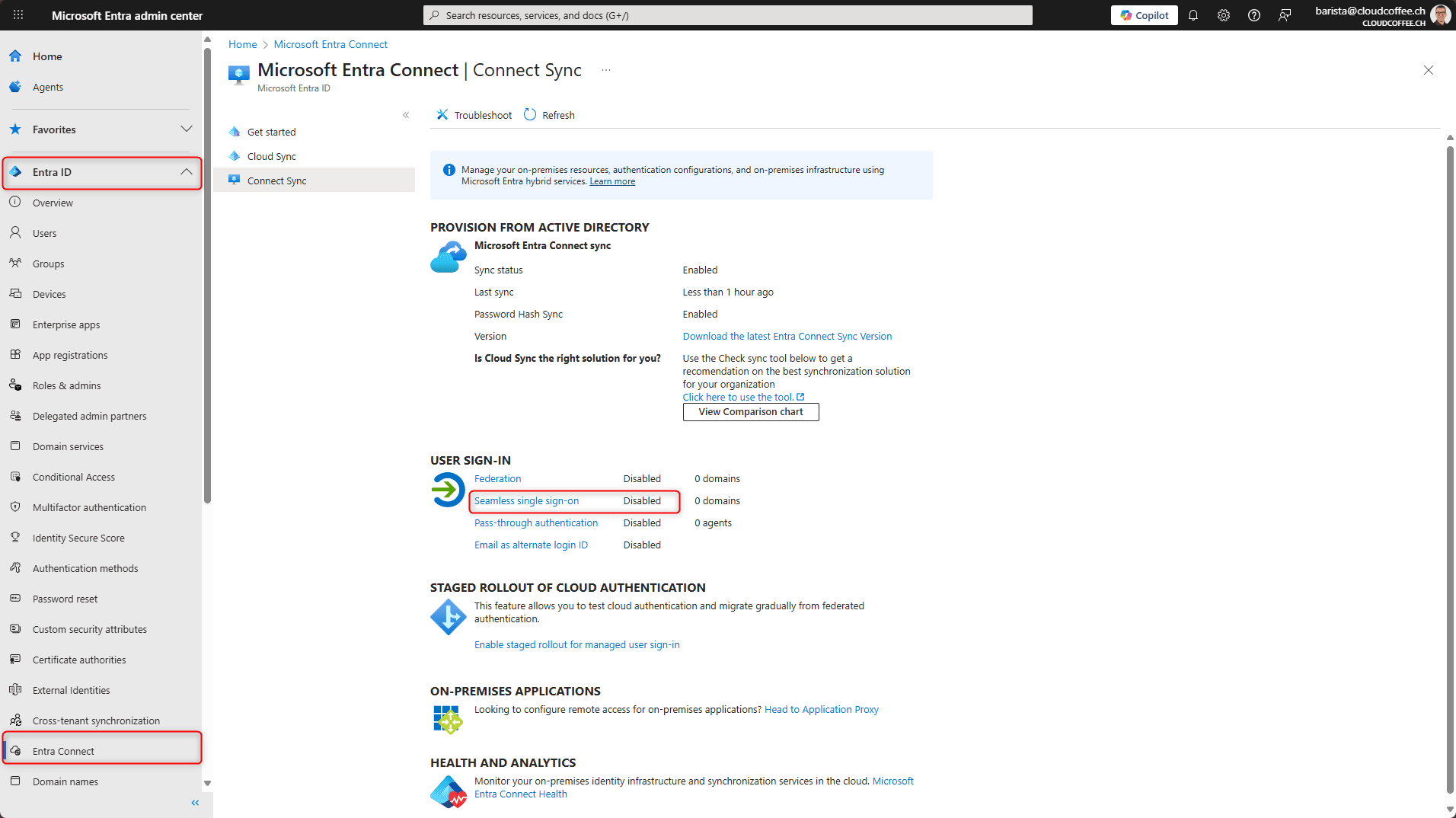
Seamless Single Sign-On (SSO) is now shown as Disabled in the Microsoft Entra admin center.
Microsoft Entra admin center (https://entra.microsoft.com) > Entra ID > Entra Connect > Connect Sync
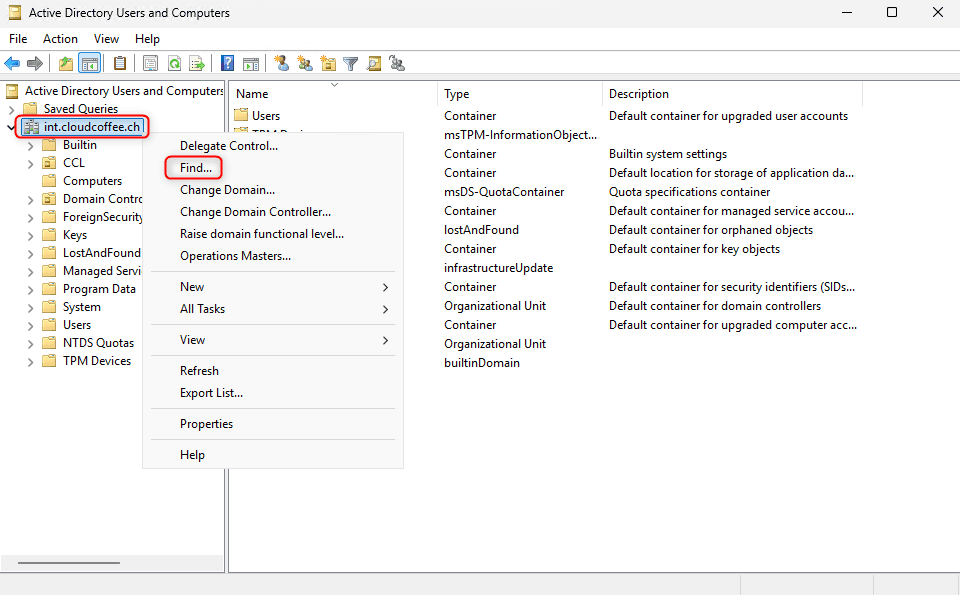
Then, in Active Directory, right-click the domain and select Find… to open the search dialog.
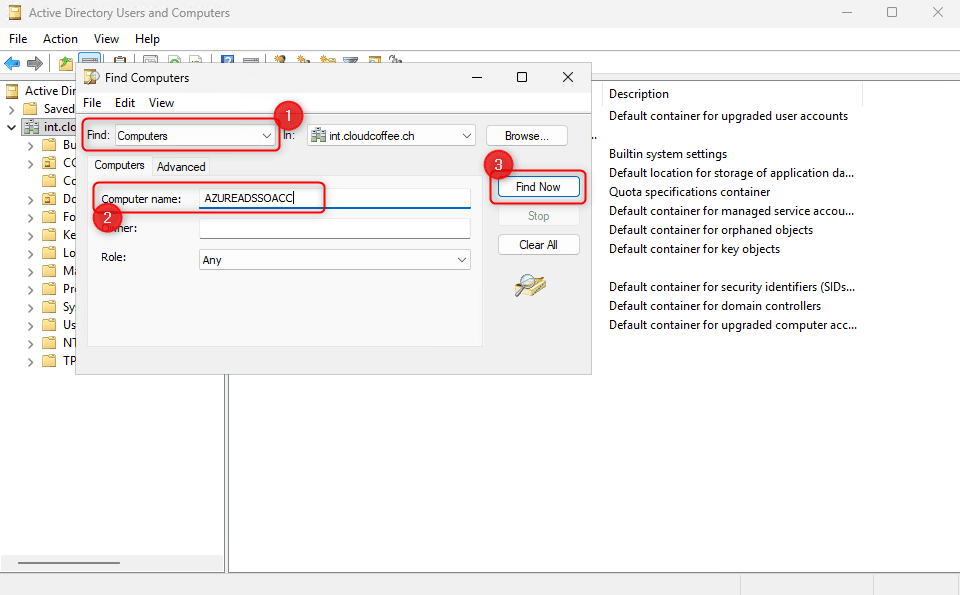
Set Find (1) to Computers and Computer name (2) to AZUREADSSOACC.
Then select Find Now (3) to apply the filter.
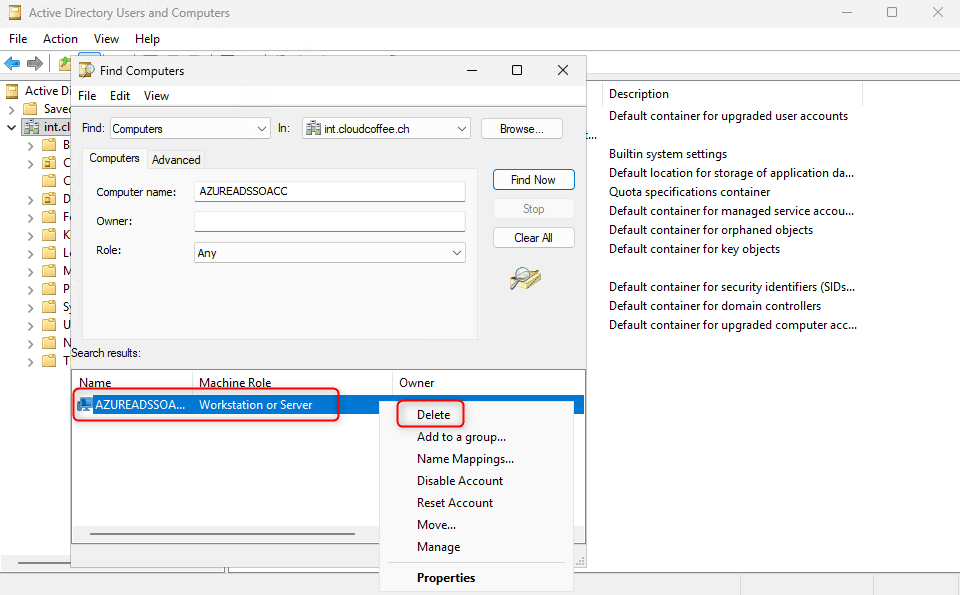
Right-click the computer account AZUREADSSOACC and select Delete to remove it.
Seamless Single Sign-On is now disabled, and the computer account AZUREADSSOACC has been removed from Active Directory.
Conclusion
Disabling Seamless Single Sign-On in Microsoft Entra Connect is a logical step for modern, cloud-based environments. The feature relies on Kerberos authentication, which has now been replaced by the Primary Refresh Token (PRT). By disabling Entra Connect Seamless SSO, organisations reduce complexity, for example, by removing the need for periodic Kerberos key rollovers and eliminate a potential security risk.
Fresh content, explained with practical relevance. Stay up to date via LinkedIn and Bluesky.


No marketing. No noise. Just content.
If this post was helpful, a coffee brings back the rich aroma behind the writing.